
While Gmail and Yahoo Mail continue to be mainstream email options, professionals and Windows fans will only give up Microsoft Outlook when you pry it from their cold, dead fingers. And that’s not a bad thing – the latest versions of Outlook have made significant jumps in UI and already-impressive feature suites, not to mention in connectivity with other email platforms.
But if you have recently updated Windows, downloaded a newer version of Outlook, or bought some new software, you may have noticed a problem – Outlook just stops working completely. Perhaps your computer freezes every time you try to open it. Maybe you get an error message whenever you try to check your email. Maybe the program just won’t start at all, and let’s face it, you really need to check those emails.
Here are the most effective steps you can take to get your Outlook email up and running successfully again. Take them one at a time, or scout through and find the solution that looks most applicable to your start-up problem.
Start with the basics
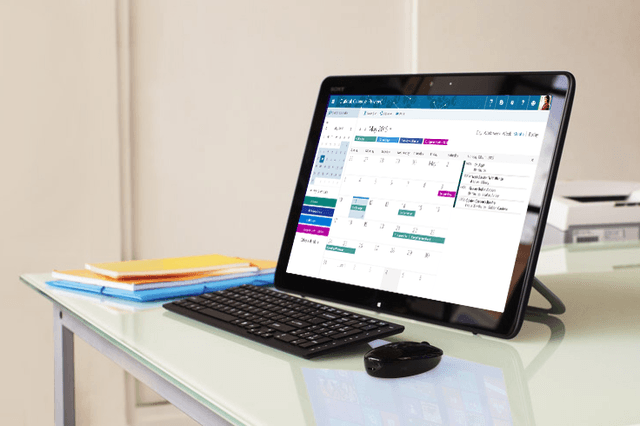
It’s literally the first thing everyone says, so let’s get it out of the way early. Try turning your computer on and off.
You’d be amazed how often this will solve your Outlook issue. Sometimes the operating system just needs to reboot. At other times, Windows needs to automatically download and apply important updates that will give you access to your email once again (particularly for Outlook 2016). Still other times, Outlook is being used by another process and cannot be accessed until you break the cycle. Whichever way, running through the old shutdown and startup procedure will have a positive effect.
However, your computer isn’t the only thing you should think about “restarting.” You may want to consider uninstalling and reinstalling the Outlook app as well. You can easily archive your emails to OneDrive or other cloud storage options for this step if you are worried about losing them – in fact, backing up your emails is highly recommended no matter what restart procedure you choose, just in case something goes wrong. Reinstalling Outlook completely can help work out some of the bugs or update errors that may have crept in.
Read: How to sync your Google, Outlook and iCloud calendars in Windows 10
Other people have reported that they can solve their Outlook problems by deleting their email user profile and replacing it entirely. Of course, this is a drastic solution that you should only consider if your user profile appears to be corrupted. You can test this method out first by creating a brand new Outlook profile before deleting your old profile, to see if the new identity works properly.
Updating Outlook and other software
Not all updates are automatic, particularly if you have the automatic update feature in Windows turned off. If restarting your computer doesn’t fix Outlook, then you may want to look for available Windows updates that you need to manually implement.
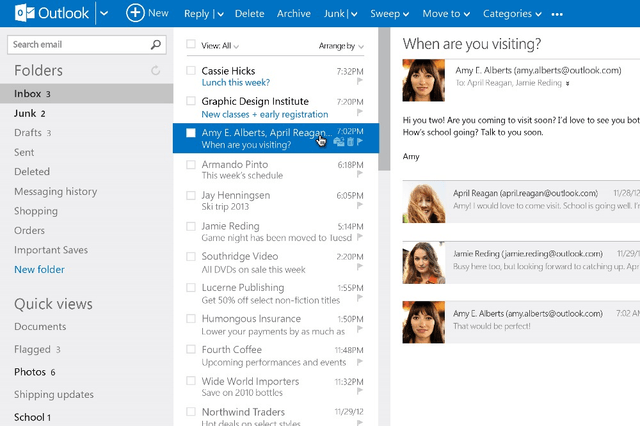
You can visit Settings, find Update and recovery, and then pick Choose how updates get installed to turn on automatic updates or partially activate them for the most important updates. Or you can visit this handy page on the Microsoft Support site to access all the recent updates for Outlook (through Outlook 2013) and download them one at a time.
It’s also a very good idea to make sure any antivirus software that you use is fully updated. Sometimes antivirus programs fall behind and take an irrational dislike to Outlook, preventing you from opening the program. Updating your security software can usually fix this problem.
Opening in safe mode
If Microsoft Outlook is freezing or giving you some serious error messages every time you try to start it, one of the most useful tests you can do is starting in Outlook safe mode. You can run the “outlook.exe /safe” command to do this.
There’s a reason this is a common piece of advice. If Outlook does work in safe mode, this tells you a lot about what’s wrong: The problem is probably an add-in that is messing with Outlook’s settings. Those malfunctioning add-ins are probably outdated by now – a problem more likely to occur with Outlook 2016 than any other version.
You can control your Add-ins by going to the File menu, finding Options, and then clicking on Add-Ins. From here look for COM Add-ins. Clear all these add-ins and then start Outlook in the normal mode. If it works, you can start adding back add-ins one at a time until you find out which is malfunctioning and must be avoided.
Fixing damaged data files
If Microsoft Outlook crashes or refuses to open at all – or if you are getting corrupted file messages – then you could be dealing with damaged data, especially if none of the previous fixes have worked. Fortunately, there is a way you can try to repair damaged files and restore functionality. Shut down all Microsoft Office applications, open up the Control Panel and go to Programs and Features. Find your current version of Microsoft Office and right-click it, then choose the Repair (a.k.a Quick Repair) option.
If you want to direct input a scan-and-repair command for more control and information, here’s a great Microsoft answer on what to run as a command prompt. FYI, you will need to run this System File Checker as an administrator.
The most likely file corruption you will discover is with PST or Outlook Personal Storage files. These files are little partitioned spaces that can be created to store Outlook emails away from the email client, and tend to be more common in a business environment. However, they are an ancient solution and outclassed by simpler mechanics these days. They also don’t play nice with LANs or network shares.
Long story short, if your search uncovers corrupted .pst files, it’s time to remove them completely before they cause even more errors.
“File access denied” errors
This is a weird little error that tells you that a set of folders cannot be opened because “file access is denied” and you “do not have the permission required” and other things designed to frustrate you. This error message will include a specific file name, probably located in the C Drive. Copy that file name and search for it in your search box to bring it up.
Right click on the troublesome file, and go to Properties. Head over to the Security tab, choose “Edit” and give your user account “Full control.” Restart Microsoft Outlook and see if works. Note: This type of user permission problem may be more common after an upgrade to Windows 10.



