One of my favorite things about macOS is that it comes with default apps to handle your everyday tasks. You get Safari to browse the web, the Mail app to handle your emails, and the Preview app to open and view photos and PDFs.
But what if you want to use a third-party app you prefer over the default app? Thankfully, Apple makes it easy to change the default apps on your Mac. So, whether you want to use Google Chrome or Outlook, here’s how you can set them as the default on your Mac.
Change the default app for specific file types
Unless you’re looking to change your default web browser or email client (which we’ll cover below), there’s only one method you need to remember when it comes to changing your default apps on a Mac.
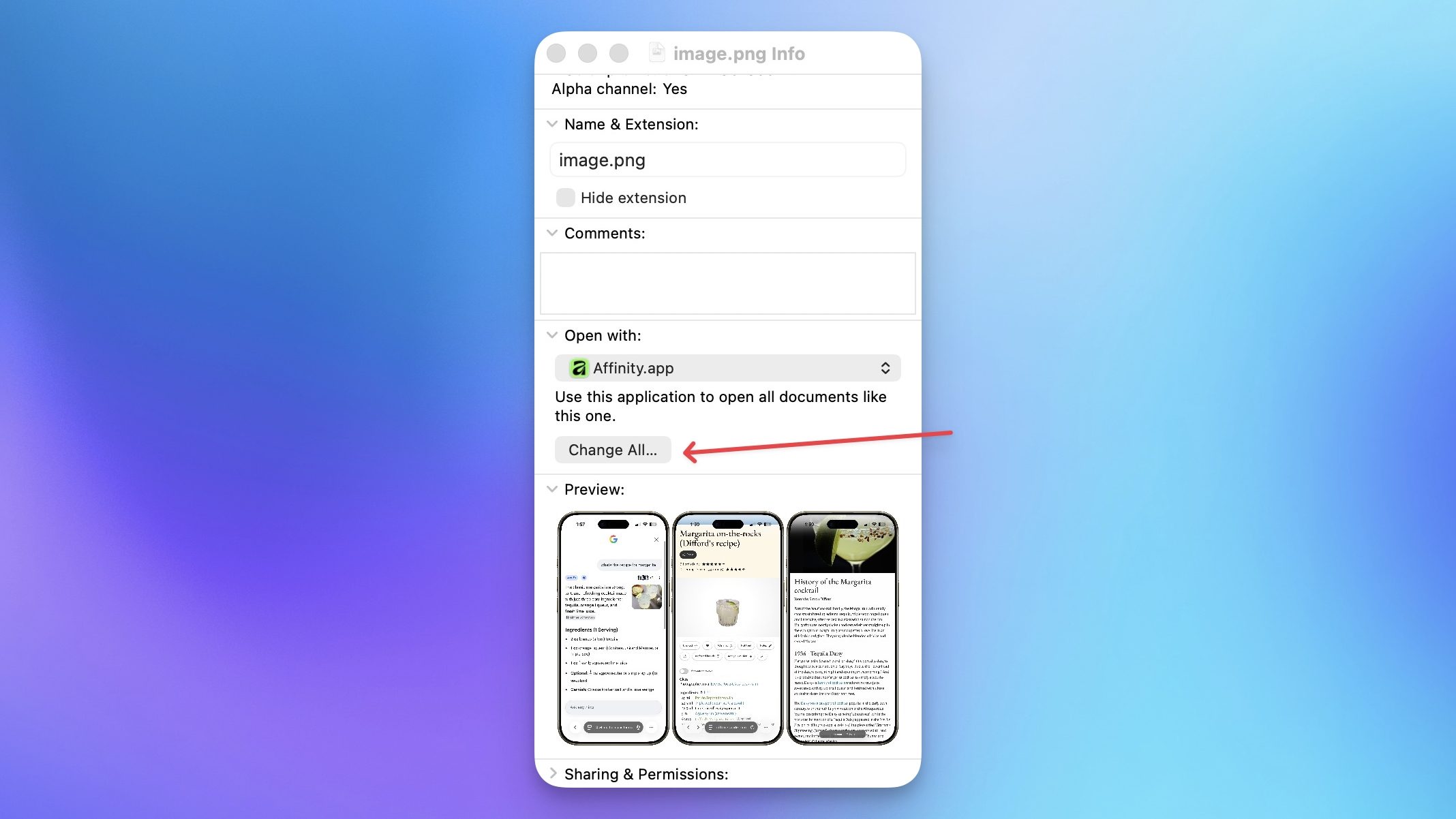
Let’s say you have a PNG file and want to change which app it opens in. By default, your Mac will open it with Preview, Apple’s built-in photo viewing and editing app. To change that, right-click or Ctrl+click the file in question, then click Get Info.

This will bring up a new window. Here, head to the “Open with:” section and choose your new app from the drop-down list.

Now, click the Change All button. Next time you double-click to open a file with the same extension, it will open with your new default app.
Change your default web browser
Safari is the default browser on the Mac, and it will satisfy most users. It’s fast, automatically stops any tracking links, and is easy on the battery. However, it’s also missing features. The extension support is abysmal, and tab management is not up to the mark.
If for these reasons or some reason of your own, you want to switch your default web browser, you can easily do so in macOS. To do that, click the Apple logo in the top-left corner and open the “System Settings” app.

Now, open the “Desktop & Dock” settings and scroll down to the Widgets section. Here, you will see a dropdown menu next to the “Default web browser” setting. Click on it and select your preferred browser to set it as the default.

Now, whenever you click on a link, for instance, in an email forwarded from a friend, you’ll see this new default pop up instead.
Change your default email app
If there’s an app category that will have most productivity workers up in arms, it will be the email app. No two people can seem to agree on the best email app for their workflow. I myself constantly switch between email apps, hoping to find something that can stick for a long time, but never do.
This has led me to conclude that there’s no perfect solution for emails, and we are doomed to switch to the next shiny thing. If you are also the same, these steps will help you switch the default email client on your Mac.
Launch the Mail app on your Mac and hit the keyboard shortcut “⌘,” to open the settings. Alternatively, click on Mail in the Menu Bar and open settings.

Click to open the General settings, and you will see a “Default email reader” option. As you can see, I am currently using Spark as my default email client, and you can use the dropdown menu to set your favorite email client as default.

Common default-app change locations
As you saw, not all default apps are managed the same way in macOS. Use the table below to quickly find where Apple places the settings for the most common app categories.
| Task | Location |
| Change default browser | System Settings |
| Change default email app | Mail Settings |
| Change default image viewer | Get Info |
| Change default video player | Get Info |
| Change default PDF viewer | Get Info |
Frequently asked questions
Q. How do I make Chrome my default browser on Mac?
Click the Apple logo, open System Settings, and navigate to Desktop & Dock. Scroll down to the Widgets section and click the dropdown next to Default web browser. Select Chrome from the list.
Q. How do I change the default PDF viewer on Mac?
Right-click any PDF file and click Get Info. Under the Open With section, select your preferred PDF viewer from the dropdown and click Change All. All PDFs will now open with that app.
Q. Why does my Mac keep opening files with the wrong app?
Your Mac opens files with whatever app is set as the default for that file type. If the wrong app is launching, right-click the file, click Get Info, and change the default app under the Open With section.
Q. What does the “Change All” button do on Mac?
Clicking Change All sets your chosen app as the default for every file sharing that extension, not just the one you right-clicked. So if you do it on a PNG file, all PNG files will open with the new app going forward.
Q. How do I reset default app settings on a Mac?
Follow the same steps you used to change the default app. Right-click the file, open Get Info, and select the original app from the Open With dropdown. Click Change All to restore it as the default.
Q. What should I do if my preferred app doesn’t appear in the Open with list?
Click Get Info on the file, open the Open With dropdown, scroll down, and click on Other. Now, change the filter from Recommended Applications to All Applications to find and select your app.
Q. Can different users on the same Mac have different default apps?
Yes. Default app settings are tied to each user profile, so every user on the same Mac can set their own preferred defaults without affecting anyone else.
Default Mac apps are good, but third-party apps can offer more
There’s no doubt that Apple includes some excellent apps with macOS, and that too, for free. However, they offer limited features, and once you grow out of them, you can use the methods above to switch your default apps. You can read my favorite Mac apps list to find some excellent apps for your Mac.