
Before 4K became the target resolution for all home entertainment, 1440p (WQHD, or 2560 × 1440) was a great sweet spot. It sits above 1080p (Full HD or 1920 x 1080), providing excellent graphical fidelity without taxing systems that can’t ideally handle 4K.
However, not all laptops even offer a 1440p setting. Here’s why and how to get it back.
Easier use means fewer options
When we asked HP about the lack of a 1440p resolution in its ZBook Studio G4 mobile workstation, a representative said the company wanted to simplify the built-in screen’s Extended Display Identification Data. In other words, although we discovered that the panel did, in fact, support 1440p, HP merely wanted to shorten the resolution list you see in Windows 10.
For example, if you right-click on the desktop, select Display Settings on the list, and scroll down to expand the Display Resolution list, you may not see a 1440p option. That means Windows 10 does not see the setting in the display’s Extended Display Identification Data. The panel may support 1440p, but you’re blocked from using it.
“It’s worth noting that pro applications from HP’s software vendors have been optimized for FHD and are now transitioning to UHD (3840 × 2160 or 4K),” a representative said at the time. “The company’s goal is to simply provide the best UHD display possible for its users.”
We also reached out to EVGA regarding its SC17 1080 laptop, which didn’t list a 1440p resolution, although its 4K screen was clearly quite capable of supporting it. A representative said that the panel used in the laptop didn’t officially support 1440p due to hardware limitations. The representative could not, however, tell us exactly why that was the case.
You can force 1440p
EVGA’s response was interesting, given the SC17 1080’s screen could clearly handle 1440p. We managed to benchmark this resolution by forcing the setting. Here’s how we did so using Nvidia’s control panel:
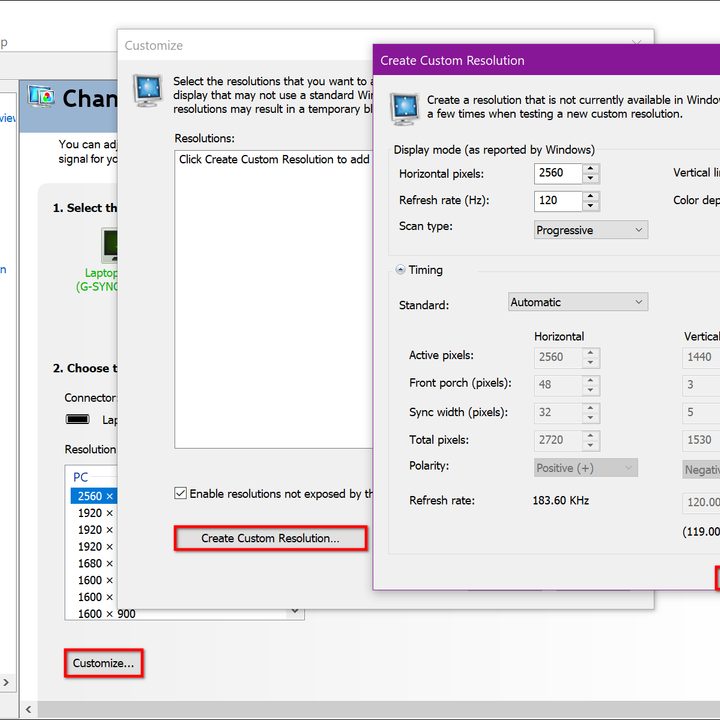
Step 1: Right-click on the desktop and select Nvidia Control Panel on the pop-up menu.
Step 2: Select Change Resolution listed under Display on the left.
Step 3: Click the Customize button at the bottom.
Step 4: Check the box next to Enable Resolutions Not Exposed By the Display. If the 1440p resolution suddenly appears on the list, you won’t need to manually create it. Otherwise, move on to the next step.
Step 5: Click the Create Custom Resolution button on the pop-up window.
Step 6: Enter 2560 as the number for the horizontal pixels and 1440 as the number of vertical pixels. You can also manually enter the desired refresh rate, choose the scan type, and adjust the timing via presets or manually.
Step 7: Click the Test button to see if your selected settings work. If they don’t pass the test, you’ll be prompted to adjust the settings and test again. If they do pass the test, click the Yes button on the pop-up window to save the settings.
Step 8: Close the Nvidia Control Panel.
On AMD-based machines, do the following:
Step 1: Right-click on the desktop and select AMD Radeon Settings on the pop-up menu.
Step 2: AMD’s Radeon Settings client appears on the screen. Select the Settings cog in the top-right.
Step 3: Select Display, then choose Custom Resolutions.
Step 4: Click the Accept button to acknowledge AMD’s disclaimer, followed by Create New.
Step 5: Enter 2560 as the number for the horizontal pixels and 1440 as the number of vertical pixels. You can also manually enter the desired refresh rate, choose the scan type, and adjust the timing via presets or manually.
Step 6: Click Save to complete. If the settings don’t work, you’ll be required to make adjustments and click the Save button again. If the settings work, the custom resolution will appear under the Custom Resolutions menu.
Step 7: Close Radeon Settings.
Set the correct GPU
Even if you still want to push an unlisted resolution, the laptop manufacturer may not provide the means to do so by default. There is a way around it, but it may not work for everyone.
In the case of HP’s ZBook Studio G4 with the Nvidia Quadro discrete graphics chip, we jumped into Nvidia’s Control Panel only to discover that most of the customizable settings were gone, including the option to create a custom resolution.
We then dove into Intel’s software managing the integrated graphics only to find that Intel’s resolution creation option was gone too.
That sent us digging into the laptop’s BIOS, the embedded “operating system” that controls all hardware, input, and output operations. Here we discovered that you can set the laptop to use one of the two graphics options by default — Intel’s integrated component or Nvidia’s discrete Quadro chip.
By default, the laptop was established to depend on Intel’s iGPU. Still, after we shifted over to the discrete Quadro chip and restarted, Nvidia’s administration board unbarred its comprehensive collection of settings. This enabled us to build a customized 1440p resolution for experimentation purposes.
1440p never had a mainstream chance
Eliminating the 1440p resolution has seemed to gel with most of today’s laptop producers’ thoughts about laptops.
Similar to HDTVs, among the most beloved and acclaimed resolution levels are 1080p and 4K. Contrary to popular belief, 1440p resolution is actually not very prevalent outside the realm of PC games. You may be shocked to know that even consoles that skipped from 1080p to 4K due to the TV market do not have this specific resolution. Toss in the fact that 4K panels are currently the latest trend, and 1440p certainly seems irrelevant for the standard laptop user.

However, this doesn’t actually mean that the lack of 1440p is tolerable. Laptop buyers should still be able to have their choice of resolutions when it comes time to make a purchase.


