
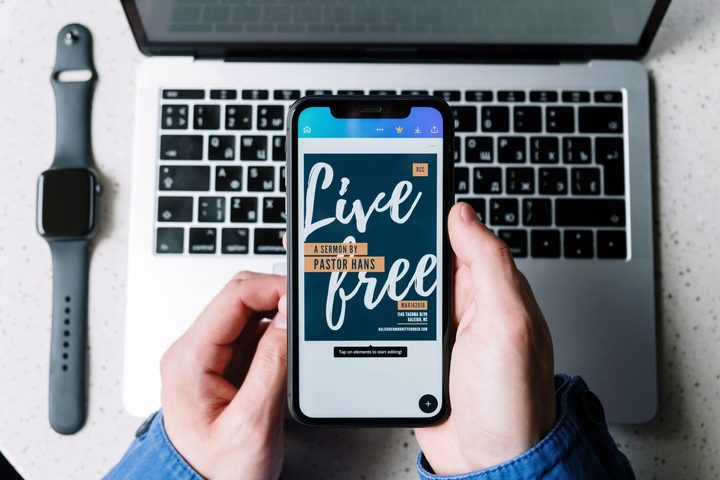
One of the best things about using more than one Apple device is the way they interact with each other. Apple has built all kinds of clever features into MacOS and across its famous ecosystem, and it means your devices all work together in a way that you just don’t get from any other manufacturer.
AirDrop might be the ultimate expression of this, though that’s fairly well-known. Here, we’ve picked out six other great ways your Mac works with other Apple products. Most require you to have Bluetooth and Wi-Fi enabled, as well as for you to be using the same Apple ID on all your devices. Check the System Settings app on your devices to make sure the specific features are enabled, although most should be by default.
Once that’s sorted, you’re ready to dive in. Here are the best ways you can use your Mac with other Apple devices to get more of that ecosystem goodness.
Control everything with one mouse
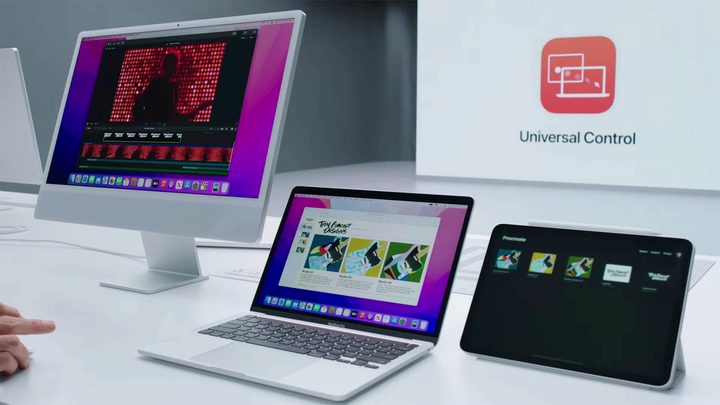
One of my favorite ways to link two (or more) Apple devices together is Universal Control. I raved about this feature when it first came out in beta, and it perfectly captures how well-thought-out Apple’s ecosystem is. I really don’t want to say it’s magic, but it feels pretty close.
How do you use Universal Control? You just put an iPad next to a Mac (for example) and turn on the relevant settings. You can then freely move your mouse pointer from one screen to the other using just a single mouse. You can do it with up to three devices, in fact, and they don’t even have to be different – you could use three iMacs if you wanted. As long as at least one of the devices is a Mac, any combination of Mac and iPad should work.
It goes beyond that, though. As well as sharing a mouse, you can also use one keyboard to type on both devices. It even lets you drag and drop files across your screens, just like you would on a single Mac that’s connected to multiple displays. It requires minimal setup and functions almost flawlessly. It’s Apple’s “it just works” philosophy in action.
The Continuity ecosystem
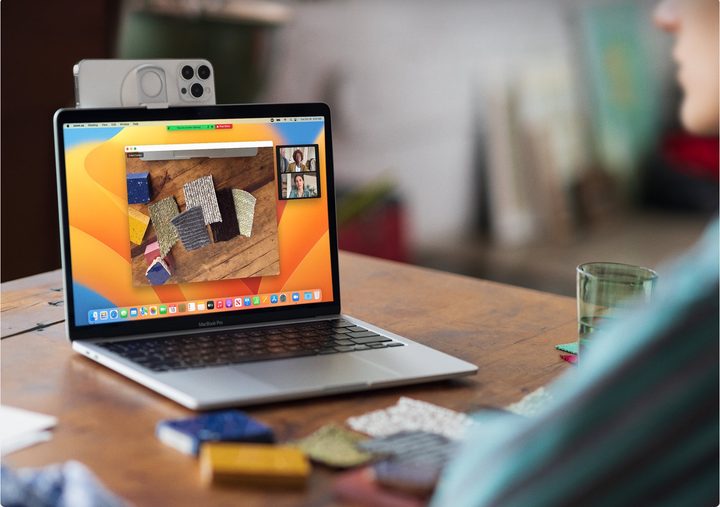
When it comes to using a Mac with other Apple products, Continuity is absolutely key. You don’t see this feature mentioned very often, but it comes with some extremely clever touches that make using your Apple devices a cinch.
Take Continuity Sketch, for example, which allows you to drop drawings from your iPad right onto your Mac. You just load up the app you want to insert the image into, then select File > Import from iPhone > Add Sketch. Head over to your iPad or iPhone and start drawing. Once you’re ready, select Done and the drawing instantly appears on your Mac, right where you want it to.
Or how about Continuity Camera? You might have heard about how it lets you use your iPhone as a webcam, and we absolutely love that feature. But there’s another aspect to Continuity Camera — it allows you to quickly insert photos onto your Mac that you took with an iPhone or iPad, much in the same way that Continuity Sketch works. It’s totally seamless and as easy as can be.
Sign documents using an iPhone

Speaking of doodling on your iPhone, there’s another way you can put this ability to good use: signing documents. It means there’s no need to sign with a simple ‘X’ or a printed version of your name, and it looks far more natural when it’s done.
How does it work? Just open a document or PDF in Preview, then select the Pen icon. This opens a new menu, where you need to opt for the Signature button (it looks like a squiggle). From here, pick Create Signature > iPhone. Now, just draw your signature on your phone, select Done and you’ll have a precise signature, ready to be inserted into any document on your Mac. It gives you a perfectly natural way to sign documents, all without a pen in sight.
Pick up where you left off
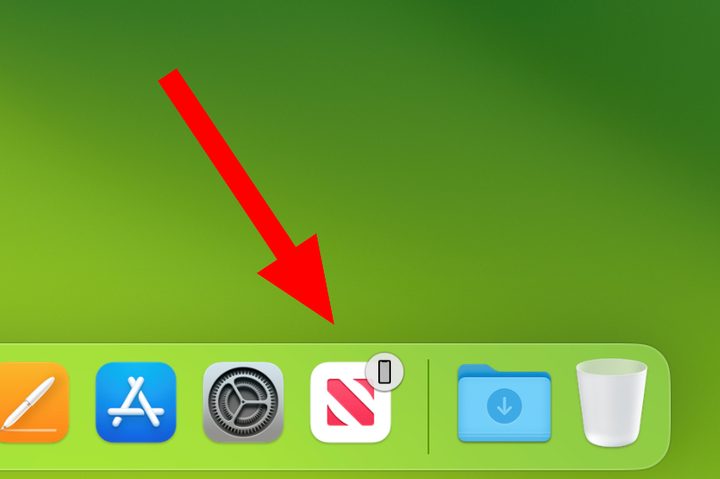
Let’s say you’re working on a document on your iMac and need to head out, but you still want to be able to continue your task while you’re away from your main desk. What do you do? That’s simple. Just use Handoff.
This brilliant little feature requires almost no setup ,yet makes it supremely easy to work across your devices. If you’ve opened an app on your iPhone or iPad and also have it installed on your Mac, you’ll see that app’s icon appear in your Dock. Select it and the app will open right where you left off on your other device. There’s no need to upload any files to Google Drive or Dropbox, as all your latest changes are right there and ready to go.
It works the other way, too. On your iPhone or iPad, open the app switcher. At the bottom, you’ll see the icon of the app you have open on your Mac, along with a short message saying which device it’s been sent from (such as “From Alex’s MacBook Pro”). Just tap that icon and the app opens up.
Unlock with your Apple Watch

Typing your password every time you want to unlock your Mac is a bore. Instead, just get your Apple Watch to do it for you. All you need to do is lift your MacBook’s lid or move your mouse to wake up your Mac for your Apple Watch to automatically log you in.
To set unlocking your Mac with your Apple Watch, open the System Settings app on your Mac and go to Touch ID & Password. Here, enable the toggle next to your Apple Watch’s name, underneath Use Apple Watch to unlock your applications and your Mac. As the name suggests, it works for unlocking your apps as well as your Mac.
Copy and paste across devices

Sometimes, instead of transferring an entire app or document using Handoff, you just want to copy and paste something from one device to another. In times like that, Universal Clipboard is exactly what you need.
Using it couldn’t be easier. Just copy something on one device, whether that’s some text, an image, a file, or something else. Then on your other device, paste it in place using Command V or by selecting Paste from the right-click menu. It should appear instantly, although you might need to wait a second or two if the file is particularly large.
And that’s all there is to it. It’s a neat example of how Apple’s ecosystem enables some really useful features that are incredibly simple to use. But not everything within MacOS is geared towards productivity. You should swap these default Mac apps for some third party alternatives.


