
  1. Home
  2. Tablets
  3. Computing
  4. How tos

How to use AirDrop on a Mac

Add as a preferred source on Google
how to use airplay mac airdrop feature
Image used with permission by copyright holder

AirDrop is one of Apple’s most useful features for its ecosystem. AirDrop allows users to wirelessly send files between their Apple devices, everything from documents to photos and videos. It’s especially handy for sending files to your computer from your phone, but using AirDrop on MacOS is an equally simple and convenient feature.

Recommended Videos

Difficulty

Easy

Duration

5 minutes

What You Need

  • Mac with MacOS X 10.7 or later

Here is everything you need to know about how to use AirDrop on a Mac.

Make sure AirDrop is turned on

Before you can use AirDrop, you need to make sure that it is turned on.

Step 1: Open Finder and select AirDrop from the top left in the sidebar. You can also pull it up hitting the Command + Space keyboard shortcut and typing "AirDrop" into Spotlight.

how to use airplay mac airdrop in finder
Image used with permission by copyright holder

Step 2: Once you are in the AirDrop menu, you should see some blue text at the bottom that reads Allow Me To Be Discovered By. Hit the Blue Down Arrow to the right of this text, and select either Everyone or Contacts Only. The latter is the safer choice if you don’t want unsolicited files while in public.

how to use airplay mac airdrop be discovered
Image used with permission by copyright holder

Step 3: Once AirDrop is on, you should see some options pull up if there is an Apple device nearby with AirDrop enabled.

Drag and drop files into AirDrop

Step 1: With the AirDrop window open, pull up another Finder by hovering your mouse over the Finder icon, clicking with two fingers, and selecting New Finder Window.

(Other Mac trackpad gestures are available.)

how to use airplay mac airdrop menu
Image used with permission by copyright holder

Step 2: In the new Finder window, find the file you want to send and drag it into the AirDrop window. Hover the file over the appropriate device icon and release it. The file should automatically AirDrop to that device, and the user can either accept or decline it.

Step 3: Alternatively, if the file is on your desktop, you can just drag and drop it from the desktop to the AirDrop menu.

how to use airplay mac airdrop shortcut
Image used with permission by copyright holder

Double-click and share

If dragging and dropping is too much of a hassle, there is an easier way. In the Finder window, hover over the file you want to share and click with two fingers. Scroll down to Share and then select AirDrop from the submenu.

A new window will pop up showing potential devices. Select which one you want to AirDrop to, and the file should send automatically.
how to use airplay mac airdrop preview
Digital Trends

AirDrop with the file open

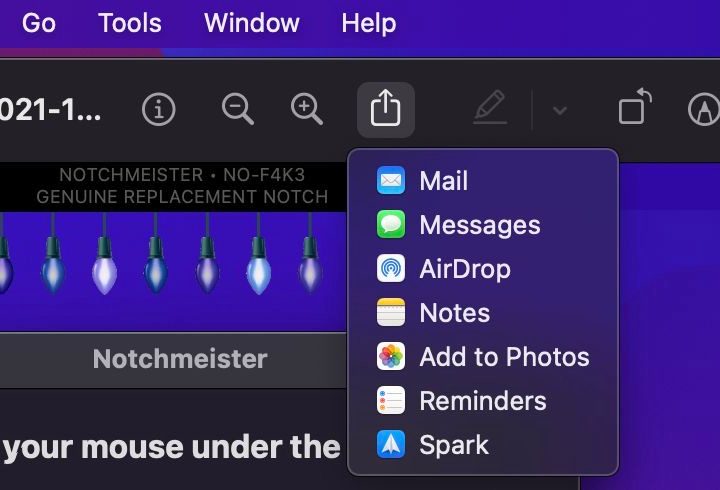
If you have the file open in front of you, you can typically AirDrop from right there. If you are viewing a document or photo in Preview, you can find the Share button in the top-center of the window. It looks like a square with an arrow pointing out of it.

how to use airplay mac airdrop quicktime
Image used with permission by copyright holder

AirDrop with QuickTime

If you’re viewing a video in QuickTime Player, the Share button is in the media controls.

Those are the main ways to use AirDrop on Mac. For more on the Mac, check out our guide on how to use AirPlay.

Caleb Clark
Former Digital Trends Contributor
Caleb Clark is a full-time writer that primarily covers consumer tech and gaming. He also writes frequently on Medium about…
A new OLED gaming tablet from Red Magic puts liquid cooling on display
Red Magic’s compact gaming tablet gets a 185Hz OLED screen, visible cooling and 80W charging
Redmagic Gaming Tablet 5 Pro Design

After multiple teasers, Red Magic has finally launched its new compact gaming tablet in the Chinese market. Dubbed the Gaming Tablet 5 Pro, the device is built around the same idea that has made Red Magic phones stand out: high-end gaming hardware, aggressive cooling, and a design that does not try to hide what it is.

The tablet will not stay limited to China. Red Magic says the Gaming Tablet 5 Pro will launch globally as the Red Magic Astra 2 Gaming Tablet, with international pricing and availability set to be announced on July 17.

Read more
Onyx Boox Note Max review: A year later, I love this giant e-reader that thinks it’s a laptop, but simply isn’t. 
The super-sized, open software e-ink slate of your dreams with a few lingering hiccups.
Onyx Boox Note Max e ink tablet

View at Amazon

Quick review

Read more
Kobo answers Kindle’s Goodreads perk with automatic StoryGraph syncing
Your Kobo and StoryGraph are now officially on speaking terms.
kobo

Kobo readers have one less reading chore to worry about. A month after teasing StoryGraph support, Rakuten Kobo has finally released this feature to its users. That means your Kobo reading progress can now make its way over to StoryGraph without you lifting a finger.

The company first detailed the feature in a press release back in May. Now that it is live, your Kobo eReaders and apps can sync directly with your StoryGraph account. Any book you open will pop up on your StoryGraph "Currently Reading" shelf, your progress percentages will stay in step across both platforms, and finishing a book on your Kobo will automatically mark it as "Read" on StoryGraph.

Read more