
If you’ve been working for weeks to build your own PC, or you’ve spent plenty of time trying to speed up an existing graphics card, you want a tool to test how fast it is — and how it compares to the competition. Benchmarks will give you plenty of data to help you compare and contrast your graphics card’s capabilities with friends and strangers around the world, as well as give you an idea of how it might perform in certain games.
Here are some of the best GPU benchmarking applications you can use today.
Note: Benchmarks can be synthetic or real-world. Synthetic benchmarks run your GPU through a preset test designed to mimic intensive gaming, etc., to see how it performs and spit out a score at the end. Real-world benchmarks are more focused on monitoring ongoing performance while you’re gaming and are typically either in-game benchmarks that use scenes from actual gameplay or a piece of live-played game with the frame rate and other elements recorded separately. This list focuses primarily on synthetic tests, but if you want to stress your graphics card in real games, here are the best games to benchmark your GPU, and gorgeous games to show off what your card can do.
3DMark
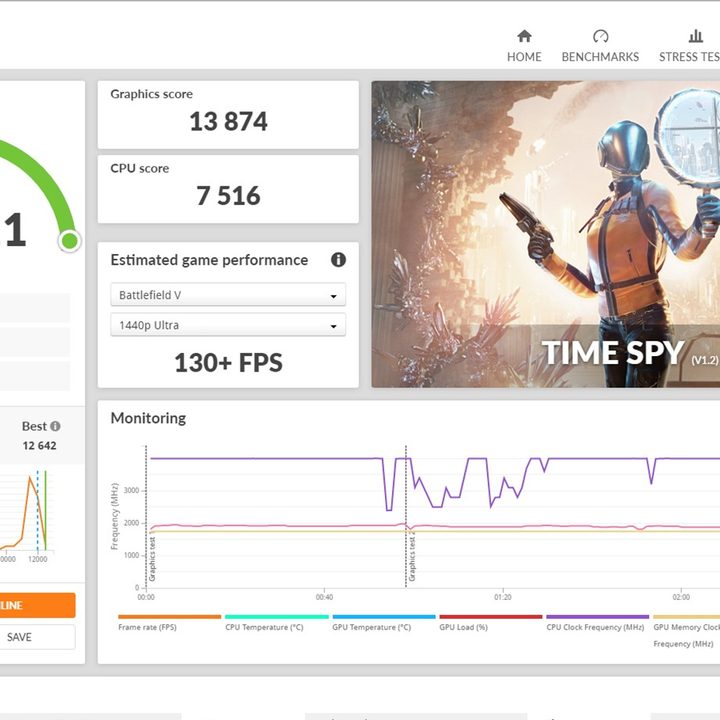
3DMark is a 3D rendering benchmarking app developed by UL (after it acquired the original developer, Futuremark). It’s been a useful tool for testing GPU performance for over 20 years and the latest version is better than ever. It comes with several gaming-focused benchmarks, from the iconic but aging Time Spy to the ray-tracing-centric Port Royal. All of them will put your graphics card through its paces at various pre-defined, and customizable settings, as well as test your CPU and overall system gaming performance.
When you get to the end of a benchmark run, you’ll get a useful scoresheet along with a report on what your estimated frame rate may be for various games. You can also run a looped benchmark to gather more data over time; a more useful tool than a snapshot when you’re focused on stability (they also keep a log of legacy benchmarks if you want to experiment with old hardware).
3DMark is also very popular, which is a built-in advantage for benchmarking software: Comparing your own GPU scores to others with similar GPUs and rigs allows you to see just where your performance currently falls and how effective your overclocking efforts have been. 3DMark’s built-in comparison options are particularly good for this kind of rigorous optimization. While the software is priced at $30, Steam does have a demo you can try out with some limited benchmarking options.
Superposition
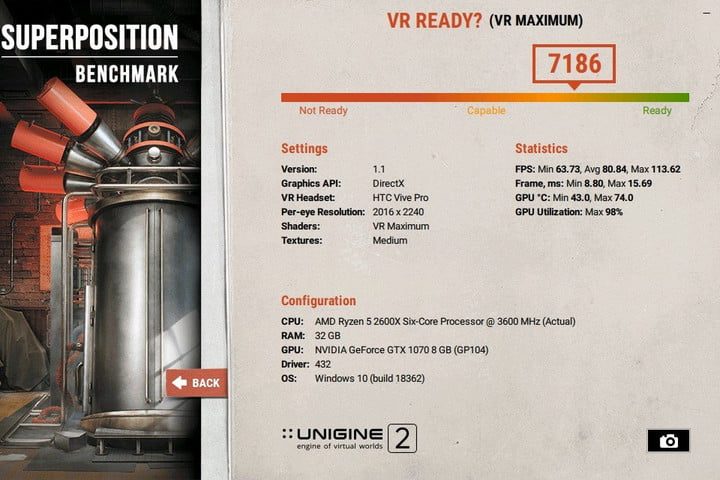
Don’t feel like paying for your benchmarking software? Superposition, using the Unigine engine, is one of the best free options available for testing performance and stability, with a global leaderboard you can check when you want to push your overclocking efforts even further. It also includes several useful modes, including a free roam option with a set of mini-games, ongoing GPU temperature, and clock monitoring, and tests specifically for virtual reality (VR) gaming (which aren’t always easy to find for free).
While the base version of the Superposition software is free, there are paid versions if you want the ability to post on the leaderboard yourself, run looped tests, and more.
FurMark by Geeks3D
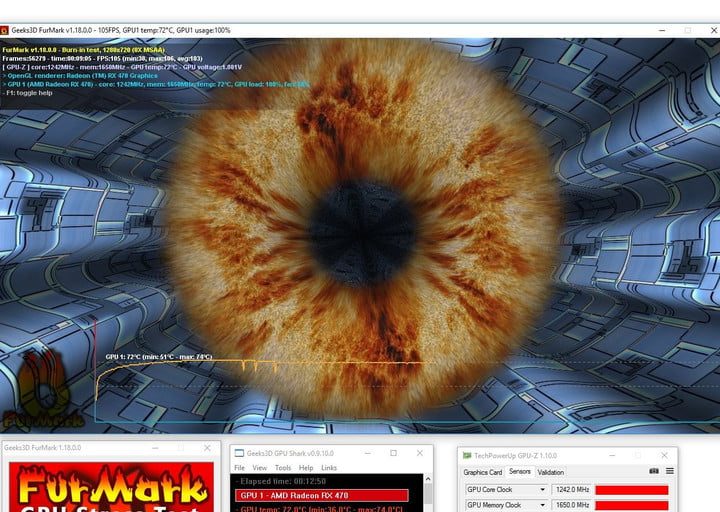
FurMark’s lightweight benchmarking app gets its name from rendering highly demanding 3D fur, which it uses to see just what a GPU can handle. This option is most useful for stress tests, such as testing what a new GPU can put up with before you start tweaking. It can provide a variety of useful data, from temperature and clock speed to fan speed and GPU load. You can also select a temperature alert to sound an alarm when your GPU reaches a certain temperature, ideal for checking your overheating limits. Just be careful using stress tests like these when your GPU is already overclocked.
GFXBench 5.0
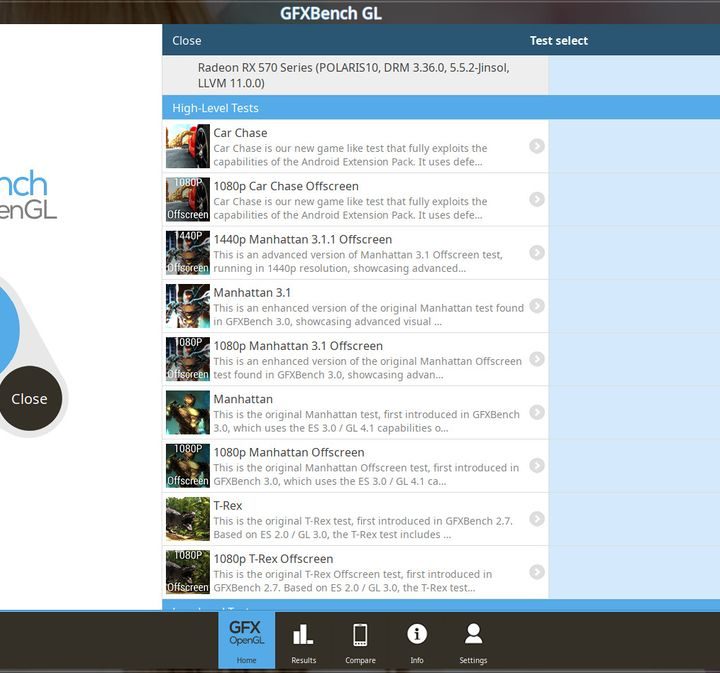
GFXBench 5.0 is a capable GPU benchmarking app with excellent platform compatibility: You can run tests across Windows, MacOS, iOS, and Android, making it useful for a wide variety of comparisons. But if you’re primarily interested in seeing which are the best graphics card, you’ll enjoy the straightforward scoreboard here: Just find your GPU model, or choose a test from the drop-down menu to see how GPUs have performed in the past.
Likewise, the GFXBench 5.0 app itself doesn’t have much of a learning curve, making it easy to run a simple test for performance, stability, render quality, and power consumption. It’s a particularly handy option for mobile gaming tests, although the desktop versions of the software can still provide plenty of useful information.
PassMark PerformanceTEST
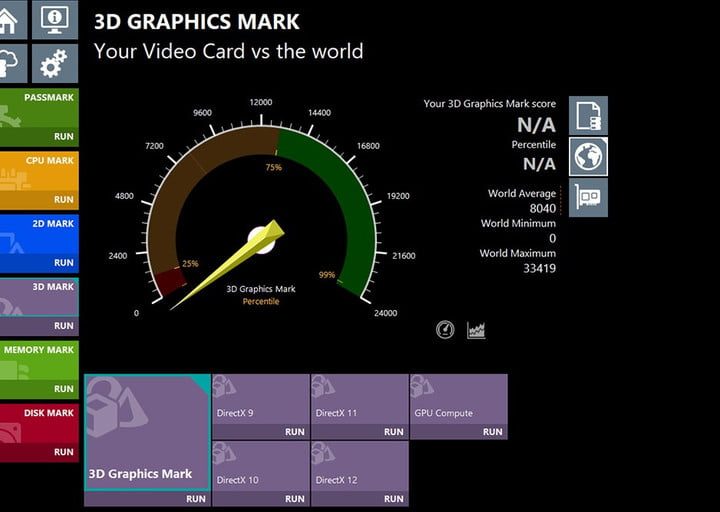
PassMark’s software is a great graphics benchmark that offers both a standard suite of tests and an advanced suite, depending on what specifically you are testing for. The standard options include 2D and 3D testing for basic tasks or modeling software, while the advanced testing options are more gamer-friendly, with tests that run through fogging, lighting, blending, texturing, resolution, color depth, and more. Overall, it’s a great pick for a wide variety of testing situations, with a bold, colorful interface that makes it easy to check your numbers. While the app does come with pricing tiers, there’s a free trial you can try out first.
When you’re through, PassMark also offers a complete suite of comparison tools you can use to see how your performance numbers match other users.
Using in-game benchmarks
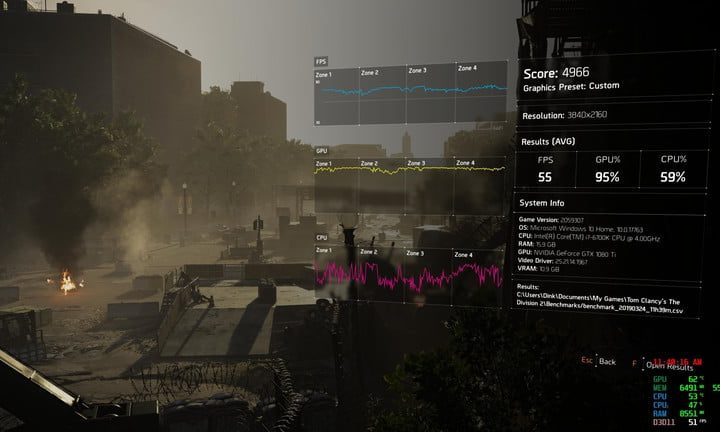
A number of games also offer in-game benchmarking tools that you can use to check performance without the need to download third-party software. We even have a list of our favorite games to benchmark your GPU. But if you want to know how your GPU plays in a certain game, you may need to test it yourself and record your frame rate while playing.



