From your smartphone to your car to your computer, and even to your coffee pot, the age of the touchscreen is upon us. But as we transition from a button- and keyboard-centric world to a world of flat panel, capacitive displays, are we hurting ourselves in the process? Do our bodies need to evolve to keep up with technology?
Here’s an idea – maybe everything doesn’t need to have a touchscreen. Though PC and tablet manufacturers want to fill your life with interactive touch displays, it’s not always in your body’s best interest.
Are touchscreens an ergonomic solution?
For years we’ve heard tales around the office coffee pot of carpal tunnel syndrome, tendinitis, and other repetitive stress injuries caused by working at a traditional computer for too long. Ignoring the advice of ergonomics experts who recommend specific monitor distances, keyboard angles, and mouse grips results in a pain that is much worse than just a case of the Mondays.
With the prevalence of touchscreen computers, tablets, and the ever-present smartphone, you’d think touching a screen to scroll would be better than constantly stressing your scrolling finger, right?
… many of the physical stress issues related to laptop use… may be greatly reduced with the use of an external keyboard.
Not really. There’s a whole other slew of problems that touchscreens present in everyday work life that are just starting to surface. Speaking of Surface, Microsoft may eventually rue the day it made touch nearly indispensable in Windows 8 – if not for the sales of RT, than for the pain in the shoulder and neck its latest OS could cause.
In 2012, prior to the release of Windows 8, InfoWorld wrote about the additional force with which touchscreen users tap their screens due to the lack of tactile feedback. While a clicky sound when pressing letters on a virtual keyboard helps, it’s less than ideal. A typical user will strike a virtual key with eight times the force of a physical key. No wonder manufacturers started using Gorilla Glass!
Hitting virtual targets with excessive force isn’t the only problem, either. Neck strain is a major concern with tablets and, by extension, hybrid laptops. Hanging the head down or forcing it forward with a hunched back, or “turtling” puts pressure on the cervical part of the spine and results in muscle fatigue. The same issue is particularly problematic with laptops.
Cynthia Burt, Injury Prevention Division Manager at the UCLA Office of Environment, Health and Safety, believes that the inherent nature of laptops make them less than ergonomically sound due to the relatively fixed screen and keyboard positions. This is amplified with a touchscreen laptop because, as she explains, there is a difference between optimal visual difference and optimal reach distance. “We recommend that people have an 18- to 20-inch envelope in front of them for optimal reaching,” Burt told us. “But for dealing with a monitor, people are recommending arm’s length or more, which would be 28 to 32 inches … The closer the monitor is, the more your eyes have to work to see the screen.”
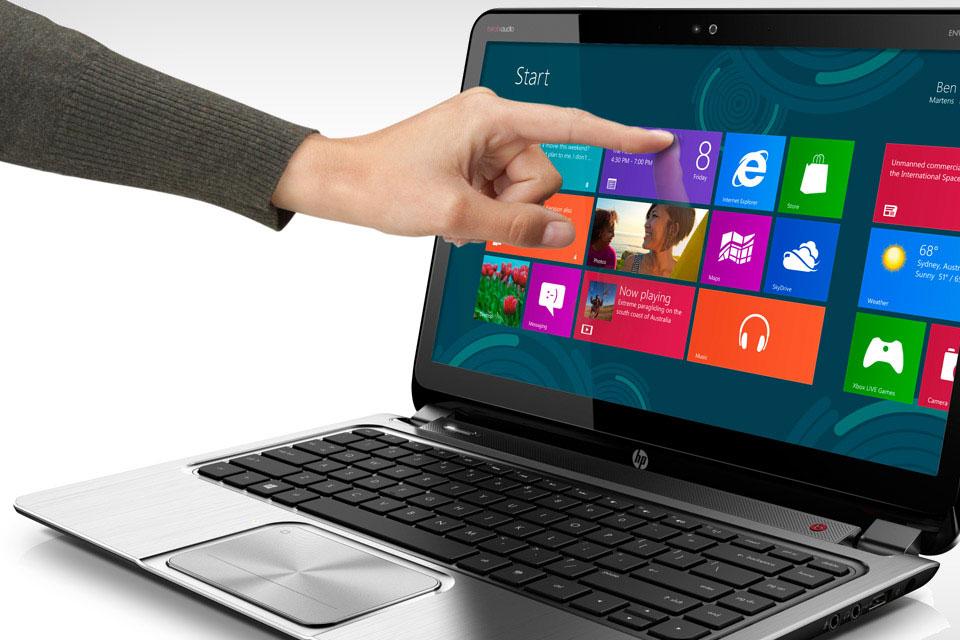
Eye strain isn’t the only concern with a touchscreen laptop that’s positioned like a typical laptop. The act of touching the screen itself presents a host of potential physical issues. “The biggest thing that I see with a touchscreen is that to touch it you have to elevate your arm and reach out so you’re using a lot more shoulder and trunk muscles as well as arm muscles … It will require a lot more workload on your extremities, and it will also impact your sitting balance,” Burt said, explaining that how you sit is extremely important, and it’s even more important than when you’re using a keyboard.”
Hybrid laptops that contort into tablets are slightly better because you have more control over how you’re positioned. Still, it’s recommended that you use a separate Bluetooth keyboard if you plan on writing the Great American Novel on a tablet. In fact, many of the physical stress issues related to laptop use – whether it’s a traditional display, touchscreen, or hybrid convertible – may be greatly reduced with the use of an external keyboard.
What about gesture control? Is it ready?
Products like the Leap Motion controller and Thalmic Labs’s MYO take the touch and the typing out of the equation entirely by employing gestures. While these products offer a different take on computer interaction, are they any better than an old fashioned keyboard and mouse?
The act of touching the screen itself presents a host of potential physical issues.
Leap Motion uses a USB controller that can be placed almost anywhere in front of a screen as long as one of the cords are able to connect to your computer. Leap Motion states, “The interaction space of 2x2x2 feet is approximately arm-span distance, which we felt was more of a natural, efficient motion than broad gestures, for use of the Controller.”
This works nicely with Burt’s assertion that a monitor should be kept at arm’s length, but there’s still the issue of suspending your arm in a less than ideal position. The support section on Leap Motion’s site includes a page with ways to use the controller comfortably, which includes keeping your shoulders relaxed and your arms at a comfortable angle.
While Leap Motion doesn’t make any claims about its product helping people who are suffering from a repetitive stress injury or other workplace ailments, the company says, “the ability to interact with and control a computer, using natural hand and finger movements, may be a positive option for people who find that the mouse and keyboard are a limiting and ineffective experience.”

However, as our review of the Leap Motion controller attests, the controller isn’t quite precise enough to replace a touchscreen or a mouse – yet. As a category, gesture control is still nascent and is going to improve over the next few years.
Burt agrees. “It’s a very promising technology, but in terms of it being ready right now to substitute for a mouse, I don’t think we’re there yet… But we’re just at the beginning of that technology, so I’m sure it’s going to improve and get better. When I’ve tried to use it and I’ve watched other people try to use it, there are very awkward hand and wrist finger motions trying to get it to work, because it’s not intuitive right now.
The ideal solution
What’s a touchscreen enthusiast to do if they want to avoid physical strain and possible repetitive stress injuries? There are practical solutions for home offices and the workplace. Whether you’re using a desktop or a laptop, Burt recommends using a monitor with an articulating arm type of mount, which will allow you to move the screen closer or further away as needed.
Likewise, an external keyboard is useful for both laptop and hybrid set-ups when you have a lot of key pounding to do.
But what about your shiny new touchscreen? Avoid reaching for it. Keep it close enough to touch it while maintaining good posture and relaxed shoulders. “Perching forward and leaning causes a lot of overuse problems because it forces you to be in an awkward posture,” Burt said.

One of the possible advantages of using a combination of a touchscreen, keyboard, and touchpad or mouse is that you’re moving between three different inputs and, as a result, are changing positions more frequently. As long as you’re not awkward about it in terms of your posture, this is a good thing.
So what’s the ultimate solution? A good ol’ fashioned keyboard and mouse, a touchscreen, or gesture control device? As far as Burt is concerned: None of the above. “At the point in time, given what the technology is, I would encourage people to look at voice recognition systems before they go forward with touchscreen systems.”
Paging Siri and Google Now to the desktop, stat.