
If you purchased a new laptop this year, then congratulations! The best new laptops are fast, efficient, and can help you stay very productive, especially thanks to some of the new features in Windows 11.
Every new laptop, though, might come with some preinstalled programs that you do not use. These apps are known as bloatware. The apps sit on your PC and take up unnecessary space. Or, in some cases, appear as links in your Start Menu and might be downloaded if you click on them.
That means you might end up losing space for your precious photos, videos, and even games and other content. Luckily, we put together this guide which looks at common bloatware you might want to uninstall on your new laptop to help you reclaim that precious lost space.
How to remove bloatware

In the latest Windows versions uninstall apps and programs by searching for add or remove programs from the Start Menu. You can then click the respected link, then select an app from the list, and click uninstall.
For all other programs, you can remove them by searching for Control Panel in the Start Menu and then choosing Uninstall a Program.
For pre-installed shortcuts on the Start Menu, you can right-click and choose Unpin From Start. Note that core system apps like Calculator, Calendar, and Mail can’t be removed.
Trial versions of antivirus software
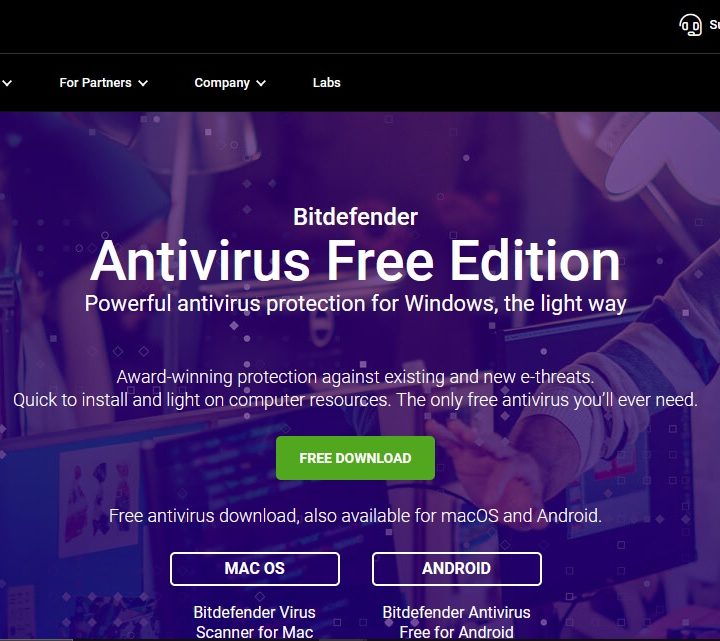
When you buy a new PC from Dell, Lenovo, or HP, there’s the chance that it comes with preinstalled antivirus software from McAfee, Norton, or other companies. The problem is, though, is that in most cases, this antivirus is only a limited trial. You’ll only get 30 or so days for free before you have to pay up to continue using it.
With Windows 11 being one of the most secure versions of Windows yet, we suggest removing any trial antivirus software in favor of the in-built Microsoft Defender. You might have heard that it isn’t as good as other antivirus software, but our Microsoft Defender review found otherwise.
Just like McAfee, and other products, Microsoft updates the Defender suite with the latest definitions, so that it can scan your PC for the latest threats. It’s been proven to be safe and efficient, so why pay for antivirus when you can get it free? Oh, and it even has built-in ransomware protection, too.
Pre-installed games or apps
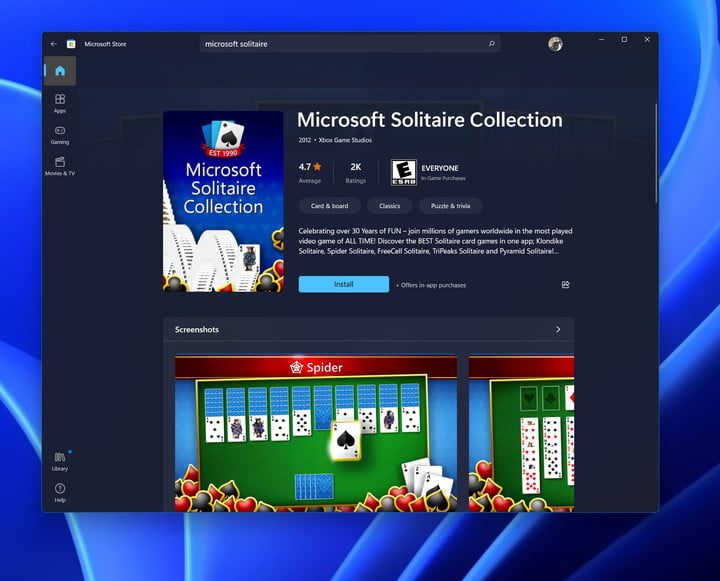
Once you log into a Windows 11 PC for the first time when you take it out of the box, you might end up seeing that some games or apps that are pinned on your Start Menu. These are just shortcuts, but when you connect to the internet or accidentally click on one of these links, the games or apps will start downloading automatically. The list might include things like Microsoft Solitare, Candy Crush, and more. If you’re not into these types of games, feel free to remove them to save some space.
Microsoft Teams for consumer
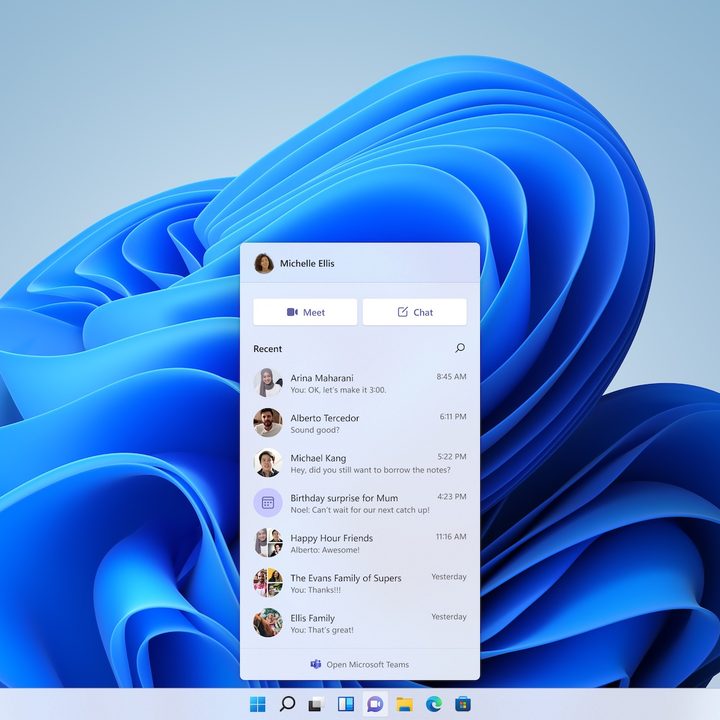
Windows 11 laptops all come pre-installed with the Microsoft Teams for consumer experience. This app shows up in the taskbar and lets you chat and connect with family and friends. It’s meant to be a way to boost your communication, but if no one you know uses Teams outside of work, then you might want to remove it from your system.
You can remove the consumer version of Microsoft Teams by first hiding the icon from the Taskbar. Right-click and choose Taskbar Settings, and then turn the switch for Chat to the off posistion. You can then search the Start Menu for Add or remove apps and click the respected top result. Look for Microsoft Teams in the list and then click the down arrow next to the app, followed by the Uninstall option.
Select system apps

Microsoft Teams for consumers is one of the system apps in Windows 11 that can be removed, but there are others. If you don’t like using Microsoft apps or services, you can remove some of the stock apps in Windows. These include apps like the 3D viewer, Feedback Hub, Groove Music, Microsoft News, To-Do, Mixed Reality Portal, Movies and TV, OneNote, Snipping Tool, Sticky Notes, Voice Recorder, and Xbox Console Companion.
Uninstalling these apps can save you up to 300MB, in our tests, so it might be worth a try if you’re not interested in these Microsoft services. Once you’ve made some space, you should be ready to install the best Windows apps.


