
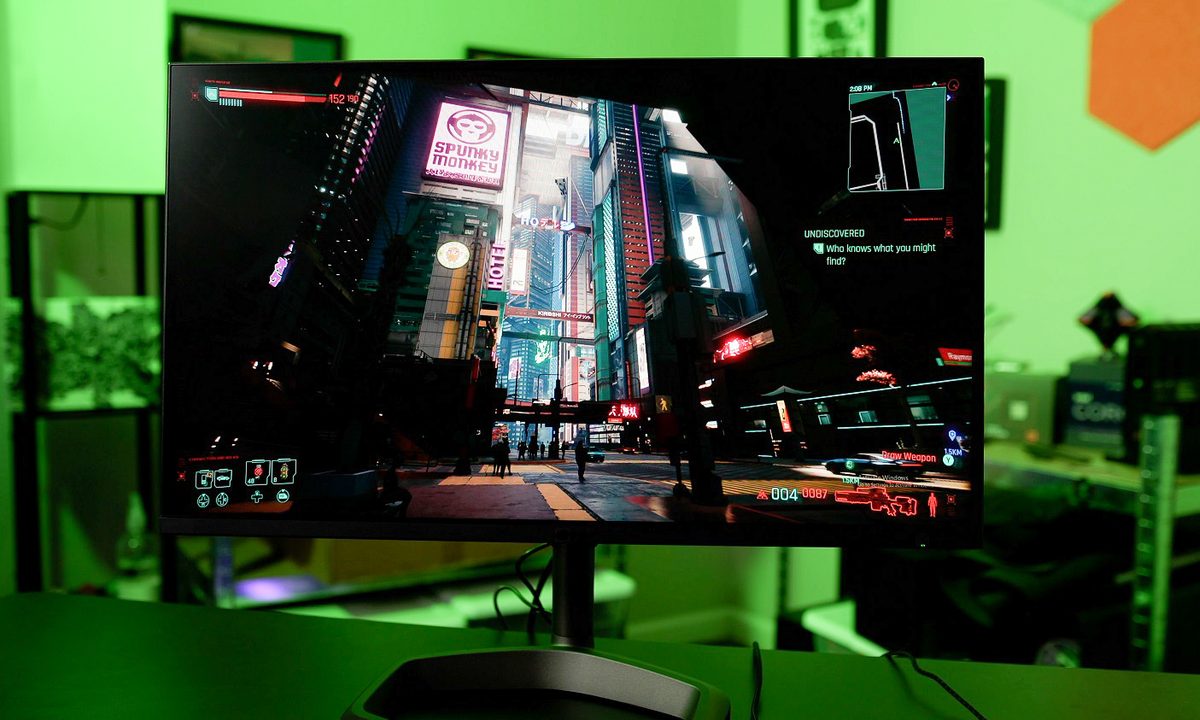

“The Cooler Master GP27Q moves the bar for gaming monitors in a way few displays ever have.”
- Fantastic color performance
- 576 full-array local dimming zones
- Wide range of stand adjustments
- 165Hz refresh rate
- Adaptive Sync support
- Weak cable management solution
- Poor black levels


“Why you can trust Digital Trends – We have a 20-year history of testing, reviewing, and rating products, services and apps to help you make a sound buying decision. Find out more about how we test and score products.“
The Cooler Master Tempest GP27Q challenges for a spot on the list of the best gaming monitors, which has mostly stayed static for the past few years. It delivers on high-end HDR performance well below $1,00 — and not by thin margins. Powered by a mini-LED backlight, the GP27Q sprints past monitors that were impressive just a few months ago and establishes a new bar for quality.
Minor issues are present, but the $500 GP27Q’s vibrant colors and off the charts HDR performance still shine, especially given how inexpensive the monitor is.
Cooler Master GP27Q specs
| Cooler Master GP27Q | |
| Screen size | 27 inches |
| Panel type | Quantum Dot IPS |
| Resolution | 2,560 x 1,400 (1440p, 2K, QHD) |
| Peak brightness | 1,200 nits (HDR), 600 nits (SDR) |
| HDR | Yes |
| Local dimming | 576 local dimming zones |
| Contrast ratio | 50,000:1 (HDR), 1,000:1 (SDR) |
| Response time | 0.5ms (MPRT) |
| Refresh rate | 165Hz |
| Curve | N/A |
| Speakers | 2x 2W speakers |
| Inputs | 1x DisplayPort 1.4, 2x HDMI 2.0 |
| USB ports | 1x USB-C with 90W power delivery, 2x USB 3.2 |
| Adjustments | 90 degrees pivot, 60 degrees swivel, 25 degrees tilt |
| Wireless | N/A |
| List price | $500 |
A function over form design
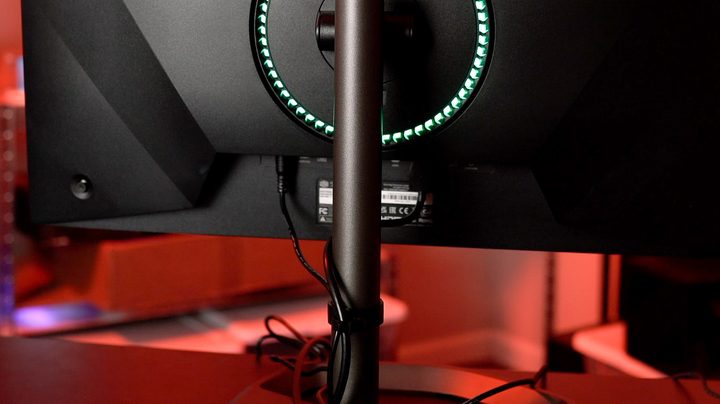
Cooler Master clearly focused on features and function over design on the GP27Q — and that’s not a bad thing. The monitor and, in particular, the stand are unexciting, but they still offer great stability and a wide range of adjustments (including the option to turn the monitor fully vertical).
You get a bit of bias lighting on the back of the monitor, but it’s not very bright, and I couldn’t find any options to adjust the color. It just cycles through an RGB spectrum, but you can turn the lighting off in the menu.
Cable management is handled through a plastic clip on the back of the stand, which works, but it isn’t ideal. Given the cylindrical design of the stand, it’s tough to hide cables without them sticking out, and the clip just draws more attention to where they’re routed.
Packed with features

Given the excellent HDR quality on the GP27Q (I’ll get to that next), I didn’t expect anything special from the additional features. But Cooler Master packed this monitor full of extras.
The winner is easily the USB-C port that includes 90 watts of power delivery. You’ll probably have a gaming desktop hooked up to the GP27Q most of the time, but the the single-port charging and display connection through USB-C is great if you want to drop your work laptop and get some things done on a larger screen. That might be a niche use case for a gaming monitor, but it’s also something few other manufacturers entertain.
It makes the built-in KVM switch more usable, too. Monitors like the Gigabyte M32U include a KVM, but with USB-C power on tap, it makes more sense to toggle your keyboard and mouse between a desktop, laptop, and console so you never have to swap cables.
The monitor supports HDMI 2.1, so you can run the higher resolution at the full refresh rate.
In the same vein, the GP27Q includes stereo speakers. They sound flat, but they still get fairly loud and don’t distort. You’ll want to use a gaming headset most of the time, but the included speakers are a great fallback — and again, an area most gaming monitors skimp on.
Outside of the USB-C connection, you also get a DisplayPort 1.4 connection and two HDMI 2.0. HDMI 2.1 has a lot more bandwidth, but it’s not necessary for the resolution and refresh rate of the GP27Q. The 4K GP27U supports HDMI 2.1, so you can run the higher resolution at the full refresh rate.
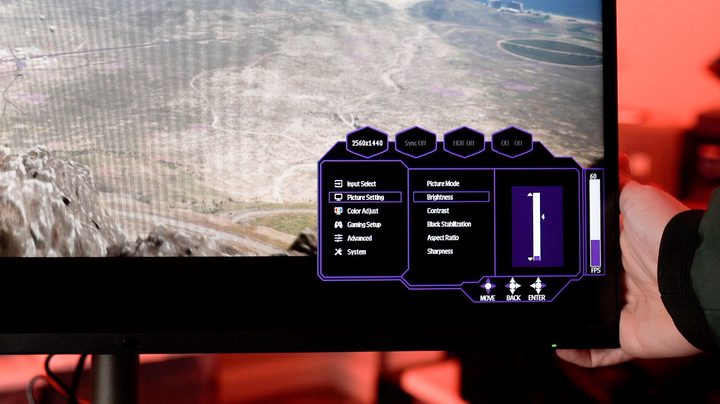
You also get a pair of USB 3.2 ports under the monitor and a 3.5mm headphone jack. My only quibble is the on-screen display (OSD) menu. It works, but I prefer a wider swath of settings (the OSD doesn’t even include a factory reset, which is a vital setting on any monitor).
A desktop OSD menu like the one offered on the MSI Optix MPG 32 QD, would have also been nice, though that’s a lot to ask from a monitor that already includes so many features.
Why the GP27Q is such a big deal
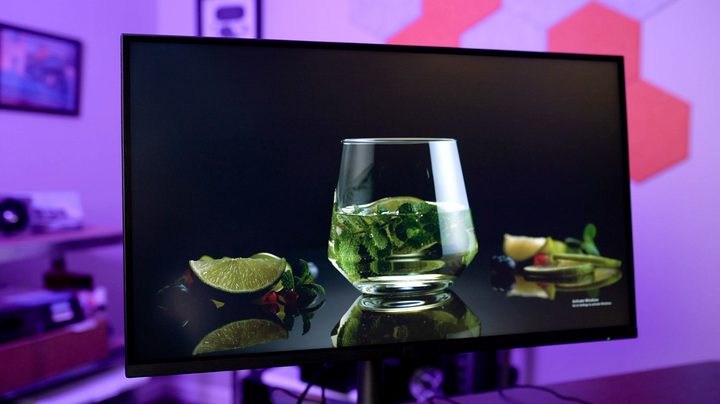
HDR is why the GP27Q is such a big deal. Many 1440p monitors that sell for around $500, like Samsung’s Odyssey G7, support HDR, but it’s not very good. Edge-lit local dimming with only a handful of zones is common in this price bracket, and it’s the main reason why HDR has been so bad on PC for so long. But that’s not the case with the GP27Q.
It includes 576 full-array local dimming zones, far outpacing the eight zones on the Odyssey G7 and even the 96 zones on the Sony InZone M9. More zones means the GP27Q is able to handle brighter and darker areas at the same time on screen, improving contrast and HDR in the process.
That’s how they should work in theory, but the GP27Q leans heavier on the bright end. I measured a peak brightness in HDR at 930 nits for the full screen, which is even brighter than the Samsung Odyssey Neo G8. Black levels are the problem. While most IPS panels reach down to 0.05 nits, the GP27Q only went down to 0.11 nits.
With HDR on, the black levels are far more gray, but it’s not too big of a deal in games. Brightness sliders are your best friend with the GP27Q, which made Destiny 2 and Cyberpunk 2077 far more palatable with HDR turned on.
The large array of local dimming zones is a huge plus for the GP27Q, but they aren’t finely tuned. The most aggressive local dimming level is noticeable as zones transition, so I settled for the medium setting for most of my testing. This helps the dimming zones disappear in the background and keeps the insane brightness from being as noticeable.
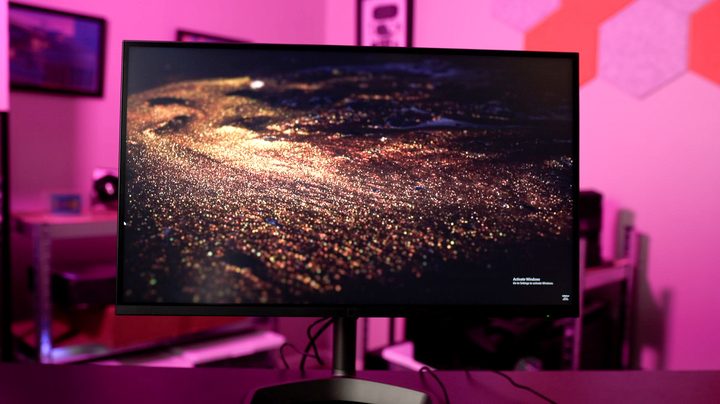
You don’t need to turn on HDR with the GP27Q, though. It’s a mighty impressive monitor in SDR. I measured peak brightness of about 570 nits, which is very bright for an IPS panel. The contrast ratio was only 850:1, though, emphasizing that the GP27Q gets its contrast from brightness, not from low black levels.
It’s the color coverage that stands out: 100% of sRGB, 99% of AdobeRGB, and an astonishing 97% of DCI-P3 measured on my SpyderX, all with a color error of just over 1. That’s world-class color performance for a $500 monitor, and a lot of it comes courtesy of quantum dot, which the GP27Q is equipped with.
The GP27Q is a big deal due to its 576 dimming zones, but the HDR still can’t hold a candle to an OLED panel like the Asus ROG Swift PG42UQ due to the high black levels. The dimming zones help, and the GP27Q stood out in my testing with an exceptional color performance and eye-scorching brightness.
Gaming on the Cooler Master GP27Q
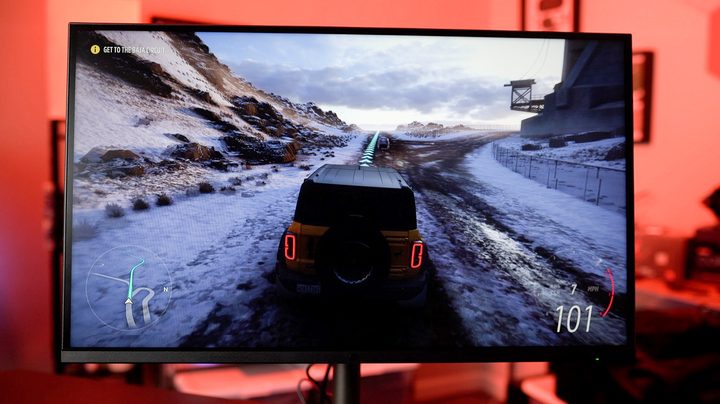
I spent a few weeks gaming on the Cooler Master GP27Q, trying out everything from Destiny 2 to Marvel’s Midnight Suns to Warhammer 40,000: Darktide. It’s a great gaming display, fit with ultralow response times, variable refresh rate, and fantastic HDR — at least in some games.
It doesn’t include official G-Sync or FreeSync support, but it supports the open Adaptive Sync standard. That means you can use variable refresh rate with an Nvidia or AMD GPU. I tested both, and they both work.
Be careful if you have HDR on, though. Originally, the GP27Q didn’t support variable refresh rate while you had local dimming turned on. Thankfully, Cooler Master has fixed this bug through a firmware update, so if you plan on picking up the GP27Q, make sure to update the firmware.
The GP27Q leans on the brighter end of contrast, leading to higher black levels.
With a 165Hz refresh rate, 1ms gray-to-gray response time, and variable refresh rate, the GP27Q held up excellently in gaming. My only minor gripe was brightness. The GP27Q gets super bright, and I play games in darker rooms. That means I’d usually have to turn down the brightness, and the GP27Q doesn’t look as impressive in that setting.
HDR largely depends on the brightness settings you have in-game, too. As mentioned, the HDR on the GP27Q leans toward the brighter end of contrast, leading to higher black levels. You can counteract that with brightness and midpoint sliders in games like Destiny 2 and Cyberpunk 2077, but other games don’t always afford that luxury. You’ll have to adjust the picture settings as you play.
Still, there are great gaming images for you to find on the GP27Q, both with HDR on and off. The specs hold up, and the image quality is fantastic, especially with the panel’s fully saturated and accurate colors.
Should you buy the Cooler Master GP27Q?

Even with minor gripes, it’s hard denying the excellence of the Cooler Master GP27Q. Superb color meets great HDR and top-shelf gaming features — and all for a price that undercuts monitors that offer less. If nothing else, the GP27Q is a taste of what Mini LED can deliver at lower prices, and it tastes sweet.
Although more expensive than 1440p monitors like the HP Omen 27c, the Cooler Master GP27Q also offers a lot more. It’s easily the best 1440p monitor you can buy right now, and it may not be outclassed for quite some time.


