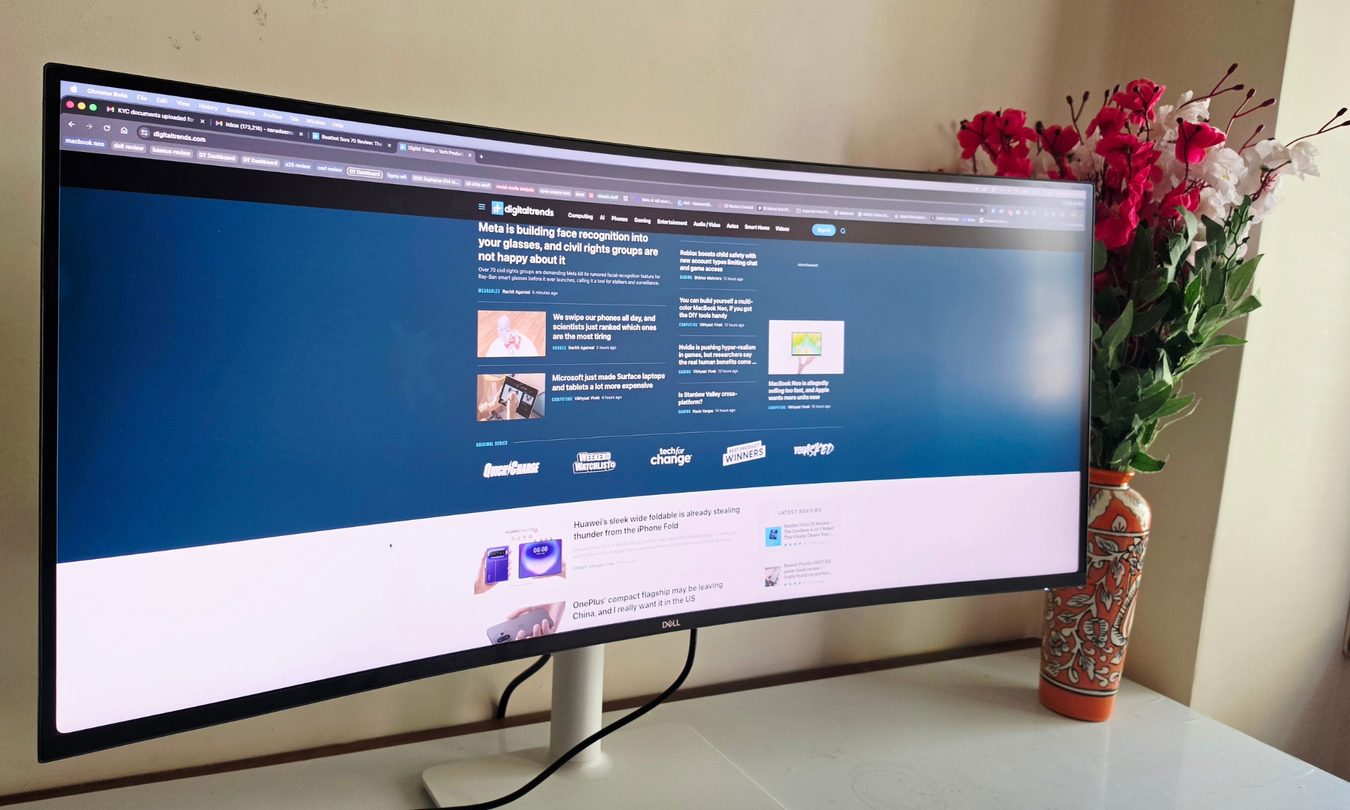

“A jack of all trades monitor that doesn't oversell its chops, and wins at the budget game.”
- Lovely build with clever pop-out port
- Good contrast and viewing angles
- Surprisingly good speakers
- Stand height is inadequate.
- Slight backlight uniformity issue
- Color coverage could have been better
Quick Take
I’ve grown deeply suspicious of any monitor that calls itself a “productivity display.” They’re not bad, per se. The real reason is that most of them are boring, and sluggish at adopting modern standards. Chunky black bezels, boring grey-on-grey corporate look that screams “I belong in a 2014 cubicle,” and a dull desk presence. I’ve never wanted any of them sitting on my workstation. So when I unboxed the Dell 34 Plus USB-C monitor (SKU is S3425DW), I was bracing for the usual disappointment. It was in for a surprise.
Let’s start with the name. Dell 34 Plus USB-C monitor. It’s one of the simplest names I’ve ever come across on a product so sleek. And given Dell’s reputation with bad product naming in the not-too-distant past, this one came as a pleasant surprise. It represents a strategic shift in Dell’s branding, moving away from dense alphanumeric model numbers toward a more intuitive, feature-led naming convention. And honestly, it’s about time.
On the functional side, this one keeps it simple. A vibrant curved display with punch colors, smooth 120Hz visuals, a clever port trick, surprisingly good speakers, and an absolute focus on minimalism. There are a few hiccups, but nothing that comes out as a deal-breaker. Overall, it’s a solid value proposition and punches well above its weight class.
This 34-inch ultrawide is built to serve as the centerpiece of a modern home office, balancing a clean, professional aesthetic with high-performance specs that bridge the gap between office productivity and some respectable creative work. After spending long workdays, casual evenings, and a fair number of late-night editing sessions, I can confidently say it’s one of the rare displays that has been thoughtfully engineered around how people actually use a desk, rather than how spec sheets imagine they should.
Dell 34 Plus USB-C monitor specs
| Screen Size | 34-inch (86.36 cm) |
| Panel Type | Vertical Alignment (VA) |
| Curvature | 1800R |
| Resolution | WQHD (3440 x 1440) |
| Refresh Rate | 120 Hz |
| Response Time | 1ms GTG (Extreme Mode) |
| Color Support | 1.07 Billion Colors (99% sRGB, 95% DCI-P3) |
| Contrast Ratio | 3,000:1 |
| Brightness | 300 cd/m² |
| Adaptive Sync | AMD FreeSync™ Premium |
| Audio | Integrated Speakers (2 x 5W) |
| USB Power Delivery | Up to 65W via USB-C |
| Adjustability | Height (130mm), Slant (-4°/+4°), Tilt (-5°/+21°) |
| VESA Mount | 100 x 100 mm |
| Ports | 2 HDMI ports (HDCP 1.4 and 2.2) (Supports up to WQHD 3440 x1440, 120 Hz, 10 bit, FRL, HDR, VRR as per specified in HDMI 2.1) 1 USB-C 5Gbps upstream port (DisplayPort 1.4 Alternate Mode, Power Delivery up to 65 W) (Supports up to 3440 x1440, 120 Hz, HDR, AdaptiveSync) 1 USB 5Gbps Type-A downstream port 1 USB 5Gbps Type-A downstream port with Battery Charging 1.2 1 USB-C 5Gbps downstream port (Power Delivery up to 15 W) |
Dell 34 Plus USB-C Monitor build and design: Clean looks, a minor stutter
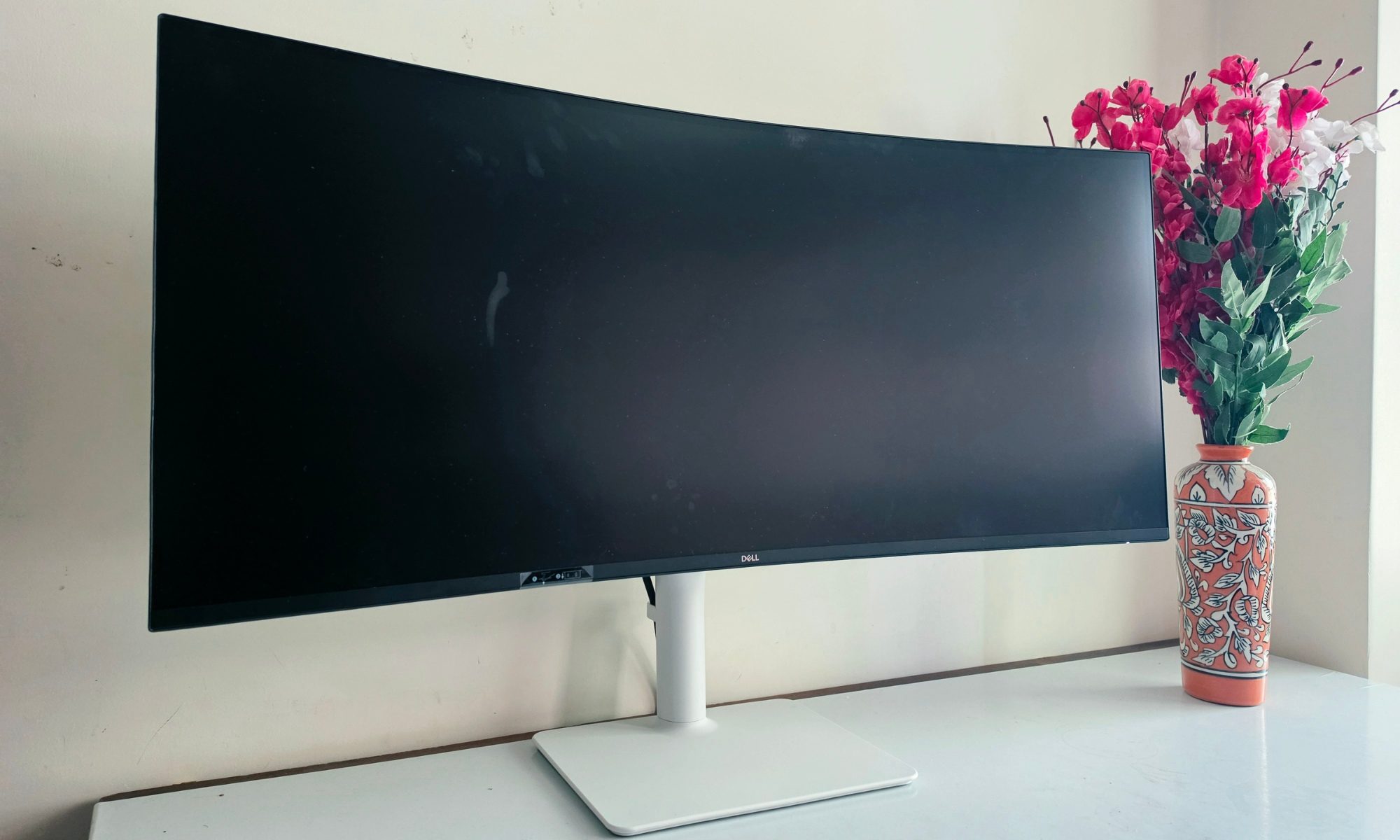
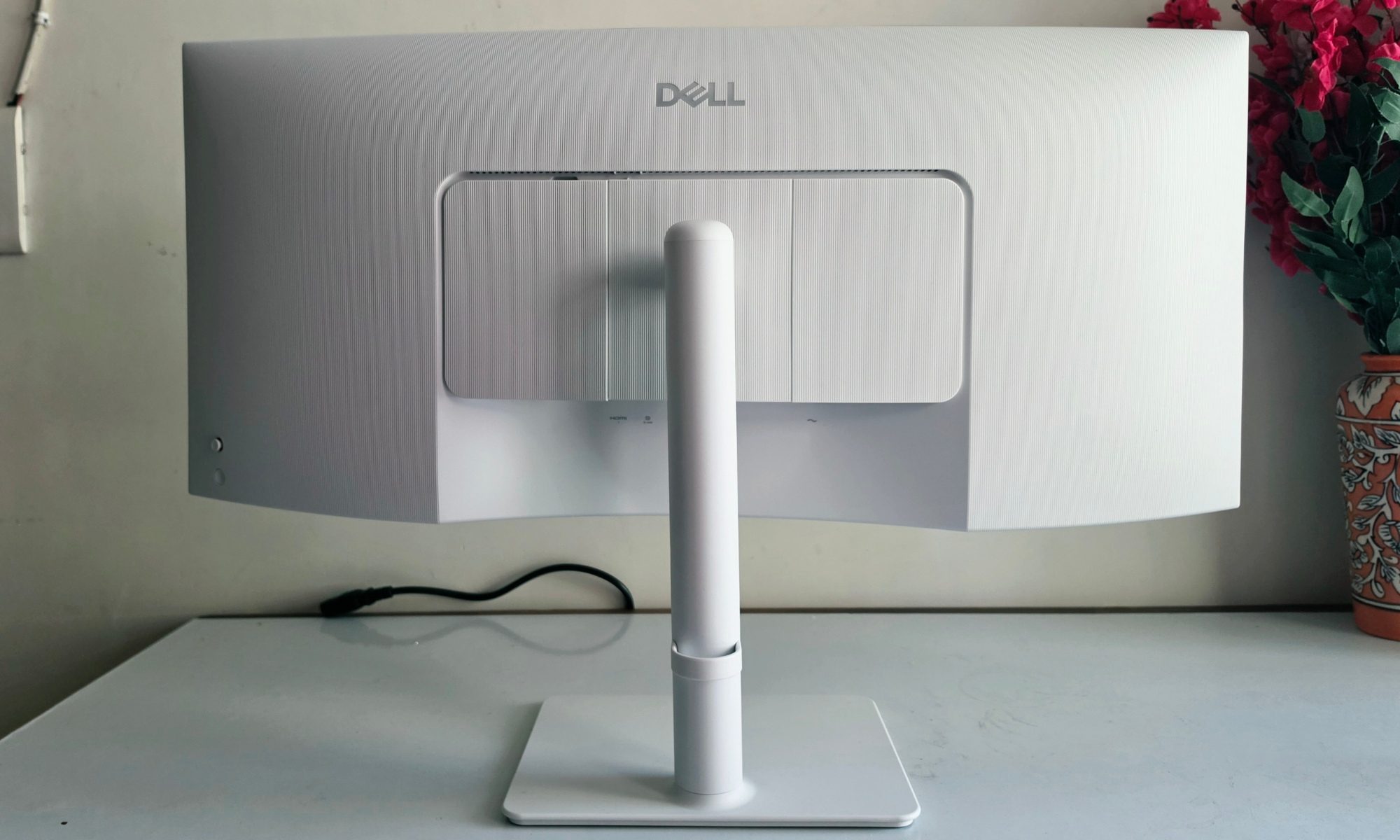
The first thing I noticed when I set it up was the back. Dell finished the rear of the Dell 34 Plus USB-C in an elegant white that heavily mimics the design language of Apple products, and it instantly made my desk feel like a much cleaner, more intentional space. Tethered to my MacBook, the two pieces of hardware look like they were drawn by the same designer who got a little bit of leeway with the surface texture.
The minimalist, “clean” design philosophy carries through the entire chassis, distinguishing it from more aggressive gaming displays. There are no neon strips, no faux-carbon panels, no logos demanding attention. Just a sleek profile that quietly blends into a professional environment.
The stand itself is sturdy yet unobtrusive, and its small footprint surprised me. I was able to keep my notebook, a coffee mug, and a desk lamp on either side without any of the usual desk-real-estate negotiation that comes with bigger displays. Ergonomics is well-handled, too.
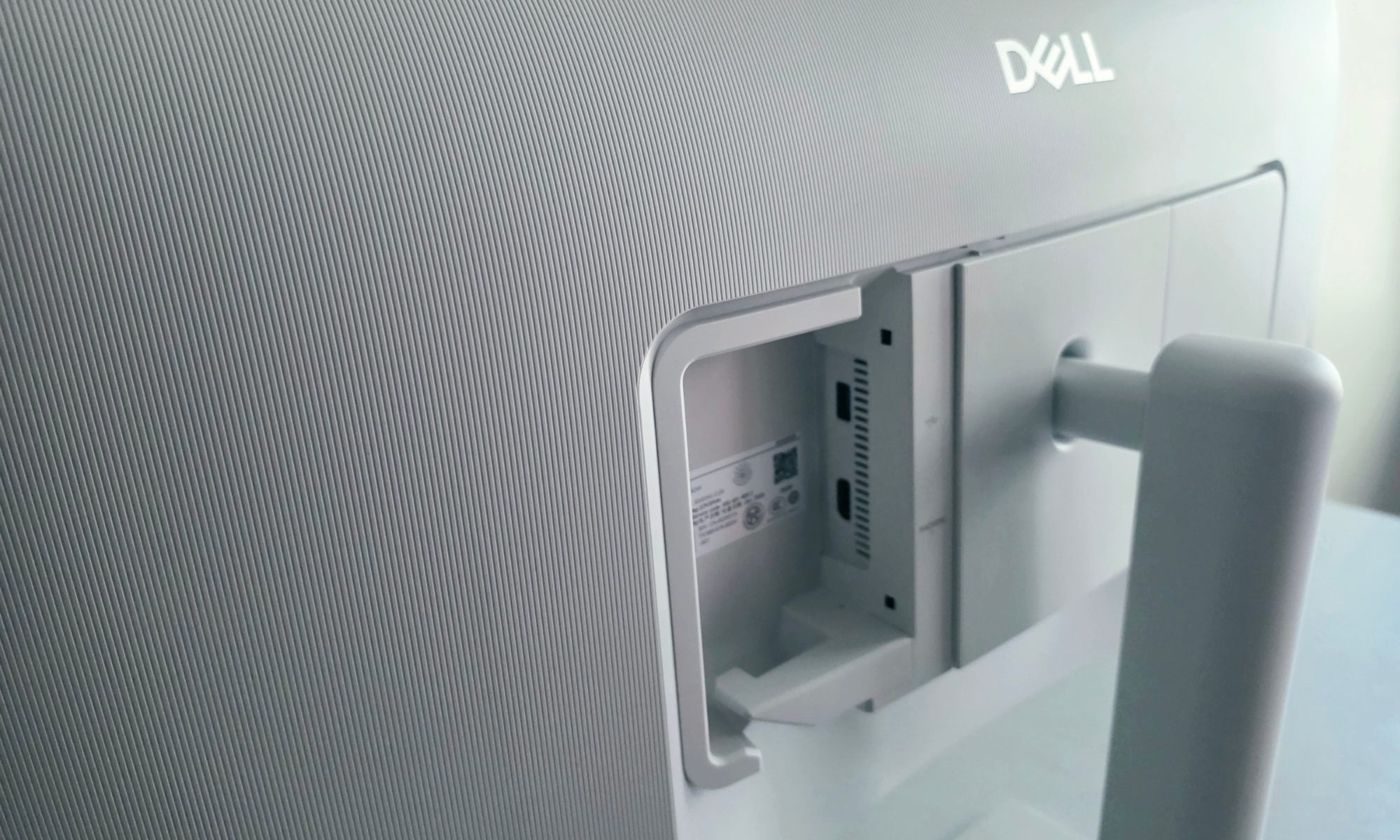
There’s a standard tilt range and a decent height adjustment mechanism. The one quirk I ran into is that the height adjustment feels slightly stiff when lowering the screen, and I wish it went slightly higher, as well. It’s not much of a dealbreaker, but I noticed it every time I dropped the panel down for a more relaxed posture.
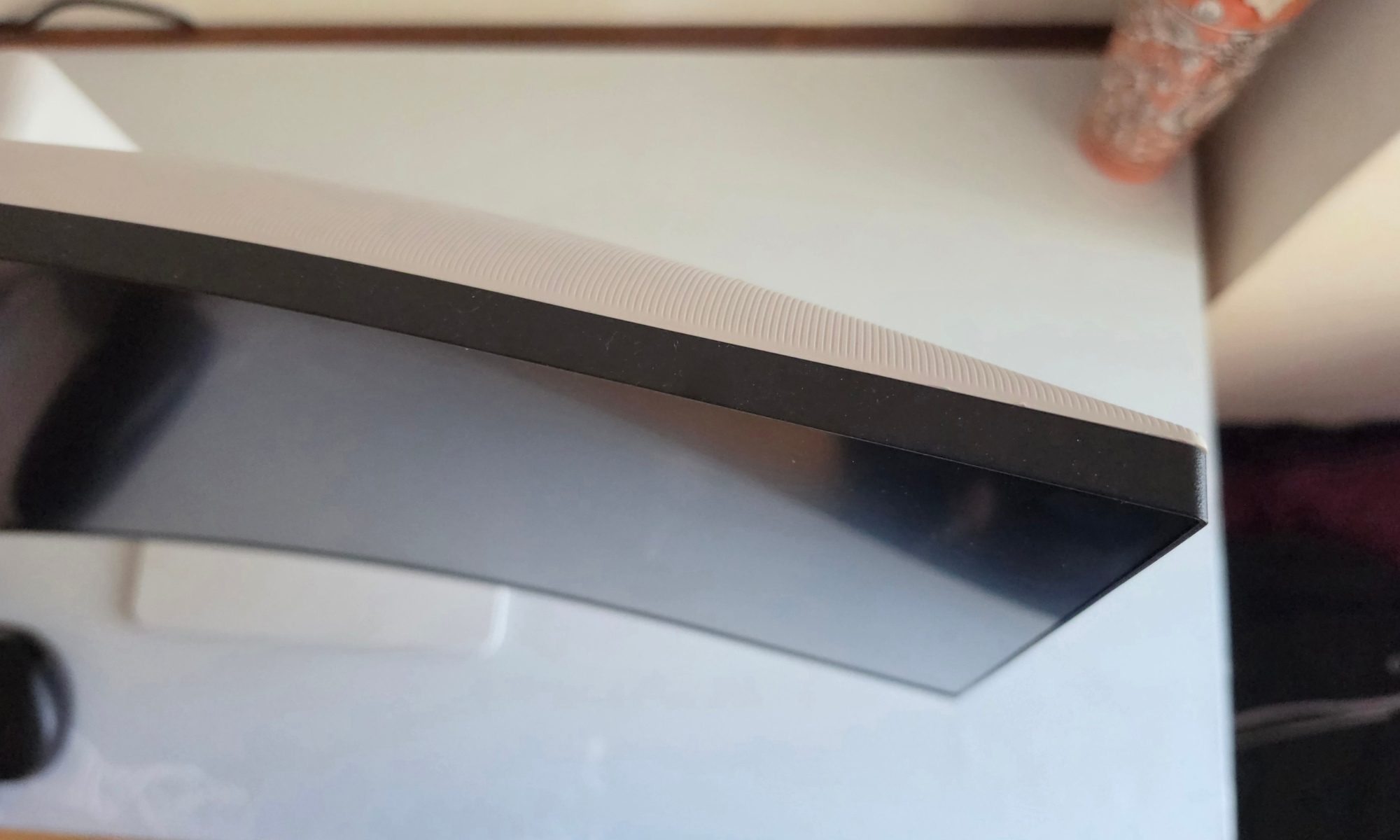
I’ll flag one limitation for the desk-rotators among us. This stand lacks a dedicated neck swivel, so any horizontal repositioning means rotating the entire base. It’s a minor annoyance, and Dell smartly made the monitor fully VESA mount compatible, so you can ditch the included stand and slap it on a monitor arm if you want more freedom.
The screen itself wears a high-quality matte finish that excels at diffusing ambient light. My workspace gets washed out by midday sun streaming through a south-facing window, and the matte coating practically eliminates glare. I never felt forced to crank the brightness past a comfortable level just to read text.
The one knock I have? Cable management. The build quality is otherwise robust and very much in line with Dell’s higher-end displays, but the cable routing options are limited. I ended up with a slight rat’s nest behind the panel, which felt out of step with the otherwise meticulous design. For a monitor that nails so many small details, this one stuck out.
Score: 9/10
Dell 34 Plus USB-C Monitor I/O and audio: A jolt of goodness
If you’re investing in a monitor that’s meant to anchor your workflow, the I/O has to pull serious weight. In this case, Dell’s monitor follows what I’d call a “USB-C first” rule. It prioritizes a single-cable setup that handles both high-end video data and 65W of power delivery for charging laptops. I plugged my MacBook Pro in with one cable, and that’s it. Video relay, charging, peripherals — all of it routed through one connection. It’s exactly the kind of clean, modern setup I want.
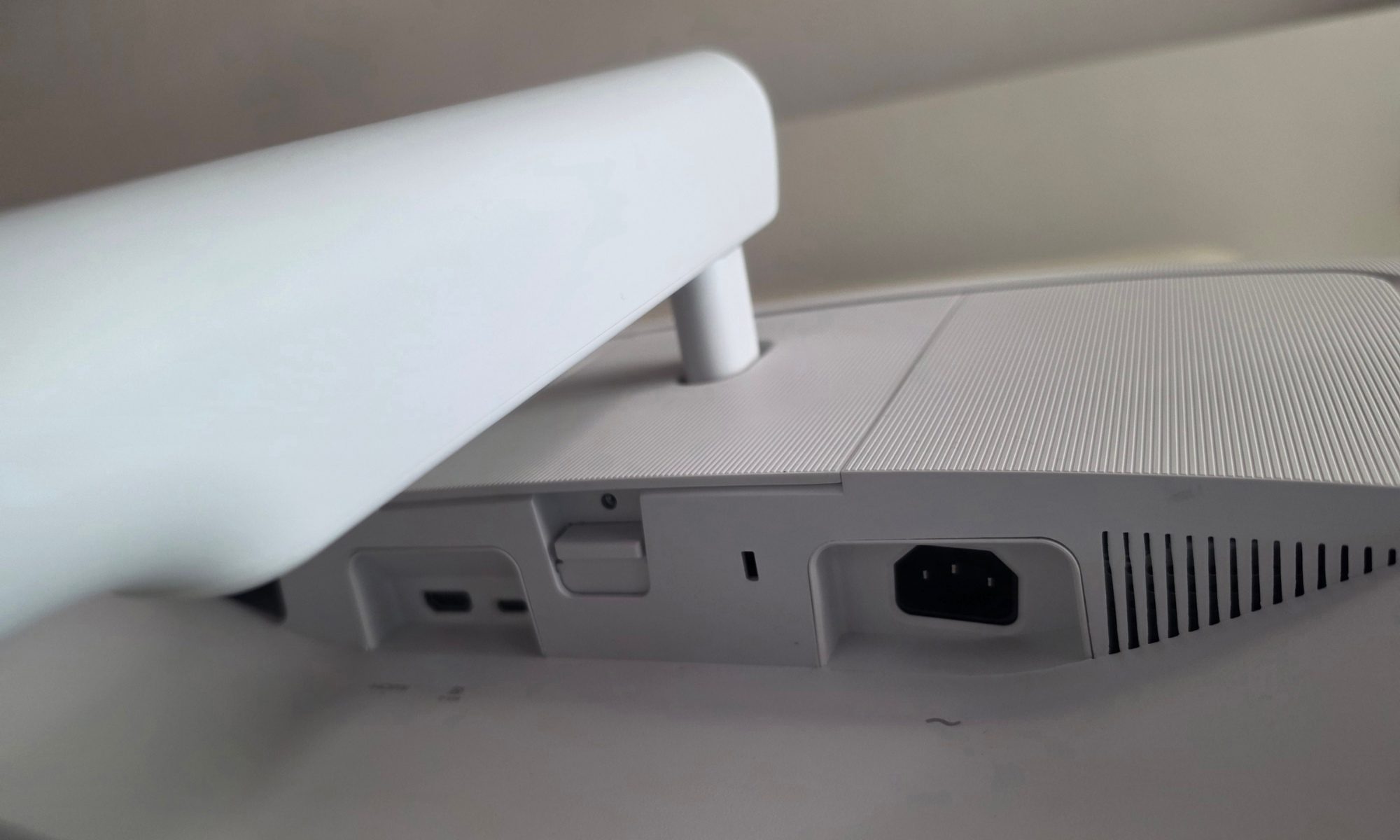
The core connectivity suite includes two HDMI ports and the primary USB-C port. Notably, this monitor lacks a traditional DisplayPort, which may frustrate users with older desktop configurations. I don’t personally need one, but I can imagine the pain for someone trying to slot this into an aging tower with a DisplayPort-only GPU.
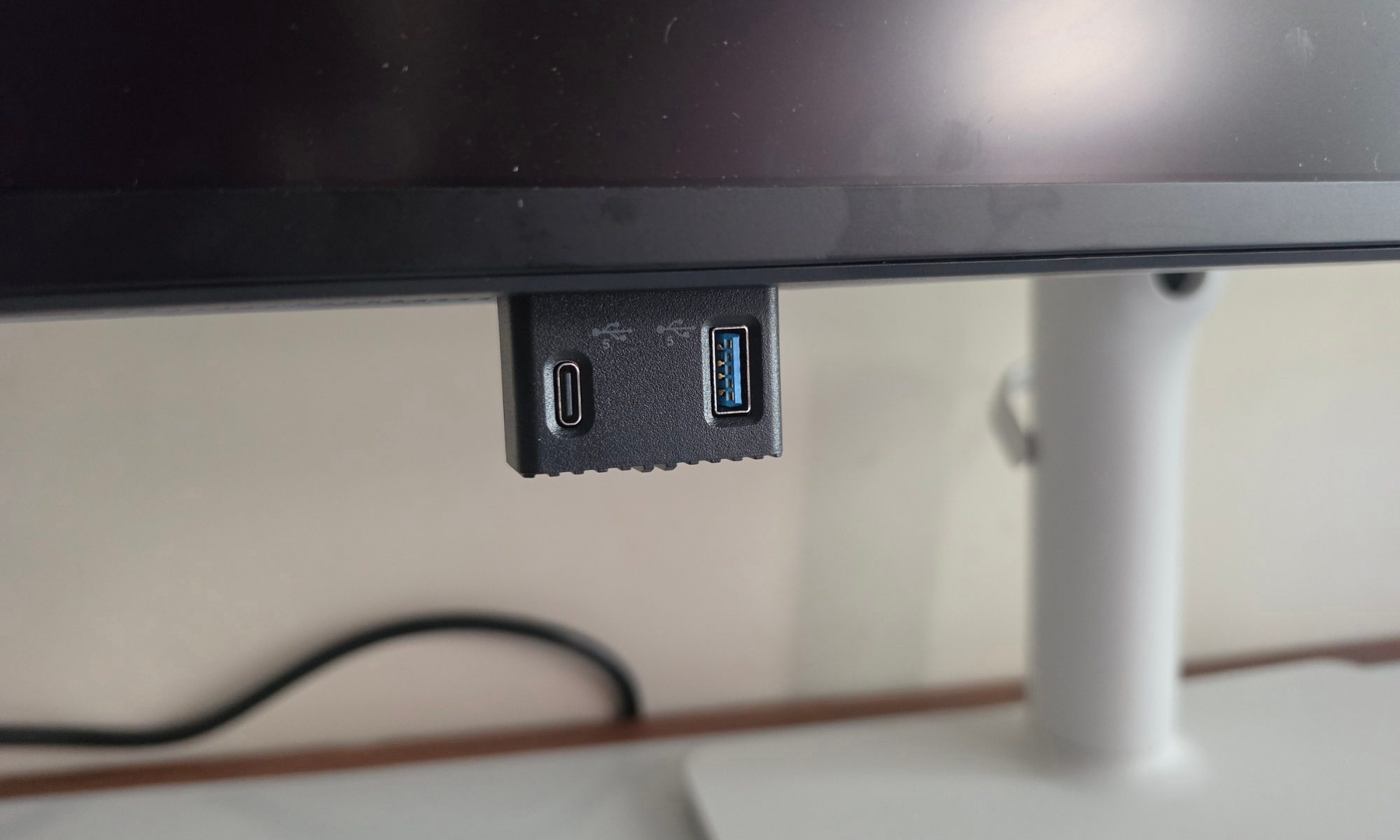
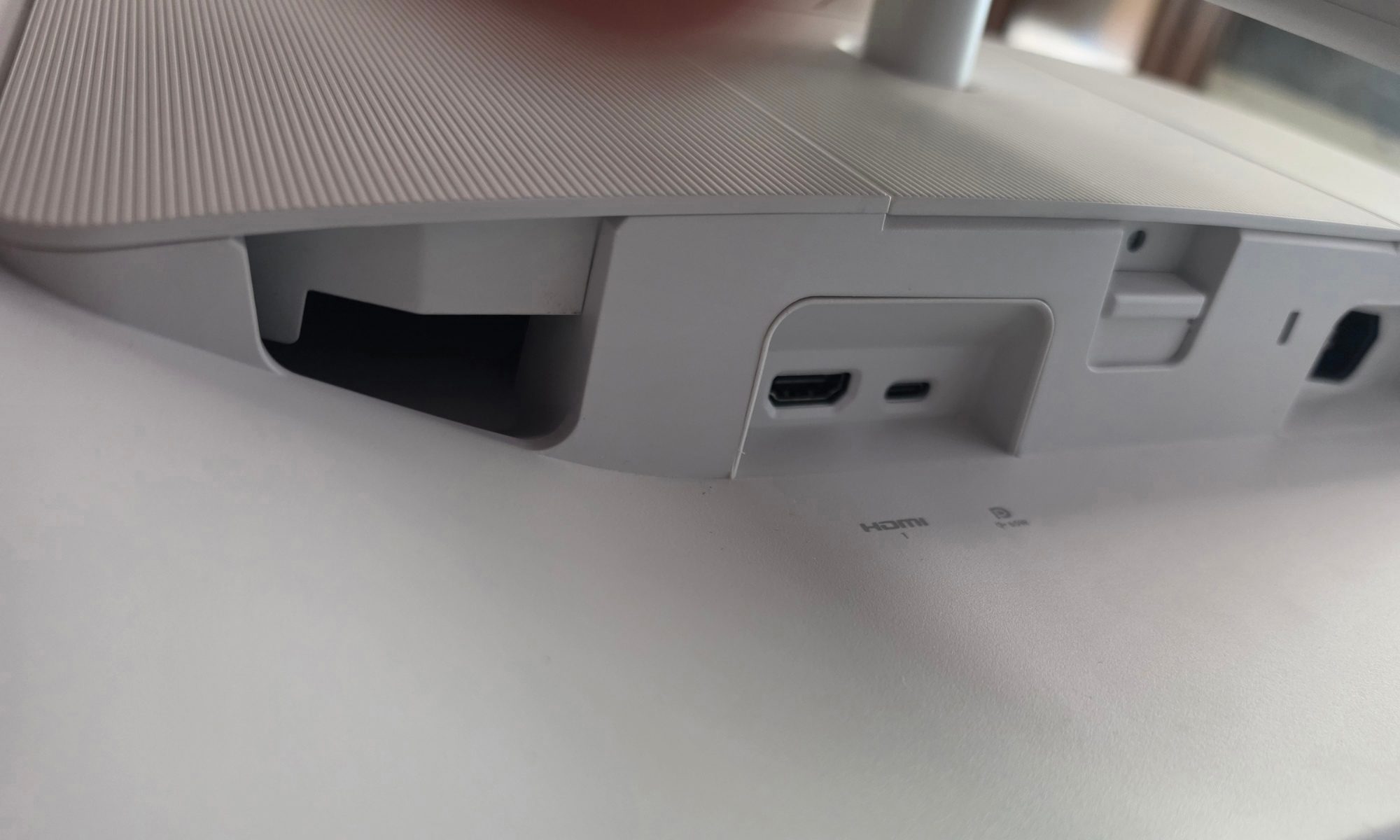
What absolutely won me over was the pop-out port hub on the bottom edge of the monitor. With a single press, it reveals a USB-C and a USB-A port in a user-facing orientation. No more reaching behind the monitor to plug in a flash drive or charge my phone. It’s such a small thing, but it’s the kind of design detail that tells you the engineers actually use these displays themselves.
When I’m done, I just push it back in, and the clutter disappears. Dell didn’t stop there either. Several of the rear ports are oriented to the side rather than facing downward, which made plugging in HDMI cables and peripherals dramatically easier than the usual upside-down fumbling. Once you’ve experienced side-facing ports on an ultrawide, you can’t go back. Plus, it’s all covered neatly behind a cover that you simply slide in, and move on.
The audio output surprised me. And I say that as someone who never trusts monitor speakers. The integrated drivers provide significantly more volume and low-end “oomph” than what I’d expect from an office display. They aren’t replacing a proper set of desk speakers, but for video conferences, casual YouTube watching, and the occasional Spotify session, they punch way above their weight.
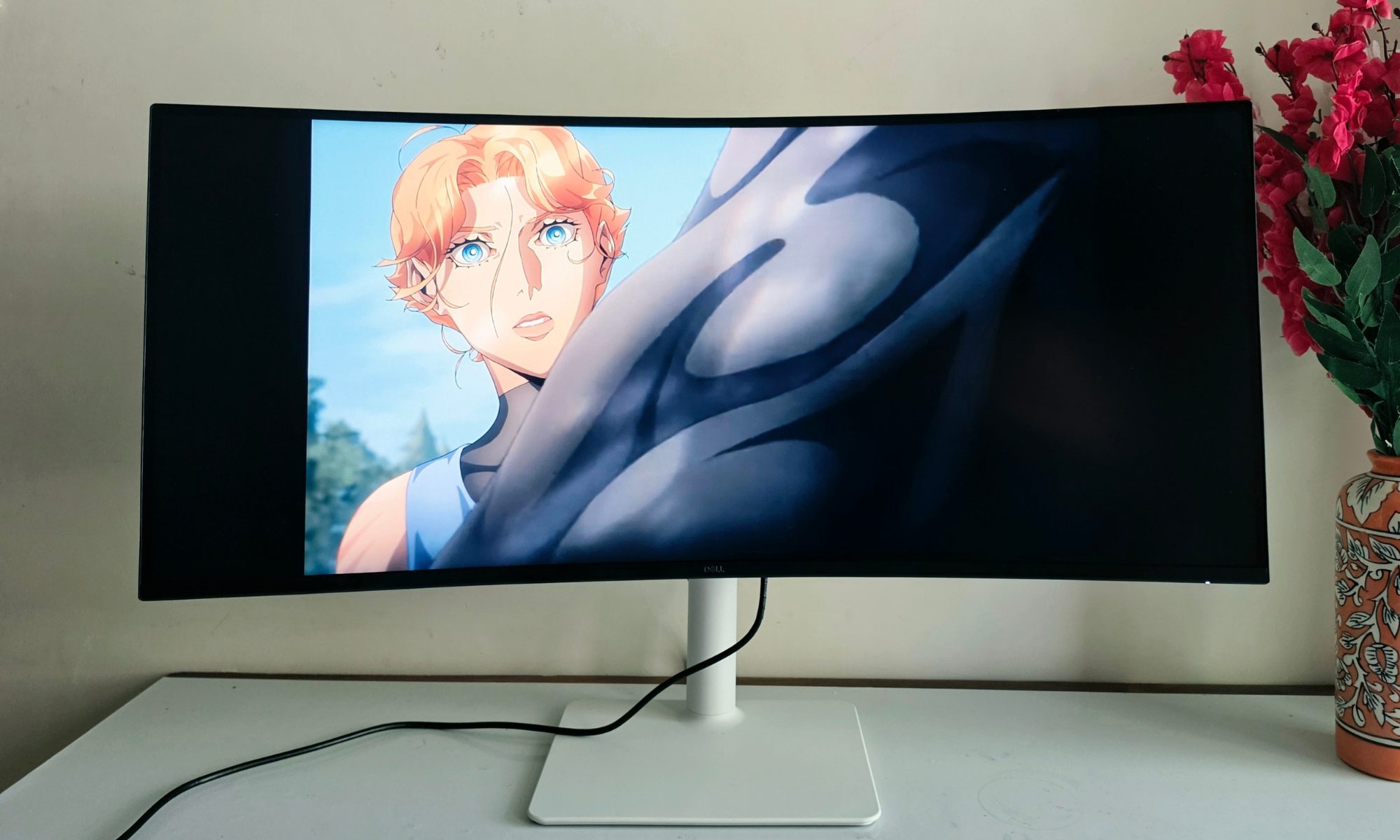
The bass and clarity are decent enough that I genuinely stopped reaching for my external setup during the workday. Compared to the built-in speakers on my Mac, they offer a wider soundstage with more character. The bass is lacking, but the monitor still manages punchy output without any jarring sonic tears at high volume levels.
Score: 8/10
Dell 34 Plus USB-C Monitor display quality: Many hits, some misses
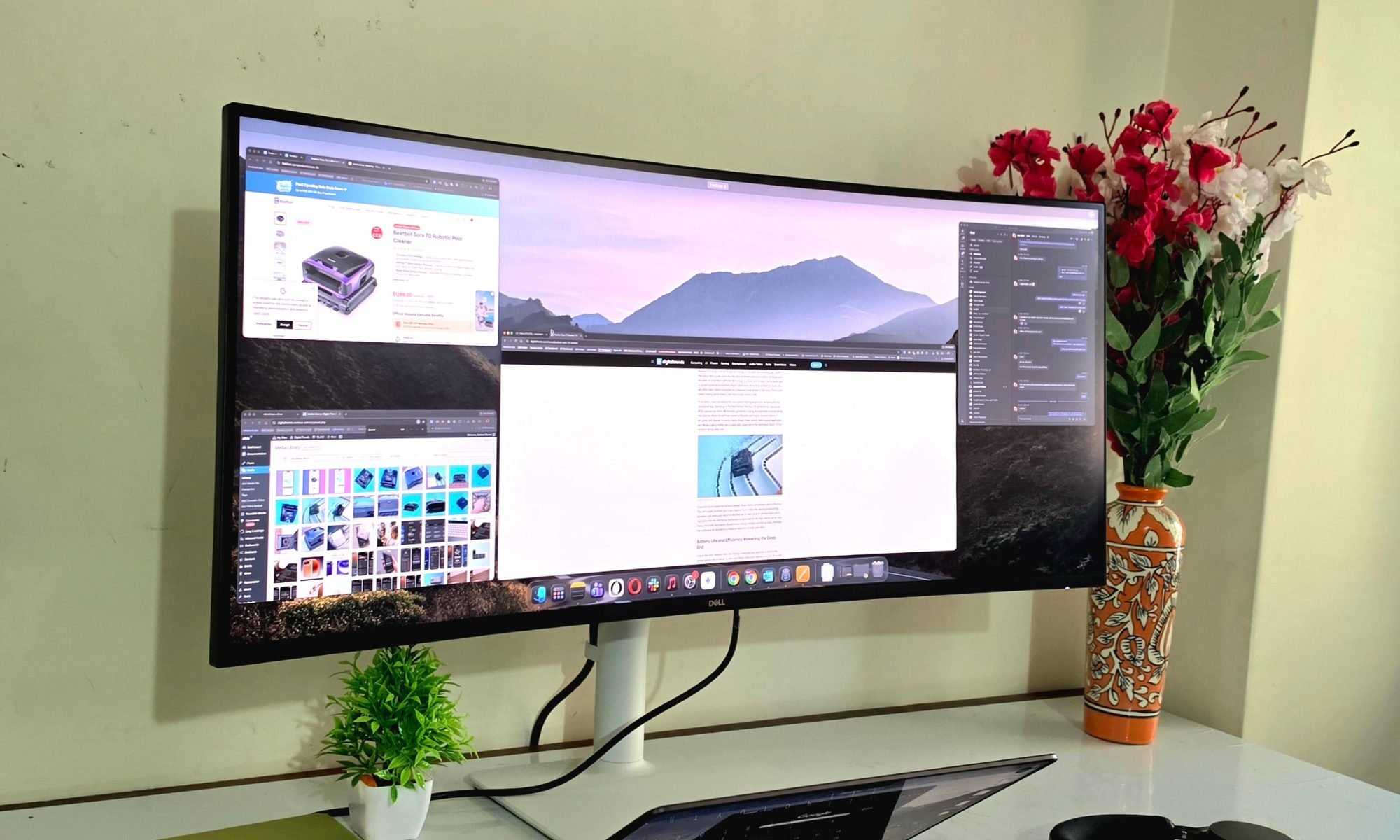
Display quality is where the Dell 34 Plus USB-C monitor earns its keep, with a bit of stuttering. The display is built around a 3440 x 1440 WQHD resolution, and the panel is a VA unit with a 21:9 ultrawide aspect ratio specifically optimized for multitasking and productivity.
On any given afternoon, I’ll have five or six windows open simultaneously — a code editor, a terminal, two browser tabs, Slack, and a YouTube reference video — and every single one stays legible without me squinting or zooming. That kind of pixel density on a panel this wide changes what “multitasking” actually means.
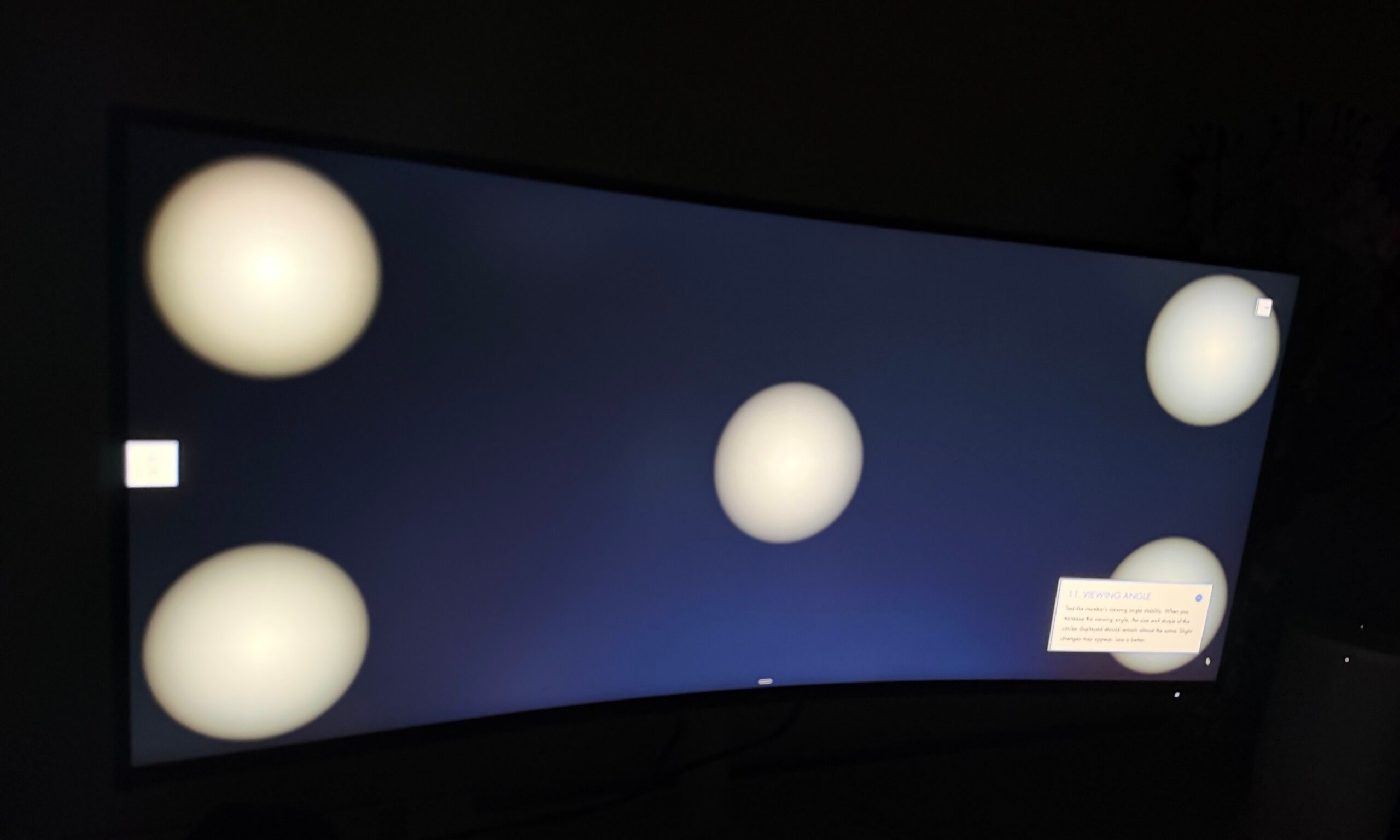
The 1800R curve also makes a real difference, and I say this as someone who was previously skeptical of curved monitors. After a full eight-hour day, my eyes feel noticeably less fried than they did on the flat MSI ultrawide monitor I used to push as my daily driver. The curve pulls the edges of the panel into your natural peripheral vision, which means you’re not constantly adjusting your gaze to track content at the far corners.
The standout spec, though, is the 120 Hz refresh rate, which is double the standard of most productivity monitors and results in exceptionally smooth motion. Scrolling through a complex spreadsheet or dragging a window across the panel feels buttery in a way I didn’t realize I’d been missing.
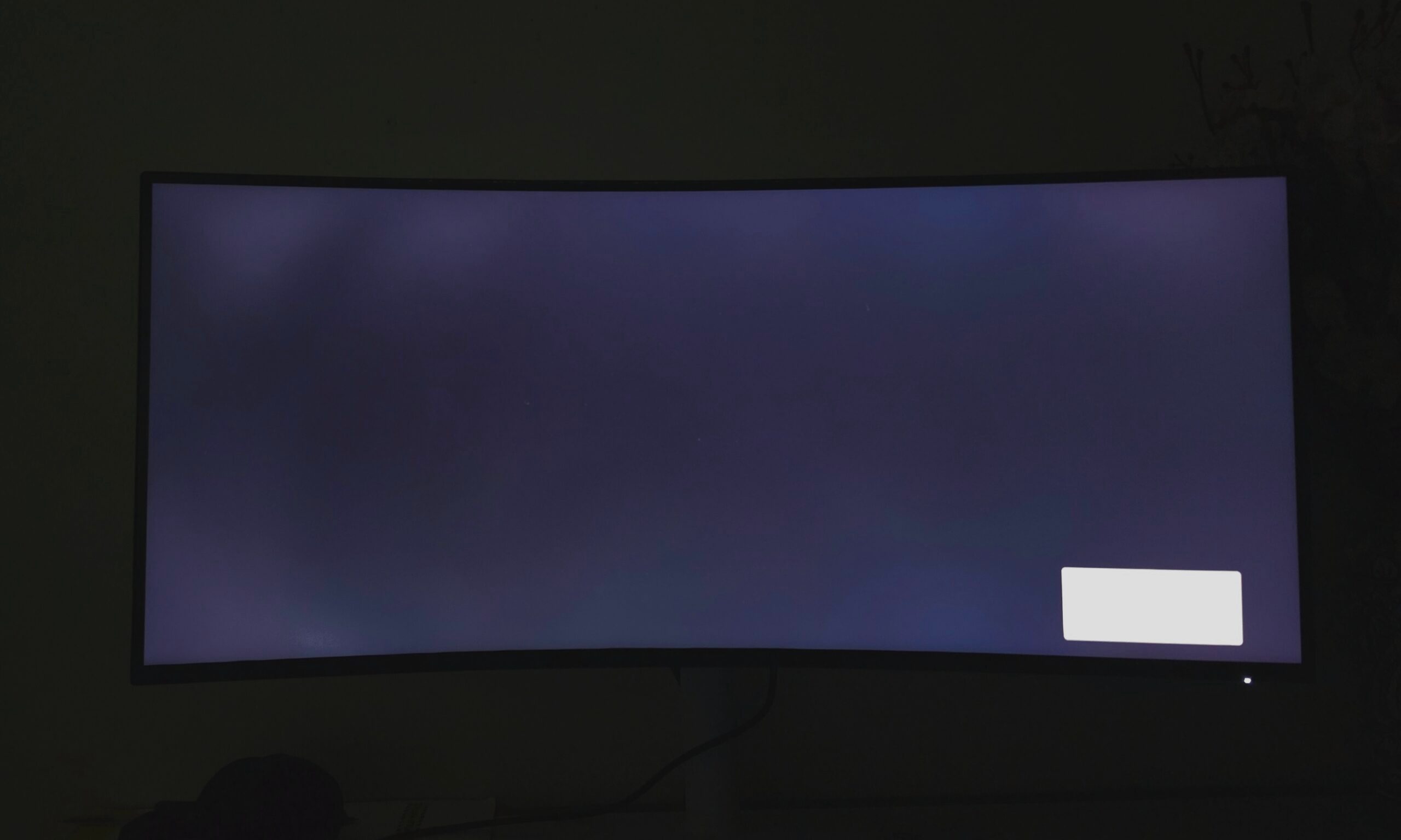
The panel also exhibits remarkable sharpness across its entire curvature. Text stays crisp from the dead center to the extreme edges, which sounds basic until you remember how many ultrawides bleed clarity at their corners. Backlight uniformity is highly controlled, too, with very minimal light bleed even in dark viewing conditions.
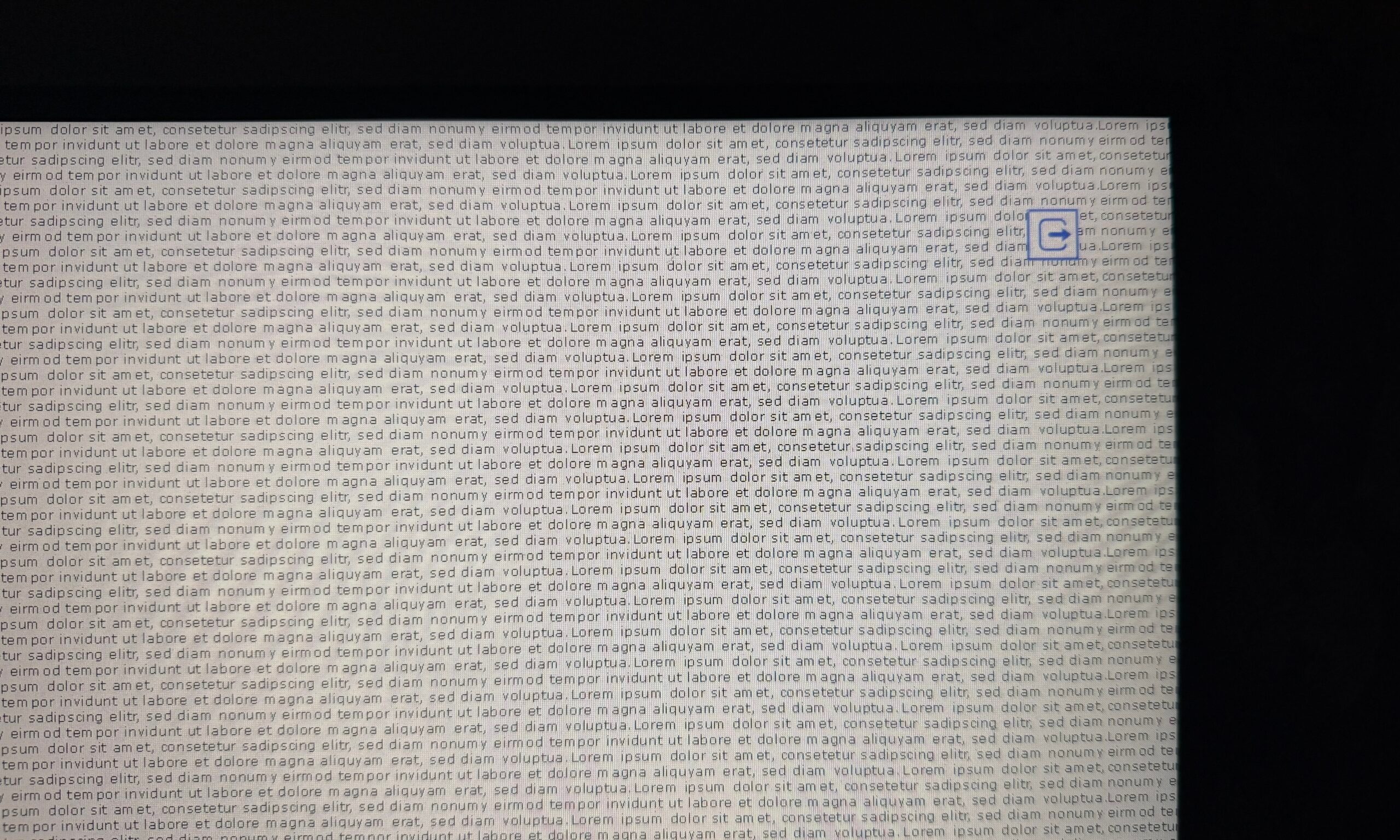
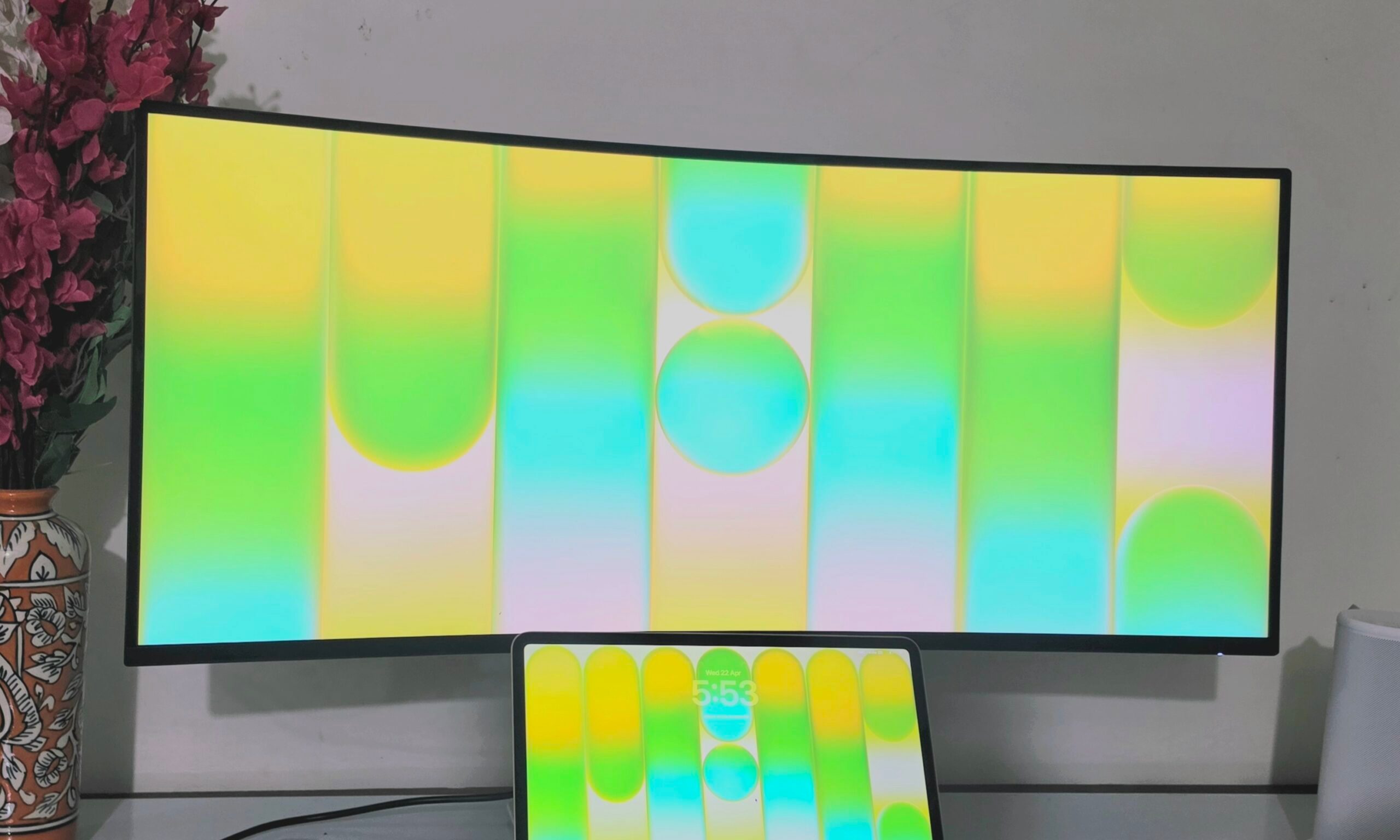
I tested it watching a few inky-dark sequences from the latest sci-fi I was binging, and there were no glowing patches at the edges to break the immersion. But there’s a caveat here. You won’t notice any non-uniformity issues when watching content on the screen, but as you turn it off, you can see some patchy spots with dark and light regions. Take a look at the image below:
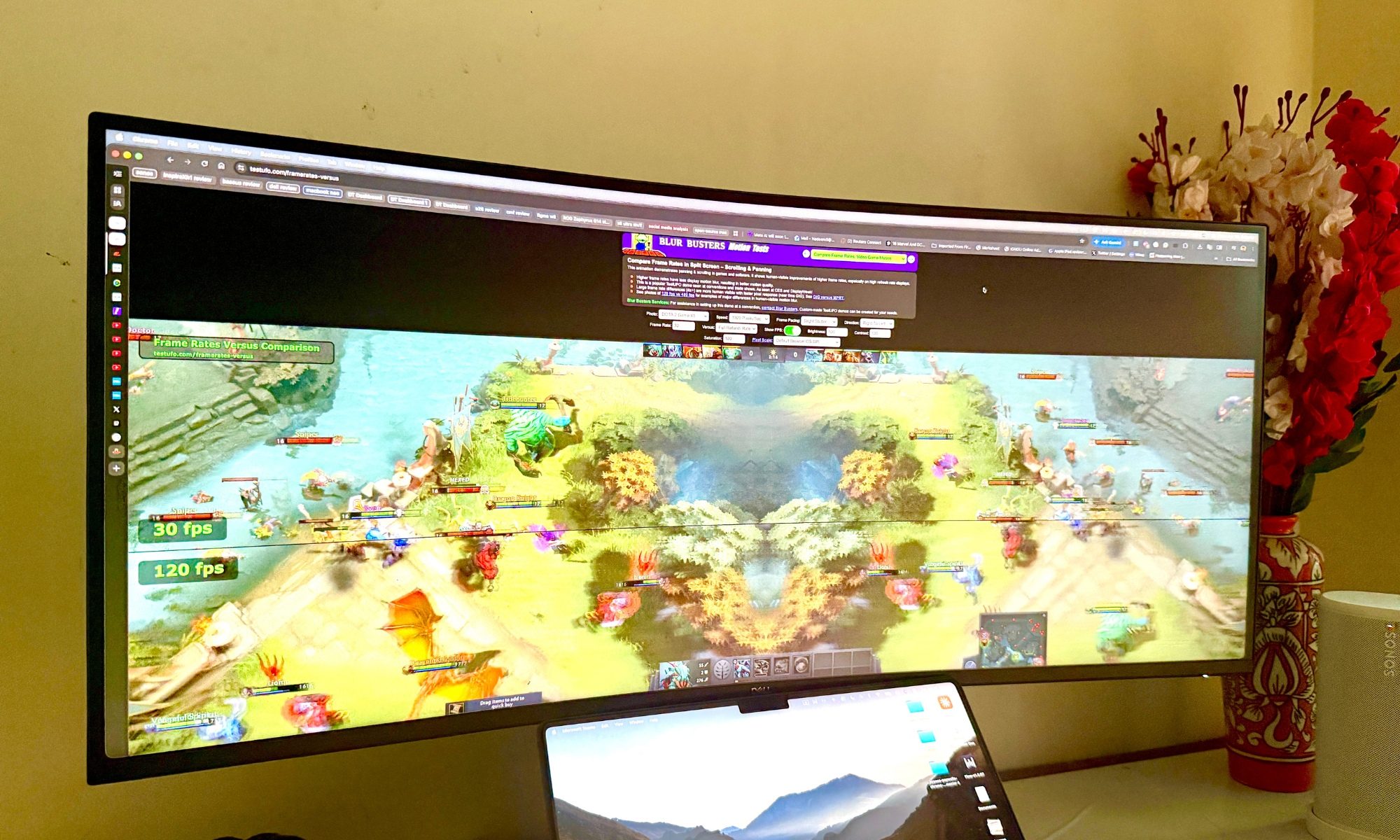
As far as raw quality goes, it produces beautiful visuals. There is plenty of saturation, colors look vivid, and the viewing angles are also good. Running the EIZO and UFO Blur tests, I didn’t come across any issues with color uniformity, sharpness, and gradient reproduction.
The anti-glare layer is the cherry on top, and it made a huge difference as I didn’t have to deal with reflection or light artifacts, irrespective of whether my workroom was sunlit or illuminated by ceiling lights in all corners. I sent it over to a display calibration lab, and the following are the measurements they shared, closest to the decimal points:
- sRGB at 98%
- Adobe RGB at 80%
- DCI -P3 coverage at 84%
- Delta-E at 1.15
The numbers fall short of what Dell claims, but the net brightness and contrast ratio figures are on point. For light creative work, this monitor is adequate. I edit photos as a hobby, and the color performance is impressive for its class. The aforementioned numbers translate into vibrant, consistent color reproduction that I’ve confidently relied on for editing my own snaps and my fashion designer sister’s portfolio.
Even though it’s not marketed as a gaming display, but it handled the casual Doom Eternal and Diablo Immortal sessions surprisingly well. Crucially, the monitor shows very little of the “black smearing” typically associated with older VA technology, which had been my main concern going in. Fast-moving content stays clean, and the higher refresh rate keeps everything fluid enough that I never felt the urge to switch to a dedicated gaming panel.
Score: 7/10
Dell 34 Plus USB-C Monitor software: Mostly, good news here!
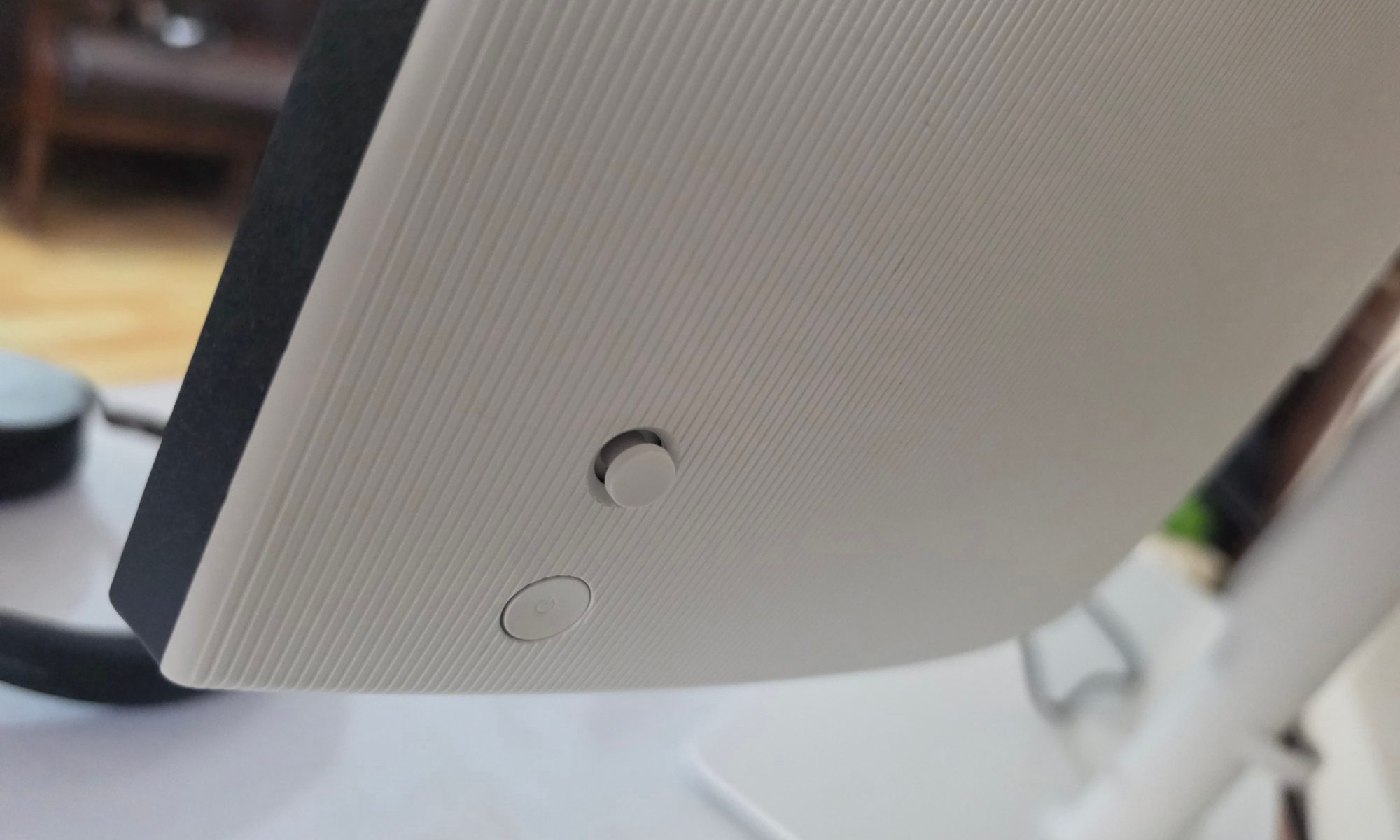
The hardware is great, but the software is what tied the whole package together for me. The monitor integrates seamlessly with the Dell Display Manager software, which became one of those utilities I now refuse to live without. That said, you can still fine-tune the monitor’s behavior through software presets and manual adjustments accessible via a joystick on the rear of the panel.
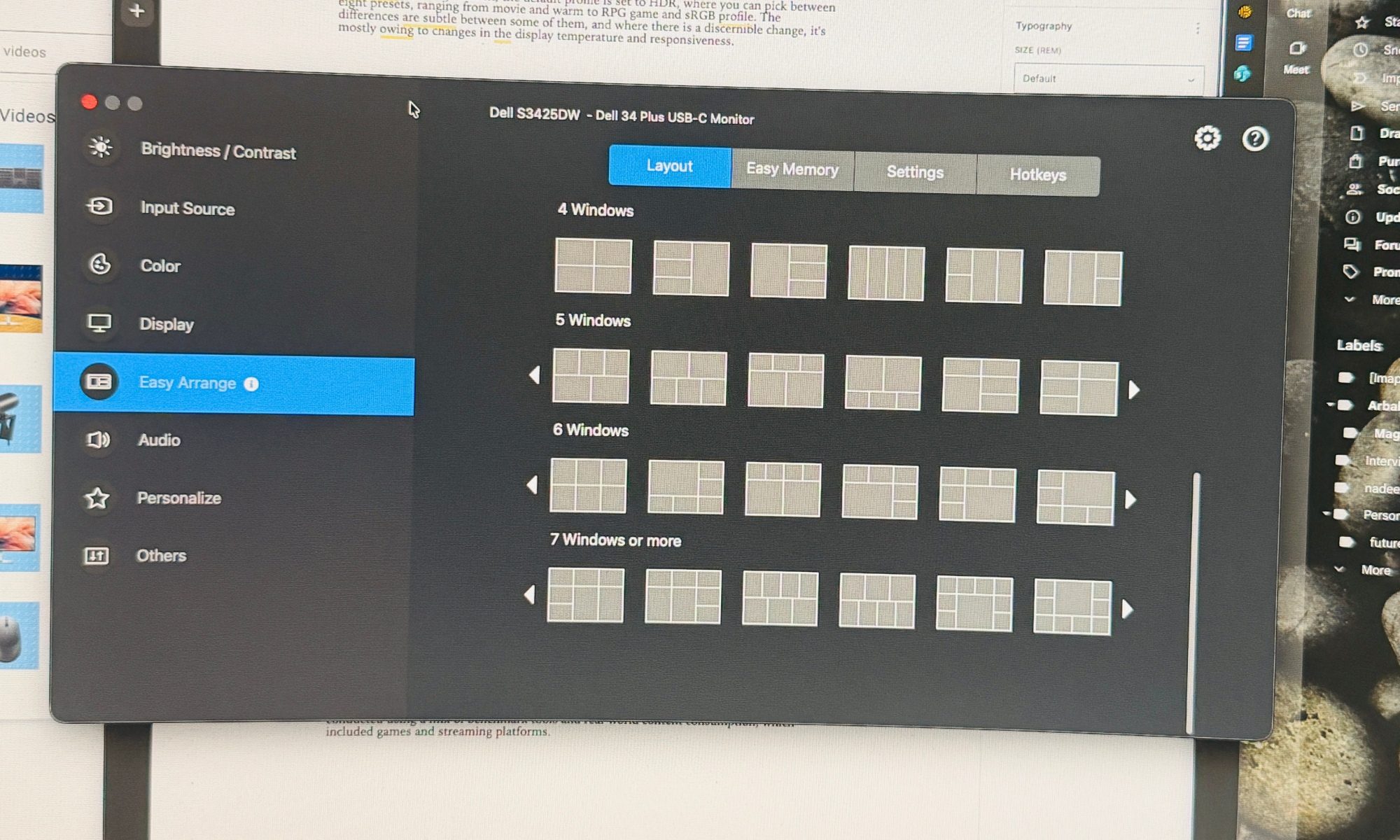
Beyond window management, Dell Display Manager provides a centralized interface for adjusting brightness, contrast, and input sources directly from the operating system, bypassing the need to navigate physical on-screen display buttons. I’ve always found OSD navigation to be a fiddly nightmare, so being able to dial in brightness from a software interface is genuinely freeing.
The Dell Display and Peripheral Manager software is fairly straightforward and doesn’t involve any learning curve to get the hang of. In hindsight, it could have used a few more granular controls, as well. To start, you get two sliders — one each for brightness and contrast. I wish there were dedicated controls for temperature and saturation adjustment, at least.
Coming to color adjustment, the default profile is set to HDR, where you can pick between eight presets, ranging from movie and warm to RPG game and sRGB profile. The differences are subtle between some of them, and where there is a discernible change, it’s mostly owing to changes in the display temperature and responsiveness.
Switching to FPS mode noticeably enhances clarity and responsiveness for fast-moving content, and combined with that 124Hz overclock, the monitor genuinely transforms into a more capable entertainment display when I want it to be.
Movie mode defaults to a blue-ish tint, a trick that deepens the perceived black levels. Between “movie” and “cool” presets, the shift is nearly imperceptible, unless you notice the difference on a white canvas. Thankfully, you can pick a specific color tone on a per-app basis, which comes in handy.
This trick worked reliably every time, and saved me the trip to Dell’s app every time I switched between work and play. You get plenty of resolution and refresh rate combos to pick from, dropping all the way down to 50Hz and sun-HD range. I stuck with the peak 3440 x 1440 resolution at 120Hz for the best experience.
My favorite feature is the layout system for tiling app windows. By default, macOS offers only eight combinations. In Dell’s app, you get over four dozen layouts, starting from the usual two-app split view to something as crowded as a 7-window layout. All you need to do is pick one, and move an app window in the desired slot with a drag-and-drop gesture.
You can also set custom hotkeys and use the Easy Memory system to create layouts where each app automatically launches and sets into a defined window layout. It works pretty well, and quickly gets into the full work groove as soon as you tap the app icon to begin your work each day.
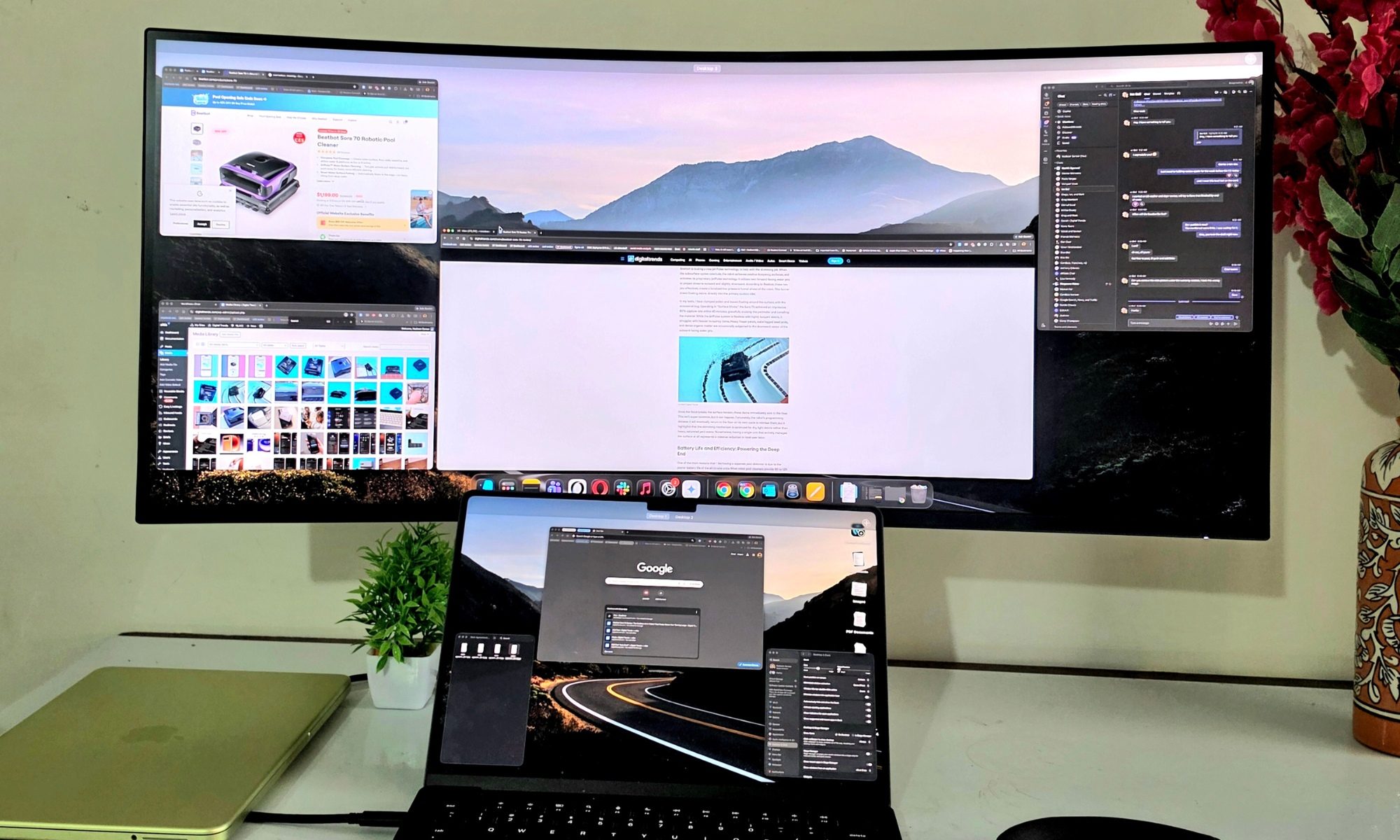
It lets you snap multiple application windows into pre-defined layouts, and on a 21:9 display, that capability is non-negotiable. Without it, an ultrawide just becomes one giant window, which defeats the entire purpose. With it, I’ve replicated my old dual-monitor workflow on a single seamless panel. No bezel splitting my code editor in half, no awkward window resizing every time I switch contexts. It’s the cleanest version of the dual-monitor dream I’ve had.
This flexibility is what really impressed me. By default, Dell’s offering is a calm, focused productivity display. With a few software tweaks, it becomes a versatile entertainment companion that can hold its own with action movies and casual gaming. It bridges the gap between a standard office monitor and a more flexible all-rounder without ever pretending to be something it’s not.
Score: 9/10
Should you buy the Dell 34 Plus USB-C Monitor (S3425DW)?
If I had to pitch this monitor in one line, I’d call it the “hidden gem” of the productivity market. It nails the fundamentals. You get a beautiful white finish, a sturdy stand with height adjustment, and full VESA mount compatibility for those who want more freedom. The 65W USB-C power delivery, two HDMI ports, side-oriented rear ports, and a brilliantly user-facing pop-out USB-C and USB-A hub solve the desk-management problems most monitors ignore.
The integrated speakers genuinely outperform standard monitor audio. The 3440 x 1440 WQHD VA panel, paired with the 1800R curve, handles five or six windows comfortably, the 120 Hz refresh rate (overclockable to 124Hz) keeps motion fluid, and the 98.1% sRGB, 80% Adobe RGB, and 83.7% DCI-P3 color coverage opens the door to legitimate creative work. There are small misses. The cable management could be better, and the absence of a traditional DisplayPort will sting for some desktop users.
But measured against everything this monitor gets right, those are footnotes. If you’re moving on from a dual-monitor setup, building a home office from scratch, or simply tired of productivity displays that look like office furniture from a forgotten era, the Dell 34 Plus USB-C Monitor deserves a serious place on your shortlist. It absolutely deserves one of mine. tools and referenced files used in this task.
Why not try?
- KTC Curved 34-inch Ultrawide Gaming Monitor: Priced at $290, this one offers a 3440×1440 pixels display with a higher 180Hz refresh rate, 1 millisecond response time, and tilt/swivel support, as well. Ideal for gamers, thanks to FreeSync and G-Sync support.
- AOC 27″ QD OLED Gaming Monitor: Available on Amazon at a matching $370, this 27-inch flat gaming monitor levels up with an OLED panel, promising dramatically better color output and contrast. It also goes up to a 240Hz refresh rate and supports Nvidia G-Sync.
- LG 34SR60QC-W 34-inch Curved monitor: Currently listed at $360, this one offers a 21:9 QHD panel with webOS23 built in, turning it into a standalone entertainment hub. It’s also got a clean design and plenty of ports, too.
How we tested
I tested the Dell 34 Plus USB-C monitor as my primary external display for a spell of over one month. In that duration, it was used while connected to a MacBook Pro, a MacBook Neo, and a Mac mini, alongside two Windows laptops primarily using the supplied USB-C cable. I avoided using any third-party accessory while testing this monitor, and no hubs were connected at all. Moreover, I did not use any third-party software for managing the display properties, and the only software deployed for quality adjustments was the Dell Display & Peripheral Manager.
The quality analysis was conducted in a dark room, while the daily usage was spread across daytime with plenty of sunlight in the room, and artificial light at night. While playing games and videos, no in-app quality or preset adjustments were made. We only tested using the quality presets available in Dell’s own monitor customization app. Testing was conducted using a mix of benchmark tools and real-world content consumption, which included games and streaming platforms.