
The Dell XPS 13 Plus is one of our favorite laptops of 2022 for good reason. The design is fresh, it has an amazing screen and an improved webcam. Naturally, that makes it an M2 MacBook Air competitor, on almost all levels, but there’s the need to look back at one area in particular when considering these two laptops as workstations.
It’s all about the way they end up powering external displays. This is where the XPS 13 Plus truly has the MacBook Air beat.
A story of ports
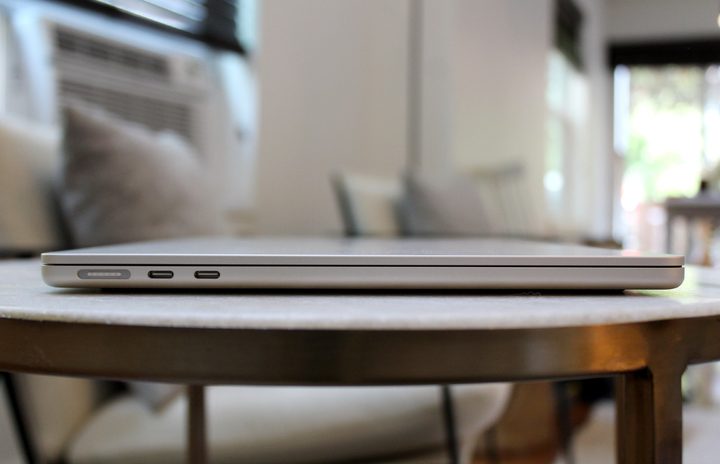
To understand what we mean, you first need to look at the ports on the devices. Both the new MacBook Air M2 as well as the Dell XPS 13 Plus feature USB-C ports. You’ll find one on the right and one on the left side of the XPS. These Thunderbolt USB-C ports are used for charging, data, and connections to displays.
Then, there are two on the left side of the MacBook Air. Apple’s MacBook Air also has the benefit of MagSafe charging and a headphone jack. We debated about the loss of the headphone jack on the XPS in a separate piece if you’re curious, but we’re here to talk about what truly makes the ports different between these two devices: external display support.
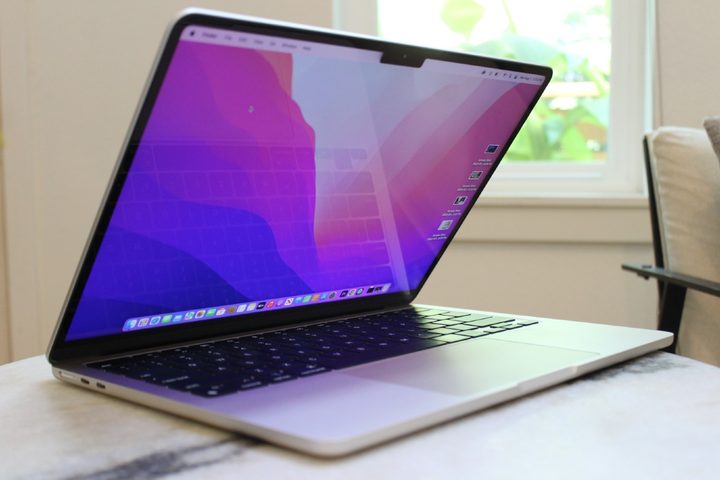
So, the core part of the debate here is that the M2 MacBook Air only supports a single 4K display natively. This is a limit on most MacBooks powered by Apple silicon, with the only exceptions being the 2021 M1 MacBook Pro with the M1 Pro or M1 Max chip.
On those models, with the M1 Pro chip, you can power two external displays, rated at either 6K resolution or 60Hz. The M1 Max chip lets you enjoy up to four external monitors, with three at 6K and one at 4K. These, though, are expensive upgrades over the MacBook Air and aren’t what we are here to talk about.
On the M2 MacBook Air, you’re limited to one external display with up to 6K resolution at 60Hz. If you want to connect to external displays, you need to invest in a dual HDMI adapter or a DisplayLink hub that supports DisplayPort, or even a HyperDrive USB-C hub. Again, these are expensive options just to get dual display support. A dual HDMI adapter can be near $100, and the other options we mentioned are also priced over $100. Depending on which route you go, the resolution and refresh rates of connected monitors will also vary.
So, for someone who ends up with a MacBook Air, and might be wanting to work from home and have a multiple monitor setup, this is a huge loss of productivity. Even those who are in the music production, video editing, or graphic design industry might use multiple monitors.
You’ll have to spend extra money just to plug into multiple monitors, and that’s a shame. Considering how powerful the M2 MacBook Air is, the idea of someone wanting to connect it to multiple external displays is a no-brainer, and it remains one of the primary drawbacks of these otherwise fantastic laptops.
The XPS 13 works with more than one display easily
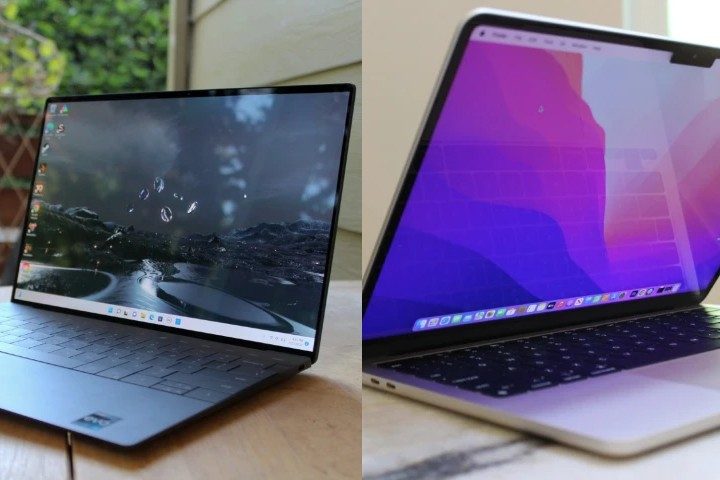
So now, we head over to the XPS 13 Plus. Officially, things are much simple in concept. With two Thunderbolt 4 Type-C ports on the XPS 13 Plus, you can connect two external monitors up to 4K using both USB-C ports, with the internal display turned off and without a dongle or hub. This is the one thing that the MacBook Air can’t do natively, even with its screen turned off.
In a similar configuration, up to four displays can be also connected to the XPS 13 Plus via a USB-C docking station, with the additional display being able to connect to the right Thunderbolt 4 port with a USB-C or Thunderbolt cable. Officially, here are the limits and caveats:
- The total number of external displays that are supported depends on the specifications of the USB-C docking station
- 4K UHD (3840 x 2160), at a 60Hz refresh rate max for each of the three external displays that are connected to the
USB-C docking station - Each external display must be connected to a DisplayPort connector on the USB-C docking station
- Each external display must support Display Stream Compression (DSC).
- For the external display that is connected to the right Thunderbolt port
with a USB-C or Thunderbolt cable, QHD (2560 x 1440), at a 60Hz refresh rate is maximum supported.
With the internal display turned on the XPS 13 Plus, you can connect to two external displays using a USB-C docking station. You also can connect up to three external displays using a USB-C docking station. Under these conditions, for the three external displays to operate at resolutions of up to 4K UHD (3840 x 2160), at 60Hz refresh rates, each external display has to be connected to a DisplayPort connector on the USB-C docking station. Each external display must also support Display Stream Compression (DSC).
Note that with 8K displays, you can’t use these on the XPS 13 Plus with the display turned on. You’ll have to turn the internal display off.
The XPS 13 wins for displays
All that said, the XPS 13 wins out over the MacBook Air for its display support. For those looking for a laptop that can function as a workstation, it is the better option as you can power two displays without the need for a dongle. There are also even more options for display connections when you add a USB-C hub into the picture, too.
For now, Dell laptops have this one advantage over Apple’s MacBook Air. We certainly hope that will change one day, but for now, it’s a limitation you’ll need to buy extra hardware to get around.


