
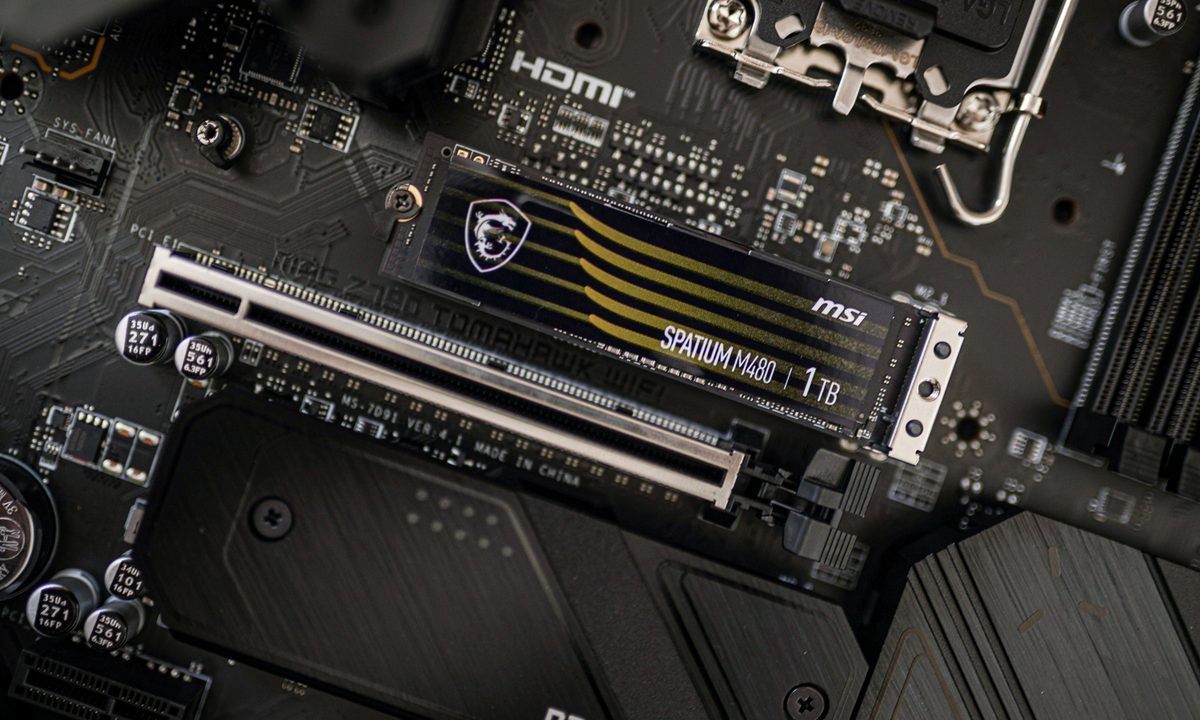
Installing a new SSD should be a relatively straightforward process, but there’s a couple of nuisances you may run into. Perhaps the biggest offender is that your SSD decides to do a no-call-no-show for work that day. It’s one thing if the drive in question has some pictures and music on it, and another entirely if you bought one of the best SSDs as a boot drive for Windows.
Fortunately, you’re not the only person whose new SSD can’t be detected by their Windows 11 PC. This is a fairly common issue actually, which is what gave us the inspiration to put together this guide in the first place. Throughout, we’ll cover multiple troubleshoot and repair methods, as well as answer some frequently asked questions.

Check that it's installed properly
I know, you know what you're doing, but just do this one for me, OK? We've all forgotten to plug in a SATA cable, or not quite mounted an NVMe SSD correctly. There's no shame in it.
Step 1: If you are installing a SATA SSD, check that the SATA cable is connected properly to the drive and your motherboard, and that the drive has a SATA power connector that runs through to your power supply. If in doubt, unplug the connections and plug them in again.
If you're installing an NVMe SSD, make sure that the slot you're installing it in supports that size and type of drive, though older PCI Express generations should support newer ones, but at slower speeds.
Step 2: If you suspect this is the problem, you can also try mounting a drive in a different slot on the motherboard, and use a different cable in the case of SATA drives.

Check your BIOS settings
It may be that your PC isn't set up to recognize new SSDs. Checking the UEFI/BIOS can be a good way to make sure.
Step 1: Reboot or start up your PC and use your motherboard's special key to open the UEFI/BIOS. For many, it will be F2 or Del, but it can be any range of buttons. Check your manual or the manufacturer website if you're unsure.
Step 2: Look for a section about storage, or configuration. It will vary dramatically from BIOS to BIOS. Again, look to your manual or manufacturer website for help navigating your system's BIOS.
Step 3: If you're running an older SATA SSD, make sure that the SATA Configuration is set to AHCI. Alternatively, if you have trouble with this mode not recognizing your SSD, you can try setting it to IDE or Compatibility mode to see if that fixes things.
Step 4: In some older motherboards, certain SATA ports may need to be enabled in the BIOS. Look for any indication that this may be the case on yours and, if necessary, enable the relevant SSD ports.

Initialize the drive
Sometimes a new drive won't be recognized by Windows until you initialize it.
Step 1: Select Windows Key + X, and select Disk management from the list,
Step 2: Locate your new drive. You can search for it by drive letter if you know what it should be, but looking at the capacities can help too.
In reality, though, if your new drive isn't initialized, it will have a black bar along the top of its unallocated space, and will have a small red circle icon next to the drive name.
Step 3: Right-click the drive and select Initialize disk.
Step 4: Choose your preference for partition style, MBR or GPT. You almost certainly want GPT, but select whichever one is right for your needs, then select OK.
Step 5: Wait for the drive to finish initializing, then right-click on the unallocated space, select New simple volume, and follow the on-screen instructions to create it.
Step 6: Your drive should now have the space to install applications and store files and other data.

Change the drive letter
It's possible that a conflict between drives has meant your new SSD can't be recognized because it doesn't have its own drive letter. We can change that with a simple fix.
Step 1: Press Windows Key + X, and select Disk management from the list.
Step 2: Right-click the SSD you want to change the drive letter for, and select Change Drive Letter and Paths.
Step 3: If your drive has a letter, select Change. If it doesn't have one, select Add.
Step 4: Select a new drive letter from the drop-down menu. If your drive already had a letter, you may want to remove that too, though note that can cause problems with any existing apps or games on the drive.
Step 5: When you're done adding, changing, or removing letters, select OK to finish. Then reboot your PC and see if the drive is recognized.

Format the drive
It may be that something with the drive's setup is causing it to not be detected. Starting from scratch may be the best way forward.
Step 1: Choose Windows Key + X, and select Disk management from the list.
Step 2: Right-click the drive you are having trouble with, and select iFormat.
Step 3: Select the file system that you want to use (for most people, it will be NTFS), then choose the default allocation size unless you have a very good reason not to.
Step 4: Tick the box for a Quick format and press OK to begin.
Step 5: Wait for the format to finish, then reboot the PC and see if the drive is recognized.
Why is my SSD showing up in BIOS, but not Windows?
In the event that your SSD is visible in BIOS, but you can’t locate the drive in Windows, there could be a few reason why. For starters, you’ll want to make sure that the drive is configured correctly. This includes ensuring that controller modes like RAID and AHCI are properly set.
If your configuration looks good, try launching Windows Disk Management tool to prepare your second drive for onboarding. There’s a chance you may need to use this tool to create a new drive space altogether. You may also want to confirm that your SATA board is correctly placed in the appropriate motherboard slot.
How do I know if my SSD is failing?
You may be wondering if Windows failing to detect your SSD may have more to do with the drive itself. If you’re beginning to suspect your SSD may be on the fritz, one of the most common signs of a failing unit is sluggish performance. If you’ve noticed your read and write speeds haven’t been very good, your SSD may be throwing up a red flag.
Launching apps and software, and booting your PC up may be impacted, too. If these simple processes are starting to slow way down, this could be another cause for alarm.
Who makes the best SSDs?
We have an entire SSD buying guide on this subject, but generally speaking, some of of the most safe and reliable brands include companies like Samsung, PNY, Western Digital, and Crucial.
If after all of the above, the drive is still not being recognized in Windows, you may be facing hardware problems. Try another drive and see if that works. If it does, you may need to replace the original.


