1. Home
  2. Computing
  3. News

Google Meet will soon jot down notes for you, even if it’s an in-person meeting

Take Notes for Me going in-person signals that Google doesn't want Gemini to live inside a single app; it wants it to be the AI layer across every conversation you have, anywhere.

Add as a preferred source on Google
Google Next Cloud 2026.
Google

If you’ve ever left a meeting with a vague memory of what was discussed and a page full of half-baked, poorly-written notes, Google just built something for you. 

At Google Cloud Next 2026 in Las Vegas, the company announced a major expansion of the “Take Notes for Me” feature in Google Meet. Now, it works whether you’re on a video call with someone or sitting in an actual conference room with people.
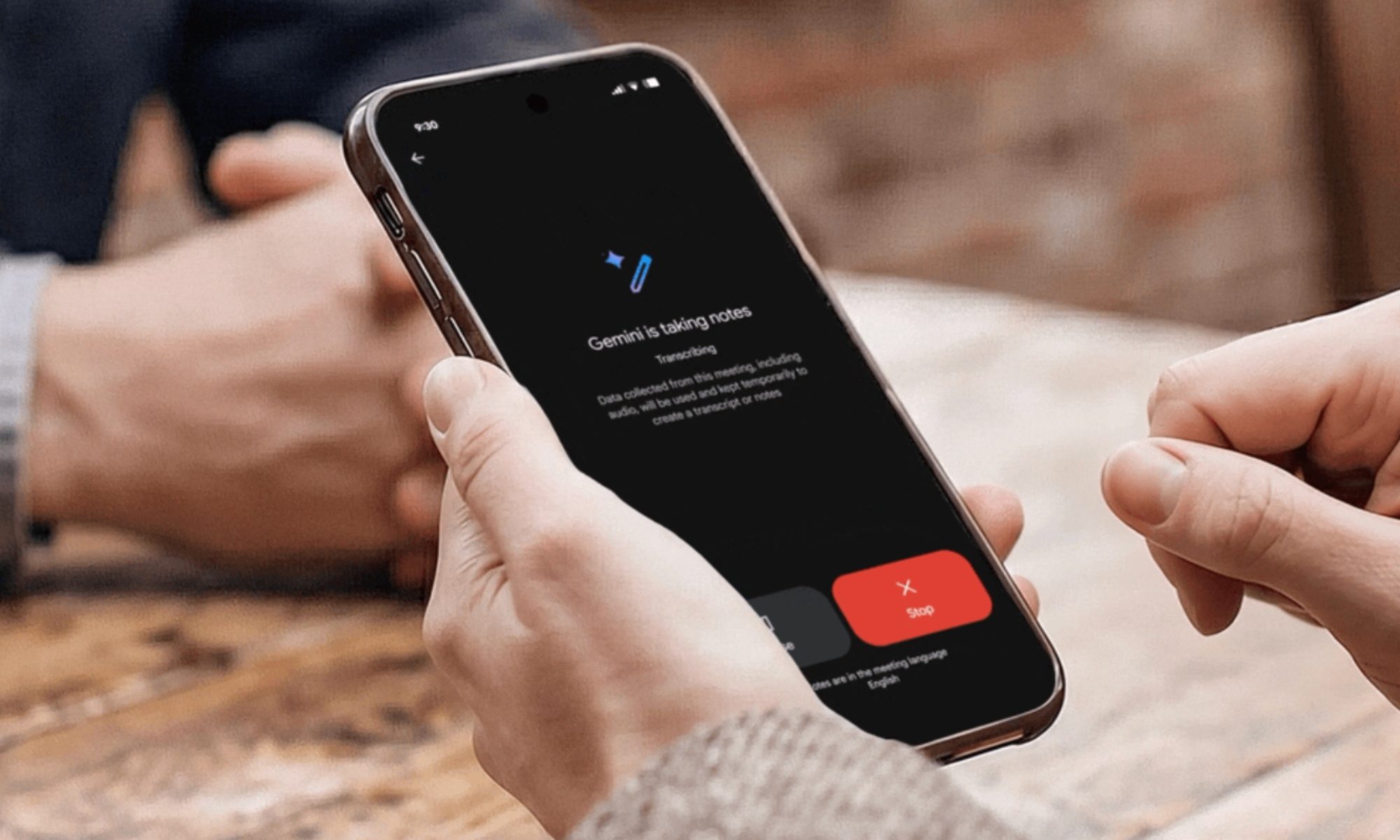
How does “Take Notes for Me” work in actual in-person meetings?

The process is quite simple. You have to open Google Meet on your phone or desktop, hit the “Take Notes for Me” button before or during a conversation, and that’s it. 

Recommended Videos

The feature deploys Gemini, which starts listening to the chat, transcribes it, and extracts key decisions or action points from the list. Then it drops everything into a Google Doc (which makes this feature even easier and more accessible) with no manual effort. 

It’s worth noting doesn’t need a pre-scheduled meeting. Further, it works in any setting, whether you’re sitting at a coffee place with your client or in a boardroom. 

Does it work outside of Google Meet?

Yes, and that’s what makes this feature genuinely interesting and useful. Google’s improved “Take Notes for Me” now works in Zoom and Microsoft Teams meetings too, placing Gemini as the cross-platform note-taker that doesn’t care about the users’ medium of choice for personal or professional meetings. 

It is this platform-agnostic nature that puts the feature in direct competition with paid transcription services like Otter.ai and Fireflies.ai. For now, it is available on selected Google One, Google Workspace Business, and Workspace Enterprise plans, with the full rollout arriving over the next few weeks. 

To me, the move sounds less about note-taking and more about positioning Gemini as an omnipresent AI layer for all workplace conversations, and not just the ones that take place on Google’s software. 

Shikhar Mehrotra
For more than five years, Shikhar has consistently simplified developments in the field of consumer tech and presented them…
Sony’s table tennis robot made me think about what happens when AI gets a body
Ace starts as a flashy sports demo and quickly turns into a preview of AI moving from screens into factories, hospitals, farms, and homes
Ball, Sport, Tennis

I wanted to dismiss Sony’s table tennis robot as another expensive lab flex. A machine that can rally against elite players is impressive, sure, but it also sounds like the kind of demo built to make executives clap in a room where everyone already agreed to be impressed.

But table tennis is a nastier test than it looks. The ball is small, fast, spinning, and rude enough to change direction the moment it hits the table. Sony’s system faces something less forgiving than calculation. It has to see, predict, and act before the point is gone.

Read more
Tired of Gemini and ChatGPT? Claude now has your back with Spotify, Uber, and more connectors
Your weekend plans, grocery runs, and dinner reservations just got an AI upgrade.
Claude new app connections

One of the reasons I have preferred Gemini over Claude on my iPhone is its deep integration with Android apps. But all that changes today as Anthropic has just added support for 15 new app connectors to Claude, including AllTrails, Audible, Booking.com, Instacart, Intuit TurboTax, Resy, Spotify, StubHub, Taskrabbit, Thumbtack, TripAdvisor, Uber, Uber Eats, and Viator. 

While the feature launched back in 2025 and supported over 100 app connections, today’s release is what makes it truly useful for regular users, as the list includes apps we use daily. 

Read more
How to take a screenshot on a Chromebook in 2026
Use the Screenshot key or ChromeOS Screen Capture tools to grab a full, partial, or window screenshot in seconds
A woman uses the trackpad of the HP 14-inch 2-in-1 touch laptop.

Taking a screenshot on a Chromebook is easier than it used to be. Newer models include a dedicated Screenshot key, while all current Chromebooks also support ChromeOS Screen Capture tools for full-screen, partial, and window screenshots. If your device uses an older keyboard layout, you can still use the familiar Show windows shortcut.

You can also take screenshots in tablet mode, use an external keyboard, and change where screenshots are saved. Here’s how it all works.

Read more