Imagine Google, AI, and video. The first name that pops into the mind is Veo. Google’s text-to-video tool has been making waves ever since it landed on the market, but you will be forgiven for not knowing about another AI-powered video tool called Google Vids.
It was announced last year and has remained exclusive to the paying Workspace customers. Now, it is getting jazzed up with a bunch of new AI-powered tools. More importantly, Google has finally released a free version of this online video editor that is now available to anyone with a Google account.
A train worth hopping on

One of the most recurring hurdles that I often see students and professionals often run into is the chore of making videos. Whether it’s an academic assignment or work presentation, videos are a completely different ballgame compared to the material you would create in Slides or PowerPoint.
Not everyone is familiar with the technical know-how of running video tools such as Adobe Premiere Pro, DaVinci Resolve, or Final Cut Pro. Plus, these tools either require a beefy computing machine, or are too overkill for the task at hand. With Vids, you are essentially dealing with the same approach as Canva or Wix for building websites.
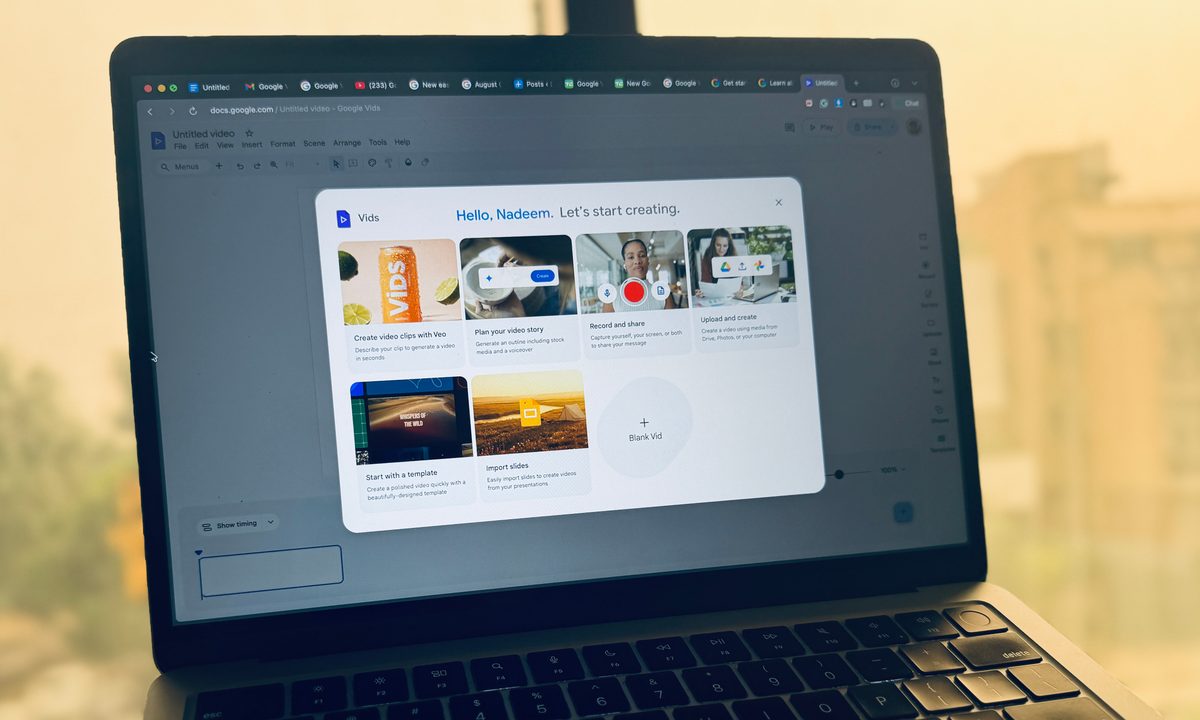
All you need to do is have your material ready, and Google Vids will help you turn it into a video using a system of preset templates. There’s a timeline at the bottom, and a sidebar on the right for your script content. You can upload audio, videos, GIFs, and stickers in a variety of file formats from your computer.

Now, Google Vids is heavily reliant on AI, and there are plenty of features that are exclusive to paying Workspace customers or those with a Google AI Pro and Ultra subscriptions. However, there is still plenty of fundamental non-AI substance here to get your work done.
You can choose to upload a local (or Drive) video, record yourself (via the webcam), pick the audio (pre-recorded and voiceover), or capture your screen activity as a clip. There’s also an option for multi-layer audio, alongside the ability to adjust audio timing and transitions, as well.
For visuals, there’s also an integrated stock media option for images, videos, stickers, and sound effects. You can add text and objects in the video wherever necessary, and tweak their orientation, as well. In fact, each element you add to the video has its own tracker on the timeline so that you can precisely control when they appear and leave the scene.

Talking about scenes, you can go creative with scene transition effects in Google Vids. Essentially, all you need to do is pick the right template from the gallery, import the slides (if needed for presentations), and you have a video ready. In my brief time with Google Vids, I’ve found it to be surprisingly useful for quick chores.
It’s not as flashy as something like Instagram’s Edits app, but for more serious video assignments where the substance takes precedence over style, this should get the job done. It’s one of the easiest video creation tools out there, deeply integrated with all your Google services, and the fact that you’re getting access to it for free is quite a perk.
AI levels it all up

In Google Vids, the fun (and convenience) really begins with AI-powered tools courtesy of Gemini integration. If you have access to a paid Workspace account or Gemini (Pro or Ultra bundle), you can choose to generate videos with Veo or start the video journey by brainstorming it with Gemini, generating a broad outlook that is pre-loaded with voiceover and stock visuals.
All you need to do is describe the kind of content you want to create, and Gemini will jump into creation mode. It’s pretty impressive to witness in action, though it can occasionally fumble with picking the right images for the theme. Now, Google is adding more AI and creative tools into the mix for Google Workspace and Gemini subscribers.
The most impressive of the lot is image-to-video conversion. For product-centric videos, this is like a superpower in your hands. For small businesses that don’t necessarily have the budget for product videography, the image-to-video tool is a fantastic tool for social media marketing. Take a look at this sample generated in just about a minute from an old picture:
On a similar note, for people who are camera-shy or simply lack a decent camera to record polished videos, Google Vids now lets them present the entire script as an AI avatar speaking on the screen. “It’s ideal for things like trainings, demos, onboarding, and more,” says Google.
While working with videos, if you come across images that need a bit of touch-up, you can directly prompt your way through the desired adjustments by just describing them, and Gemini handles the rest. Aside from changing background elements, you can also adjust their aspect ratio to fit the canvas.
Another incredible tool is the automatic transcript trim in Google Vids. For any person who has ever shot personal video presentations, editing them and painstakingly cutting out the pauses and filler words is a chore. The new transcription tool generates a transcript of your video, edits out the unnecessary parts, tightens it, and applies it to the video.
This feature is already available starting today, and next month, Google Vids will enable noise cancellation, backgrounds, filters, and appearance adjustments, too. Later this year, the video editing and creation software will let users create clips in portrait and square aspect ratios, as well.
To help users get started, Google has also launched an educational “Vids on Vids” series. In order to access the tool, just type vids.new in the browser’s URL bar, or find it in the app launcher drop-down menu on desktop.