

Many people use Microsoft Teams regularly to communicate with colleagues both inside of the office and remotely. It is considered one of the most efficient ways to ensure you can stay in contact with the people on your team, but what if you need to let people know you’re not readily available? Microsoft Teams has a method for you to set up an “Out of Office” status for your profile to let staff members know when you’ll be gone for the afternoon, for several days on vacation, or for an extended period.
Where do I go to set up my ‘Out of Office’ status for Teams?
It is important to note that your Microsoft Teams and Outlook calendars are synced. This includes your out-of-office status and automatic replies. So, whatever you set up in Microsoft Teams will reflect in Outlook. Similarly, you can set up your out-of-office status in Outlook, and it will be reflected in Teams; however, the former has a more straightforward instruction.
The following steps will work whether you use Microsoft Teams online or on the desktop.
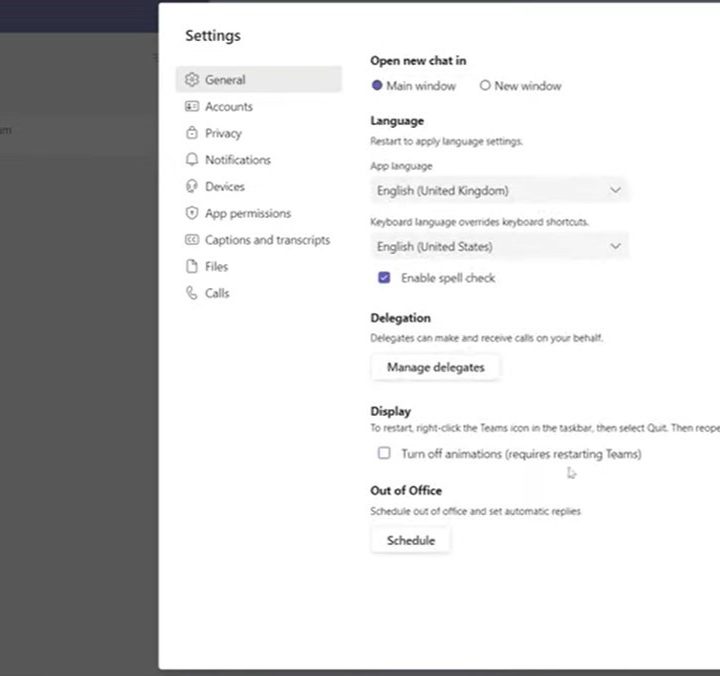
First, you can click on your profile icon in Teams and go directly to Schedule an out of office, as a shortcut. This will take you to the settings area where you can proceed. You can also click the three-dot icon next to your profile icon, then go to Settings > General, then scroll down to the bottom of the page. There, you’ll find out-of-office settings and click Schedule.
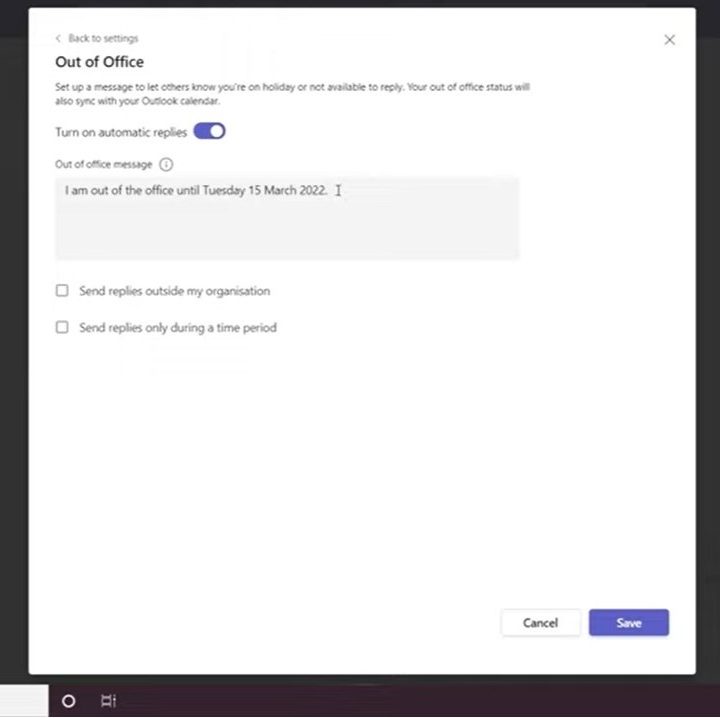
Toggle on automatic replies and enter a message detailing the length of time you won’t be available in the text box below that. Note that this status is for internal organization contacts only. If you press save at this point, there won’t be a time and date available for you to set, so you will have to turn off your automatic replies manually when you return. This will be sent if you are invited to join a Microsoft Teams meeting.
If you need to turn on automatic replies beyond your place of work, click Send replies outside my organization and enter a similar message in the text box below that. Then click Send replies during a time period and set the dates you will be away for when your automatic reply will be reinstated.
Click Save, and this will be synced to both Teams and Outlook.
How to set an ‘Out of Office’ reminder on Teams
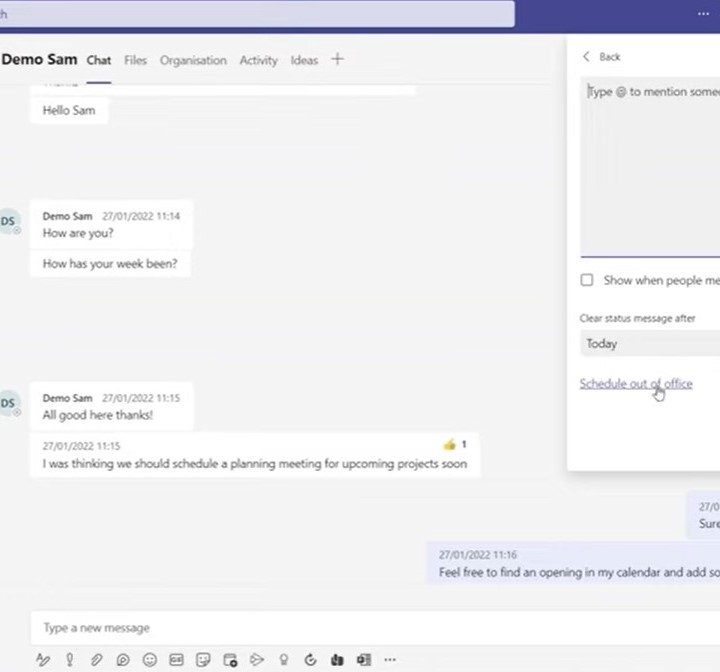
Once you’ve set your “Out of Office” status in Microsoft Teams, you can set a message that will show up in your chats, alerting colleagues that you are not available without them having to email you. As mentioned before, you can click your profile icon to access the Schedule and out-of-office option. However, there is also a “Set Status Message” option in this area, where you can set a message for your colleagues stating that you will not be available for a set amount of time.
Clicking your profile icon will open a dropdown menu, and then you click Set Status Message and type your message. If someone attempts to message you, the status will appear in the chat. Keep in mind that this is not an “Out of Office” status and does not sync with Outlook.
Microsoft Teams is an extremely useful communication tool, but if you run into trouble with it, check out our guide to troubleshooting Microsoft Teams problems.


