  1. Home
  2. Computing
  3. Apple
  4. How tos

How to connect AirPods to your MacBook

Add as a preferred source on Google
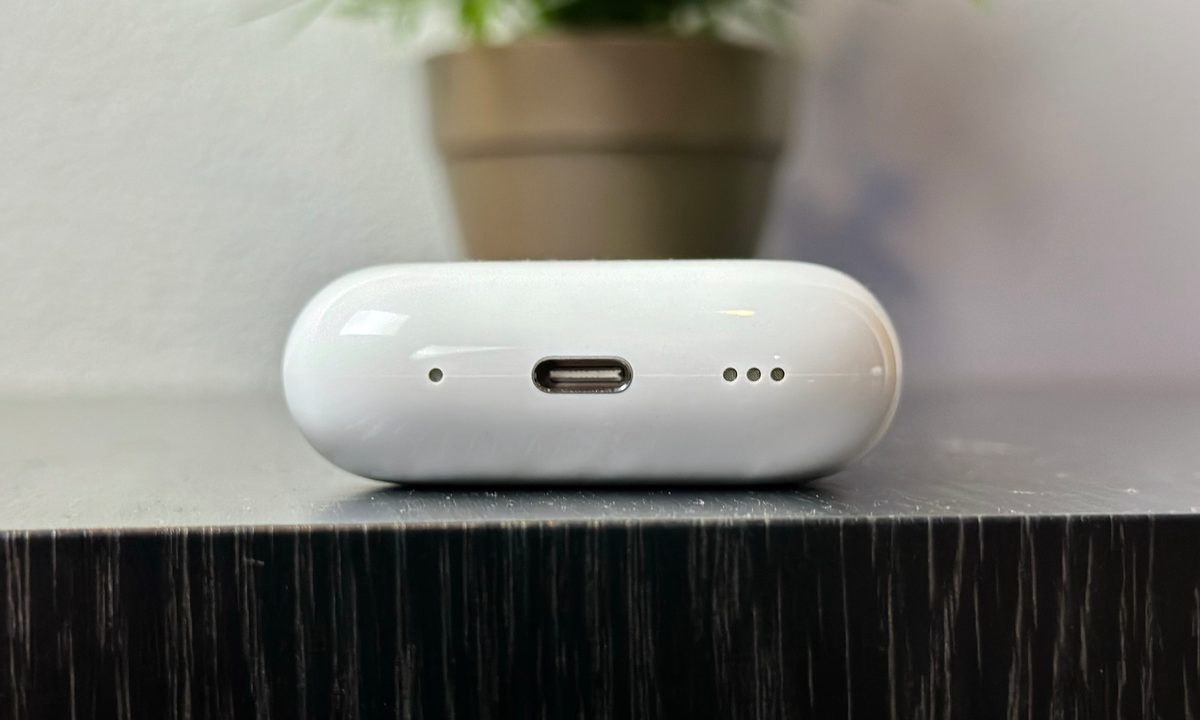
Apple AirPods Pro Second Gen charging case with USB-C.
Caleb Denison / Digital Trends

Pairing your AirPods or AirPods Pro with a powerful MacBook is an experience like no other. Not only will you be able to enjoy features like Apple’s Spatial Audio, but you’ll be able to take advantage of multipoint connectivity between your computer and an iPhone or iPad. Of course, there’s also Apple’s intuitive dashboard controls, too, which you can assess right on your desktop screen. In order to dive into any of these capabilities though, you’ll need to get your Apple earbuds connected to your computer.

Recommended Videos

Difficulty

Easy

Duration

5 minutes

What You Need

  • a MacBook

  • a pair of AirPods

  • your AirPods charging case (optional)

Fortunately, this is one of the easiest processes in the world of ecosystem devices. We’re not going to leave you stranded either, which is why we’ve assembled this step-by-step guide to getting your Apple audio paired to your Apple computer.

For AirPods already paired with an iPhone

Using AirPods on a Mac that are already paired with an iPhone is easy. Just make sure both the iPhone and the Mac are signed in to iCloud using the same Apple ID. But if your iPhone gets used by multiple people or you need a different account for your Mac at work, this option may not be possible.

Step 1: Turn the AirPods on, and pop them into your ears.

Step 2: On your Mac, click the Control Center icon located on the Menu Bar — it’s next to the Spotlight Search icon on Big Sur or later, and next to the Wi-Fi icon on Catalina.

Step 3: Select the AirPods listed on the drop-down menu. They typically appear as [Your Name]’s AirPods. A chime plays when the AirPods connect.

No other setup is needed! If the AirPods do not show up in the Control Center menu, however, move on to the next section.

For brand-new AirPods on MacOS

The first time you connect to AirPods on your Mac, you may notice it has more steps, taking a bit more time to set up. Still, the steps are easy to follow and relatively foolproof.

Step 1: Open System Preferences by either clicking the Gear icon on the Dock or by clicking the Apple logo in the top-left, then clicking System Preferences.

Step 2: Click Bluetooth, and verify that it’s turned on.

Step 3: Move to the AirPods, and place them in the charging case. Make sure the lid remains open, as shown below.

Apple Air Pods 2nd generation with wireless charging case on a white background.
Apple

Step 4: On the back of the AirPod case, find the Setup button. Select and hold this button until the status LED flashes white. The AirPods are now in pairing mode.

Step 5: On the Mac, locate the Bluetooth menu. Under Devices, find the AirPods listed under Nearby Devices. Click the Connect button.

Jon Martindale
Jon Martindale covers how to guides, best-of lists, and explainers to help everyone understand the hottest new hardware and…
Meta’s AI feed is starting to sound like a late-night internet rabbit hole
Meta’s AI app is reportedly filling up with bizarre clickbait and fake stories
iPhone showing Meta AI Support Assistant

Meta’s standalone AI app is reportedly being flooded with low-quality clickbait, fake emotional stories, and engagement-bait content, raising fresh questions about how generative AI platforms are being moderated as they become increasingly social and public-facing.

According to a Verge report, users of Meta AI’s social discovery feed have been encountering strange AI-generated posts ranging from fabricated personal confessions to misleading health claims and bizarre fictional scenarios designed to attract reactions and shares. The issue appears tied to Meta’s decision to make AI-generated conversations and prompts publicly discoverable inside the app, effectively turning parts of the platform into a social media-style content feed.

Read more
Right to repair isn’t a hobbyist crusade. It’s a fight over ownership
A dying battery should not turn a paid-off device into company property again.
Repairing computers

The least sexy part of modern gadget design might also be the most revealing: the battery you’re not supposed to replace.

I understand the official story. Sealed phones look cleaner, feel slimmer, and can survive the kind of splash that ruins your week. Adhesives help make that possible, which is the respectable version of the argument. Nobody wants a flagship phone with the structural elegance of a TV remote from 2006.

Read more
The hidden labor of modern tech support is turning us all into unpaid employees
Every chatbot loop, forum search, and repeated explanation adds up to a hidden tax on your time.
Bicycle, Cycling, Person

I recently tried to cancel an order from a popular food delivery app and somehow ended up playing a tiny, miserable escape room inside a chatbot. I couldn’t type my actual issue. I could only tap preset options, none of which matched what I needed. So I kept backing out and trying again, like the right answer was hiding behind one more bad menu choice.

Eventually, I Googled how to talk to a live person like an idiot who couldn’t solve a basic task. The answer, naturally, was to pretend I had a different request. I’m kidding, though. I know customers like myself aren’t exactly idiots. But the experience sure made me feel like one.

Read more