  1. Home
  2. Computing
  3. How tos

How to create a Memoji on a Mac

Add as a preferred source on Google
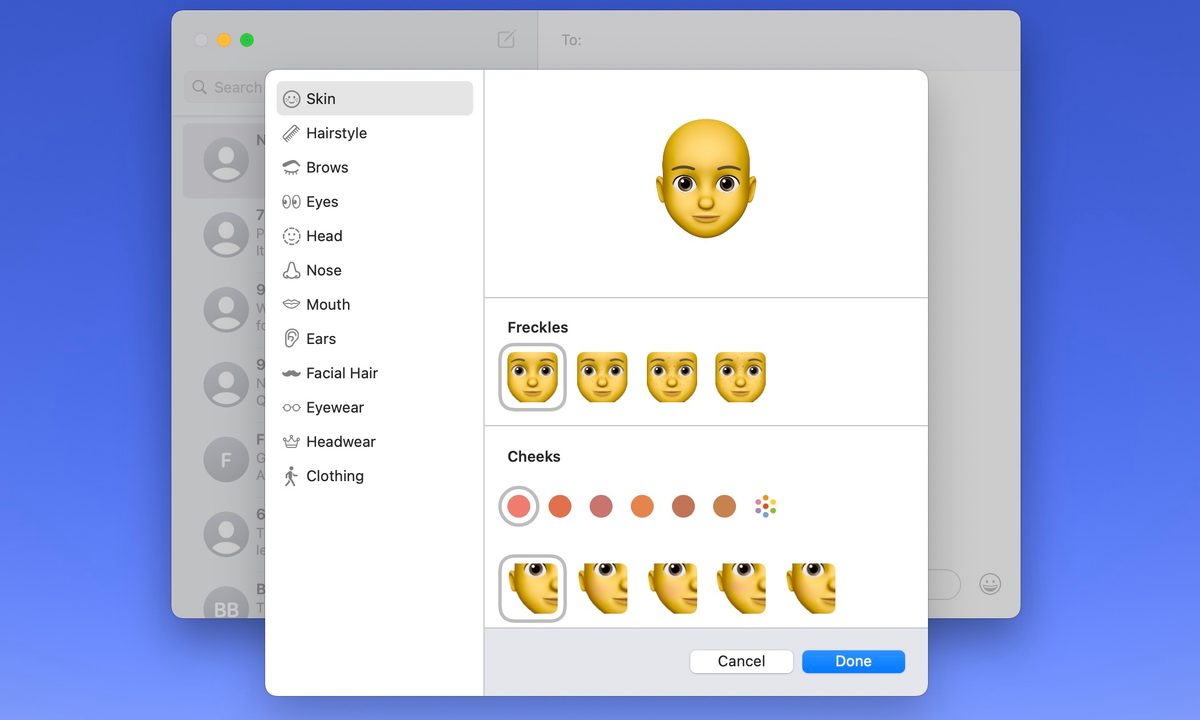
Memoji creation screen in Messages on Mac.
screenshot / Digital Trends

Using emojis is a great way to add flair and personality to what would just be a plain ole’ text message. But if you’re an Apple devotee, you’ll also be able to liven your chats up with Memojis. Introduced on iOS 12, Memojis are custom avatars that you make in your likeness. Choose from numerous clothing, facial hair, and other cosmetic filters to dial in your appearance. When finished, your Memojis can be used with a few iOS apps, including Messages and FaceTime.

Recommended Videos

Difficulty

Easy

Duration

5 minutes

What You Need

  • Mac computer

  • Messages app

Fortunately, making your very own Memoji on macOS isn’t too difficult. To make the learning curve even simpler, we’ve written this step-by-step guide to help.

Make a Memoji on Mac

When you create your Memoji on Mac, the cute little you syncs across your devices. So, you can use the Memoji on an iPhone and iPad in Messages or FaceTime. It all starts in the Messages app.

Step 1: Open Messages and select any conversation or start a new one.

Step 2: Click the Apps button, which looks like the letter A, and choose Stickers.

The Apps icon circled and Stickers option highlighted in macOS Messages.
screenshot / Digital Trends

Step 3: Click the Plus sign on the top-left of the pop-up window.

A red arrow pointing to the Plus icon in Stickers for macOS Messages.
screenshot / Digital Trends

Step 4: In the subsequent pop-up screen, you’ll use the tools on the left to customize each part of your Memoji. Apple gives you detailed options too, not just basic skin colors and hairstyles.

For example, you can add freckles or beauty spots to the skin, piercings or an oxygen tube to the nose, and eyeliner or eyeshadow to the eyes. You can even age your Memoji with the head tool to make it look older or younger.

When you’re choosing colors for things like hair, eyes, and brows, you can go all the way to the right and pick the Palette icon to display more colors. Then, use the slider to adjust the shade of the color you choose.

As you make each selection, you’ll see a preview at the top. This lets you add features and elements to see how it will look as you go, and you can choose and customize the items in any order you like.

Memoji creation screen in Messages on Mac.
screenshot / Digital Trends

Step 5: When you finish, click Done to save your Memoji.

Memoji created in Messages on Mac.
screenshot / Digital Trends

Edit a Memoji on Mac

Once you create a Memoji, you aren’t stuck with it forever. Maybe you grew a beard or got a new hairstyle. You can edit your Memoji anytime.

Step 1: Open Messages, click the Apps button, and select Memoji stickers.

Step 2: Choose your current Memoji in the pop-up window.

Step 3: Click the Three dots on the top-right and pick Edit.

Edit selected to change a Memoji on Mac.
screenshot / Digital Trends

Step 4: You’ll then see your current Memoji with the same tools as before. Simply make your changes and click Done when you finish.

Memoji in full view in Messages on Mac.
screenshot / Digital Trends

Using your Memoji

As mentioned, you can use a Memoji in Messages and FaceTime.

In Messages, click the Apps button, select Memoji stickers, and then pick one of the expressions for your Memoji in the pop-up window. This places it into your message, ready for you to send.

In FaceTime, you can add a Memoji sticker or use the animated Memoji as your face during a video call. Click the Effects button, which looks like a star. Select the Memoji sticker icon to add the sticker to the screen or the Memoji icon to use the animated version.

Creating a Memoji is fun, and using it to represent yourself in Messages, FaceTime, or even as your Apple profile picture is a terrific alternative if you don’t want to use an actual photo. You can even change your macOS login picture to a Memoji.

Sandy Writtenhouse
Sandy has been writing about technology since 2012. Her work has appeared on How-To Geek, Lifewire, MakeUseOf, iDownloadBlog…
A Google Pixel laptop might be on its way, but does anyone actually want one?
A new Google laptop might be coming, and I hate to be the bearer of bad news, but the odds are not in its favor.
Google Pixelbook in silver.

It looks like a new member is joining the Pixel family, adding to its resurgent smartphone lineup. Code analysis of the latest Android beta points toward a new Pixel laptop that Google might be planning to launch in the near future. Google last launched a laptop, the Pixelbook Go, in 2019, an affordable version of the Pixelbook it put on the shelves back in 2017.

Both the Pixelbook and Pixelbook Go, along with the earlier Chromebook Pixel models, were not what you would call a smash hit with the audience or a runaway commercial success. Ultimately, they triggered Big G's departure from the laptop segment and a shift in focus toward Pixel smartphones.

Read more
AI is entering the Skynet debate moment in the social media hype circles
AI might end the world - but first, it’ll trend on social media
Representative Image

A growing wave of online voices warning about the dangers of artificial intelligence—often dubbed “AI doom influencers” - is reshaping how the public and policymakers view the technology. According to a report by The Washington Post, these influencers, including researchers, tech leaders, and content creators, are increasingly highlighting worst-case scenarios, from mass job loss to existential risks posed by advanced AI systems.

While critics argue that some of this messaging borders on alarmism, the conversation is no longer confined to speculation. Real-world developments in AI are beginning to mirror some of the concerns being raised, blurring the line between hype and legitimate risk.

Read more
You won’t believe it, but Motorola actually makes a terrific head-turner of a laptop
Motorola’s Moto Book 60 Pro is surprisingly stylish, and the pricing makes it even better
Moto Book 60 Pro in PANTONE Bronze Green

Motorola is not the name I expect to see on a genuinely good laptop. A stylish phone? Sure. A foldable with some personality? Absolutely. But a thin-and-light notebook that actually feels well judged on both design and value was a genuine surprise. And yet, the Moto Book 60 Pro is one of the more quietly impressive laptops in its segment.

With the broader laptop market being in a mess, Motorola's laptops feel refreshing. It is capable, attractive, and still approachable at a time when pricing elsewhere has become increasingly rough.

Read more