
Microsoft has been keen for all its users to use online, connected Microsoft Accounts for Windows logins for years and many versions of the operating system, but it's really kicked it into high gear in recent years. Now there aren't any official ways to decline using a connected account when installing Windows 11, but there are a few ways you can get around it.
Here's how you can use an offline account when installing Windows 11, to avoid Microsoft oversight.
Note: There are some features of Windows 11 and its connected apps that require an online Microsoft account, so you may not be able to use them without logging in with a different account first.
The quick bypass
The quickest and easiest way to avoid signing up or logging in with a connected Microsoft account during Windows 11 installation is with this handy little bypass.
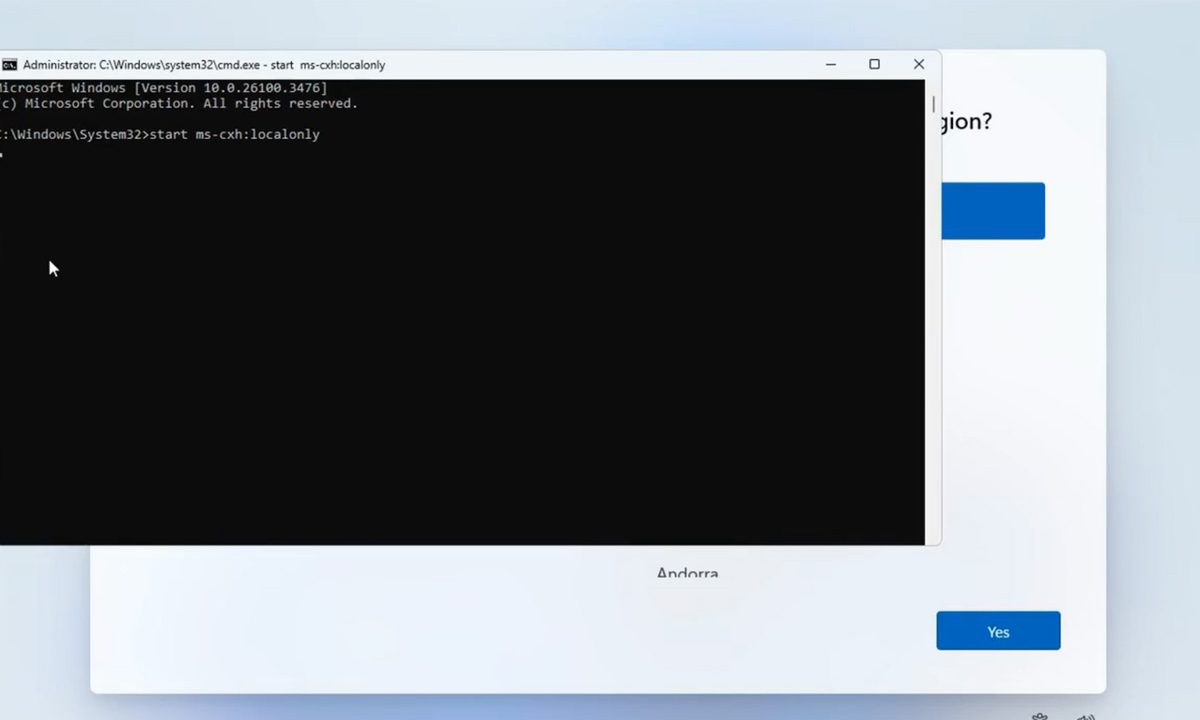
Step 1: Start the Windows 11 installation and when you get to the screen where you have to choose your country or region, press Shift + F10 to open a Command Prompt window.
Step 2: Type the following without quotation marks: "start ms-cxh:localonly" and press Enter.
Step 3: You'll then be presented with a Windows 10-style user creation window with associated fields. Fill in your username and password and select Next to continue.
Step 4: Follow the on-screen instructions to complete the Windows 11 installation. Once you reach the operating system's desktop screen, you should be logged in with your offline account. No online connectivity required -- although you should still update to the latest version of Windows 11 to improve features, stability, and security.
The other bypass (while it lasts)
Another method for skipping the Microsoft Account requirement as part of Windows 11's installation is the BypassNRO command. This was recently removed from the latest Windows 11 preview build for Windows Insiders, so may not be available for much longer in the official releases. However, as of April 2025, it's still viable, so consider using it if for some reason you run into trouble with the other method.
Step 1: Launch the Windows 11 installation process and when you get to the part asking you to input Wi-Fi details to connect a network, press Shift + F10 to open up a Command Prompt window.
Step 2: Type the following without quotation marks: "c:\windows\system32\oobe\BypassNRO.cmd" then press Enter.
Your PC will reboot and the install process will start up again. When you reach the network screen, however, you'll see an option to continue setting up Windows without signing in to a Wi-Fi network or connecting to a wired network over Ethernet. You'll then be prompted to setup a local account and can use that for logging into Windows 11 once it's finished.
Alternatively: If you want to do this manually, you can launch Regedit from the Command Prompt and input the following to achieve the same effect:
"reg add HKLM\SOFTWARE\Microsoft\Windows\CurrentVersion\OOBE /v BypassNRO /t REG_DWORD /d 1 /f shutdown /r /t 0"


