
To say Windows 8 is a knockout crowd-pleaser would be a downright — and dastardly — lie. As sleek, swift and imaginative as the touchscreen operating system may be have seemed upon its initial release, it didn’t exactly excel at combining the best of both the mobile and desktop worlds, disgruntling Microsoft patrons and leaving them fumbling for the Start Menu like an 8-year-old manically flips through Where’s Waldo? Fortunately, the recently released Windows 8.1 upgrade addresses some of the biggest woes and flubs, incorporating better search functions, great cloud integration and quicker boot speeds among other improvements. Sure, Windows 8.1 remains Window 8 at its core, but we can still think of a whopping 8.1 reasons to upgrade to Windows 8.1.
Although those running machines equipped with Windows 7 can purchase the standard version ($120) and pro version ($200) of the software, the new OS update is currently available as a free download through the Windows Store on any Window 8 device. No purchase necessary.
Here’s our quick guide on how to download and install Windows 8.1 for free so you can stop pining for what once was and enjoy some of the OS’ best features — and trust us — it’s not the Start button.
Step 1: Check the system requirements — Upgrading to Windows 8.1 shouldn’t be an issue considering the OS requirements are nearly identical to those of Windows 8, but be sure to check the full list of Windows 8.1 requirements just in case.
Step 2: Backup your computer — Although you’ll retain critical files and apps when you upgrade to Windows 8.1, it’s always a good idea to backup anything you don’t want to lose as errors do occur. Check out our guide on how to backup your computer and our top picks for the best free backup software before continuing.
Step 3: Connect and install latest updates — Make sure your PC is plugged into a power supply, connected to the Internet and equipped with the latest updates prior to installing Windows 8.1. Doing so will help insure the update installs properly. Although Windows updates are automatically downloaded and installed by default, you can always check for any necessary updates via Windows Update.
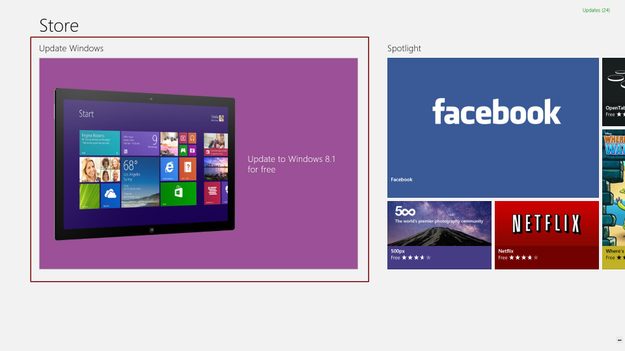
Step 3: Install Windows 8.1 — Navigate to the Start screen, click or tap the Windows Store tile featuring the shopping bag and select Windows 8.1 panel predominately displayed on the Windows Store homepage. If not viewable, it’s likely you need to install the other Windows updates prior to updating the OS. Alternatively, you may be running an edition of Windows 8, such as Windows 8 Enterprise, that doesn’t support the free update from the Store.
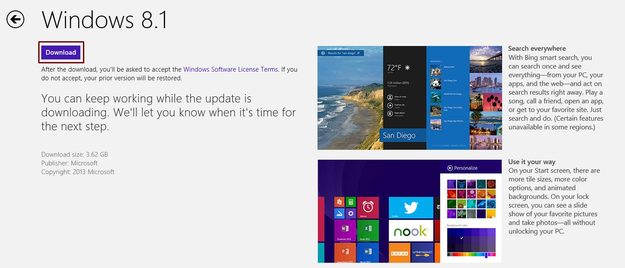
Once located, click or tap the purple Download in the top-left corner. Windows 8.1 will automatically download and install in the background, checking to ensure you have the required disk space and necessary updates while you continue using your device. The installer will inform you if any further updates or actions are required before you can complete the update process, and if interrupted, click or tap the download button again to resume from where you left off.
Step 4: Restart and set up — Restart your computer when prompted following the initial installation — a process that can take up to a few hours depending your system — or allow Windows to start automatically after 15 minutes. Once your computer restarts, accept the Microsoft software license terms and continue with the on-screen setup wizard. Although your desktop apps will appear once Windows 8.1 is fully updated, all previously-downloaded Windows Store apps will need be reinstalled manually. To do so, navigate to the Start screen, click or tap the Windows Store tile access the Your apps section of the Store, and select all the apps you want to install before tapping or clicking Install. Like the Windows 8.1 update, the apps will automatically download in the background while you work.
Step 5: Enjoy — Now just revel in Microsoft’s latest endeavor in the world of operating systems.
What do you think of our quick guide on how to download and install Windows 8.1 for free? Did we miss something? Let us know in the comments below.


