
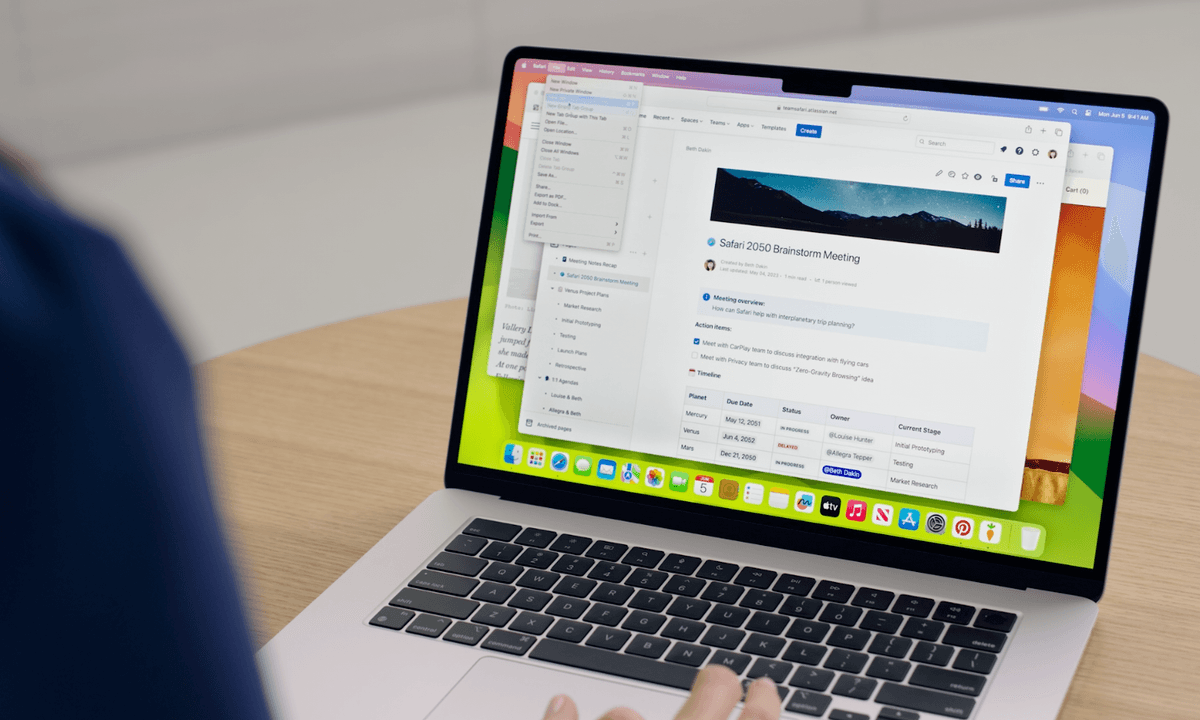
Apple's macOS Sonoma (also known as macOS 14) has a bunch of exciting new features, including game mode, desktop widgets, and a new presenter mode for video calls. Is your Mac ready for it? If so, you'll want to download it as soon as possible to take advantage of all the new features and security enhancements. Make sure you back up your most important information before you do, but once you're ready, here's how to download macOS 14.
macOS Sonoma compatibility
Before you can download macOS Sonoma, it's important to check whether your Mac supports it. At the announcement for the new version of macOS, Apple also detailed which Macs can run it. They include:
- MacBook Air from 2018 or later
- MacBook Pro from 2018 or later
- Mac Mini from 2018 or later
- Mac Pro from 2019 or later
- iMac from 2019 or later
- iMac Pro from 2017 or later
- Mac Studio from 2022 or later
If your MacBook or Mac is older than these models, then unfortunately macOS 13 Ventura is the last version of macOS you'll be able to download. If you haven't upgraded to that version yet, here's how to update your Mac.

Download macOS Sonoma
After months of being in public beta, Apple has finally released macOS Sonoma in full. Downloading and installing it is free and very easy, and we’ll walk you through all the necessary steps below. As this is a major update of your computer’s operating system, you should be sure to back up your Mac before you get started. That can help turn things around if anything goes wrong during the installation process.
With all that out of the way, let’s find out how to download and install macOS Sonoma.
Step 1: Open the System Settings app, either by clicking the Apple logo in the menu bar, then System Settings, or by clicking the cog icon in your Mac’s Dock.
Step 2: In System Settings, click General > Software Update. Give the app a few seconds to search for updates. If your Mac is compatible with macOS Sonoma, you should see a notice to download the software update. Click Upgrade Now.
Step 3: Your Mac will now start downloading and installing macOS Sonoma. When it is ready, you will be prompted to restart your Mac. In that case, click Restart Now.
Step 4: Your Mac might need to restart several times as it installs macOS Sonoma. This is normal -- just let it do its thing, which could take some time.
Step 5: Once the installation process has finished, your Mac will load onto your login screen. Congratulations, you’ve just successfully installed macOS Sonoma and can start enjoy all its new features.

macOS Sonoma new features
Unlike some past macOS updates, macOS Sonoma doesn’t feature many massive new features, probably due to the engineering effort required to make visionOS for the new Vision Pro headset. However, there are plenty of great reasons to upgrade.
One of the niftiest new macOS Sonoma features is the upgraded screen saver system. Apple has introduced a bunch of video wallpapers and screen savers, which integrate together beautifully when activated. When a video screen saver begins, it seamlessly shifts from your desktop picture to the screen saver, with the camera traveling through the air or underwater. When the screen saver ends, it settles back into your wallpaper, which is now based on where the screen saver was when it finished.

In addition, macOS Sonoma now lets you place interactive widgets on the desktop, instead of hiding them away inside the Notification Center. You can even use widgets for apps that are not installed on your Mac, provided you have them on your iPhone or iPad.
Apple has also tweaked video calls in macOS Sonoma. In FaceTime, you can perform a variety of hand gestures -- such as a thumbs-up or peace sign -- and FaceTime will launch a range of background effects, like fireworks and floating balloons. You also get more control over Continuity Camera, with toggles for Portrait mode strength, Center Stage field of view, and more.
There are many more features in macOS Sonoma, from Game Mode to passkey sharing, so be sure to check out our hands-on review to see what else Apple has included.
Want to know what you can do with your new install? Here are some of the best features of macOS Sonoma you can try out.


