We all lose our gadgets every once in a while. Finding them isn’t always straightforward, especially if they have been stolen or left behind in a different place. Likewise, if it’s nestled between the cracks of a plush sofa, rolled down in the darkness underneath furniture, or just your pet playfully hiding it under their stash, it’s not always a cakewalk finding them.
Moreover, if the device has silent or focus modes enabled, calling on the phone won’t help either. Thankfully, a healthy bunch of modern devices now come with lost-and-find location tracking features, and no one does it better than Apple. The Find My system has historically been a big sell, and for good reasons.
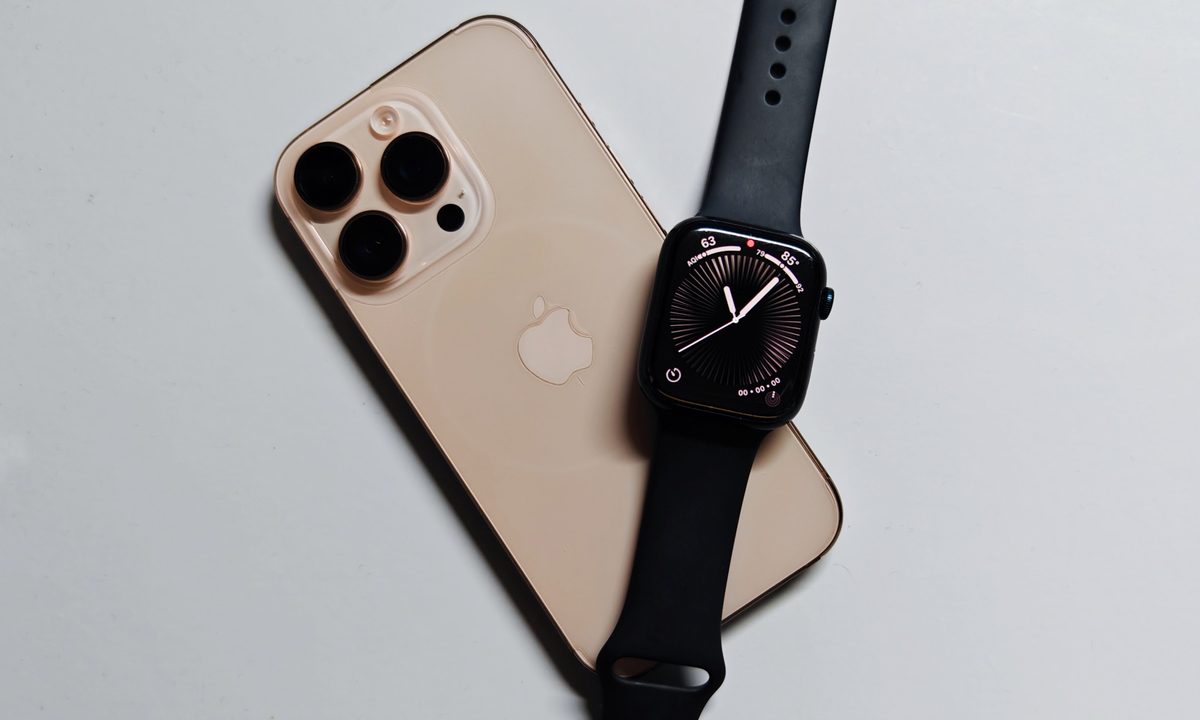
It’s now even helping airlines locate lost luggage. You can locate lost devices using any other Apple device, as long as it has a screen. And if it’s your trusty iPhone that has gone out of sight, the Apple Watch on your wrist will quite literally guide you to it.
Difficulty
Duration
What You Need
-
Apple Watch
-
iPhone
How to find a stolen or misplaced iPhone?
Finding a misplaced iPhone with an Apple Watch is a pretty straightforward process, as long as the two devices are signed in with the same Apple account and have the Find My feature enabled. As for the steps, here you go:
Step 1:On your Apple Watch, tap on the round crown button to open the app list.

Step 2: Scroll down and open the Find My icon. The app’s icon is green with a laptop and phone in it.

Step 3: Once the app launches, you will see a list of all the devices that have been registered to your Apple Account and have the Find My system enabled.

Step 4: Tap on the iPhone you want to locate and on the next page, you will see details such as its city location and a map view below it.
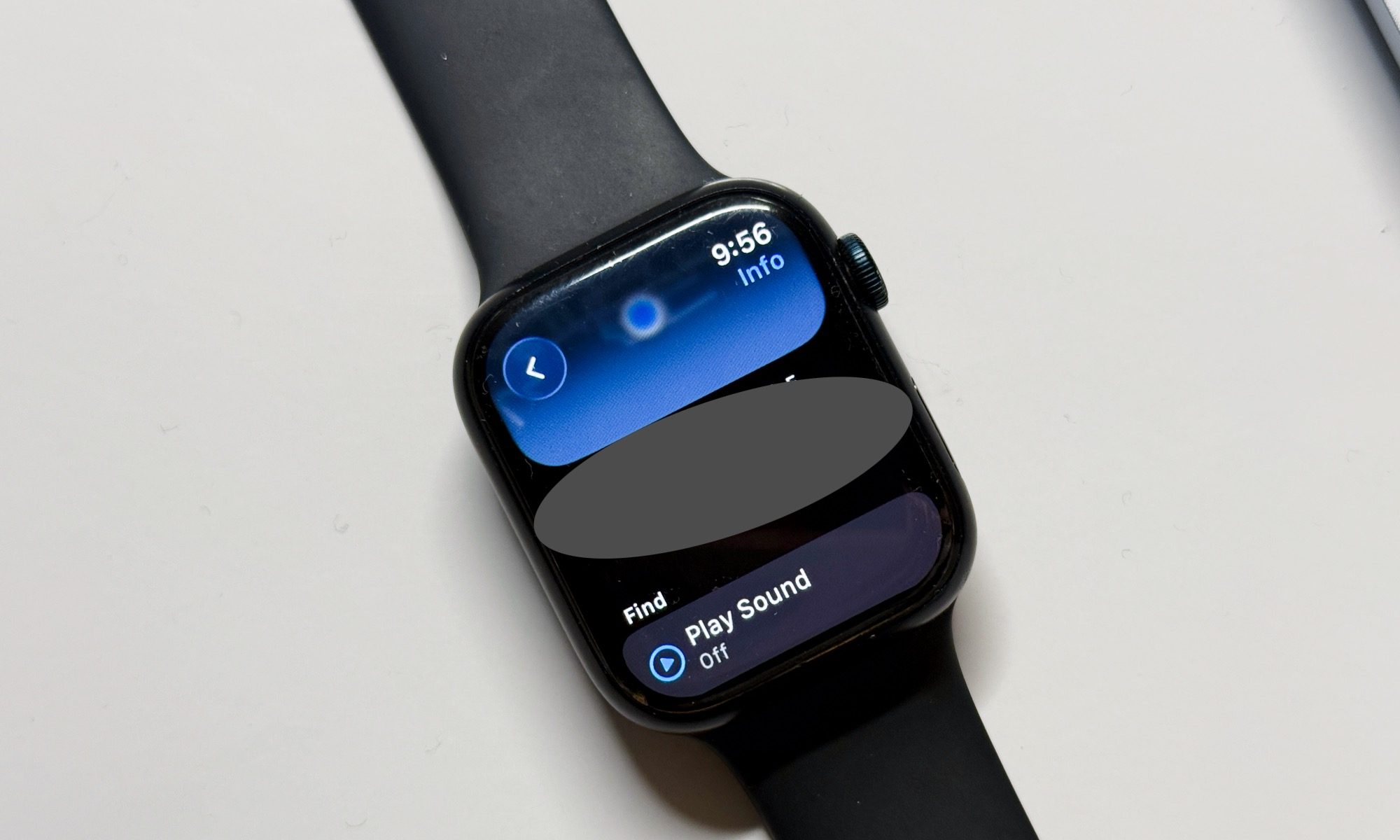
Step 5: If the iPhone is nearby, or somewhere in your home or workspace, but you can’t find it, scroll down on the Apple Watch and tap on the “Play Sound” option. Doing so plays a loud sound on your misplaced iPhone so that you can easily find it using audio cues.

Step 6: Additionally, if you have an Apple Watch Series 9 (or later model), Apple Watch Ultra 2, and an iPhone 15 (or a newer model), the precision finding feature will also show you direction cues on the Apple Watch screen.

How to quickly find an iPhone nearby?
There are situations where you may have left an iPhone in a table drawer, kitchen shelf, under the pillow, or just any other random spot you can’t recall in the moment.
For such situations, Apple has a straightforward system to locate the lost phone with a loud audio cue. This approach is direct and won’t require opening the Find My app, either. Just follow these steps:
Step 1: On the Apple Watch, press the flat side button to open the Control Center.
Step 2: In the Control Center, tap on the phone icon.
Step 3: Once it’s activated and turns blue, it will connect with the iPhone and play a loud beep on your iPhone.

Step 4: This system doesn’t tie into the Find My system, and it’s more suitable for proximity sensing to find nearby devices.