1. Home
  2. Computing
  3. Apple
  4. Evergreens

How to enable dark mode in MacOS Mojave

Ditch eye strain for good with MacOS Mojave's built in dark mode

Add as a preferred source on Google
Digital Trends

If you like dark themes, Apple has made dreams come true with an all-new dark mode in in MacOS Mojave. Previous versions of MacOS allowed you to switch to a dark menu bar and dock, but this left many people unsatisfied. This new feature provides an OS-wide dark theme that affects pretty much all the native MacOS features with a classy black/gray look.

If this is exactly what you’ve always wanted for your Mac, we can show you how to access and enable this mode with just a few steps.

Recommended Videos

Step 1: Get MacOS Mojave

Image used with permission by copyright holder

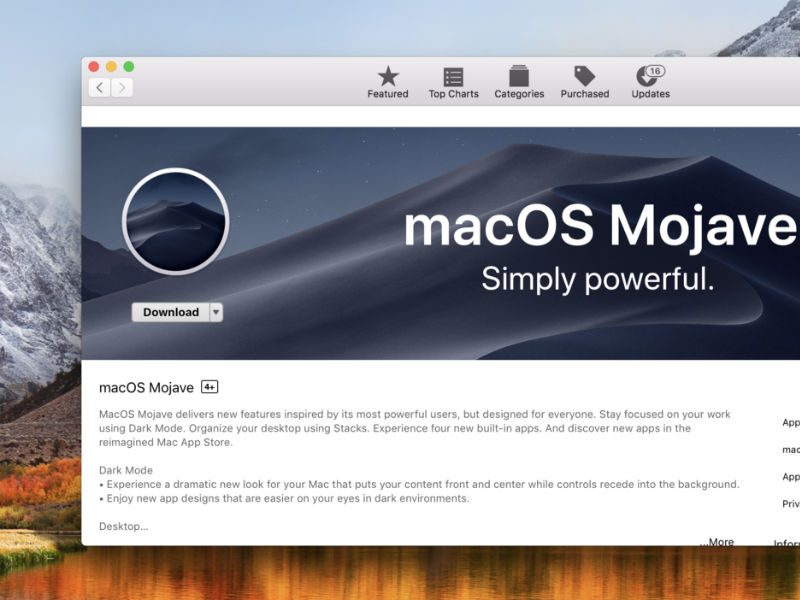
This dark mode is only available through MacOS Mojave, the latest update of the operating system. Mojave is now available to download for free in the Mac App Store. If you aren’t seeing it available in the App Store, try restarting your computer to refresh the system.

Once you have Mojave downloaded and installed, one of the first pop-ups will ask you to choose between Light Mode and Dark Mode. Select Dark Mode, and Mojave will boot up directly with its tinted look. If you want to go back and modify what you’ve chosen, continue on.

Step 2: Head to System PreferencesMac Menu System Preferences

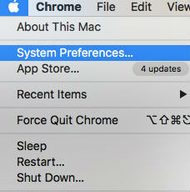
If this isn’t your first time booting up Mojave, you’ll need to head over to System Preferences to switch over to Dark Mode. This can be done in a number of ways, such as doing a spotlight search and typing in “system preferences” or opening it from Launchpad with a four-finger pinch.

Perhaps the easiest way, though, is to click on the ever-present Apple button in the upper-left corner of the screen. System Preferences should be the second option in the drop-down menu.

Step 3: Go to General
System Preferences
Image used with permission by copyright holder

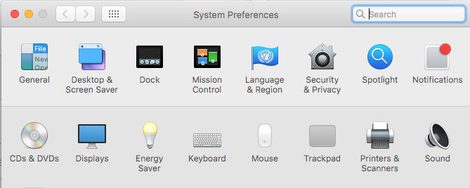
Once System Preferences is open, look at the top row of icons. All the way to the left, you should see the icon for General, which is a little File drop-down menu icon.

General is where all the basic settings connected to your Mac’s look and color are located. Select it.

Step 4: Switch your Appearance
MacOS General Appearance
Image used with permission by copyright holder

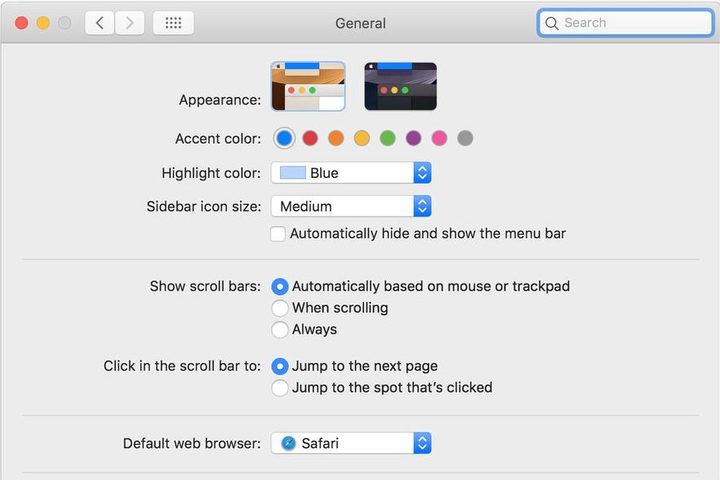
The very first option in General should be Appearance. In Mojave, Appearance is divided into two icons, a light and a dark option. Simply select the dark icon to switch MacOS over.

That’s it! If you decide you don’t like the dark mode very much, simply switch back to the normal icon in Appearance. You may also want to spend a little more time in General to check out other options for adjusting icon size, highlight color, and so on, so that everything matches your new dark color scheme perfectly.

Tyler Lacoma
If it can be streamed, voice-activated, made better with an app, or beaten by mashing buttons, Tyler's into it. When he's not…
How to find archived emails in Gmail and return them to your inbox
Archived emails in Gmail are easier to find than you think—once you know where Google hides them
Gmail icon on a screen.

If you’re looking to clean up your Gmail inbox, but you don’t want to delete anything permanently, then choosing the archive option is your best bet. Whenever you archive an email, it is removed from your inbox folder while still remaining accessible. Here’s how to access any emails you have archived previously, as well as how to move such messages back to your regular inbox for fast access.

Read more
Gemini Live gets a minimalist app redesign that lets you do more
Gemini Live just got easier and faster to use
google-gemini

Google is testing a new redesign for its Gemini Live experience on Android, aiming to make interactions with its AI assistant more seamless and less intrusive. According to a 9To5Google report, the update moves away from the current full-screen interface and instead integrates Gemini Live directly into the main app view, signalling a shift toward a more practical, everyday usage model.

A Shift Away From Fullscreen AI

Read more
AI’s chip hunger could keep memory prices painfully high for years
Memory shortages may haunt your next phone, laptop, and GPU for years
Crucial Memory and SSD

While recent reports claimed that memory prices may not fall till 2027, it seems like the memory chip crunch isn't a short-term headache. And that's bad news for anyone hoping phone, laptop, and GPU prices will get cheaper again soon.

Reuters reports that SK Group chairman Chey Tae-won said the global chip wafer shortage is likely to last until 2030, with artificial intelligence demand continuing to outpace the supply. Chey said the current shortage could remain above 20%, largely because AI systems require huge amounts of high-bandwidth memory and therefore burn through a lot of wafers.

Read more