
Zoom has faced several privacy and security concerns as more people turn to it as a way to communicate. Businesses, including SpaceX, have begun telling employees to stop using the service, while others, including consumers, have started opting for alternatives. But what if you still need to use Zoom? We’ll teach you how to increase your privacy and security on what is quickly becoming one of the web’s most popular video conferencing services.
Update your Zoom software

Zoom has begun to handle a large number of its security flaws, already jumping to enable passwords for conference entry with digital waiting rooms and stopping its mobile iOS app from sending data to Facebook in the background. Most of these changes take place in the cloud, but some require you to update your software. To update the Zoom client, follow these instructions:
Mac or PC
Step 1: Open the Zoom desktop app.
Step 2: Click on your profile picture icon in the upper-right corner.
Step 3: Select the Check for Updates option.
Step 4: If there is an update, Zoom will take a few moments to load it. Select Update. Zoom will then update and restart itself to complete the updating process.
iOS (iPad and iPhone)
Step 1: Open the App Store.
Step 2: Search for the Zoom app.
Step 3: If an update is available, the button will say Update.
Step 4: Tap the Update button if available to begin.
Android
Step 1: Open the Play Store app. Tap on the Menu icon in the top-left corner (three stacked horizontal lines).
Step 2: Select My Apps & Games.
Step 3: If Zoom has an update available, it should appear within the Updates tab, under Updates Pending, and have an Update button to the right of it, as it should with any other Android app. Tap this button to start the update process.
Alternatively, you can also select the Installed tab and then scroll down until you see Zoom. If an update is available, you should still see an Update button to the right of it.
Step 4: You can also see if Zoom is up to date by opening the app itself, tapping the Settings icon, selecting About, and then tapping Version. If the app is up to date, a dialog box will appear saying so.
Update meeting settings

Zoom is working on updating privacy bugs and issues such as zoombombing, which is when an uninvited individual drops into an unlocked meeting and broadcasts violent or pornographic content. We recommend ensuring the following settings are altered to protect your session against these types of attacks. Please note that as Zoom is quickly rolling out updates, some of the defaults below may change, but double-checking them can never hurt.
- Enable the Waiting Room feature so that only the meeting host is allowed to admit attendees to the meeting.
- Disable the File Transfer option to prevent the spread of unwanted material.
- Adjust your Screen Sharing settings. If you’re concerned that giving everybody the ability to share their screen during a meeting will result in zoombombing chaos, you can disable Screen Sharing entirely, or you can limit screen sharing to just the host by selecting Host Only under Who Can Share?
- Disable the Allow Removed Participants to Rejoin option so that any unwanted visitors can’t access the video call once removed.
To update any of the settings noted above, the host can make changes by logging into their Zoom account on the Zoom web portal. Once logged in, click the Settings option on the right side of the screen. You should then be able to find the above settings under the Meeting tab by scrolling down the list of settings under this section.
While in a meeting, some privacy settings can be adjusted via the Share Screen button, but most control is offered in the web portal’s Settings menu.
Switching away from Zoom
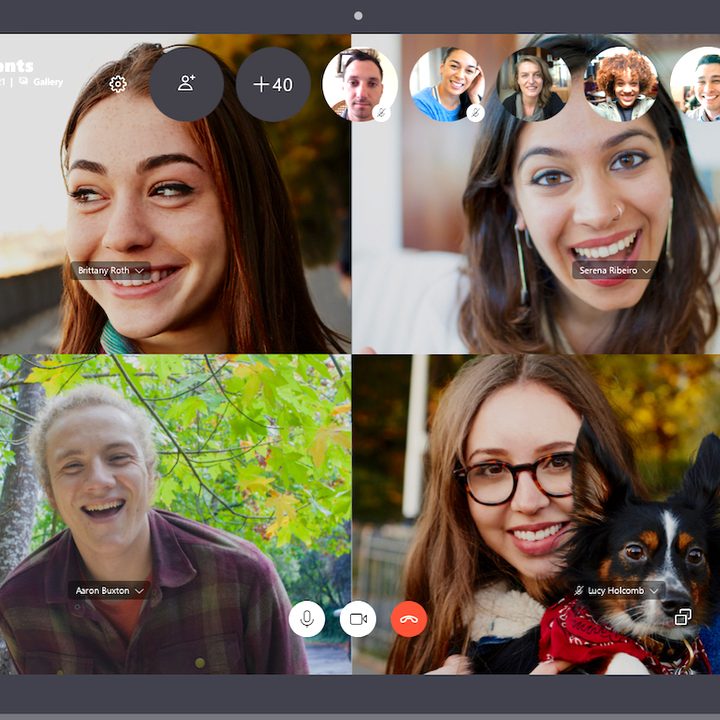
The best way to keep yourself protected from Zoom? Don’t use it. If you can make the change, opt for other meeting solutions such as Skype or Google Meet. If your entire team or family uses Apple products, you can also opt for FaceTime — a solution that is fully end-to-end encrypted. Mobile users can also consider Google Duo, a solution that works on both Android and iOS devices. For a full list of options, be sure to check out our guide to the best videoconferencing software and find what works best for you.


