
Upgrading your laptop's storage to a modern SSD can make a big difference to its performance on paper and how it feels to use. An SSD swap for an old hard drive or adding in a faster NVMe SSD to replace your aging SATA drive can take a laptop from sluggish to speedy in no time at all.
Not all laptops make it easy to replace your SSD, but for those where you can, it can be done in just a few minutes. Here's how to install an SSD in your laptop.
Note: Installing an SSD in your laptop is straightforward, but does run a slight risk of damaging components. Only proceed with the utmost care and read all instructions before doing so.
How to pick the right SSD
Before you can install a new SSD in your laptop, you need to buy a good one that's compatible. The right SSD for your laptop depends on its size, available storage capacity, connections, and your budget. Check out our guide on how to buy an SSD for more help.
Back up your data
Before you do anything to your laptop's storage, it's a good idea to back up your most important data. That can include work files, game saves, personal photos and videos, and anything else you consider important. But make sure it's backed up to an external SSD or cloud storage platform for safe keeping. The last thing you want to do is accidentally wipe a drive with important memories or work on.
This is less important if you're installing a new SSD alongside your existing storage drive, but if you're installing a new SSD to replace what you have, you'll need to move all your files over anyway, so backing up now is the most straightforward way.

How to install an SSD in your laptop
Find a level surface with good lighting where you can work without distractions. Place your laptop upside-down with the power unplugged and battery out, if possible. If your laptop allows SSD upgrades, then it'll have a small cutout in the underside with screws holding it in place. It's possible you'll have a compartment for upgrading the memory too. The SSD compartment should be obvious, but if not, just unscrew both to find out which is which.
Note: Some laptops allow laptop upgrades by removing the whole underside of the laptop. Do so if you feel like you can do it safely, but make sure you keep track of all the screws, and look out for glue or fragile ribbon cables that might make removing the laptop case more difficult.
Step 1: If your laptop has space for a new NVMe or SATA SSD, simplly install your new drive next to the existing drive. However, if you need to remove an old drive first, proceed with the steps below.
Step 2: If your laptop has a hard drive, or older 2.5-inch SATA SSD, you should see it locked in place with a few screws and a pair of cables. Remove all of those before gently pulling the drive free. You may need to pull in the opposite direction of where it is connected, before lifting it out.
If your laptop has an NVMe drive already, remove the retaining screw, and then gently lift the drive before pulling it free from its socket.

Step 3: If you're installing a new SATA SSD, place it into the correct position inside the laptop storage bay, then connect the cables or connections and screw it in place.
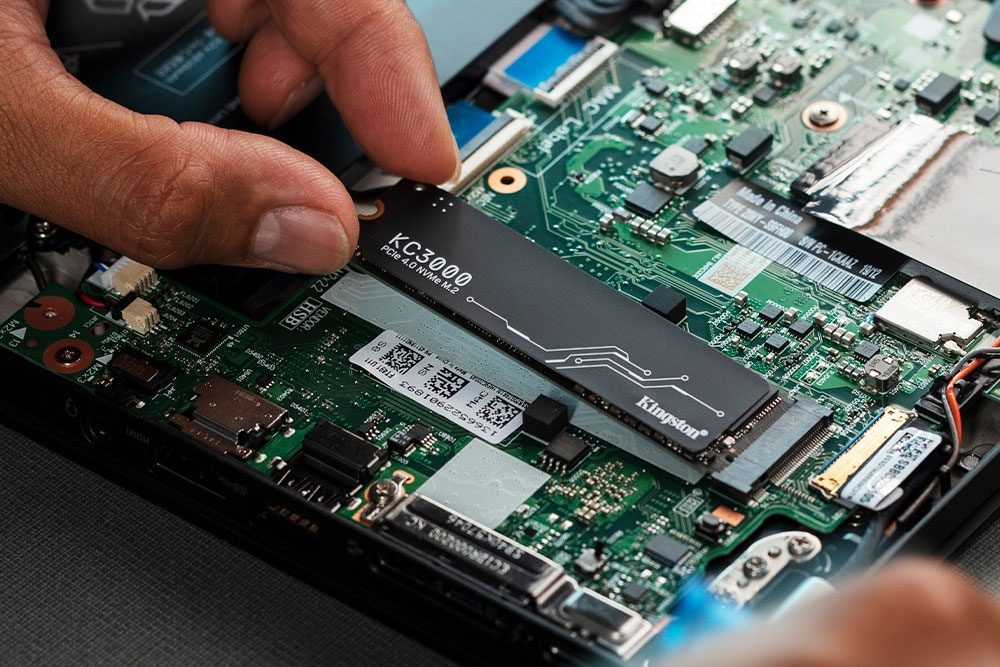
For an NVMe SSD, slot it gently into the socket, then press down on the opposite end until its horizontal with the slot. Then screw in the retaining screw to hold it in place.
Step 4: When you're done, replace the storage bay panel and any other screws, then power up the laptop to see if it worked. You should see the storage drive appear in the post screen breakdown, or in your Windows file explorer menu when you get to Windows if it was a secondary drive.
If it doesn't boot, or the drive isn't recognized, check if you installed it correctly. Additionally, check out our guide on what to do when your laptop won't boot.
Step 5: If necessary, install Windows from a USB drive or external hard drive. For more help on setting up Windows, follow our install guide here.
When you're finished, make sure to install the latest drivers for your laptop from the manufacturer's website, as well as any default applications you may need, such as an antivirus. Considering running Windows update a few times too, to make sure it's up to date.


