
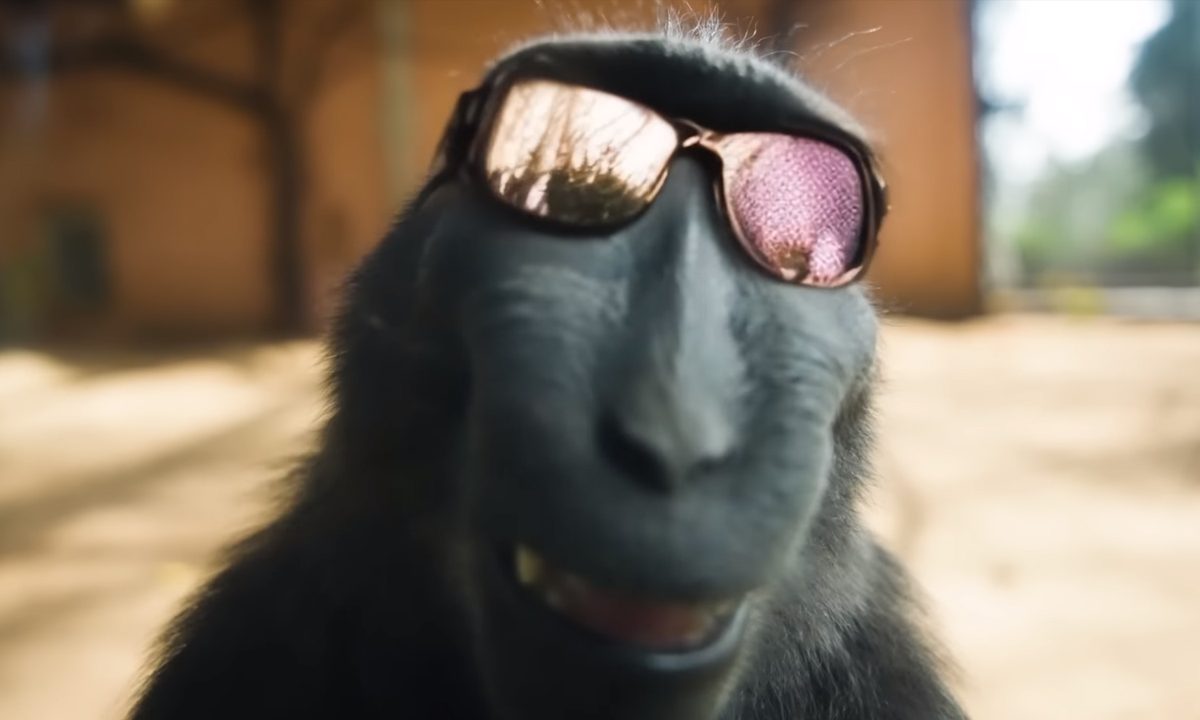
Pika is an incredible artificial intelligence tool that takes text and images and creates impressive, believable, and often beautiful multi-second video clips. Like any generative AI tool, though, Pika Labs requires the right kind of prompt to make the most of it. Here, we'll show you how to get set up using Pika and how to use it to make you amazing videos.
Sign up to Pika
Pika Labs used to have a waiting list, but that's no longer the case. Navigate to the Pika website and sign in with either a Google account or Discord account. With the Discord account, you can access the Pika Discord server, which has its own bot and additional features, but the Google account will still give you full access to the free online tool.
How to use Pika
Using Pika is as straightforward as typing your prompt into the text box at the bottom of the main page and pressing the Enter key. The prompt and the options you select can have a big impact on what the tool ends up outputting back to you.
You can also select the Image or video button and attach an image or video to provide additional context or data for the AI to use.
The prompt can take a minute or two to generate in busy times, so be sure to wait for it to complete.
Prompt Tips
- Use a basic prompt structure: The most effective prompt structures are simple and direct. Give Pika a subject, shot type, description of the scene, and a lighting effect. You can also choose a style like anime, cinematic, or pixel art.
- Use an image you generated in a separate text-to-image generator: Midjourney and Dall-E are great tools for creating a base model for Pika to animate. Try importing something you made there. Need help? Check out our guide on how to use Dall-E.
- Use negative prompts: If you find Pika keeps outputting certain video types you don't like, or they have something in them you would rather wasn't there, try using the negative prompts in the Parameters menu (the two lines with circles at opposite ends). You can input things like, "low resolution," or "morphing," or "blurry background," depending on what you're looking for.

How to change aspect ratio in Pika
Whether you're creating a video from scratch or want to use Pika's AI to alter an existing video, you can adjust the aspect ratio with just a few clicks.
Step 1: Write or upload your prompt, but before you hit Enter, select the Video options icon -- it looks like the four disconnected corners of a square.
Step 2: Select the aspect ratio that you want the output video to be in. You can choose from 16:9, 9:16, 1:1, 4:5, and a few other options.
This is also where you can adjust the frames per second (fps), if you want to.
Step 3: When ready, close the menu and hit the Enter key to upload your prompt.

How to use motion controls in Pika
Pika responds well to prompts related to filmmaking and cinematography, but there's a handy tool to make it easy to have the video pan, tilt, zoom, or rotate in a direction you want. You can also specify the strength of motion within the scene.
Step 1: After you've finished inputting your prompt, but before you submit it, select the Motion control menu icon under the prompt area. It looks like a classic camera icon.
Step 2: Choose from the menu options how you want the scene in the eventual video to be captured. Camera panning and tilting can help make a video look far more cinematic or realistic.
Step 3: When ready, close the menu and hit the Enter key to upload your prompt.

How to make Pika videos longer
The one downside to Pika's videos is that they're frustratingly short. Although you could probably cut together a short video using t3-second clips, that's a lot of cuts. You can make Pika videos longer, though. Here's how.
Step 1: Choose your favorite video that Pika has generated or altered for you. Select the three-dot menu icon under the video, and select Add 4s. This will add your prompt to the input box, along with your video as a base and a command to add an additional four seconds.
Step 2: Make any further adjustments to your prompt, then select the input button or press Enter on your keyboard.
Like most image generators, Pika is a little random and quite temperamental. While there are some basic tips for improving your time with Pika, it's all a little bit of a guessing game. Play around with the options or try prompting the tool with the same text but in a different order -- it can all produce widely different effects.
Want some help? ChatGPT is great at suggesting ways to better talk to other AI.


