  1. Home
  2. Computing
  3. How tos

How to opt out of ChatGPT using your chats to train models

Add as a preferred source on Google
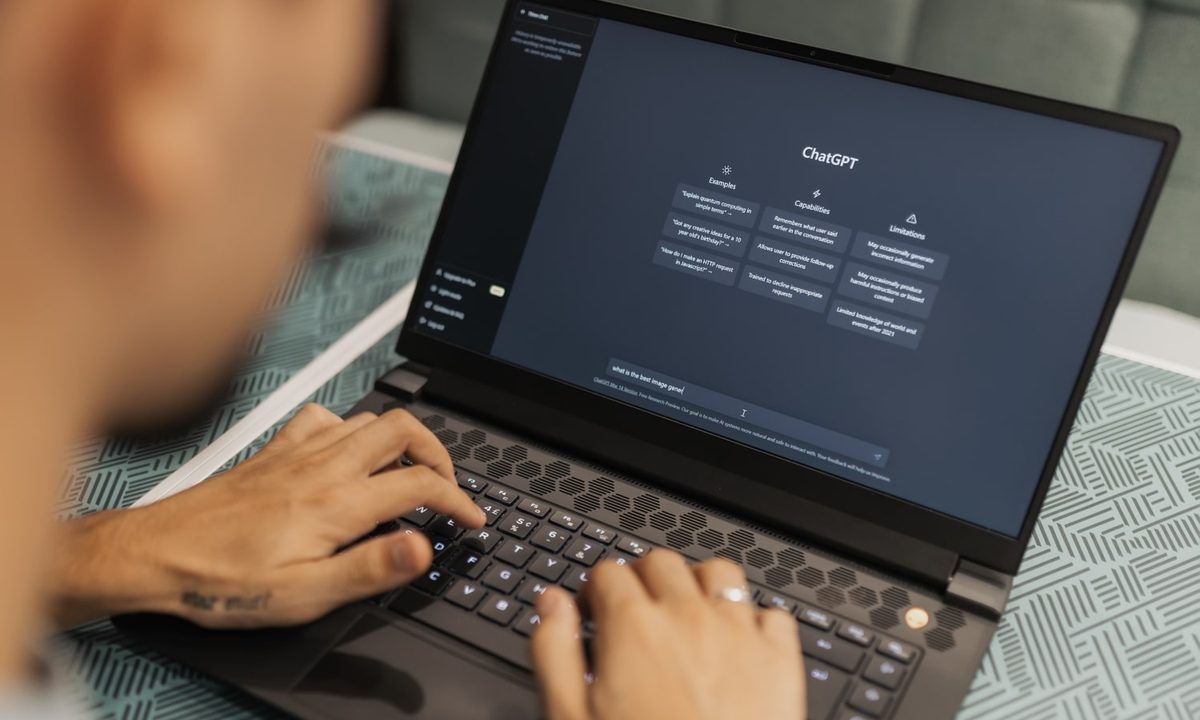
A person typing on a laptop that is showing the ChatGPT generative AI website.
Matheus Bertelli / Pexels

Whether you are hoping to preserve a semblance of privacy on today's internet or you just don't feel like serving as a cog in OpenAI's model training machinery, there's an easy way (three, actually) to opt out of letting the company use your chats to fine-tune its generative models. This guide will show you how to keep your ChatGPT history to yourself on both desktop and mobile.

Recommended Videos

Difficulty

Easy

Duration

5 minutes

What You Need

  • A computer or smartphone with an internet connection

  • Your ChatGPT login, if you have one

How to opt out on desktop while logged out

One cool aspect of the ChatGPT service is that you don't actually need to log into the system to use it. But nothing says you have to trade access to your otherwise anonymous chat history for that convenience. Here's how to opt out even when you aren't logged in.

Go to settings and deselect Improve the model for everyone. From the ChatGPT home screen, click the difficult-to-notice question mark icon in the bottom-right corner. Select Settings from the popup menu and then the Data Controls tab. Disable Improve the model for everyone, and that's it.

the improve the model popup screen on chatgpt
OpenAI

How to opt out on desktop while logged in

Go to settings and deselect Improve the model for everyone. From the ChatGPT home screen, click on your profile icon in the top-left of the page, select Settings from the popup menu, and then the Data Controls tab. Deselect Improve the model for everyone option at the top of the list.

the training opt out screen for logged in chatgpt users
Open AI

How to opt out on mobile

If you use ChatGPT on iPhone or Android, you can opt out. Note that this will only disable model training on any future conversations you have with it on your device, as the rule is not retroactive.

Step 1: For iOS: Once you have the ChatGPT app open, tap the three dots on the bottom-right corner of the screen, then click on Settings, then the Data Control tab and turn off Improve the model for everyone.

Step 2: For Android: Once you have the ChatGPT app open, click on the two horizontal lines in the top-left corner of the home screen, then tap on the three horizontal dots at the bottom of the navigation pane (to the right of your username and icon). This pops up the Settings menu and, from there, simply tap the Data Controls tab and turn off Improve the model for everyone.

If you're concerned about how ChatGPT has already used your chats, use the ChatGPT search function to look for key details. In most cases, everything should be fine, but it's a smart idea to opt out of any data collecting service i fyou value your privacy.

Andrew Tarantola
Former Computing Writer
Andrew Tarantola is a journalist with more than a decade reporting on emerging technologies ranging from robotics and machine…
The Android Show 2026: Gemini Intelligence, Googlebook, Android 17 updates, and everything else
Gemini Intelligence, Googlebooks, Android 17, and redesigned Android Auto. Google didn't hold back at its pre-I/O show, and the main event is still a week away.
The Android Show 2026

Every year, Google front-loads its Android announcements in a separate pre-show the week before its annual I/O conference. This year, the company did exactly that, and The Android Show: I/O Edition was anything but a warmup act. 

Google showed up well prepared, with plenty of software and a major hardware announcement that took everyone by surprise. One by one, let's talk about everything, including a deeply integrated AI overhaul, a long-overdue security upgrade, an Android Auto makeover that feels like it was designed for 2026, and a brand-new laptop category. 

Read more
Google just announced a new kind of laptop, and it puts Gemini everywhere
Google's new Googlebook platform puts Gemini at the center of every laptop interaction, from the cursor to the desktop, with devices from major PC makers arriving this fall.
Googlebook

Google wants Gemini to be the brain of your next laptop, and the company has announced a whole new category to make that happen. Dubbed Googlebook, the new laptop platform puts Gemini at the center of the experience, with devices from Acer, Asus, Dell, HP, and Lenovo expected this fall.

What makes it different

Read more
Google just made Gemini for Home a lot better at running your smart home
Google just updated Gemini for Home with smarter features and faster controls.
Google-gemini-for-home-updates

If you have a Google smart display or speaker at home, there are new updates you should know about. Google has rolled out a fresh batch of improvements to Gemini for Home, making the assistant noticeably smarter and faster across smart speakers and displays.

Gemini for Home is getting smarter and more personal

Read more