  1. Home
  2. Computing
  3. Apple
  4. Evergreens

How to record your screen on a Mac

Add as a preferred source on Google

Recording your computer screen is a handy way to capture what you’re doing on your device. On a Mac, you can use it to record MacOS gameplay or show a friend how to perform a task … because sometimes showing someone is much easier than trying to explain it.

Fortunately, MacOS includes two built-in ways to help you record your screen with ease: Using the Screenshot toolbar or using Apple’s QuickTime Player app. We’ll take you through both methods in this guide so you’ll know exactly how to capture videos when you need to.

Recommended Videos

Use the Screenshot toolbar

Step 1: Press Command + Shift + 5 on your keyboard. This opens your Mac’s Screenshot toolbar.

Step 2: In the center of the toolbar are two options for video recording: Record Entire Screen or Record Selected Portion. As the names suggest, you can click the left-most of the two buttons to record the whole screen or the one on the right to record just a portion.

The MacOS Screenshot toolbar showing two buttons used to record a Mac's screen.
Image used with permission by copyright holder

Step 3: Click Options to tweak how it records. From here, you can screen-record on your Mac with audio. Under the Microphone heading, just choose a plugged-in mic, and when you record, your voice will be included.

The MacOS Screenshot toolbar showing its options menu.
Image used with permission by copyright holder

Step 4: If you chose to record the whole screen, just click anywhere on your display to begin the recording. Alternatively, click the Record button.

Step 5: If you selected Record Selected Portion, you will see a box on-screen showing what will be captured. Click and drag the handles at the edges of this box to adjust what is recorded. You can move this selection to wherever you want. When you’re ready, click Record.

A portion of a MacOS screen that will be recorded.
Image used with permission by copyright holder

Step 6: When you’re finished, click the Stop button in the menu bar, or press Control + Command + Esc. A thumbnail will appear in the bottom-right corner of your desktop. Ignore it or swipe it right to save the video. Click the Thumbnail to open the recording, then click the Trim button (to the left of the Done button) to cut it if necessary. Control-Click the thumbnail to get some options, like opening it in an app or changing where recordings are saved.

A thumbnail of a saved screen recording on the MacOS desktop.
Image used with permission by copyright holder

Use QuickTime Player

Step 1: Open QuickTime Player from the Applications folder, from Launchpad, or by pressing Command + Space and typing the app’s name.

A Spotlight window in MacOS showing results for QuickTime Player.
Digital Trends

Step 2: Click File > New Screen Recording or press Control + Command + N.

QuickTime Player on a Mac showing a menu with an option to start a new screen recording.
Image used with permission by copyright holder

Step 3: This opens the same Screenshot toolbar as in the section above. Click Record Entire Screen or Record Selected Portion, then click Record.
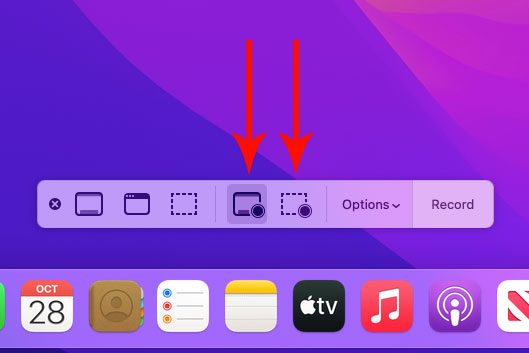
The MacOS Screenshot toolbar showing two buttons used to record a Mac's screen.
Image used with permission by copyright holder

Step 4: When you’re finished, click the Stop button in the menu bar or press Control + Command + Esc.

Step 5: Unlike recording using the Command + Shift + 5 shortcut, QuickTime will automatically open the recording and save it to your chosen location (by default, this is the desktop). Here, you can view, edit, or share it.

A screen recording in QuickTime Player, with a menu open showing an option to trim the video.
Image used with permission by copyright holder
Alex Blake
Alex Blake has been working with Digital Trends since 2019, where he spends most of his time writing about Mac computers…
Google’s new desktop mode makes one thing clear: Samsung DeX was onto something
Android 16 finally brings a real desktop mode to Pixel phones, but Google’s long-awaited move mostly proves Samsung spent years getting the hard parts right
File, Webpage, Person

I’ve been waiting for Android to take desktop mode seriously for years. Back in 2019, I bought a OnePlus 7 Pro and wasted an embarrassing amount of time trying to brute-force its half-baked desktop mode into something useful.

The idea made perfect sense to me even then. Phones were already absurdly powerful, and the thought of carrying one real computer in my pocket felt less like science fiction and more like delayed common sense.

Read more
Anthropic launches Claude design to simplify visual creation with AI
Finally, AI that designs your slides so you don’t have to
Claude

Anthropic has introduced a new AI-powered design tool called Claude Design, aimed at helping users create visual content such as prototypes, presentations, and marketing assets through simple conversational inputs. The product, developed under Anthropic Labs, is currently available in research preview for paid Claude subscribers and is being rolled out gradually.

Claude Design is powered by the company’s latest vision model, Claude Opus 4.7, and is positioned as a tool that bridges the gap between technical design expertise and everyday creative needs.

Read more
AI triggered a RAMmageddon so bad that Apple looks like the sensible choice
Laptop prices got so stupid in 2026, that Apple turned into the value king.
Student using MacBook Neo in classroom.

I really didn't want to believe it, but here we are. Apple is now looking like the sensible laptop brand. Not the cool underdog. Not the affordable alternative. Apple, in 2026. The reason is not that the company suddenly became generous, but rather the rest of the competition has suddenly become so deranged that a MacBook lineup starting at $599 feels weirdly grounded.

Apple's MacBook Neo starts at $599, while Microsoft's own 13-inch Surface Laptop now starts at $1,199 after this month's price hikes. This isn't a small gap that you can ignore. Meanwhile, Apple's MacBook Air with M5 starts at $1,099 with 16GB of memory and 512GB of storage, which looks like one of the few premium laptops still priced by human beings.

Read more