Recording frame times is a crucial part of benchmarking a gaming PC, but it’s become more difficult as of late because DirectX 12 doesn’t work quite the same as DX11. Older tools, most notably FRAPS, can’t record DX12 games. And while a few benchmarks exist, they’re either specific to a particular game, or difficult to use.
Luckily, AMD has decided to save the day. It commissioned a third-party developer to build an easy to use tool for DirectX 12 and Vulkan benchmarking. The result is OCAT. Though developed by AMD, it works with Intel and Nvidia graphics, as well.
We’ve started to use OCAT for benchmarking over the last week, and it looks like it’ll become our primary tool for games that lack an in-game benchmark. It’s even better than FRAPS, as it offers better formatting of data and a more detailed in-game overlay.
And getting started is simple.
The basics
You can download OCAT from Github.
Once you’ve installed OCAT, you’ll find yourself viewing a screen with a variety of squares on it. You may not even have to change these default settings, but there are a few things you should know, because OCAT’s behavior may not be what you’re used to.
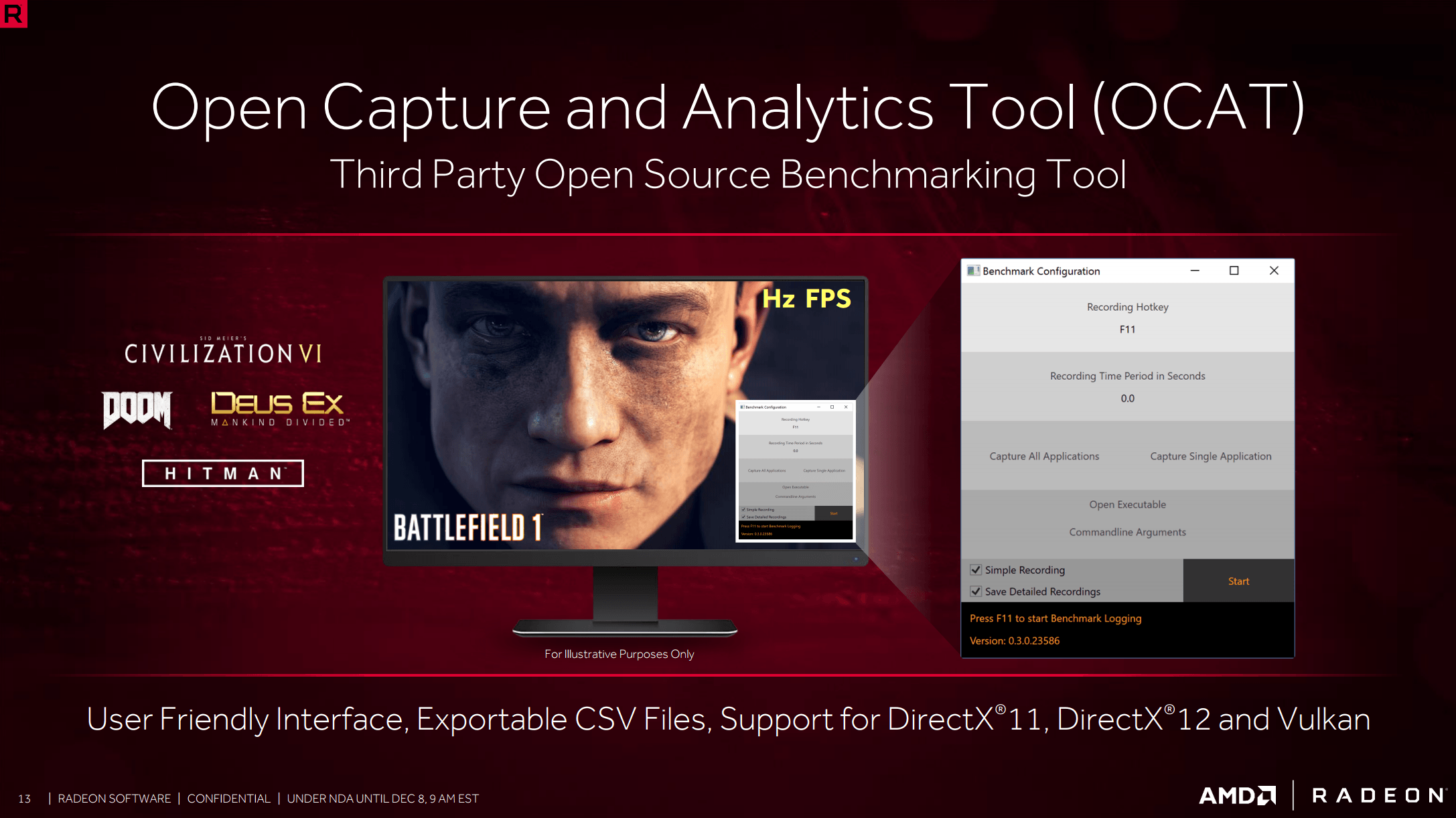
The main point is that OCAT does not capture only a specific application by default. Instead, “Capture All Applications” is highlighted. This means what it says. All applications with a visible window will be benchmarked, from games to your web browser.
There’s nothing wrong with that if you’re doing a basic benchmark. Results are separated by application, so you shouldn’t see confusion in your numbers. However, it can clutter up the files you see, so you can instead select “Capture Single Application.” You can then select the target executable through Windows Explorer, or you can manually enter the executable location in the field to the left. You can also manually enter commandline arguments.
Check out the checkboxes
You’ll also see three checkboxes, each marked.
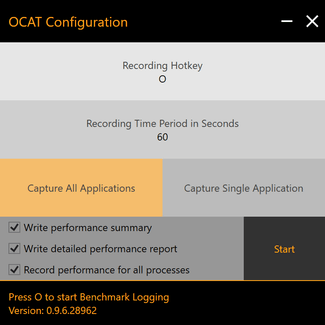 Write performance summary enables a spreadsheet called “perf_summary.csv” which is output to your /Documents/OCAT/Recordings folder in Windows. The summary lists average framerate, average frame time, and 99th-percentile frame time for all monitored processes. For most people, that’s all the information you’ll need.
Write detailed performance report will output a specific spreadsheet for each process monitored by OCAT. In it, you’ll find precise information about each frame generated during the test run, so those so inclined can run a custom analysis the numbers. It could be useful, for example, if you want to know how many frames took more than 33.3 seconds to generate. These reports are also found in the /Documents/OCAT/Recordings folder.
Record performance for all processes dictates if performance is recorded for all processes, or just for the active process. It’s somewhat redundant with selecting an application for capture. We found it a bit unreliable, so if you just want to capture results from a game, we recommend you use the “Capture Single Application” option instead to select the game’s executable.
Don’t forget to hit start!
This may sound silly, but it’s a bit different from how other tools work.
You need to hit start.
Otherwise, no overlay will appear, and nothing will happen when you hit the recording hotkey. This is different from FRAPS, which always shows its overlay if the application is loaded, whether you want it or not.
Also, if you’d like to record for an unlimited period of time, you’ll need to set the Recording Time to “0” seconds. By default, it’s set at 60 seconds.
A great way to benchmark DirectX 12
We tried out OCAT with Battlefield 1, Civilization IV, Deus Ex: Mankind Divided, and Warhammer: Total War, to see how well it worked.
The verdict? It’s fantastic. The reports are the easiest to read of any tool we’ve used, and the overlay is the best, too. We think this will be the tool of choice for amateur benchmarkers going forward, as well as for professionals (such as ourselves) who desire a wealth of data.