
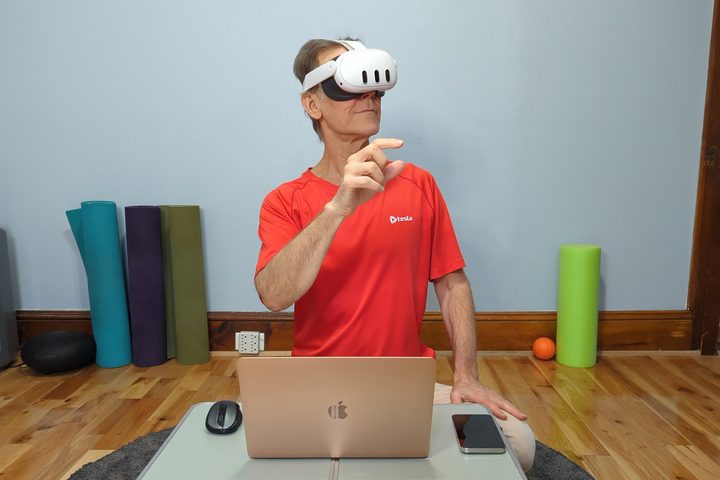
When Meta launched the Quest 3 in October, the focus was on mixed reality gaming, but I wondered if it was ready for work. Because the truth is that spatial computing is the latest challenge for VR headsets.
It might sound odd, but VR headsets should be used for more than just games. Most computing devices serve a variety of purposes. Your PC works all day with you, then transitions to entertainment, whether watching movies, browsing the web, or playing games. The best VR headsets can be just as functional — at least, in theory.
What’s needed for work?
Your work demands might vary from mine, but most people simply need basic office computing, not a high-performance video- or photo-editing station. The fact that I’m working in VR doesn’t change the task at hand. I need to access email, post to social media, browse the web, use a variety of web apps, and do some photo editing.
I can achieve all of those tasks with any device with a robust desktop browser that can run multiple web apps. A web-based image editor works, and they keep getting better, but I’d prefer a fast and full-featured image editor. I’d also like to have all the browser extensions I’m accustomed to using in my workflow.
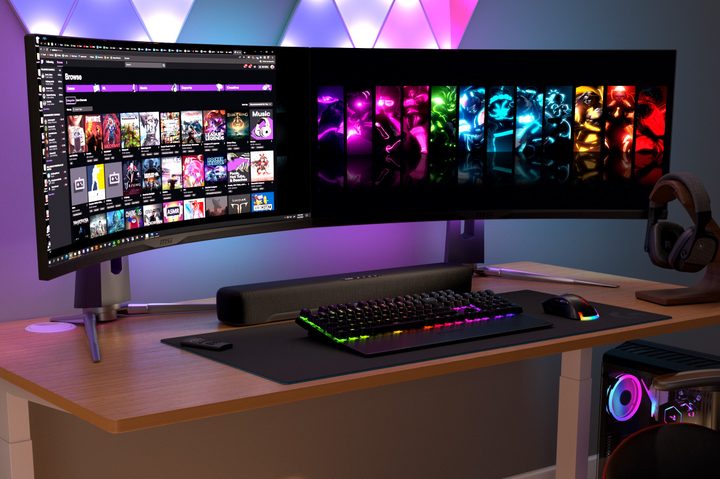
On the hardware side, one or more large screens help when taking in information from multiple sources or moving media from one place to another. A mouse and keyboard are hard to beat for productivity, and if I use my favorites, work goes faster.
Despite its reputation as a VR gaming device, most of these requirements are met by the Quest 3. Meta describes the Quest Pro as a whole new way to work, but the Quest 3 uses the same operating system and apps. That means both devices are spatial computers.
Quest 3 in standalone mode
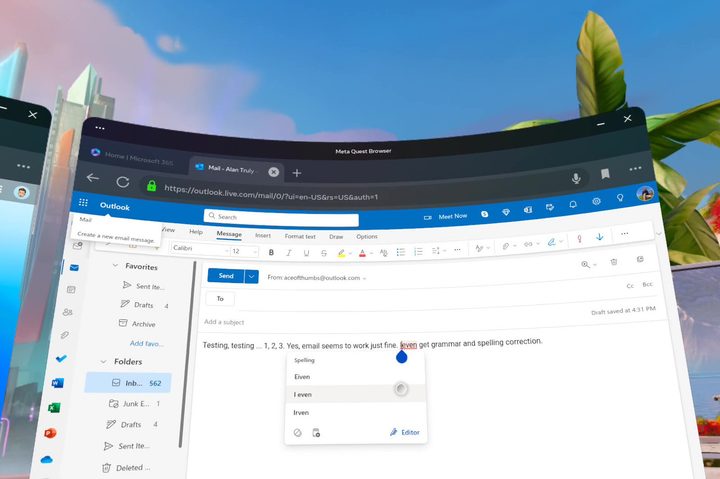
The Quest 3 meets most requirements for light office work. With three resizable windows placed side by side, I’ll never need a larger monitor or more screens.
Last year, when I tested the Quest Pro as a laptop replacement for a week, Meta’s browser failed in several ways. For example, Gmail loaded in its basic HTML view. It’s functional, but without any styling, it looks like a sea of text with blue links everywhere. I couldn’t download images from websites unless there was a dedicated download button.
In 2023, Meta solved these Quest browser issues. I can sign into Gmail, iCloud, Outlook, or other webmail providers with Meta’s browser, so email access is simple. In fact, most websites look fine and work as expected on the Quest 3. For example, there are no issues with go-to apps like WordPress, Canva, and Pixlr. Facebook, Instagram, X (formerly Twitter), and other social media networks that support a web browser also work well.
I ran into a strange quirk with Microsoft Word and Google Docs. Each web app suggests installing an uninstallable extension to enable copying and pasting. The Quest browser doesn’t support any extensions. Meanwhile, the clipboard works as expected in Gmail and Outlook. The Qualcomm Snapdragon XR2 Gen 2 has enough performance to handle any web app, but Meta still needs to do more work on browser compatibility to enable the use of many popular web apps.
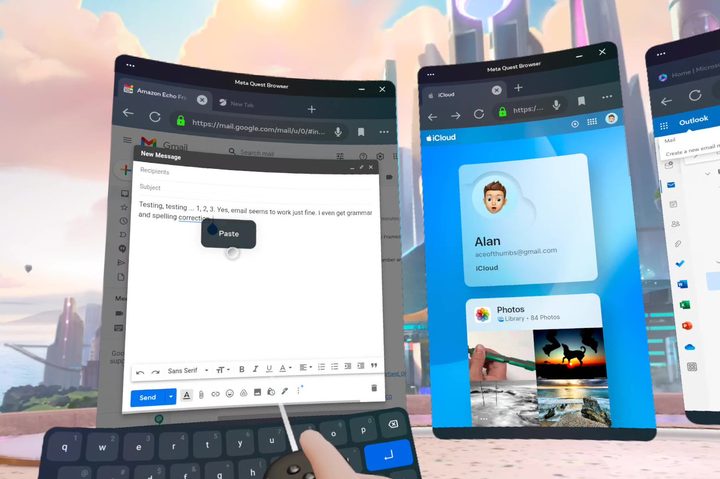
Typing has gotten much better with the new swipe keyboard. It works just like my phone. I drag a controller line or a finger through the letters, and the Quest 3 figures out what word I want. I can also peck at the keys with my index fingers to enter passwords or correct typos. For faster typing, I can pair a Bluetooth keyboard and mouse to make my Quest 3 more like a computer. The Quest 3’s mixed reality view makes it easy to glance down at the keyboard.
Despite these advances, there are some jobs that are still best handled on a computer. When I need to quickly edit an image, I don’t want to upload images to a web app. I like the ease and speed of Photoshop or Gimp. While video editing is possible in a web browser, it’s a burden to send source material to the cloud.
That means the Quest 3 isn’t any more of a laptop replacement than the Quest Pro. For more demanding tasks, I can stay in VR and connect the headset to a Windows PC, a Mac, or even a Linux computer.
Quest 3 (plus a PC) gets the job done
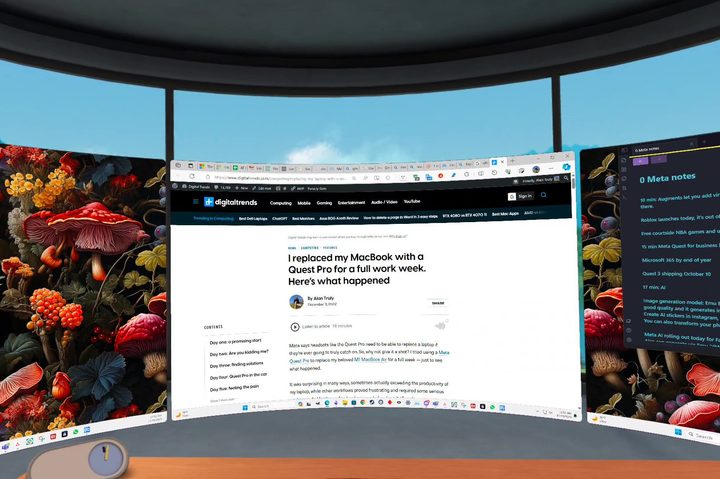
Meta’s Quest 3 is meant to be a gaming device, but it’s actually quite enjoyable to use for work if you accept that you’ll need to connect to your computer sometimes. There are several ways to tap into the power of your computer while enjoying the multiscreen potential and immersive feeling of working in VR. The world disappears so you can focus on the task at hand, but is available anytime by switching to a passthrough background.
Meta also offers Horizon Workrooms as a free remote desktop app. If I use this app, I’m fully committed to using the computer remotely through the Quest 3. The advantage of three large virtual displays is tempting, but since I already have a Geminos display with two stacked physical monitors, I rarely use Horizon Workrooms. Meta’s app is also a bit restrictive, fixing the displays in a side-by-side configuration at a limited size.
When I want more screen space or more control of the monitor layout, I choose the third-party app Immersed. I can move, tilt, curve, and resize up to five virtual computer displays. Immersed also supports most Linux computers.
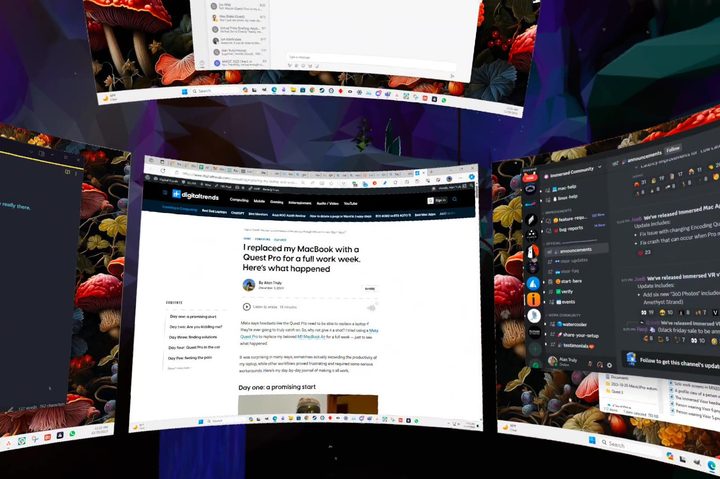
If you’re happy working in standalone mode on the Quest 3, but need more on occasion, you can use the Remote Display app. There’s a companion app to install for remote access to Windows PCs and Mac computers. When I launch Remote Display, a window opens showing one of my two PC screens beside the two Meta browser windows. With a click, I can easily switch to see a view of the other physical monitor.
I still need to use my computer’s keyboard, mouse, or trackpad to interact with the computer while my hands or controllers control the Quest 3 windows. I found it surprisingly satisfying to blend these two worlds. There’s no automatic data transfer, however. I need to save to the cloud to access files across devices.
Is the Quest 3 ready for work?
Circling back to the question of whether the Quest 3 is ready for work, the answer is yes. A more important question to ask is whether you are ready to work in VR and if the Quest 3 is the best device for that purpose.
Personally, I still find the Quest Pro more comfortable. All the software improvements I mentioned above came to the entire Quest lineup, except for the discontinued Quest 1.
The Quest 3 delivers sharper graphics, which will make a difference in fine print. On the other hand, I don’t need fine print when I’m looking at three giant screens, so the Quest Pro displays are sharp enough.
A greater concern is how long the headset will be comfortable. After a couple of hours, a 1-pound weight becomes noticeable, even with a refined head strap. In truth, VR headsets are still too heavy for a full day of work.
Apple’s upcoming Vision Pro boasts 4K-per-eye displays, and this spatial computer will make the current generation of consumer VR headsets look bad. The performance should be comparable to a MacBook. However, early testers suggest the headset weighs at least a pound, so even Apple’s spatial computer will spend a large part of the workday on its charging dock, just like the Quest 3.
The Quest 3 is ready for work, but don’t get rid of your laptop yet.


