There’s no shortage of text and document editors today, from apps made for tablets to online editors built for the cloud – but one of our top favorites is LibreOffice. What is LibreOffice? It’s a great alternative to Microsoft Office, with a highly customizable package of applications that are still easy for newcomers. Let’s dive into the details of whether LibreOffice might be the right tool for you.
What is LibreOffice?
LibreOffice is a suite of document-oriented tools from The Document Foundation, designed to work with many different types of files with a single download. Users can write essays, create spreadsheets, edit their presentations, and a lot more with this software. The technology has been developed over ten years of work, while LibreOffice has kept up with the latest platforms and security requirements to keep things current, and expand into new areas. It’s also open-source, with plenty of community involvement as people work on the latest add-ons or solutions.
Comparisons with apps like the Microsoft Office suite are easy to make, and LibreOffice is reminiscent of Office apps in a number of ways. That’s one reason that newcomers can plop down and start confidently using the software without much training at all. But the interface and capabilities are designed to be more versatile for those who want to dig deeper.
Is LibreOffice free?
Yes. It’s entirely open-source and free to download for any compatible device. There’s no need to create an account or sign up for anything. You can find the download options right here.
However, if you are using LibreOffice for business, The Document Foundation does work with partners to deliver enterprise-level support, tools, and certification. This comes with associated fees, which can vary based on the solution.

What kinds of documents does LibreOffice work with?
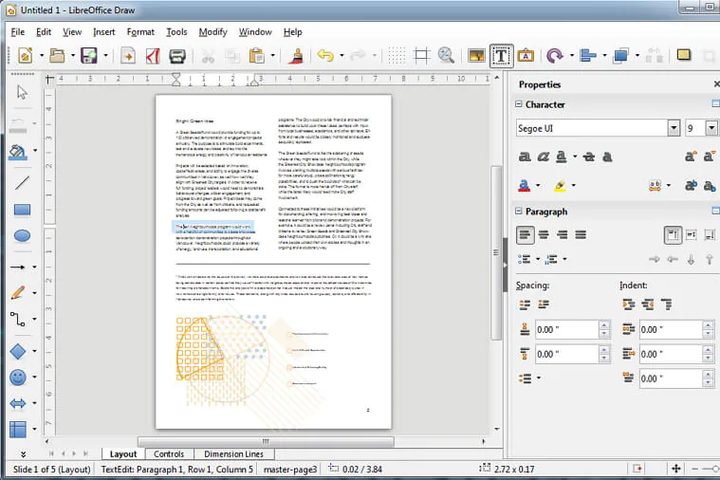
The LibreOffice suite is divided into a number of different categories: Writer (for written documents), Calc (for spreadsheets), Impress (slideshows), Draw (for doodling), Base (databases), Math (formula editor), and Charts (for making charts). Together, these applications can cover a wide variety of file formats and work with most of the files that you have. That includes .doc and .docx files from Word, as well as matching files from Excel, PowerPoint, and Publisher. LibreOffice also specializes in ODF, or the Open Document Format, which is designed to be easy to export to a variety of other programs once you are done in LibreOffice.
It can also handle PDFs, although formatting issues are (as is often the case) a real possibility.
How easy is LibreOffice to use?
As we mentioned, those familiar with the Office suite should have no trouble getting started. The interfaces are designed to be intuitive and encourage a quick learning process so you can get started on your work ASAP. Writer and Calc in particular are similar to their Microsoft counterparts. As we’ll discuss a bit more below, the interface is also customizable, so you should be able to arrange things the way you prefer with a bit of practice.

What platforms is LibreOffice available on?
While LibreOffice is particularly friendly for Linux platforms and a common feature of Linux distros, it works with a wide variety of operating systems. That includes Windows, macOS, Android, iOS, and Chrome OS. Some versions of LibreOffice work through Collabora, and others can be downloaded directly from the LibreOffice website or corresponding app stores.
Do I need an internet connection to use LibreOffice?
No, you don’t need to be online to use LibreOffice. However, if you want to store files in cloud storage like Dropbox, you will need to be online to do it.
Can I customize LibreOffice?
Yes. The open-source nature of LibreOffice allows for many different kinds of personalization, and the years of work the community has done provide you with lots of options. Many extensions are approved by LibreOffice and available for direct download, so you don’t have to do much work. That includes things like an upgraded spellcheck, new color palettes, dictionaries, templates, and a variety of tools to make certain kinds of work easier. Or you could search for templates and add-ons offered elsewhere, too, although that may take more work to find the right solution.
Even if you don’t want to download anything, you’ll find that LibreOffice has a bunch of options in Preferences, View, and Format to tweak how things look and behave. You can change where tools are, add or remove tools, change how icons appear, pick from a wide variety of themes, or edit specific colors to get the exact look you want. There’s a lot to dig through if you take your customization seriously.

Is LibreOffice the same as OpenOffice?
Yes, and no. OpenOffice, aka OpenOffice.org, was an earlier version of the open-source project that eventually became LibreOffice. LibreOffice was designed to be a more complete, user-friendly version of OpenOffice that could be maintained and improved for years. No contest between the two is necessary – LibreOffice is simply a more recent version of OpenOffice.
Is LibreOffice still getting updates?
Yes, LibreOffice continues to receive updates for improved compatibility, security, and new features, timed for every six months or so. It is currently on version 7.4, and there are no signs of it slowing down in the foreseeable future.