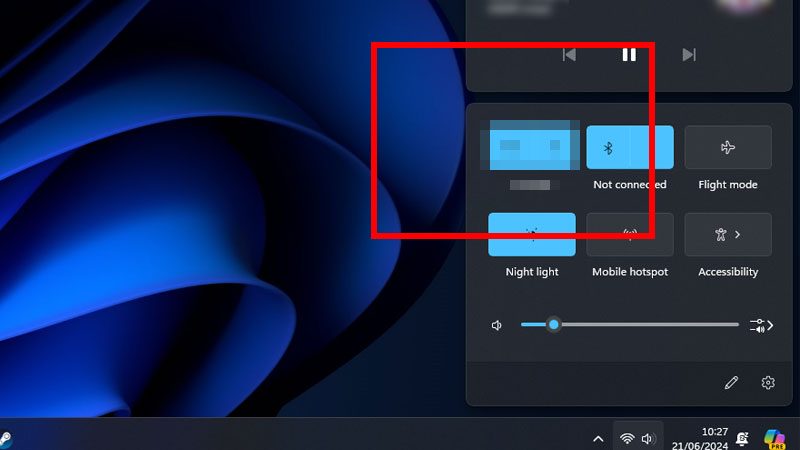
A missing Wi-Fi icon can make getting online a bit tricky. If your Windows 11 PC or laptop definitely has a Wi-Fi receiver connected, or has built-in Wi-Fi and it's not giving you the option of turning it on, you've got a Wi-Fi problem we'll need to fix. There are a few different causes for this, so there are a few potential fixes, too.
Here's how to fix your missing Wi-Fi icon so you can get back online.
Reboot your PC
Before you do anything else, just try rebooting your PC. Your Wi-Fi icon may have been switched off or disabled by something, and instead of digging through a range of options to fix it, let's try a quick reboot first. It can often fix problems like this and save you a lot of time and energy.
If that doesn't work, try one of these fixes below.

Run the internet troubleshooter
Windows 11 has its own built-in Internet Connection troubleshooter, so whenever you hit a snag with your network or internet connectivity, it's a great place to start in trying to fix it.
Step 1: Search for "Troubleshoot" in the Windows search bar, and select Troubleshoot settings from the list of results.
Step 2: Select Other troubleshooters.
Step 3: Next to Internet Connections select Run and follow the on-screen instructions.

Enable the Wi-Fi adapter manually
It's possible that for some odd reason, your network adapter for Wi-Fi has been disabled. Let's re-enable it.
Step 1: Use Windows search to look for Network connections. Select View network connections from the results.
Step 2: If your Wi-Fi adapter is disabled, right-click it and select Enable. Give admin approval if it's requested.

Update your Wi-Fi drivers
If your Wi-Fi drivers are out of date, or the drivers have become corrupted, that can cause you to lose your Wi-Fi connection. Here's how to update them.
Step 1: Use Windows search to look for Device manager and select the corresponding result. (Device Manager lets you control what devices are running on your computer, everything from re-enabling Wi-Fi to disabling laptop keyboards.
Step 2: Select the arrow next to Network Adapters to expand the list.
Step 3: Find your main Wi-Fi adapter. In my case it's the Intel Wi-Fi 6E AX210 adapter. Right-click it and select Update driver.
Step 4: Select Search automatically for drivers and follow the on-screen prompts.
Step 5: If Windows doesn't find any new network drivers for your device or motherboard, you can also check the manufacturer website to see if they have released a new network driver. You'll then need to install that manually like you would any other software.
Step 6: Additionally, if updating the driver doesn't work, you can try uninstalling it and reinstalling it manually. To do so, right-click on the Wi-Fi adapter in Device Manager, and select Uninstall device. Then reboot, and once you're back in Windows, reinstall your network driver from the manufacturer's website.
Adjust your network adapter power settings
Windows has a number of built-in ways to help you save power to make your PC or laptop more efficient and improve battery life. That can mean turning off your network adapter during certain sleep states, and if they don't come back on, that can cause your Wi-Fi icon to go missing. Here's how to make sure that doesn't happen.
Step 1: Use Windows search to look for Device manager and select the corresponding result.
Step 2: Select the arrow next to Network Adapters to expand the list.
Step 3: Find your main Wi-Fi adapter. Right-click it and select Properties.
Step 4: Select the Power management tab at the top, then ensure that "Allow the computer to turn off this device to save power" is not checked. If it is, uncheck the box by selecting it. Then select OK. If necessary, reboot your PC.

Run Windows update
It might seem a bit flippant, but running Windows update can sometimes fix network issues. You'll need an Ethernet port or adapter and an Ethernet cable, but if you can plug them into your PC or laptop, try running Windows update to see if it fixes the issue.
Step 1: Search for "Windows update," and select the corresponding result. Then on the updates page, select the Check for updates button.
Step 2: Install any new major updates and reboot your PC if necessary.
Step 3: Additionally, you could check if there are any extra updates related to networking that are worth doing. On the Windows Update page, select Advanced options followed by Optional updates.
Then select Driver updates and install any relevant updates there.

Revert to a system restore point
If you still can't get the Wi-Fi icon back, it might be time to use a system restore. This can roll back your PC or laptop to a time where the Wi-Fi icon wasn't missing. You can do so by searching for System restore and selecting the corresponding result.
For more details, check out our guide on how to use system restore.