
With Windows 10 officially losing support next year, Windows 11 is poised to take over as the dominant operating system. Many users have already switched over to the latest Microsoft OS – and while it’s not perfect, most are finding it to be a nice step forward from Windows 10. Of course, there are a few quirks people will have to get used to, but most of the bugs and technical issues have already been ironed out.
That’s not to say Windows 11 is perfect. In fact, there are still a handful of common Windows 11 problems that people are encountering, including ones that cause no sound to play, network connections to be laggy, and games to run at less-than-optimal speeds. Thankfully, many of these issues are easy to resolve without extensive troubleshooting or the need to contact customer support.
If you’re experiencing any growing pains, here’s a look at the most common Windows 11 problems and how to fix them.
No sound in Windows 11
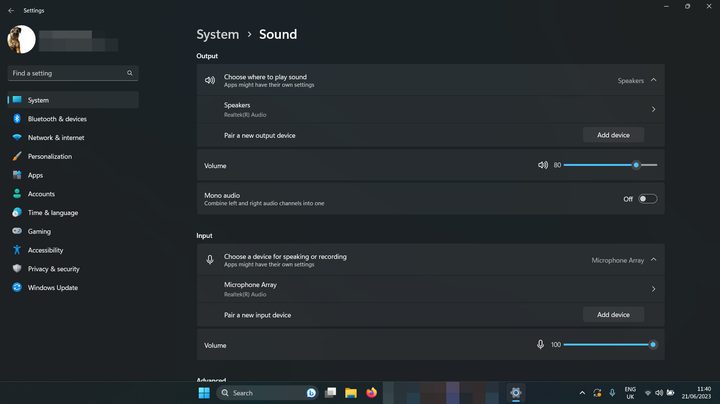
Windows 11 does have sound. It should have sound. But if your version of Windows 11 stubbornly refuses to make any sound, you might need to fix it. There are a few reasons that you might have no sound on Windows 11, so try a few of these potential fixes:
- Check your volume levels: Right-click the speaker icon in the bottom right (next to the date and time) and select Open Volume Mixer. Make sure that the volume is raised high enough that you would hear it.
- Check the sound settings: Right-click the speaker icon in the bottom right and select Open sound settings. Check that next to Choose where to play sound, your speakers or headphones are selected.
- Check the connections: If you’re using external speakers, make sure they’re properly connected. Double-check any cable connection, and if you’re using wireless speakers or headphones, disconnect and reconnect them again.
- Run the Windows 11 audio troubleshooter: Right-click on the speaker icon in the bottom right and select Troubleshoot sound problems. Then follow the on-screen instructions.
Windows 11 network issues
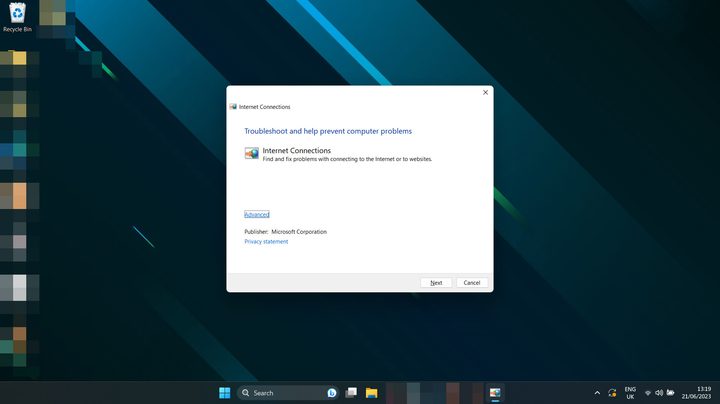
Can’t connect to the internet? Connection slower than expected? Windows 11 network problems can crop up from time to time. Try these possible fixes:
- Reset your router: It may not be Windows’ fault. Try resetting your modem and/or router to see if that fixes the issue.
- Reset your PC: Just rebooting can sometimes fix network issues. Give it a try.
- Reset Windows 11 network settings: Press the Windows key + I to open the Settings menu. Select Network and internet > Advanced network settings. Scroll down and select Network reset. Select Reset now > Yes to confirm.
- Change the connection method: If you can, switch from Ethernet to Wi-Fi, or vice versa, to see if that helps.
- Run the Windows 11 networking troubleshooter: Search for Network Troubleshooter in the Windows search box. Select Find and fix network problems. Select Next > Troubleshoot my connection to the internet.
Your Windows 11 screen is flickering, blurry, or black
Is your screen not behaving properly in Windows 11? If it doesn’t look right, here are some fixes you can try:
- Turn it off and on again: Reset your PC and turn your monitor off and on again.
- Check the connections: Confirm the cables are connected correctly to your PC and monitor. If in doubt, unplug and replug them.
- Update your drivers: If you have a dedicated graphics card or chip, try updating your GPU drivers. Download the latest ones from AMD, Intel, or Nvidia from their respective websites. Need more help? Here’s our guide on how to update Windows 11 graphics drivers.
- Update Windows: Try updating to the latest version of Windows 11. Certain patches and fixes might address this issue for you.
Games running slow on Windows 11
Gaming performance on Windows 11 has been a mixed bag since its debut, and some people have faced serious performance issues.
- Check that your system isn’t overheating: Check your CPU temperature (and your GPU while you’re at it) to make sure they aren’t overheating. If they are, that might be why gaming performance is down.
- Update your graphics drivers: Download the latest graphics drivers from AMD, Intel, or Nvidia from their respective websites.
- Install the latest Windows updates: Try updating to the latest version of Windows 11; some of the recent releases have gaming related patches.
- Try disabling VBS: Windows 11’s Virtualization Based Security can reportedly cause some issues with gaming performance in Windows 11. Try disabling that to see if it helps.
If your game performance is still poor, you might need to adjust your in-game settings for better performance. Check out our guide to in-game settings so you can maximize your frames per second.
Windows 11 search can’t find your files
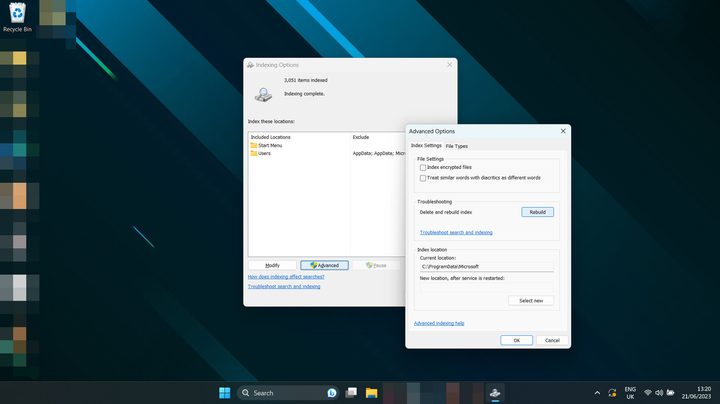
Windows 11’s search tool is smart, but sometimes it acts really dumb. It might just need to index your files again, though. Try this:
- Use Windows search to look for Index and select Indexing options. Select Advanced > Rebuild.
Now that you’re a wiz at Windows 11 troubleshooting, be sure to look at our favorite Windows 11 tips and tricks to make the most out of the operating system.


