The PlayStation 4 has supported remote play for a long time on Sony devices, including the PS Vita, PS TV, and Xperia phones. With the release of firmware 7.0.0 in 2019, Sony opened the flood gates, allowing Android and iOS users to stream to their mobile devices (PC users, too). Getting connected is a little involved, though, so we’re going to show how to set up PS4 Remote Play on Android and iOS.
Before getting started, make sure you’ve updated your iOS or Android device to its latest version, as well as your PS4. Have your Dualshock 4 handy, too, and make sure to pick up a phone clip if you haven’t already. They’re usually very inexpensive, no more than $15.
How to set up PS4 Remote Play on Android and iOS
Note: The PS4 Remote Play app supports iOS 12.1 and Android 5.0 and above. It should also be noted that we weren’t able to connect our Huawei tablet, but our Samsung and Google phones of various ages had no issue.
- To get PS4 Remote Play up and running, you’ll first need to fire up your PS4 and install the 7.0.0 update if you haven’t already.
- Then grab the PS4 Remote Play app from Google Play or the iOS App Store and open it up.
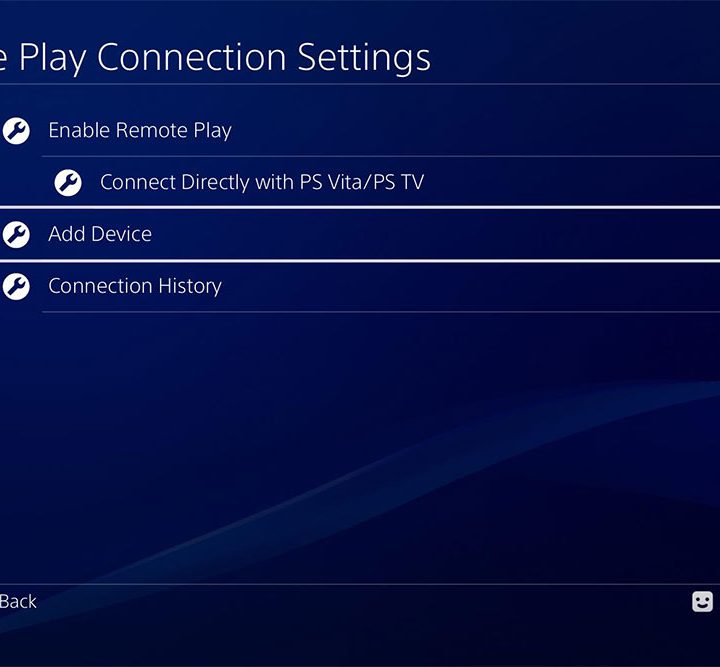
- Once that’s done, slide on over to the Settings tab on your console and find your way to where it says Remote Play Connection Settings.
- Once you’re in there, make sure to tick Enable Remote Play. This is what will open your PS4 up to consenting devices, and it’s something that should already be on if you’ve used Remote Play on an Xperia, PS Vita, or PS TV device in the past. With the PS4 Remote Play app open on your chosen device, it’s time to make that fated connection.
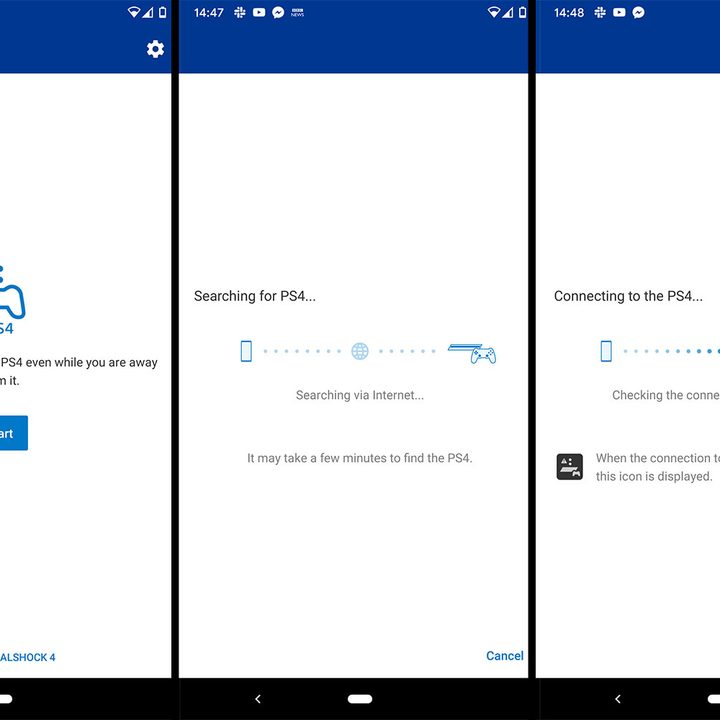
- Hit the Add Device menu on your PS4 and Start on the PS4 Remote Play app. At this point, both devices should start searching for each other on the network. We had very little success with this auto method, but if you wait it out, you should see an option to connect manually on the app screen. If the connection is made automatically, great! If not, just do it manually by entering the code displayed on the PS4 screen when prompted and you should get in without a hitch.
- Next, you have two options: You can either control your PS4 with on-screen buttons or connect your trusty Dualshock 4 controller over Bluetooth for the optimal experience. For iOS users, this means being on iOS 13 or above, and Android 10 for Google fans. Even though Android devices have been able to connect to Dualshock 4 controllers — or just about any controller — for years now for emulators and even common UI controls, the PS4 Remote Play app will kick up a fuss if you’re not running the right OS version. These finicky operating system requirements can actually be circumvented with an OTG cable if you don’t mind the extra step.
- If going the Bluetooth route, hold the PS and Share buttons down on your controller until the front light bar starts to blink. This indicates it’s in Bluetooth pairing mode. From there, just navigate to your device’s Bluetooth settings and do the usual dance.
And that’s it, really. Your PS4 should now be outputting video to your chosen mobile device with either controller support or on-screen buttons at your disposal. You’re now free to play your games on, behind, or even inside your couch so long as your Wi-Fi connection is up to snuff.
How to minimize lag on PS4 remote play
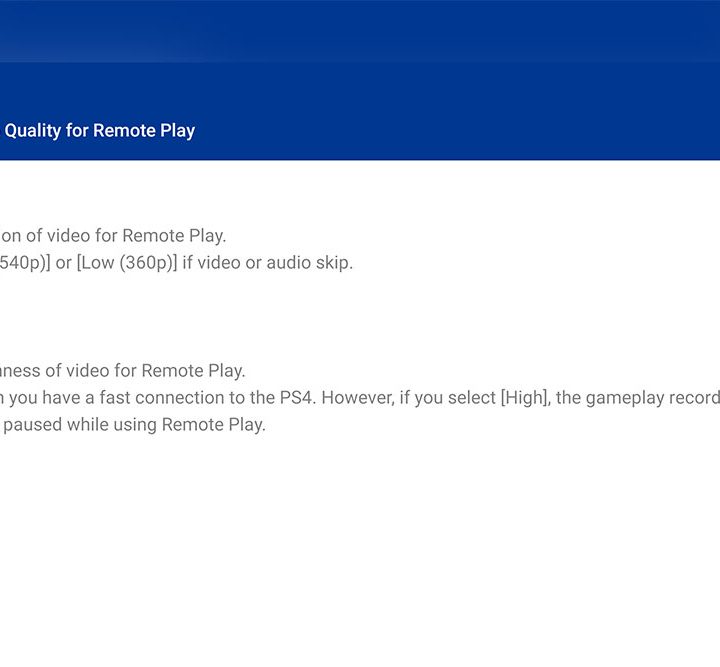
If you notice stuttering or a glitchy feed, you can change image resolution and/or target frame rates in the PS4 Remote Play app to lighten the load. The PS4 has never had particularly strong Wi-Fi performance, so it’s highly recommended you connect it directly to your router if possible for the smoothest experience. A 5GHz connection can really help, but only if you’re close enough to your router to make use of its benefits.
How to use PS4 remote play without a Dualshock 4
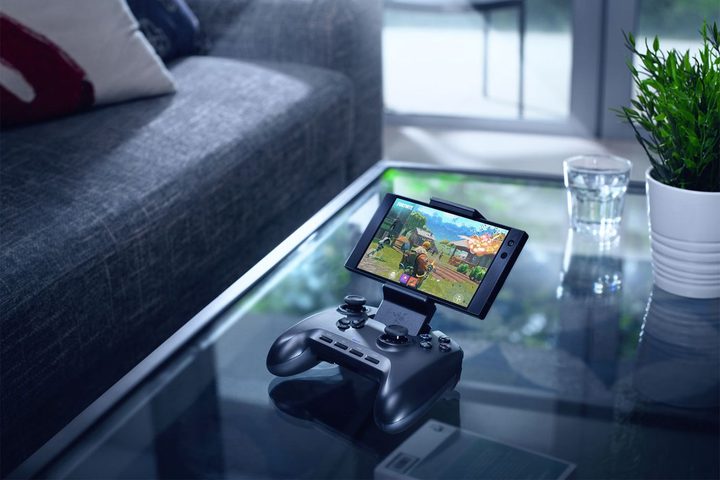
The PS4 Remote Play holds a wide variety of specifications, the most irritating of which is a Dualshock 4. You might think that you can use any Bluetooth controller with the Remote play application, but sadly this is not factual. You’ll have to use a Dualshock 4, unlike the Xbox One’s remote play app, which lets you use any Bluetooth controller your little heart desires.
Fortunately, for those who would prefer using another controller or ditching the clip and using a telescopic controller like the Razer Kishi, there’s a way to get around this. The PSPlay app for Android machines permits you to use any Bluetooth controller you desire, and it’s accompanied by some bonus features, such as button mapping and mobile data streaming. Not only that, but it also offers streaming on a PS5.
Unfortunately, this is not a free app. The PSPlay was $5.99 the last time we checked in February 2021. The app is also only available to Android users. Sorry, iPhone folks. However, we can verify that the app works great and isn’t any more complex to set up than Sony’s first-party app.