Sony recently launched My PlayStation, a new social portal that allows you to control and view your PlayStation profile, friends list, messages, and trophies from web browsers on PC, Mac, iOS, and Android devices. The service provides you with many of the functions you already use on your PlayStation 4, but with the convenience of a mouse and keyboard and a sharp Facebook-style design. If you’re wanting more information on My PlayStation, we have an overview of what you can do using the service, and how to do it.
How to get to My PlayStation
You can get to My PlayStation through your web browser in a few different ways. The easiest way is to simply head to my.playstation.com and sign into your profile. You can also find it through playstation.com. On the site, you’ll see a “My PlayStation” button next to the sign-in button (or your PlayStation profile picture if you’re already signed in).
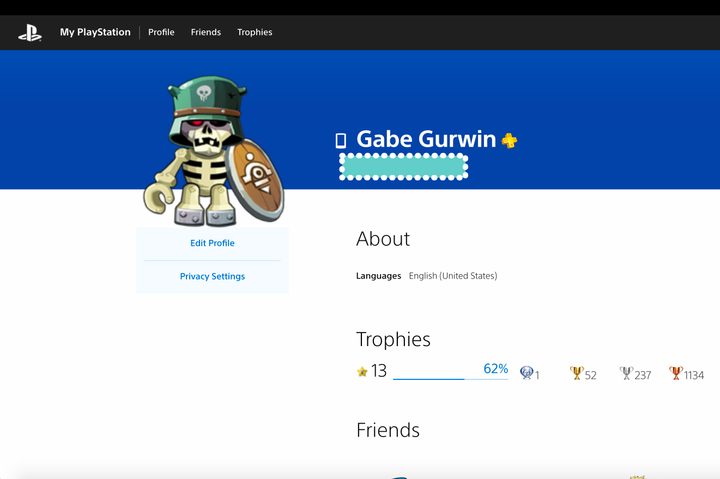
From here, you’ll see your profile page, as shown above (minus the stamp covering your username), with your trophy level and friends list. There are tabs just below your profile picture that can be used to edit your profile or adjust your privacy settings.
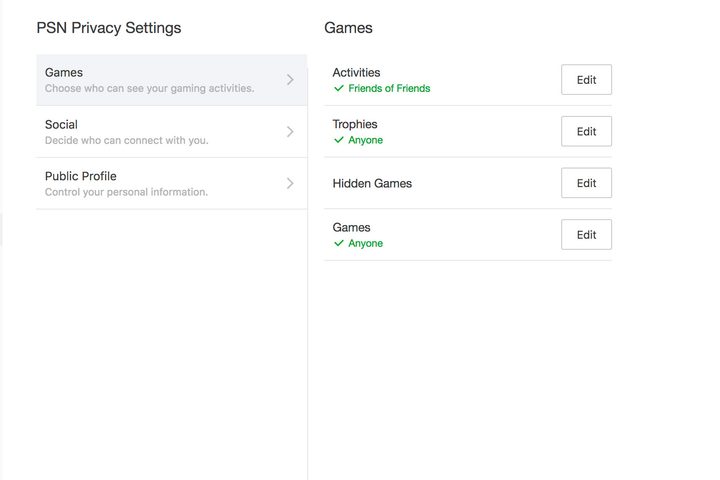
You can click on these tabs to adjust who sees your games, what’s included in your public profile, and who is allowed to contact you on the PlayStation Network. Note that these options will take you to the PlayStation site to confirm these changes.
How to use My PlayStation
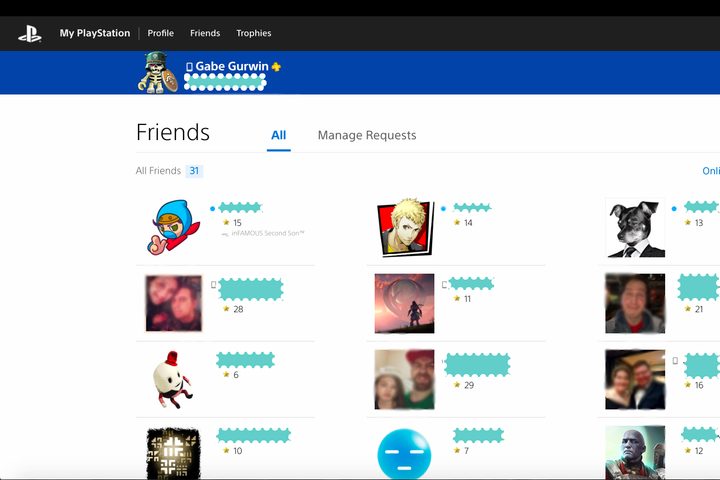
There are a few different components of My PlayStation, all of which are visible in the horizontal menu at the top of your screen. Next to “profile,” which takes you to your landing page, you’ll see “friends.” Select this to be taken to a page showing all of your friends, with those online at the top and with a small blue circle next to their name. Click “manage requests” and you’ll see a second page, which lists all of your incoming and outgoing friend requests to other players. Any players you blocked will also be listed on the “manage requests” page at the bottom.
Next to the “friends” tab is the “trophies” tab. Select this to be taken to the dedicated trophies page, which will list your trophy level and individual trophy count at the top, followed by the games you’ve played in reverse-chronological order. Selecting an individual game from the list will take you to that game’s individual trophy page, which will show your count and percentage for that game, as well as the individual trophies you’ve earned. Unfortunately, there isn’t a way to sort the trophies by the day they were earned or rarity, but clicking a trophy will show you its full requirements.


You also have a few other features available at a glance on My PlayStation. In the top-right corner of every page, there are three icons next to your profile picture. The first, an “i” inside a bubble, will display any pending notifications you have, including messages from PlayStation itself. The second, two speech bubbles, will display your messages. Just click on it and you’ll be given a drop-down menu that allows you to type directly to your friends. Next to the text input area, you’ll also see a smiley face, which can be used to send preselected images. The paperclip next to the smiley face can be used to send attachments from your computer.
To the right of the messages icon is the friends icon. Just click on it to quickly view which of your friends are online, as well as the games they’re playing. Clicking the ellipses located next to their name will give you the ability to request their real name, send them a message, report them, remove them from your friends list, or block them. Clicking “view all,” located at the bottom of the drop-down menu, will take you back to the main “friends” page.

A note on the mobile version
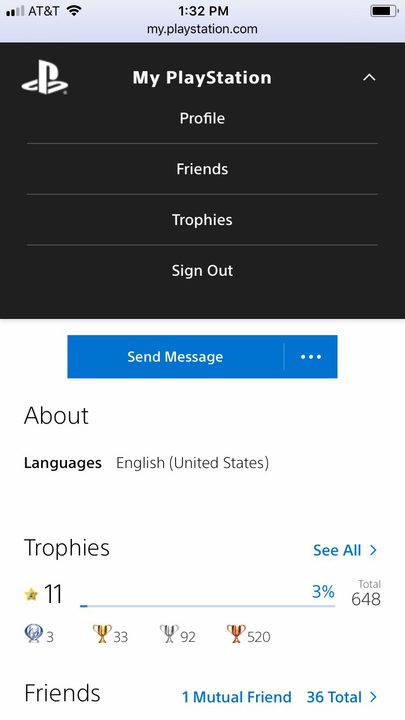
Nearly all of the features available on the desktop version of My PlayStation are also available on the mobile wesbite, but it’s organized a little differently. Instead of having all of the sections available via a horizontal menu, they’re in a drop-down menu. There isn’t a dedicated “messages” option, either, but you can still message your friends by selecting them individually and clicking “send message” on their profile. Sadly, this option doesn’t allow you to send funny pictures.
More to come…
The version of My PlayStation we have today is still a work in progress. Sony says more features will be coming in the future, and we’ll continue to update this guide with more information on those new features as they arrive.