
If you’re a Sonos user, you may have noticed that the familiar black Sonos app icon has undergone a small change: It’s now called Sonos S1. That’s because Sonos has a new app and new system software that it calls S2.
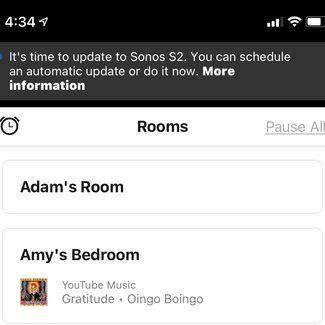
If you haven’t seen it already, you’re going to be prompted by your now-renamed Sonos S1 app to upgrade to the new Sonos S2 app. But before you do that, you need to read this first: Upgrading to the new software could leave your older Sonos devices stranded, with no way to talk to the rest of your speakers.
Here’s everything you need to know:
Why did Sonos change its app?
When Sonos announced that it would be discontinuing its support for some of its oldest products, it sent shockwaves through the Sonos community. At the time, Sonos was encouraging its customers to trade up to newer devices by bricking the old products with a special recycling mode, in return for a 30% discount on a new Sonos product.
At the time, Sonos already knew that it was planning to release its S2 software and realized that these older products, which it now calls legacy products, would be incompatible with the S2 release because they lacked the processing power and memory to run it. The easiest thing to do, it reasoned, was to get its customers onto newer devices so that all Sonos products in a single home could run on the same system.
That didn’t sit well with a lot of folks who were furious that there was no plan to allow older devices to live on, even if they couldn’t get the latest features. In response, Sonos came up with a new option: Keep your legacy products if you want, but you will need to stick with its older S1 software. And if you own newer devices that are S2-compatible, these will also need to stay on S1 if you want them to be part of the same, easy-to-use single system.
These are the Sonos “legacy” products. They do not work with the S2 software:
- Zone Players
- CR200 Remote Control
- Sonos Bridge
- Sonos Connect (first generation)
- Sonos Connect:Amp (first generation)
- Sonos Play:5 (first generation)
A problematic upgrade
So far, so good. Being allowed to run the older software means that unless you buy one of Sonos’ newest May 2020 products — the Arc, the third-gen Sub, and the Sonos Five (which must run on S2) — you can keep everything about your system as it was. There won’t be any new features coming your way, but you’ll still get bug fixes and security updates.
For people with legacy products, this is clearly the way to go. But herein lies the problem: If you aren’t careful, and you elect to upgrade to the S2 software, all of your S2-capable gear will be migrated to S2 where they will no longer be able to talk to your legacy products.
When we initially published this article, Sonos’ support pages advised that the S2 upgrade wasn’t reversible, but the company has since revised that guidance. It is now possible to downgrade an S2 product back to the S1 software as long as a) it isn’t a Sonos Arc, 3rd-gen Sub, or Sonos Five, and b) you still have at least one Sonos product running the S1 version of the software. We’ll explain how in a moment.
If you don’t want to worry about needing to downgrade an unintentionally upgraded Sonos product, simply ignore the messages encouraging you to switch to Sonos S2.
One for all or two for some?
If you own a mix of legacy and newer Sonos products, keeping all of these devices on the S1 platform is probably your best bet for now.
But there is another option: You can split your system. Going this route means that you’ll need to decide which of your newer speakers you want to work with your legacy products (and thus stay on S1) and which ones will break off and form their own system, using S2.
There are a few downsides to this arrangement you should be aware of:
- The two systems cannot talk to one another. If you keep a first-gen Play:5 in your bedroom and decide that your new Sonos Beam should run on S2 in your living room, these devices will never play the same songs in perfect sync the way they do using the S1 app for both.
- You will need to use a different email address (and thus a separate Sonos account) for your second system.
- You will need to keep two different Sonos apps (S1 and S2) on your phone or tablet. Depending on which of your products you wanted to control, you would need to use the appropriate app.
- If your subscription music services only support a single stream, that stream can only be used on one system at a time. If you started a Spotify stream (as an example) on your S1 system, then tried to start a second Spotify stream on your S2 system, the streaming playing on the S1 system would stop.
- If you use a music app with direct control, like Spotify Connect, it will show you all of your available Sonos speakers regardless of whether they belong to your S1 or S2 system. Just as above, a single-stream-only account would start and stop if you switch between devices on different systems.
- If you use voice services such as Amazon Alexa or Google Assistant, you would need to create a second account to keep using these services with your second Sonos system. However, if the two systems aren’t fully separated physically, you could end up with both systems trying to respond to your voice commands at once.
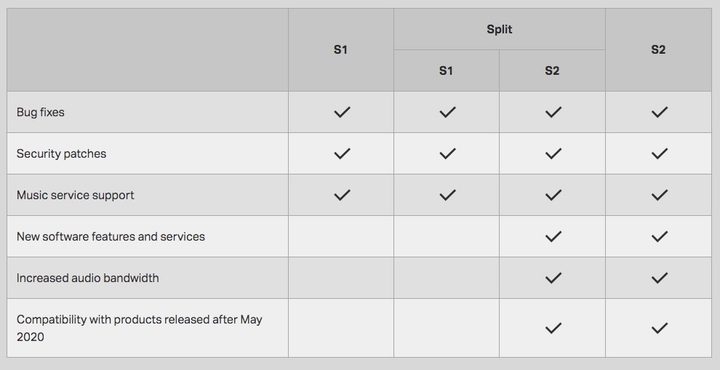
Whether your home is run exclusively on S1, S2, or a mix of the two, here’s what will be supported in the future:
How do I run two separate Sonos systems?
Plan ahead
If you’ve decided that you want to run two Sonos systems, it means some of your products will be upgraded to the S2 platform. Make sure you plan out which speakers will be on S2 and which will remain on S1. If you upgrade a Sonos One speaker to S2 and later decide to move it into a room with a Play:1 that is still on S1, you’ll have to upgrade the Play:1 or downgrade the Sonos One to get them to play in sync or to use them as a stereo pair.
Unfortunately, in creating a second Sonos system, only the system that you’re upgrading to S2 will be able to retain all of your streaming media accounts, room names, voice service preferences, etc.
Recreating those settings in your second S1 system isn’t hard, but it’s something to keep in mind.
Step 1: Remove the products you’re keeping on the older S1 system
This is very important: Any products that you keep in your existing Sonos app will be upgraded to S2 when you download the S2 version of the Sonos app.
To prevent devices from being upgraded, you need to remove them by performing a factory reset (these instructions are courtesy of Sonos):
- Unplug the power cord.
- Depending on which product you have, press and hold the
 Join button, Play/Pause button, Mute button, or Join button (Sub and Bridge) while you reconnect the power cord.
 - Continue holding the button until the light flashes orange and white.
- The light will flash green when the process is complete and the product is ready to be set up.
 Join button,
 Play/Pause button,
  Mute button, or
  Join button (Sub and Bridge) while you reconnect the power cord.
Instructions specifically for the Sonos Move:
- Take Move off the charging base.
- Press and hold the power button for at least 5 seconds to power it off.
- Press and hold the Join button and place Move back on the charging base.
- Continue holding the Join button until the light on top flashes orange and white.
- The light will flash green when the process is complete and your Sonos Move is ready to be set up.
Finally, unplug each of these products. You’ll plug them back in when it’s time to set up your S1 system.
Step 2: Upgrade your remaining products to the Sonos S2 app
There are two ways to do this. If you have received a message in your S1 app to upgrade to S2, now is the time to follow those instructions. Once complete, your remaining Sonos products should be automatically updated and you’ll see the new gold and black Sonos S2 app on your device (it’s simply called Sonos).
If you have not received an upgrade message, you can manually download the new S2 app from the Apple App Store or Google Play.
When you launch the new S2 app, it will ask if you want to set up a new Sonos system or connect to an existing system. Select Connect to an existing system and follow the instructions.
Once complete, your remaining Sonos products will be running the S2 software and can only be controlled via the new S2 app.
Step 3: Set up your new S1 system
Because you’ll be creating a new system from scratch, you need to reset your Sonos S1 app:
- Open the Sonos S1 app.
- Go to the Settings tab.
- Select App Preferences.
- Scroll down to the bottom of the screen and select Reset App.
- Tap Reset on the following dialog window.
- Quit the Sonos S1 app entirely (depending on which iPhone or Android device you’re using, there are different ways to quit an app).
Relaunch the Sonos S1 app. As with the S2 app, it will now ask if you want to set up a new Sonos system or connect to an existing system. This time, select Set up a new Sonos system.
Follow the instructions. It will walk you through the setup of each product, including any software updates that may be needed.
Once all of your products are set up, they can only be controlled by the S1 app.
That’s it. You now have two separate Sonos systems, each controlled by its own app.
What if I want to downgrade a Sonos product back to S1?
Thankfully, if you decide to downgrade from S2 to S1, it’s now possible. To do so, you’ll need to follow the factory reset instructions above for each product you want to downgrade.
Once fully reset, you can then add them to an existing S1 system as new products, using the same method you’d follow when adding any new devices to your system.
The S2 products will be downgraded to S1 during the addition process and will once again be compatible with your other S1 products.
Update: This article has been updated to reflect new information on the Sonos support page.


