

Google TV Streamer is one of the best streaming devices available on the market today, delivering easy access TV, movies, gaming, and even connecting to the Google Home ecosystem. It even gives the stalwart Apple TV 4K a run for its money. This streaming box is full of plenty of bells and whistles, and allows you to turn it into a home entertainment hub. However, just because you’ve snagged a Google TV Streamer, doesn’t mean you know everything it’s capable of.
While getting acquainted with the basic options that Google TV Streamer delivers is easy, there are plenty of tricks hiding right under the hood. That’s why we’ve collected them for you here in one place, letting you put your streaming box through its paces.
Let’s take a look.
Remove ads

When you open Buy at Amazon , you’ll find a home screen that includes the apps you’ve installed collated into an easy to navigate menu. The less stellar aspect are the ads that will populate. These run from options that Google thinks you’ll like depending on your recent watches, along with ads for programs from apps you don’t even have installed. They’re fairly large, and take up a good bit of real estate on the home screen, but you can adjust their presence.
In the settings menu under Accounts & Sign-in, select your profile. From there scroll down to apps-only mode. This won’t eliminate the ads entirely, but it does make them less prominent, and ensure you won’t be getting ads for apps you don’t use.
Tell Google what you like
The home page of Google TV Streamer also includes a For You section that uses your recent watches to try and predict the type of shows and movies you’ll want to watch next. By watching your favorite shows, and adding them to your watchlist, you can teach the AI that powers the For You page what you like, and help it to recommend shows that fit you.

Like any algorithm, the more information that Google TV Streamer has about your watching habits, the better it’s able to curate its recommendations. If you want them to be spot on, make sure you add as many programs as possible to your watchlist. This allows Google Home to better curate the programs that it feeds to you on the For You section. Likewise, its important to make sure that you aren’t adding shows you don’t really like to your watchlist, because Google will also ingest those into its recommendations.
Connect Google TV Streamer to Google Home
Google TV Streamer does perfectly fine on its own, and delivers a great experience. But, you can also connect it with Google Home to take advantage of a variety of features. This streaming device includes Thread support, allowing you to control connected lightbulbs or other Thread enabled devices.
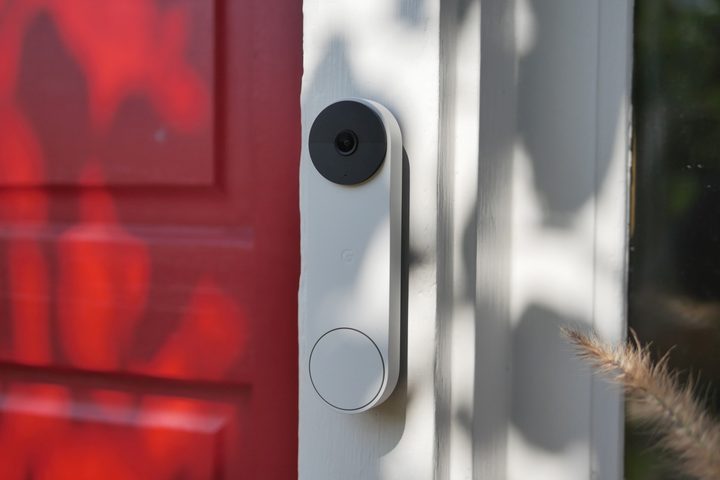
If you’ve got a Google Nest device, these can also connect with Google TV Streamer. For Nest Doorbells, you can see who’s at the door without ever needing to get up off the couch to check. This will interrupt any program you’re watching, but it can be handy if you have regular knocks on the door that don’t require you to answer them. For folks with Chromecast-enabled speakers, you can create a speaker group. Once the speakers are connected into a group, whatever you’re watching will play on all the speakers in the group. This means you can create your own surround sound system, or have speakers set up in different rooms so you never miss a moment of your show.
Watch live TV
Along with streaming apps that you install to access content, there is also an entire tab filled with live programming. Google TV is included with Google TV Streamer, and includes over 800 free channels from the likes of Google TV Freeplay, Pluto TV, Tubi, and more. However, these aren’t cable channels like you might be familiar with from the days of cable TV. Instead, they tend to have specific programming.
These channels are free advertising-based streaming television (FAST) which means there is never an up-front cost to watching these channels. Instead, they play ads and are supported by advertisers paying for screen time. You’ll find channels like Ion, NBC News Now, and even specific channels like Forensic Files. If you’re paying for streaming services like YouTube TV or Hulu + Live TV, you’ll also be able to access their live TV streaming through this tab.
Turn off auto-play
Ads are automatically enabled to auto-play when you open up Google TV Streamer, which can be aggravating when you’re just trying to decide what to watch next. If you don’t mind ads existing on your Home Screen, but you don’t want them to auto-play, there is an option to simply turn off this feature.
Step 1: Go to Settings > Accounts and sign-in.
Step 2: Look for the Auto-play trailers option. Toggle it off so trailers won’t start playing on your home screen while you’re browsing the titles.
Step 3: You can turn it back on by toggling it on anytime you change your mind.
Use your phone as a remote
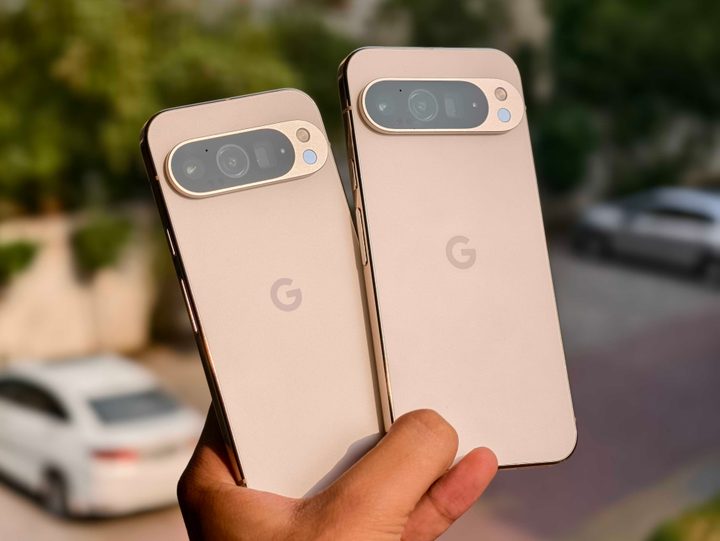
While Google TV Streamer does come with a very capable remote, it can still be a pain to use, especially if you’re typing in a program name using it. Thankfully, you can use your phone, and its full keyboard to search on Google Home. You’ll need to setup your phone the first time you use it as a remote with the streaming box, but it should only take a few short moments.
Using your phone as a remote you have access to controlling Google TV Streamer without using the physical remote. At the top of the screen you should see a keyboard icon, which lets you search using a full keyboard, instead of having to search for each letter using the Google TV Streamer remote.
Step 1: You’ll need to open the Devices within Google Home on your phone, and then select Google TV Streamer.
Step 2: Select Open Remote.
Enable ambient mode
When Google TV isn’t actively being used, it can display screensavers, including your own shots ingested directly from Google Photos. In order to do this, you’ll need to enable ambient mode on your device, and then select Google Photos from the options. You’ll be able to select which photos or folders are displayed, along with the slideshow speed. If you don’t want to see your own photos, you can also choose from the options to display different images.
Step 1: Go to Settings and open the System tab.
Step 2: Select Ambient mode.
Step 3: Select the Google Photos option to showcase pictures from your Google Photos account.
Step 4: Select the More settings button below if you want to choose which photos to display.
Step 5: Choose the appropriate settings to select which albums to display and what the slideshow speed should be.
Step 6: Now, when your Google TV is idle, the screen will display the photos according to the options you selected.


