Oh, DRM, how we love to hate you.
The technology — short for Digital Rights Management — has been giving consumers trouble since its inception, when it was intended as a means to protect digital media from piracy. DRM has taken many forms over the years, from CD keys and digital watermarks to proprietary file types, but the end result is the same: You can’t copy the stuff you buy or play it on anything other than the intended device. As we see it, that’s a problem.
Today’s DRM restrictions may prevent you from sharing a copy of Sam Smith’s In the Lonely Hour, sure, but the technology’s implications reach further than you might expect. The restrictions also leave users susceptible to the whims of giants like Amazon and Google. Remember when Amazon deleted two George Orwell titles from Kindle libraries back in ’09? No? Well, it happened before, and it could happen again.
Fortunately, there are several ways to create local backups and rid your music and movie purchases of unwanted DRM. However, keep in mind removing said restrictions might violate the various Terms of Use you agree to when your purchase a digital product, even if you don’t intend to share or otherwise distribute the content. Below are a few of our favorite methods for both Mac and PC, whether you prefer to use third-party software or Apple’s proprietary service.
Skip ahead for how to remove DRM from video and audio files on a Mac
Removing DRM from audio and video using Aimseroft Media Converter (Windows)
Apple may be the most notorious for affixing DRM restrictions, but that doesn’t mean other companies don’t do the same through their official retail channels. Nonetheless, while everyone from Amazon to Microsoft has been known to do so, Aimersoft’s Media Converter handles it all. The basic software helps you remove DRM from video and music using a Windows-based machine, thus allowing you to access your content on a variety of devices. Moreover, the application allows for batch conversions and adjustments to parameters such as resolution and frame rate, make the program suitable for more than just stripping DRM restrictions. The premium version of the software will run you $36, but you can always opt for the free trial if you want to kick the tires first.
Step 1: Head over to the Aimersoft website and click either the green Free Trial button or orange Buy Now button. Afterward, follow the on-screen installation wizard and launch the software as you would normally.

Step 2: Once open, click the green Add icon in the top-left corner, select the DRM-laced file(s) from its respective save location, and click the Open button in bottom-right corner of the window. Alternatively, simply drag-and-drop the file(s) into the main application window.

Step 3: Next, select your desired output format for the resulting media files using the drop-down menus located beneath the file list. For most users, we recommend choosing an output format from the list of Common options. You can also change a slew of different aspects, such as the bit rate and resolution, by clicking the Settings button beside the drop-down menus and setting the parameters in the resulting pop-up window.

Step 4: Once you’ve finalized the output, click the blue Start button in the bottom-right corner of application window and allow the process to run its course before opening the file in the media player of your own choosing!
Removing DRM from video using NoteBurner M4V Converter (Mac)
Not every application is compatible with every system, but thankfully, there are always alternatives. NoteBurner M4V Converter essentially does away with DRM in a similar fashion to Aimseroft Media Converter, allowing you to strip DRM from your precious video files in a matter of minutes using your Mac. This program allows you to convert M4V files purchased through iTunes into MP4, MOV, AVI, and other popular formats you can utilize on any number of non-Apple devices. It’s not free — the premium version of the software costs $45 — but it still represents a viable option for converting video. It even offers multi-language subtitles and audio tracks, if desired.
Step 1: Navigate to the NoteBurner M4V Converter webpage and click either the green Free Trial button or blue Buy Now button. Then, follow the on-screen installation instructions and launch the program as you would normally.

Step 2: Once open, click the blue Add Movies button in the middle of the application window and choose the DRM-lined file(s) you wish to convert before clicking the Add button in the bottom-right corner.

Step 3: After importing the files, adjust the video duration and select the audio track using the options housed beneath the file. Next, click the button above Convert to and select your desired output format from a host of options. Conveniently, the application will also show which format is compatible with your device, regardless if you’re an Android or an iOS user.
Step 4: Click the icon on the right side of the video tab, and if you want, adjust the video codec, size, bitrate, and other parameters for your resulting video file. Afterward, click Convert at the bottom of the main interface, set your desired save location, and click the Start button to begin converting your file(s).

Removing DRM from audio using iTunes Match (Mac)
Unlike Windows, there’s no sure-fire way to strip DRM from audio tracks using a standalone application. Previous methods, such as the once-coveted Requiem, are no longer supported on the platform, or no longer function properly for several reasons. Unless you prefer to burn all your DRM-laced audio files to a disc and re-import the entirety of your collection, we suggest you subscribe to Apple’s iTunes Match ($25 a year). Once subscribed, you’ll be able to store up to 25,000 songs in the cloud, which you can then access from all your devices. Moreover, opting for the service will allow you to download 256-kbps versions of any song in your library — whether you purchased it through iTunes or uploaded from a CD — all without DRM protection.
Step 1: Launch iTunes as you would normally, click Store in the menu bar, and select Turn On iTunes Match from the resulting drop-down menu. Afterward, accept the charges and allow the iTunes to match each song in your library with those housed in the iTunes Store. Keep in mind the service will likely be unable to match all tracks given Apple’s inventory doesn’t cover every audio file on the planet.
However, the service will automatically upload any audio files in your library that don’t have matching counterparts in iTunes.
Step 2: Once the matching process is finished, return to your music library and select Songs from the drop-down menu in the top-right corner of the application.
Step 3: When viewing your library of songs, right-click the category column at the top of the window and make sure there’s a check mark beside Kind. Afterward, click the Kind panel at the top of the window and select any music labeled with Protected AAC audio file before deleting the files and moving them to the Trash.
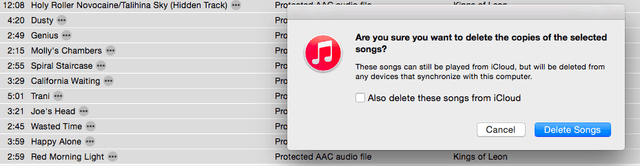
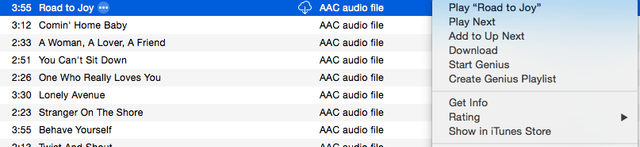
Step 4: Once deleted, you should see a small cloud icon with a down arrow inside, located directly beside the deleted audio tracks. Highlight the tracks you want to download, right-click the selection, and click Download. Afterward, allow the tracks to download and enjoy your DRM-free music!