
Apple’s HomePod speaker is an excellent addition to any smart home or entertainment system. Adding one Apple HomePod can make your life easier, but adding two HomePod speakers can be transforming. Instead of listening to music or movies in bland mono on one speaker, you can broadcast in stereo by connecting two speakers together using HomePod Stereo Audio. We will walk you through the process of combining two HomePod speakers so you can assemble the ultimate surround-sound system without any problems or issues.
Step 1: Arrange your HomePods in your room
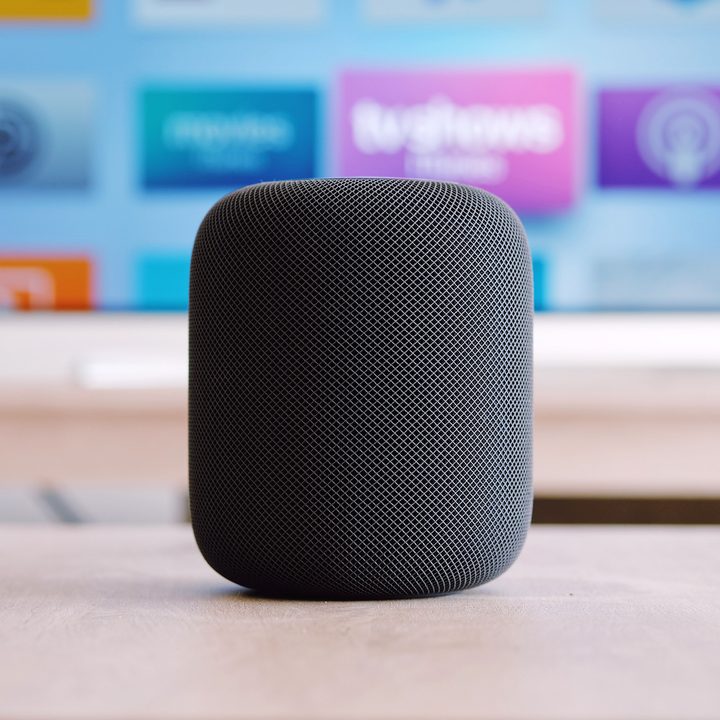
Apple initially rolled out the HomePod Stereo Audio feature in iOS 11.4, which was released in 2018. It first debuted on the original HomePod and was included on the HomePod Mini when it was released in late 2020. Though both models support stereo audio, you cannot mix and match them. You can join two HomePods or two HomePod Mini speakers, but you cannot connect a HomePod with a HomePod Mini.
Not only do you need the same HomePod models to create a stereo pair, but you also need to place them in the same room and assign them to the same room in the Home app. When situating the speakers, you should place them to the left and right of where you typically listen to your music or watch TV. Keep them away from the wall for the best sound experience.
Step 2: Set up the HomePod in the Home app
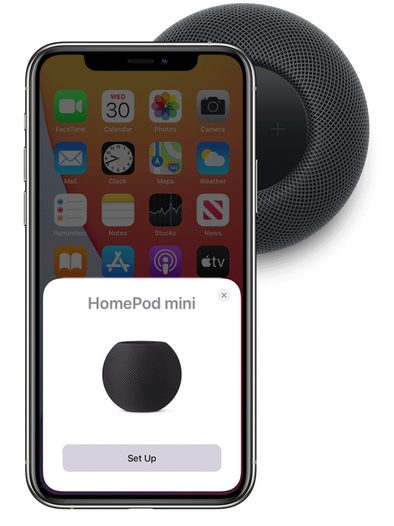
Before you can create a stereo pair, you need to add both HomePod speakers to the Home app. Start by turning on one of the HomePod speakers and placing your iPhone or iPad close to the speaker. iOS should detect the speaker automatically and walk you through the process. Repeat this process for the second HomePod speaker. As mentioned above, be sure to assign them to the same room.
If your iPhone or iPad fails to detect the HomePod or HomePod Mini, then you can configure the speakers manually. Open the Home app, and then tap the Add button in the upper-right corner. You then can select the Add Accessory option and tap I Don’t Have a Code or Cannot Scan. Your HomePod should then appear in the list of Nearby Accessories. Tap on the HomePod, select Set Up, and follow the step-by-step instructions to pair the device.
Step 3: Connect the HomePods together in stereo
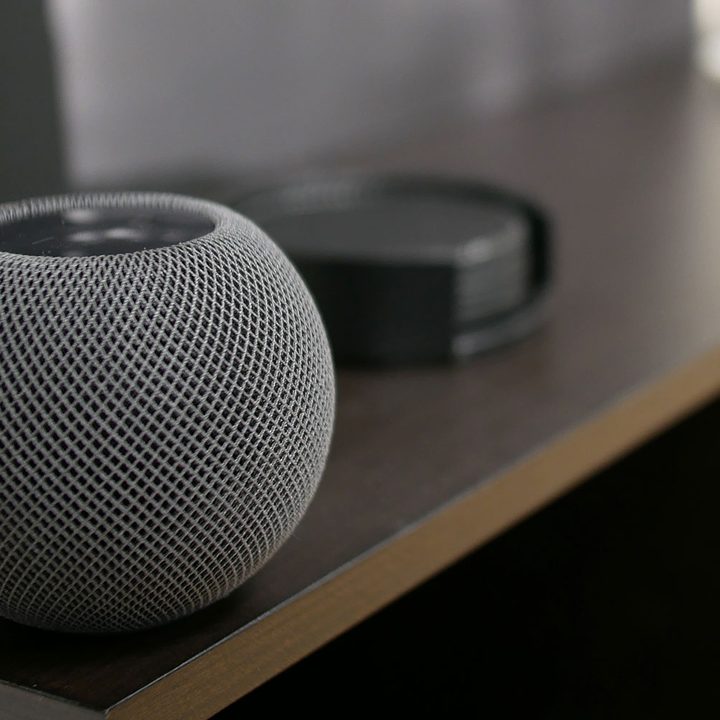
You can pair the HomePod or the HomePod Mini speakers using the Home app on your iPhone or iPad. If you are setting up the two HomePod speakers at the same time, the Home app should detect the two speakers and prompt you to create a stereo pair. Follow Apple’s instructions to bind the two together.
If this auto-detect fails, you can pair two speakers together manually by opening the Home app on your iPhone or iPad. Find one of your HomePod speakers in the list of available devices and tap and hold the HomePod Speaker icon. Scroll down to find the Gear icon and tap it to open the settings. Select Create Stereo Pair and follow the on-screen instructions to link two HomePod speakers together.
Once connected, you can use your stereo speakers to playback music from your iOS device or even connect it to your Apple TV. Because the two HomePods will play the same audio stream, you can enjoy a richer, more immersive surround sound experience.


