There’s no doubt that Apple’s latest platform update goes beyond the usual annual spruce up. This is a major visual overhaul and it will usher in some great new features. You can get the full lowdown in our guide to everything you need to know about iOS 7. The update is available for a select group of iPhone and iPad models from September 18.
Assuming you haven’t jumped the gun and already installed iOS 7 before it’s officially out, we’re going to take a quick look at which devices will support the update, how to prepare for it, and how to snag it as soon it is available.
Which devices support iOS 7?
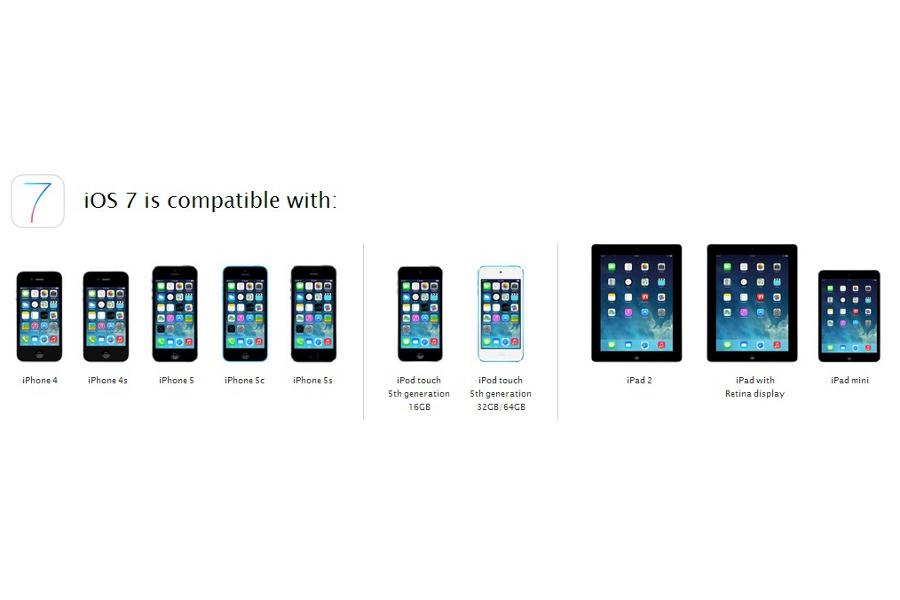
The full list of devices that support iOS 7 is as follows: iPhone 4, iPhone 4S, iPhone 5, iPhone 5C, iPhone 5S, iPad 2, iPad with Retina display, iPad Mini, and the iPod Touch 5th generation. Some of the features won’t work on all of those devices and there are a few restrictions in specific countries (check the bottom of this page for more details).
Back everything up
Use iTunes or iCloud to backup all of your data just in case you run into a problem. You don’t want to risk losing any contacts, messages, or photos.
For iCloud check in Settings > iCloud > Backup & Storage to make sure your backup is enabled, or do it manually when you’re connected to Wi-Fi by going to Settings > iCloud > Storage & Backup and tapping Back Up Now.
For iTunes connect your iPhone to your computer and fire up iTunes. Open the File menu and choose Devices > Back up. You can check when you did your last backup via the Preferences in iTunes under the Devices tab.
Clean out your junk
Take this opportunity to clear out some old media files, apps you don’t use, and other superfluous data. Check out our guide to cleaning up your iPhone for some handy tips.
Update your iOS and iTunes
Make sure that you are running the latest version of iOS and that you have the latest version of iTunes to avoid any problems. You should have version 6.1.4 of iOS and you can check by going to Settings > General > About and looking at Version. As for iTunes, you should have version 11.1 and you can check via Help > About iTunes.
Update your apps
You should also make sure that any apps you want to keep are fully up to date. The new iOS 7 platform will update apps automatically, but right now you still need to load up the App Store and tap Updates and then Update All to get the latest versions of your apps. Many developers will release updates to keep their apps in tip-top shape when the new platform comes out, so it’s worth checking.
How to download iOS 7 update
Though you can technically cheat and download iOS 7 now, we recommend you wait. Starting tomorrow the iOS 7 update will start to roll out wirelessly. You should make sure your iPhone, iPad, or iPod Touch is plugged into the charger and connected to Wi-Fi. Open Settings > General > Software Update and then tap Download when prompted. When it’s ready tap Install and you’ll be moments away from iOS 7.
You can also use iTunes. Connect your device to your Mac or PC and select it under Devices in iTunes and then tap Check for Update. You can choose Download Only, but you’ll probably want to opt for Download and Update.
If you don’t have a great deal of space on your device then it might be safest to opt for the iTunes method. Don’t interrupt the process once it has begun. The download could take a while.
Let us know how the update goes for you and what you think of iOS 7.