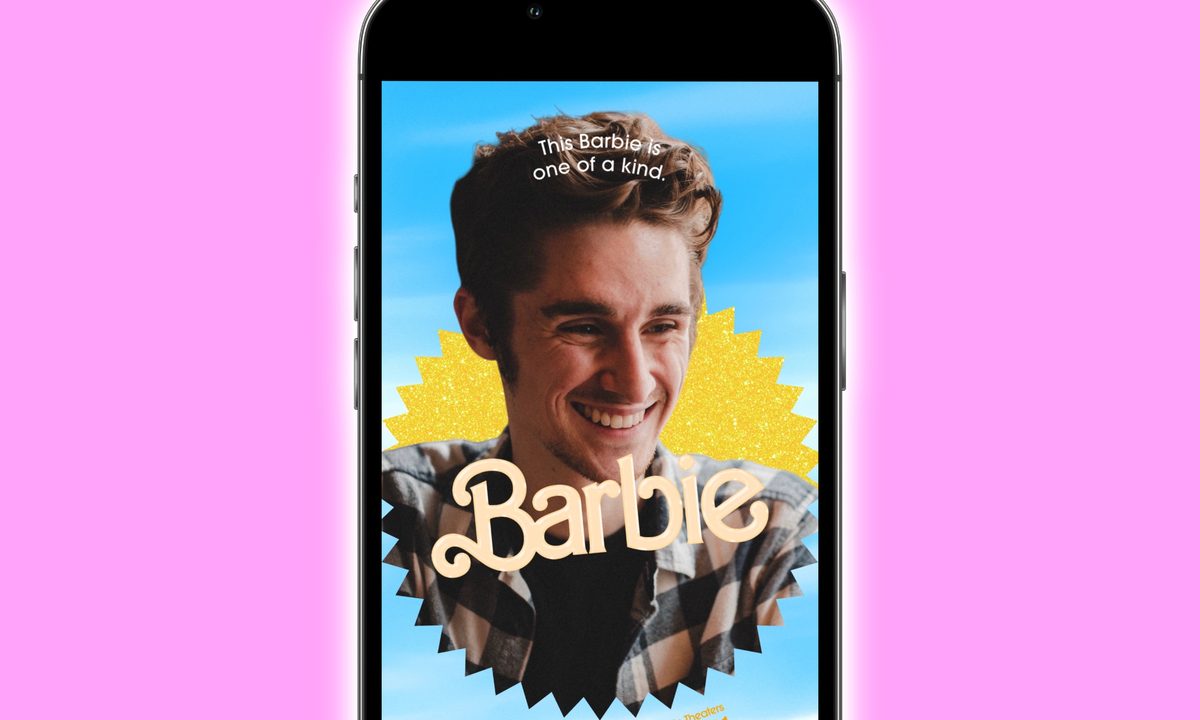
The first full trailer for the Barbie movie was released on April 4, and safe to say, it got the internet buzzing. The upcoming film from director Greta Gerwig looks really promising — but it wasn't just the trailer that got folks talking. We also got a slew of new Barbie posters, showing the various cast members with the iconic Barbie logo and text around them.
The posters do a great job of showing off Margot Robbie and crew — but what if you want to create your own Barbie poster? Twitter and Instagram have been filled with people putting photos of themselves on the now-iconic Barbie poster, and as it turns out, making a version with a picture of yourself is as simple as using a free Barbie poster generator (but sadly not quite as simple as it being its own native Barbie filter on Instagram).

How to use the Barbie selfie generator website
Here's the good news: you don't need to be a Photoshop pro to make your Barbie poster. Instead, all you need to do is visit the Barbie Selfie Generator website. It's an official site created by Warner Bros., and using it is a piece of cake.
Step 1: Go to the Barbie Selfie Generator website on your phone or computer.

Step 2: Scroll down and tap the pink Start button.

Step 3: Tap the Camera icon to take a new photo of yourself, or tap the Upload icon to upload an existing picture from your device.

Step 4: After taking a new photo or selecting an existing one, tap the pink Continue button.

Step 5: Now, it's time to customize your Barbie poster selfie! Tap on the arrow icon and use the buttons below to adjust the position and size of your selfie.

Step 6: Tap the pencil icon to choose the Barbie or Ken text. Below the section that says This Barbie is, you can replace the default text with anything else you want to type.

Step 7: Tap the paint palette icon to choose a color for your Barbie selfie poster.

Step 8: Tap the pink Continue button once you're done.

Step 9: On the next page, you can save your Barbie poster selfie to your device. If you're on your phone, tap and hold the poster to save it. If you're on a computer, right-click to save. Alternatively, scroll down and tap the pink Download button.
And that's it! Just like that, you've made your very own Barbie selfie — just like you see in the movie. With your Barbie selfie created, you can now go forth and share it on Twitter, Instagram, or whatever social media site your heart desires. Have fun!