  1. Home
  2. Phones
  3. Entertainment
  4. Mobile
  5. How tos

Barbie selfie generator: how to use the barbie filter

Add as a preferred source on Google
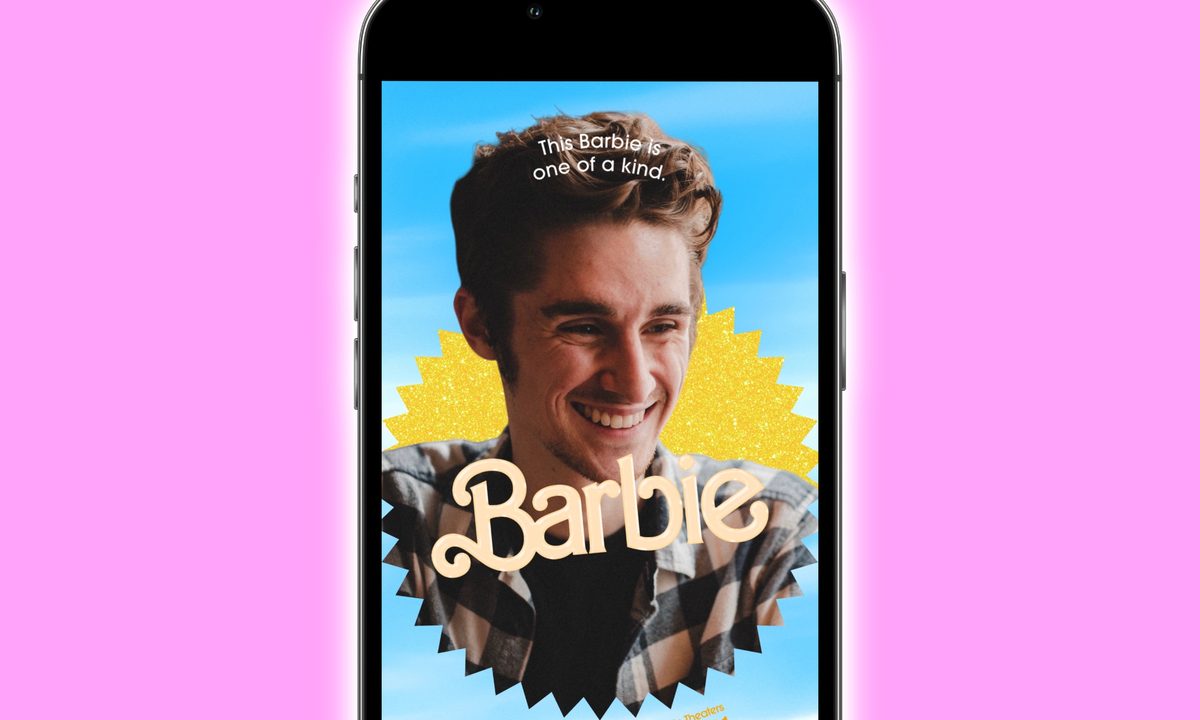
A selfie created with the Barbie Selfie Generator website.
Digital Trends

The first full trailer for the Barbie movie was released on April 4, and safe to say, it got the internet buzzing. The upcoming film from director Greta Gerwig looks really promising — but it wasn't just the trailer that got folks talking. We also got a slew of new Barbie posters, showing the various cast members with the iconic Barbie logo and text around them.

Recommended Videos

Difficulty

Easy

Duration

5 minutes

What You Need

  • A phone or computer

  • Barbie Selfie Generator website

The posters do a great job of showing off Margot Robbie and crew — but what if you want to create your own Barbie poster? Twitter and Instagram have been filled with people putting photos of themselves on the now-iconic Barbie poster, and as it turns out, making a version with a picture of yourself is as simple as using a free Barbie poster generator (but sadly not quite as simple as it being its own native Barbie filter on Instagram).

A selfie created with the Barbie Selfie Generator website.
Digital Trends

How to use the Barbie selfie generator website

Here's the good news: you don't need to be a Photoshop pro to make your Barbie poster. Instead, all you need to do is visit the Barbie Selfie Generator website. It's an official site created by Warner Bros., and using it is a piece of cake.

Step 1: Go to the Barbie Selfie Generator website on your phone or computer.

Step 2: Scroll down and tap the pink Start button.

Step 3: Tap the Camera icon to take a new photo of yourself, or tap the Upload icon to upload an existing picture from your device.

Step 4: After taking a new photo or selecting an existing one, tap the pink Continue button.

Step 5: Now, it's time to customize your Barbie poster selfie! Tap on the arrow icon and use the buttons below to adjust the position and size of your selfie.

Step 6: Tap the pencil icon to choose the Barbie or Ken text. Below the section that says This Barbie is, you can replace the default text with anything else you want to type.

Step 7: Tap the paint palette icon to choose a color for your Barbie selfie poster.

Step 8: Tap the pink Continue button once you're done.

Step 9: On the next page, you can save your Barbie poster selfie to your device. If you're on your phone, tap and hold the poster to save it. If you're on a computer, right-click to save. Alternatively, scroll down and tap the pink Download button.

And that's it! Just like that, you've made your very own Barbie selfie — just like you see in the movie. With your Barbie selfie created, you can now go forth and share it on Twitter, Instagram, or whatever social media site your heart desires. Have fun!

Joe Maring
Joe Maring has been the Section Editor of Digital Trends' Mobile team since June 2022. He leads a team of 13 writers and…
Trump Mobile is investigating how the embarassing customer data leaked happened
The company says names, addresses, and phone numbers may have been exposed through a website flaw.
Trump Mobile T1 Android

Launching a smartphone brand is already hard enough. Doing it while accidentally exposing customer data to the open internet somehow makes the whole thing even more chaotic. Trump Mobile is now investigating a potential data exposure that may have leaked personal information belonging to thousands of would-be customers who preordered the company’s gold-colored T1 smartphone.

Trump Mobile says customer information may have been exposed online

Read more
With iOS 27, Apple will finally let you try other casting options beyond AirPlay
Your iPhone could soon work more easily with non-Apple devices
Apple AirPlay streaming to another device.

Apple is reportedly preparing one of the more surprising changes to iOS in years: support for third-party wireless casting systems as alternatives to AirPlay. According to a Bloomberg report by Mark Gurman, iOS 27 will allow users in the European Union to choose services like Google Cast as their default option for streaming videos, photos, and audio from iPhones and iPads to TVs, speakers, and other connected devices.

The move is said to be part of Apple’s ongoing efforts to comply with the European Union’s Digital Markets Act (DMA), a sweeping regulation designed to limit the control large tech companies have over their platforms and ecosystems.

Read more
Apple’s anniversary edition iPhone appears in dreamy renders and I can’t wait for its 2027 debut
iPhone 20 renders

Apple may finally be preparing the kind of dramatic iPhone redesign fans have been waiting years for. Fresh leaks surrounding the company’s rumored 20th anniversary iPhone — currently being referred to online as the “iPhone XX” or “iPhone 20” — suggest Apple is working on a device that looks radically different from today’s flat-edged iPhones. And honestly, some of these early renders look like the closest thing yet to the futuristic iPhone people imagined a decade ago.

According to emerging supply chain chatter, Apple is testing a heavily curved “quad-curved” display that wraps around all four sides of the phone. The design reportedly pairs that glass-heavy look with a softer, rounded chassis instead of the sharper industrial styling Apple has leaned into since the iPhone 12 era. If the leaks are even partially accurate, the anniversary iPhone could end up feeling more like polished glass than a traditional smartphone.

Read more