iOS 15 has finally hit its final release, so if public betas weren’t your thing, now is the time to update your iPhone. A solid upgrade for iOS, iOS 15 brings big FaceTime improvements, a new Focus mode with upgraded notifications, and a deeper embedding of artificial intelligence (A.I.) to your Apple iPhone.
Now that iOS 15 is available to everyone, you probably want to know how to download it. Here’s how you can download iOS 15, including the best practice steps and which phones are actually eligible.
Compatible devices
The good news is that you don’t need a particularly new iPhone to get access to iOS 15. True to form, the iOS 15 upgrade encompasses a broad number of devices, with the iPhone 6S continuing to impress with its longevity. You can download iOS 15 on the following devices:
- iPod Touch (7th generation)
- iPhone 6S, iPhone 6S Plus, and iPhone SE (1st generation)
- iPhone 7 and iPhone 7 Plus
- iPhone 8 and iPhone 8 Plus
- iPhone X
- iPhone XR, iPhone XS, and iPhone XS Max
- iPhone 11, iPhone 11 Pro, and iPhone 11 Pro Max
- iPhone SE (2020)
- iPhone 12, iPhone 12 Mini, iPhone 12 Pro, and iPhone 12 Pro Max
Back up before you begin
So, you’ve got your eligible iPhone ready — but before you start on the iOS 15 road, make sure to back your device up first. That way, if data is lost, you can quickly and easily restore it with your backup. We have a guide on how to back up an iPhone, but we’ve also put these instructions down below.
Backing up using iCloud


iCloud is probably the easiest way to back up your iPhone because you don’t need to attach any cables. All you need is an internet connection.
Step 1: Connect to a Wi-Fi network.
Step 2: Head to your Settings app, then select your name.
Step 3: Tap iCloud. If you’re on iOS 10.2 or earlier, you’ll have to scroll down and tap iCloud.
Step 4: Scroll down and select iCloud Backup > Back Up Now. If you’re on iOS 10.2 or earlier, just tap Backup and it’ll work its magic.
You can check the backup by heading to Settings, hitting iCloud > iCloud Storage > Manage Storage, and tapping on your device from the list.
Backing up on a Mac running MacOS Catalina and newer
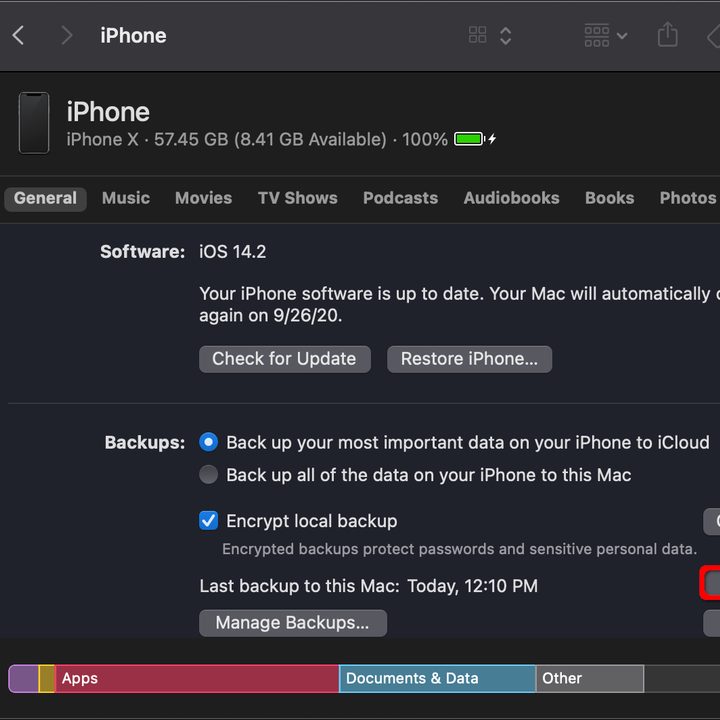
MacOS 10.15 Catalina did away with iTunes, but backing up on Mac is still easy.
Step 1: Connect your iPhone or iPod Touch to your Mac.
Step 2: Follow the on-screen instructions to enter your device passcode or Trust This Computer.
Step 3: Open Finder, and use the sidebar to select your iPhone.
Step 4: Hit General > Back Up Now to manually back up.
Backing up on a Mac or PC with iTunes

If you’re using an older Mac or a Windows PC, you’ll have to use iTunes to back up your iPhone or iPod Touch.
Step 1: Make sure iTunes is up-to-date and connect your device.
Step 2: Follow the on-screen instructions to Trust This Computer or enter your device passcode.
Step 3: Select your iPhone or iPod Touch from the iTunes menu.
Step 4: Hit Back Up Now to save your data.
Downloading and installing iOS 15

Done all of that? Good job, you’re now ready to get started downloading and installing the new update. Thankfully, that’s not hard at all.
Step 1: Go to Settings > General > Software Update.
Step 2: Tap Download and Install, enter your passcode, and wait for the update to download and install.
Step 3: Your device will restart during the process, so make sure to keep an eye on it and follow any prompts it brings up.
Congratulations! When your phone restarts, you’ll be running iOS 15. Have fun, and enjoy exploring all of the new features. Interested to know what to expect? Here’s our dive into all the new features of iOS 15.