
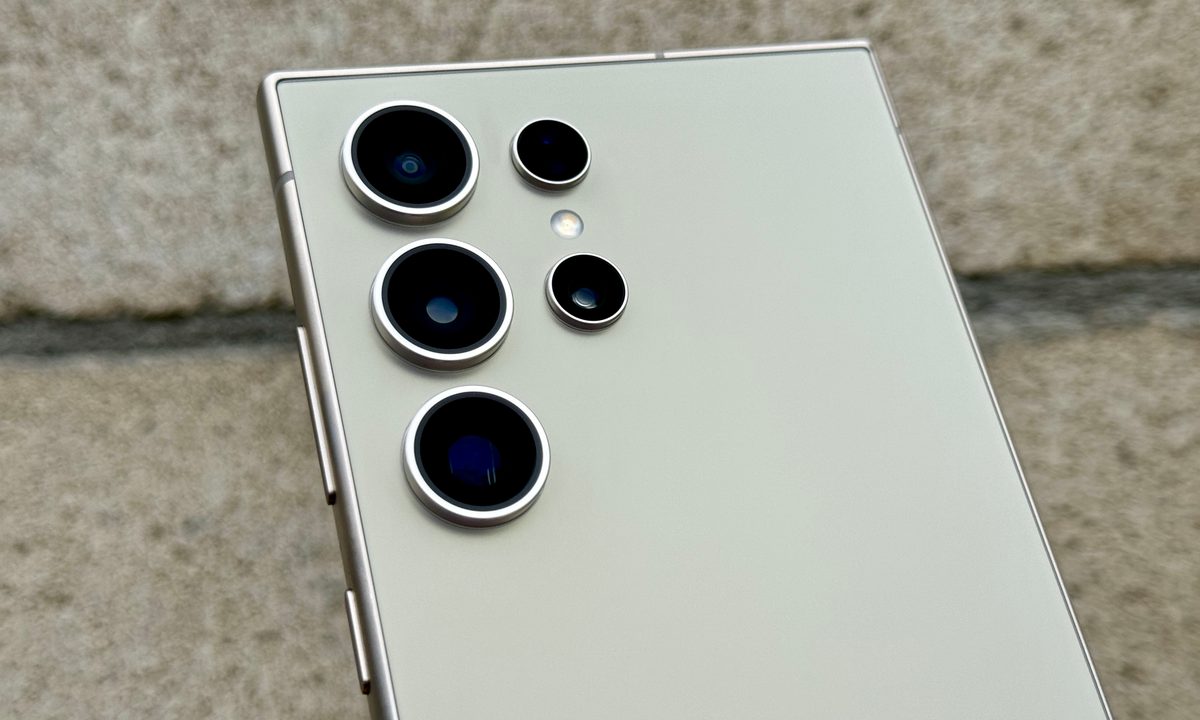
Your Android phone is more than just an everyday tech device, it’s a lifestyle. And now that modern smartphones are more feature-packed than ever, it’s hard to imagine a world where the Samsung Galaxy lineup and Google Pixel family can do even more. But screens and menus of untapped settings and hidden features are cleverly tucked away in your phone’s developer options. Fortunately, unlocking these additional customizations isn’t rocket science, and we’ve put together this guide to help you along the way.
If you’ve ever wanted to enable USB debugging, or reduce the speed of certain phone automations, you’ll want to unlock developer options. Here’s how.
Be aware before we start: Developer options are hidden for a reason. The entire menu has been designed for use by developers who want to test functionalities and make changes that may impact your phone in one way or another. It may improve your performance, but it may also have the opposite effect. It's not a good idea to go in and change things without an understanding of each option and a reason for doing so. So make sure you've done your homework before you start.

How to access developer options on your Android phone
You can unlock the developer options on any Android smartphone or tablet by locating the build number in your Settings menu and tapping it multiple times. However, the exact location of the aforementioned build number may differ depending on your phone’s manufacturer.
Step 1: Go to Settings > About phone.

Step 2: Scroll down to Build number.

Step 3: Tap Build number seven times. After the first few taps, you should see the steps counting down until you unlock the developer options. You may also have to tap in your PIN for verification.
Step 4: Once developer options are activated, you will see a message that reads, You are now a developer.

Step 5: Go back to the Settings pane and head to System, where you will now find Developer options as an entry.

Step 6: Tap it and toggle the switch on if it is not already, and from there, you can proceed to make adjustments to your phone.
You can unlock the developer options on any Android smartphone or tablet by locating the build number in your Settings menu and tapping it multiple times. However, the exact location of the aforementioned build number may differ depending on your phone’s manufacturer. In most modern Android smartphones, though, like the Samsung Galaxy S24 Ultra, you can search Settings for "Build number" if you're really struggling.


How to turn off developer mode
It’s simple to deactivate developer options straight from your Settings menu if you don’t need to access them anymore.
Step 1: Head over to Settings > System and click Developer options.
Step 2: Hit the toggle to Off. After a restart, you’re done.
Yes, really. That’s all there is to it. After you’ve completed this step, you will no longer be able to access Developer options from the Settings menu. You can still modify these settings later if you change your mind and want to return them to their initial state. Simply follow the directions mentioned above.

How to find developer mode in other versions of Android
You can search for the “build number” to find what you need when in doubt. Sometimes, finding or deactivating developer versions varies slightly by vendor and Android version number. For example, Samsung sometimes changes things, and you might see slight differences between Android 12 and Android 13.
Remember that developer mode was initially intended for app debugging and manipulating system responses and functionality. The selections within developer mode typically include debugging, networking, input, hardware-accelerated rendering, media, monitoring, and applications. It’s up to you how you want to customize the settings, as you can categorize them according to your specific preferences.
We recommend visiting the official Android Developer website to get more insight on this subject and examine the developer options’ full list. Know that these options may be different depending on the device you’re using. Typically, the choices depend on the type and model of the device you are working with.


