  1. Home
  2. Phones
  3. Mobile
  4. How tos

How to lock apps on Android (and why you should)

Add as a preferred source on Google
The app drawer on a Moto G Stylus 5G (2024).
Joe Maring / Digital Trends

If you want to temporarily enhance security on your Android device, such as a Google Pixel 8 Pro or Samsung Galaxy S24 Ultra, consider using an app lock.

Recommended Videos

Difficulty

Easy

Duration

5 minutes

What You Need

  • Your Android-based device

You've probably found yourself in a situation where you're letting someone else use your phone to play a game or use a specific app, but you don't want them snooping through the rest of your phone. This is where app locking can really come in handy — and it's extremely easy to set up.

App Pinning on Android showing on phone being passed between two people.
Bryan M. Wolfe / Digital Trends

Why you should lock apps on Android

When you lock an app on your Android device, you immediately restrict access to only it. A user must provide a PIN, pattern, fingerprint, or other credential to unlock the device beyond the locked app.

Locking an app doesn't automatically encrypt its data. While it does create a hurdle for access, someone with access to your phone and knowledge of your unlock credentials could still access the app’s data.

When you pin an app, you limit access to all other apps and functions on your device. This helps you concentrate on the task at hand, whether working on an app or playing a game.

App pinning is a privacy safeguard. If you need to pass your phone to someone, app pinning allows them to use the pinned app while ensuring they can’t access your other apps, photos, messages, or private information, giving you peace of mind.

App pinning benefits parents who want to control their children’s phone usage. Parents can ensure their kids don’t view content or make purchases by pinning an educational app or game.

The app drawer on a Moto G Stylus 5G (2024).
Joe Maring / Digital Trends

How to lock apps on Android

The recommended method for locking apps on Android is to use the built-in pinning feature. The Android pinning feature, also known as screen pinning, is a security tool that allows you to lock your device to a single app.

Step 1: To get started, go into the Settings app on your Android device. Search for and select App Pinning.

Step 2: On the next page, scroll down and choose App Pinning. It should be in the off position.

Screenshot showing how to open App Pinning on Android.
Bryan M. Wolfe / Digital Trends

Step 3: Toggle on App Pinning. Select OK.

Screenshot showing how to turn on App Pinning on Android.
Bryan M. Wolfe / Digital Trends

Step 4: The next step is to Open the app you wish to pin. Once the app is opened, Swipe up from the bottom of your screen to see the recently opened apps.

Step 5: Select the app icon, then choose Pin from the menu. Select Got It to confirm your choice. The app is now pinned.

Screenshot showing an app being pinned on Android.
Bryan M. Wolfe / Digital Trends

Step 6: To unpin an item, press and hold the Back and Overview (or Home) buttons.

App pinning works for any app/game installed on your phone, so feel free to use it however you see fit. There's also no limit to how many times you can pin an app or how long you can keep it pinned for.

Bryan M. Wolfe
Former Mobile and A/V Freelancer
Bryan M. Wolfe has over a decade of experience as a technology writer. He writes about mobile.
Apple says Lockdown Mode thwarted spyware attacks with a clean slate
Apple’s strongest defense is actually holding up
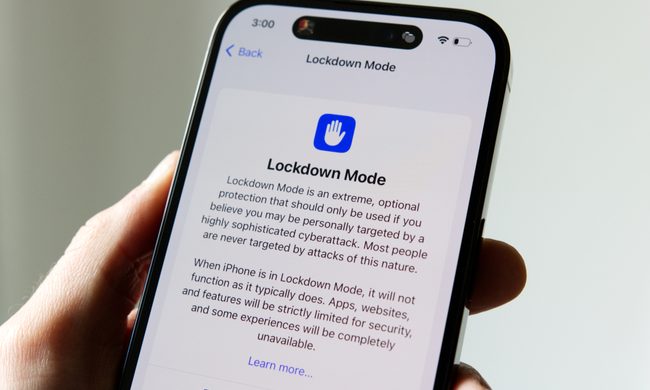
Lockdown Mode information page on an iPhone 14 Pro.

Apple says it has not seen a successful spyware attack on any iPhone with Lockdown Mode enabled, a claim it shared with TechCrunch.

Lockdown Mode arrived in 2022 as an opt-in feature for iPhone, iPad, and Mac. It was introduced as a stricter security mode for people at high risk of targeted attacks, such as journalists, activists, and government officials.

Read more
The Dynamic Island could shrink on the iPhone 18 series, and not just on the Pro models
One leaker, one claim, and a big question: is Apple genuinely ready to give every iPhone buyer the same design treatment as Pro owners this cycle?
Apple iPhone 17 Pro in Cosmic Orange leaning on a gray wall.

Apple’s Dynamic Island has been around long enough that most people have made their peace with it or forgotten it’s there. In fact, I’ve seen people associating the pill-shaped notch with newer iPhone models (released in the last 3 years). Now, a fresh leak suggests that the notch replacement is about to shrink, not just on the expensive models. 

What did the leaker actually say?

Read more
Apple Podcasts finally gets serious about video, adds multiple YouTube-inspired features
With offline downloads, Picture-in-Picture, and a dedicated video hub, iOS 26.4 turns Apple Podcasts into a platform creators can no longer afford to ignore.
Electronics, Phone, Mobile Phone

For years, the Apple Podcasts app supported video, at least it did technically, but nobody used it. Creators ignored it, while listeners forgot it. Meanwhile, other platforms like YouTube and Spotify quietly built empires on video podcasting. However, that changes with the iOS 26.4 update, or at least that is what Apple hopes for. 

Video podcasting exploded in popularity in recent years, with audiences gravitating toward platforms that treated the format well (as already mentioned above). Despite being an iPhone user, I personally consume podcasts on YouTube (I briefly paid for the Premium membership as well). 

Read more