
If you own a Pixel phone, discovering what music is playing near you is now easier than ever. Google includes an exclusive feature called Now Playing in its Pixel 2 and newer phones, so you’re not scouring the internet trying to figure out what that song was you just heard playing.
In short, the Now Playing feature automatically recognizes and shows you the title and artist of that mystery song on the lock screen. It also keeps track of those songs so you can access them later. However, you must manually enable this feature first. In this guide, we show you how to enable Now Playing, how to access the history, and tweak the notifications you get.
How to turn on Now Playing
Now Playing shows songs that are playing in your vicinity right on your lock screen. Again, this feature is only supported on the Google Pixel 2 or later — you won’t be able to follow these instructions on other phones or the original Pixel. Here’s how to turn it on:


Step 1: Swipe down from the top to open the Shade completely and then tap the cog icon. This opens the settings panel.
Step 2: Tap Sound and Vibration.
Step 3: Scroll down and tap Advanced to expand the settings.
Step 4: Tap Now Playing.
Step 5: Tap the toggle next to Show Songs on Lock Screen to turn this feature on.
When your phone is connected to Wi-Fi and charging, it will download a song database to recognize songs. Once your phone has downloaded the database, you’ll automatically get song info on the lock screen.
See your Now Playing history
Want to see a song that was playing yesterday? You can do that too. Here’s how:
Step 1: Swipe down from the top to open the Shade completely and then tap the cog icon. This opens the settings panel.
Step 2: Tap Sound and Vibration.
Step 3: Scroll down and tap Advanced to expand the settings.
Step 4: Tap Now Playing.
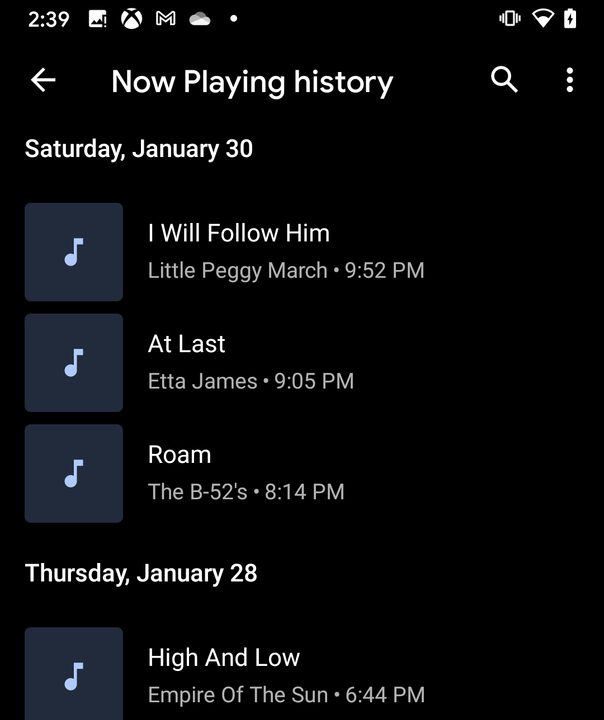
Step 5: Tap Now Playing History.
You should now see a list of songs that have played near you. You can tap a song to listen to it or share it in your music app.
Manage Now Playing notifications
Don’t want notifications to show up at the top of your display when a song is playing? You can disable those notifications so that you’ll only see what’s playing on the lock screen. Here’s how:

Step 1: Swipe down from the top to open the Shade completely and then tap the cog icon. This opens the settings panel.
Step 2: Tap Sound and Vibration.
Step 3: Scroll down and tap Advanced to expand the settings.
Step 4: Tap Now Playing.
Step 5: Tap Notifications.
Step 6: Tap on the toggle next to the notification you want to disable. There are three choices: All, Download, and Recognized Music.


