  1. Home
  2. Phones
  3. Entertainment
  4. Mobile
  5. How tos

How to share a Spotify playlist

Add as a preferred source on Google
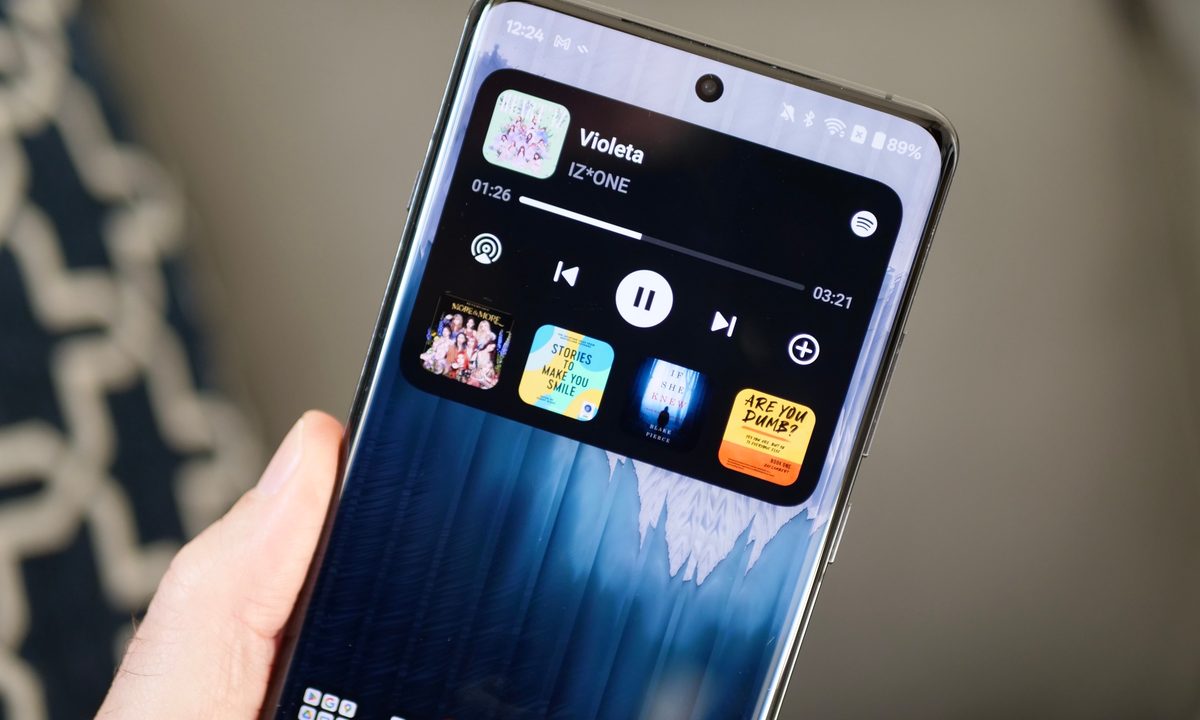
OxygenOS 15's dynamic island feature using Spotify.
Andy Boxall / Digital Trends

Everyone knows about Spotify, the go-to music streaming service for millions of subscribers the world over. Home to thousands of artists, albums, and playlists, as well as audiobooks and podcasts — the platform is constantly showcasing new features, too. But how do you share these discoveries with friends and family who may or may not be Spotify subscribers, too? One of the fastest ways to get everyone on the same page musically is by sharing a Spotify playlist, whether it’s one you created or a list of songs that someone else put together.

You’ll be able to share Spotify playlists with both the mobile and desktop versions of the Spotify app, so we’ve also put together this step-by-step guide to walk you through the process.

Recommended Videos

Difficulty

Easy

Duration

5 minutes

What You Need

  • Smartphone or computer

  • Spotify app

  • A love of music

Spotify on iPhone.
Bryan M. Wolfe / Digital Trends

Share a playlist from Spotify mobile

The Spotify mobile app is available for iOS and Android devices, and using the app to share a Spotify playlist couldn't be easier. Here's how:

Step 1: Open the Spotify app and select Your Library at the bottom right of the home page.

Step 2: Select Playlists at the top left of the page, find the playlist you want to share, then select the Three dots icon.

Step 3: Scroll to the bottom of the page and select Share.

Step 4: On the next screen, you'll have a number of sharing options to choose from. Keep in mind, these choices may not be the same on every device. Currently, on iOS, share options include:

  • Snapchat
  • Messages
  • WhatsApp
  • Instagram Stories
  • Facebook Messenger
  • Facebook
  • Twitter
  • Copy link
  • More (which uses iOS' built-in sharing options like email and AirDrop)

Share a playlist from the Spotify desktop app

Sharing a Spotify playlist using the Spotify desktop app is just as easy as sharing one via the mobile app.

Step 1: On the home page, select the Playlists option under the Your Library banner.

A red arrow pointing to the Playlists option on the Spotify desktop app.
Screenshot Screenshot

Step 2: Next, select the Three vertical dots icon.

how to share a spotify playlist screenshot
Screenshot Screenshot

Step 3: Now just hover down to the Share option and choose whether you'd like to copy the link or embed it on a webpage.

A red circle around the Share options on the Spotify desktop app.
Screenshot Screenshot

Now that we've provided you with several methods for sharing your Spotify playlists, you can begin sending music recommendations to your loved ones.

Michael Bizzaco
Former AV Contributor
Michael Bizzaco has been selling, installing, and talking about TVs, soundbars, streaming devices, and all things smart home…
Instagram could soon let you watch Reels while offline with automatic downloads
A new leak suggests Instagram is working on automatic downloads for Reels, which could let you continue your binge even without an internet connection.
Instagram and YouTube

Instagram could soon let users continue their Reels binge even when they're offline. A new leak suggests the app is working on automatic downloads for short-form videos, a move that would bring it closer to YouTube, which already allows offline viewing of Shorts.

What is Instagram working on?

Read more
Android 17 will let apps get the best out of your phone’s camera chops
A new vendor-defined extension system could bring advanced camera features like Super Resolution to your favorite third-party apps.
Android 17 logo.

Android 17 is shaping up to be quite an important update, especially if you care about camera quality across apps. Google is introducing a new way for phone makers to extend their custom camera features system-wide, which could finally close the gap between stock camera apps and third-party ones.

How is Android changing camera access for apps?

Read more
Google is preparing a priority charging feature for phones for rush scenarios
A hidden Android 17 feature appears built for quick top-ups, while keeping calls and texts flowing.
Electronics, Mobile Phone, Phone

Google is working on a priority charging feature designed for moments when you need power quickly. The option, uncovered in Android 17 beta code by Android Authority, focuses on boosting usable battery in a short window without shutting down core phone functions.

Instead of pushing higher charging speeds, the system shifts power toward the battery by dialing back background activity. Calls and texts still come through, but less critical processes pause so more energy goes into charging.

Read more