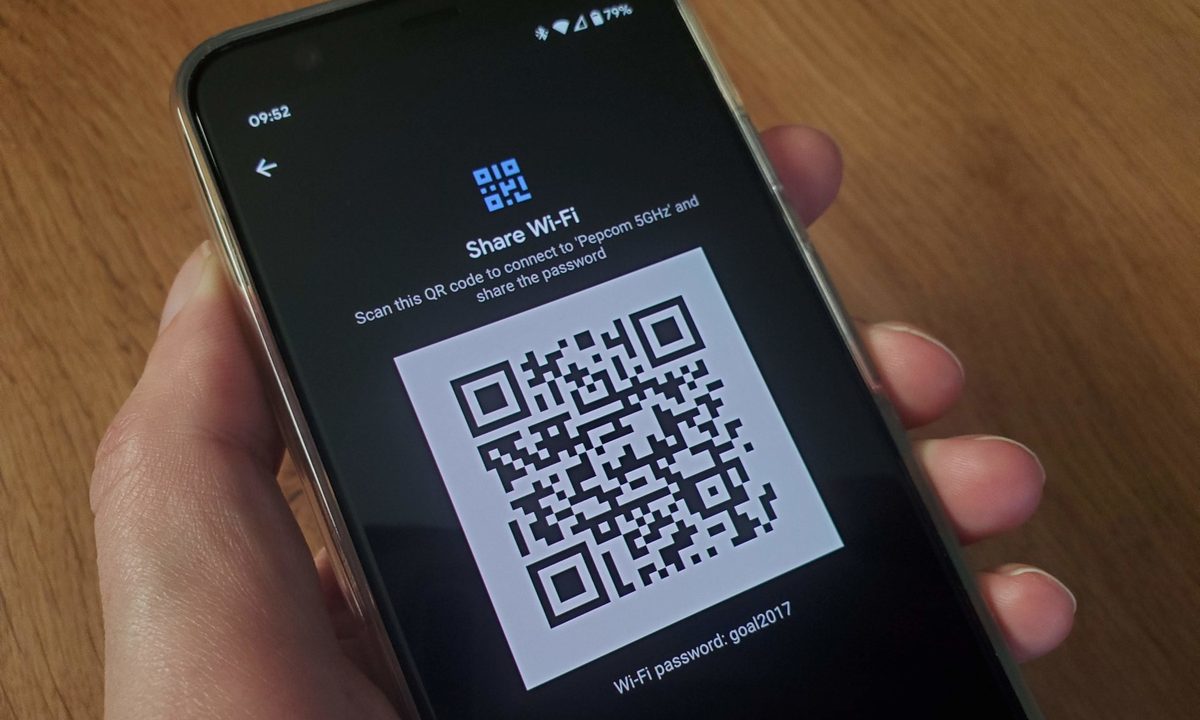
What network is it? What's the password? How do you spell that? If you're anything like us, you've heard those questions from guests to your home or work many, many times. You probably have the answers memorized, or maybe you have them written on a card for this precise situation.
With newer Android versions (10 and later), there's a quick, easy way to share pertinent information with someone — and it doesn't require you to remember any details or spell out a password. Instead, there's a quick shortcut option to generate a QR code that you can display on your phone screen with a tap. Visitors can then scan the code on their phone to connect instantly to your network.
Although you need a phone running Android 10 or later to generate the QR code, the beauty of this feature is that any phone, whether it's a phone running an older version of Android or even an iPhone, can scan the QR code and join the network.
How to create a QR code for your Wi-Fi network
We used a Samsung Galaxy S21 FE running Android 12 with Samsung One UI 4.1 for this guide. If you have a phone running Android 10 or later and want to try this, then here's how you do it:
Step 1: Pull down the Notification shade and long-press on the Wi-Fi icon, or tap Settings > Connections > Wi-Fi.

Step 2: Tap on the Settings icon (which looks like a cog) to the right of the network you want to share details for, most likely the one at the top that you’re currently connected to.

Step 3: Tap on the QR code icon at the bottom-left of your screen.

Step 4: You may have to confirm it’s you with a face or fingerprint scan or a PIN or pattern, and then your phone should display a QR code on the screen. From here, you can select either Nearby share or Quick share to share the QR code with nearby devices. You can also tap the Share icon to share via email, WhatsApp, text, or other methods.

Step 5: You’ll find a similar feature on most phones running stock Android 10 or later (like the Pixel 6). Simply pull down the Notification shade, long-press on the Wi-Fi icon, tap on the network you want to share, and you should see a QR code at the top of the page.
How to scan a QR code and join a Wi-Fi network
Although not all phones will be able to generate a QR code for network settings, most will be able to read one. There’s a QR reader built into the camera app for most Android phones and all iPhones running iOS 11 or later. Here’s how to use it and what to do if it doesn’t work:
Step 1: Open the camera app and hold your phone still over the QR code for a few seconds.
Step 2: You should see a link or a notification pop up on the screen with the name of the network you are trying to join, and you can simply tap it to log onto that Wi-Fi network.
Step 3: If it doesn’t work on your Android phone, but you do have Android 10 or later, then try this:
Pull down the Notification shade and long-press on the Wi-Fi icon, or tap Settings > Network and internet > Wi-Fi.
Step 4: At the bottom of the list, you should see an option that says Add network with a blue QR code icon on the right. Tap that and align the scanner.
Step 5: If it didn’t work and you have a phone running an older version of Android, then try this:
Open the camera app settings and look for an option to enable Google Lens or Google Lens suggestions, then try again. On some Samsung phones running Android 9.0 Pie, there’s a toggle to Scan QR codes at the top of your camera app settings.
Step 6: If that didn’t work, then you could install the Google Lens app or an app like QR Code Reader and scan the QR code with it.