
Google’s Pixel 9 lineup is here with four brand new devices: the base model Pixel 9, Pixel 9 Pro, Pixel 9 Pro XL, and the Pixel 9 Pro Fold. All of these phones are utilizing the new Tensor G4 chip with lots of RAM, giving you plenty of power to be able to handle all of the new AI tools.
Whether you like it or not, AI is here to stay. And one of the new features of the entire Pixel 9 lineup is the Add Me tool in the Camera app. If you’re wondering how to use this new tool, keep reading.

What is Add Me?
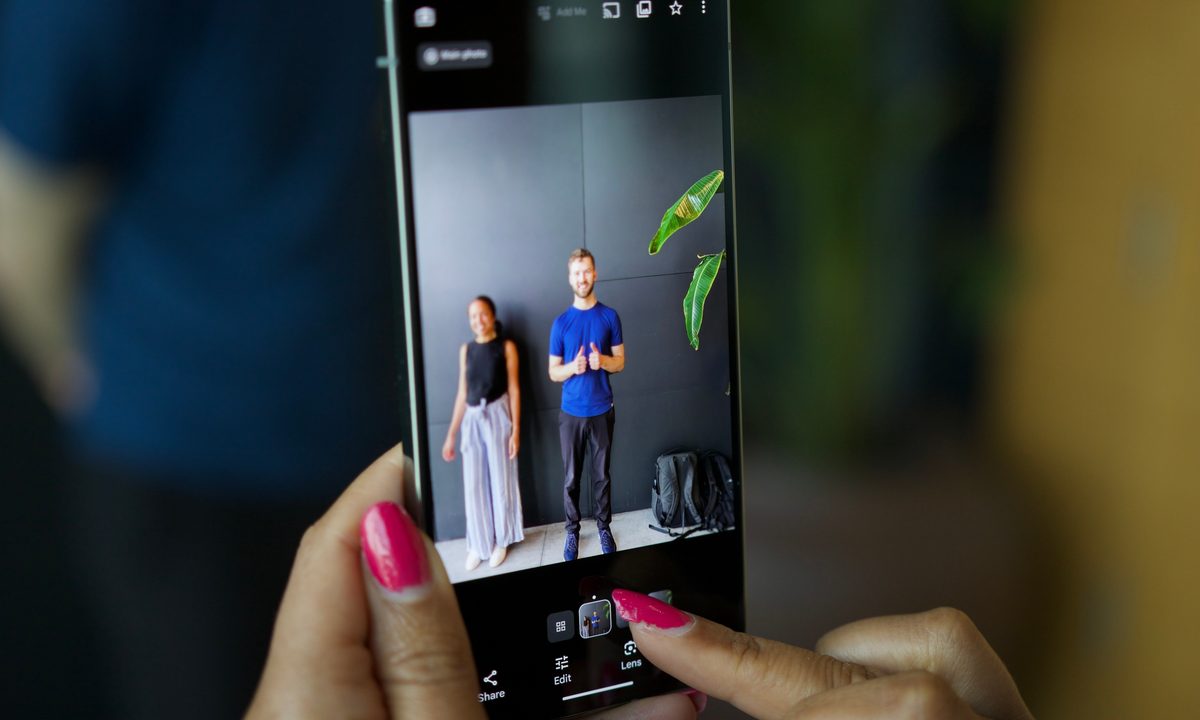
The Add Me feature is designed for group photos so that no one is left out of the shot, including the photographer.
We’ve all been in the situation before: you’re with a group of friends or family, and you want a photo with everyone in it to remember the occasion. Typically, you’ll either ask a stranger to take the photo for you or do a selfie. With the former, you may get someone who is good at taking photos, but chances are higher that they won’t take a great photo. And selfies will only really be good if the person taking the selfie has very long arms (or a selfie stick).
But Add Me solves this problem by utilizing AI. Last year, Google gave us Best Take, which allows you to take multiple group photos and combine them into a single image where it takes the best facial expression on each person to make the “perfect” shot. This was all done with AI, and Add Me works similarly.
With Add Me, you basically take two group photos, one with out the photo taked and one of that person, and the Pixel 9 uses AI to merge them into a single seamless shot so no one is left behind.

How to use Add Me on the Pixel 9
Now that we know what it is, how do we access this feature? It’s pretty easy.
Step 1: Launch the Camera app on your Pixel 9.
Step 2: Switch to the Add Me mode.

Step 3: Take your first photo.
Step 4: Have the photographer swap out with someone else in the photo.
Step 5: The second photographer helps guide the original photographer where to stand in the photo based on the overlay in the viewfinder.
Step 6: Take the second photo.

Step 7: Add Me will stitch the two photos together into a single image.
As cool as Add Me is, it’s not perfect. There are some limitations that you need to keep in mind when using it if you want the best results.
Add Me works best with static backgrounds, since it basically merges two photos together and you want the background to be the same. Add Me likely won’t work great if you have a busy background like a street or large crowds of people. And with the latter, Add Me may get confused on who is supposed to be in the photo or in the background.
The other thing to keep in mind is the orientation of the Pixel 9 itself when taking the photos. If the first photo is taken with the camera on the right side, then the second photo needs to also be taken with the camera on the right side, not the left. Otherwise, the internal sensors will be way off for the positioning of the photo.
And for best results, the positioning really needs to be as close as possible using the augmented reality guide. Because precision is key, there may be a bit of learning curve for some people to use this feature properly without issue.


