
It’s only been a little over two years since Apple unleashed its truly wireless earbuds — the aptly named AirPods — on the world, but in that time they’ve become nearly as ubiquitous as their iconic corded predecessors, the EarPods. Now in their second generation, these earbuds are more popular than ever. But how exactly do they work, what can they do, and how can you use them with your various devices? Whether you already own AirPods or are thinking of buying them, here’s a comprehensive guide to using Apple’s AirPods.
What are AirPods?

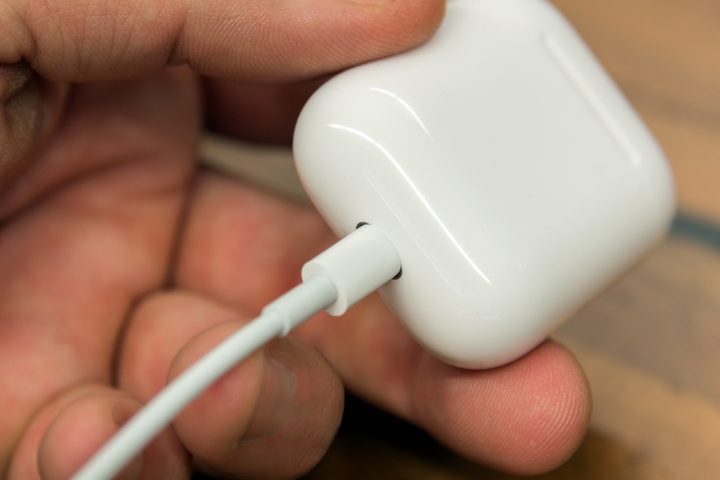
AirPods are truly wireless earbuds, which means that each earpiece is fully self-contained. There’s no need for any wires because the tiny speaker, microphone, battery, sensors, and wireless chip are all embedded inside the white plastic shell of each AirPod. AirPods come with a charging case that doubles as a safe and convenient way to store the earbuds when you’re not using them. The charging case is available in both wired and wireless versions, but in this case, we’re referring to how they’re recharged. The wireless model can be charged using an Apple lightning cable, or via a Qi-compatible wireless charger, whereas the wired version can only be charged via the lightning cable.
Depending on the version, AirPods offer between 4-5 hours of battery life before needing to be recharged in the charging case, though you may get substantially more time if you keep the volume set low.
What can AirPods do?

You can use AirPods for wirelessly listening to all kinds of audio from streaming music to live streaming TV. They work for voice calls too, and depending on whether you own the first or second generation — and are using an iOS device — you can summon Siri by tapping an AirPod, or by saying, “Hey Siri.” The built-in sensors let each AirPod know if it’s sitting in your ear or not, and they will automatically pause any audio when removed. This can be enabled or disabled if you’re an iOS user, but it’s turned on permanently for non-Apple devices.
Another handy AirPod feature if you’re an Apple device loyalist, is the ability to switch automatically between an iPhone and an Apple Watch. By using iCloud, you can skip the pairing process with any other Apple devices you own, like Macs, Apple TVs, or an iPod Touch.
How do I use AirPods?
As simple and easy to use as AirPods are, some features require a bit of an explanation.
 How to pair AirPods with an iPhone
 How to pair AirPods with an iPhone
This process couldn’t be easier:
- Make sure your AirPods are sitting inside their charging case with the lid closed
- Place the charging case next to your iPhone
- Unlock your iPhone
- Open the charging case lid. You’ll see an animated message appear on your iPhone with a “connect” button. Tap it, then tap the “done” button and, as it suggests, you’re done.
How to pair AirPods with an Android or non-Apple device
This process is only a wee bit harder:
- Go to the Bluetooth settings section for your specific device
- Choose the option to pair a new device
- With the AirPods in the charging case, open the case then press and hold the small setup button on the back of the case until you see the status light flash white
- The AirPods should now appear in the list of available Bluetooth accessories on your device’s screen
- Select them and follow any prompts that might appear
How to use AirPods to control your device
There are two main ways to control what’s happening on your connected Apple device with your AirPods.
The first, and most versatile, is to use Siri. If you have the first-generation AirPods, you can get Siri’s attention by double-tapping the left or right AirPod, depending on your settings (more on this below). Second-gen AirPods come pre-configured for hands-free Siri as long as “Hey Siri” is enabled on your iPhone. Using Siri gives you access to a variety of commands, such as:
- “Play my Favorites playlist.”
- “Turn up the volume.”
- “How do I get home from here?”
- “Skip to the next song.”
- “Pause music.”
- “How is the battery on my AirPods?”
 In fact, some things, like adjusting the volume can only be done hands-free when using Siri.
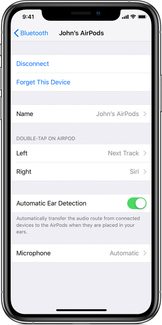
The second way is to use the double-tap feature. Each AirPod can be assigned a different double-tap function (sadly there’s no single-tap option), which is managed in the Bluetooth menu under Settings, in iOS. Your options for double-tap are:
- Talk to Siri
- Play/pause audio
- Skip to the next track
- Skip back to the previous track
- Turn off your audio content
Is there a difference between the first and second generation AirPods?
Yes, there are differences between the first and second generation AirPods though they’re subtle. The newer model offers slight improvements in battery life, Bluetooth connectivity, and the ability to summon Siri without double-tapping. But there’s also a compatibility difference:
First-gen AirPods will work with:
- iPhone, iPad, or iPod touch with iOS 10 or later
- Apple Watch with watchOS 3 or later
- Apple TV with tvOS 11 or later
- Mac with macOS Sierra or later
However, the newer second-gen AirPods require more up-to-date software on these devices:
- iPhone, iPad, or iPod touch with iOS 12.2 or later
- Apple Watch with watchOS 5.2 or later
- Apple TV with tvOS 12.2 or later
- Mac with macOS 10.14.4 or later


