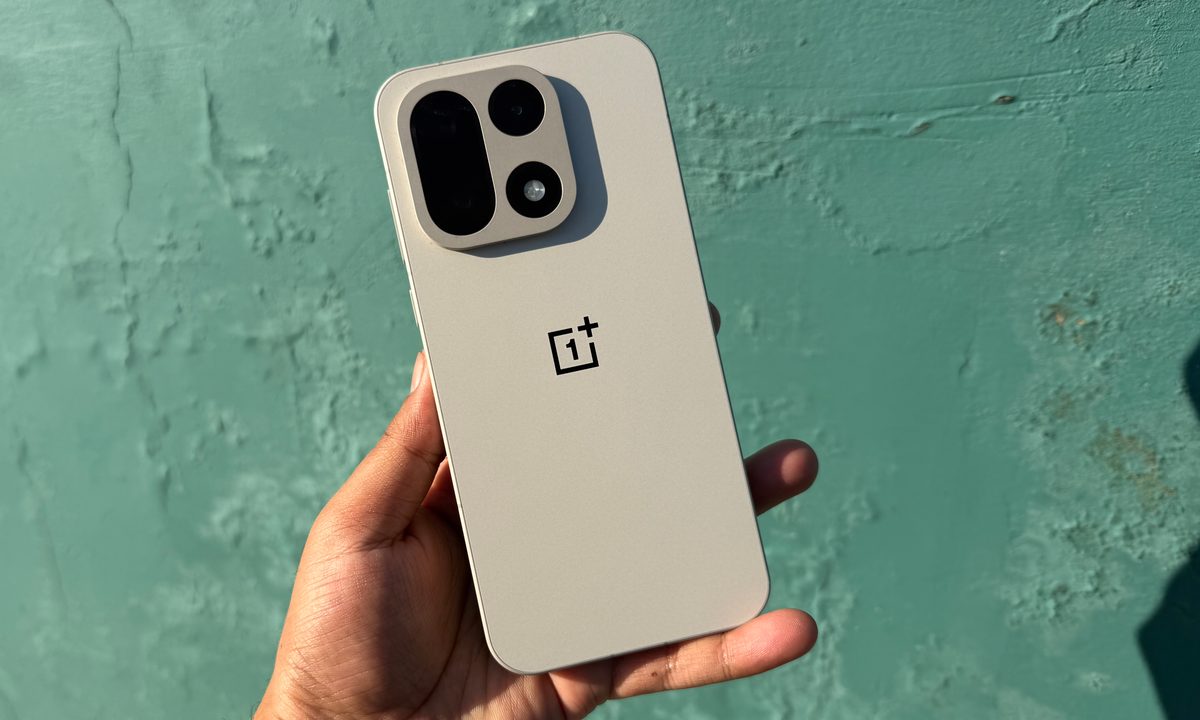
OnePlus is on a weird kind of arc right now. And by weird, I mean the good kind of weird, for the most part. Ever since the company revealed the OnePlus 15 and detailed what comes with the package, there has been some hot debate around the upgrade situation.
Some of the criticism, at least based on the on-paper specs, seems fair. The phone, however, offers plenty of meaty changes worth digging into. But one aspect, in particular, that deserves more attention is the software.
The OnePlus 15 is running Android 16-based OxygenOS 16, and it’s brimming with a ton of cool new features. I’ve spent a week with the latest iteration of OnePlus’ software, and it’s the most refined experience I’ve had on an Android phone, so far.
A second brain with superpowers
An extension of the Plus Mind system, Mind Space is like a memory vault. Whenever I come across something important while using my phone, I simply capture a screenshot. Sometimes, I copy the text and add it to notes. Occasionally, I save it as a browser bookmark, or send the URL to myself on WhatsApp or Slack.
At the end of the day, it’s a haphazard approach, and as a result, all the nuggets of information that I want to revisit in the future are scattered. Yes, there’s a bit of a discipline problem, too, but the lack of a universal — and convenient — memory vault is a pain point.
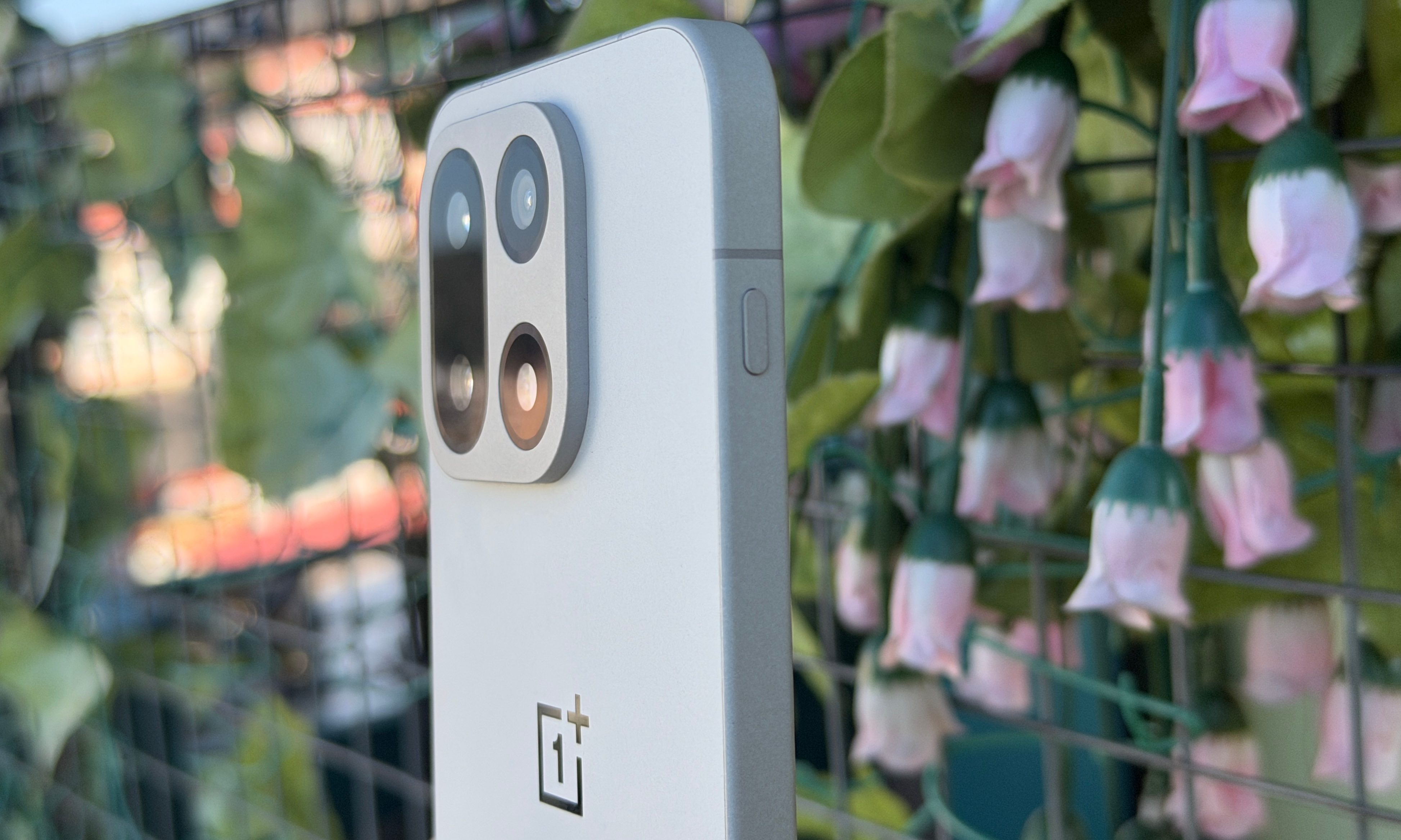
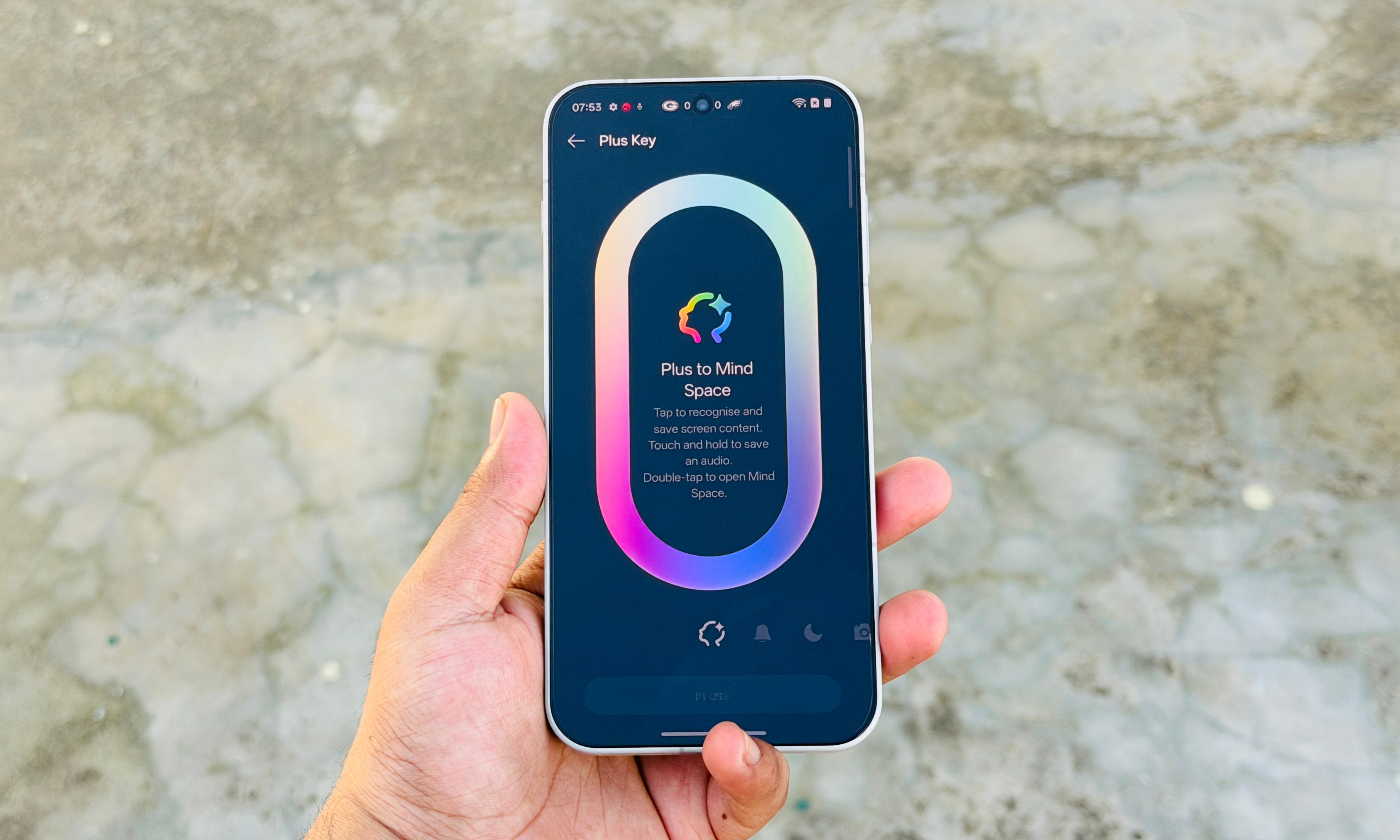
Mind Space in OxygenOS 16 solves that problem. It all begins with the dedicated Plus Key on the left edge. Just like the Action button on the current crop of iPhones, it’s customizable. But the real utility comes when you set it up as a Mind Space key.
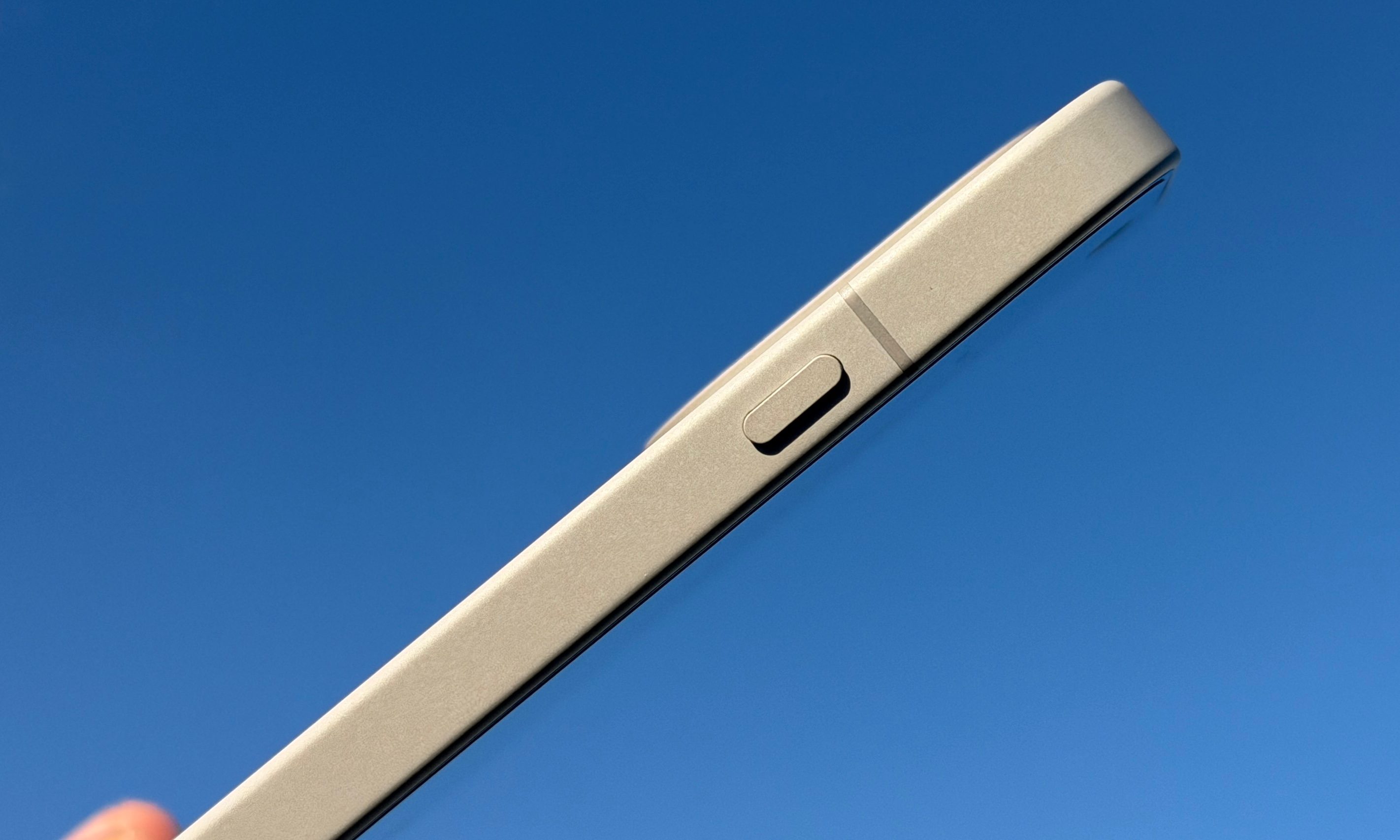
With a single click, it captures whatever appears on the screen. Specifically, it captures a screenshot and then uses AI to analyze the on-screen contents to pull relevant information. If it’s a Chrome webpage, the AI saves the URL, headline, and creates a brief summary, and then saves it as a digital note card in the Mind Space.
This description, generated by the AI, is crucial, and it makes the search system dramatically easier. For example, I clicked a selfie a few days ago and put it in the Mind Space. The AI quickly identified traits such as an arm tattoo, a beanie, glasses, and a peace sign posture.
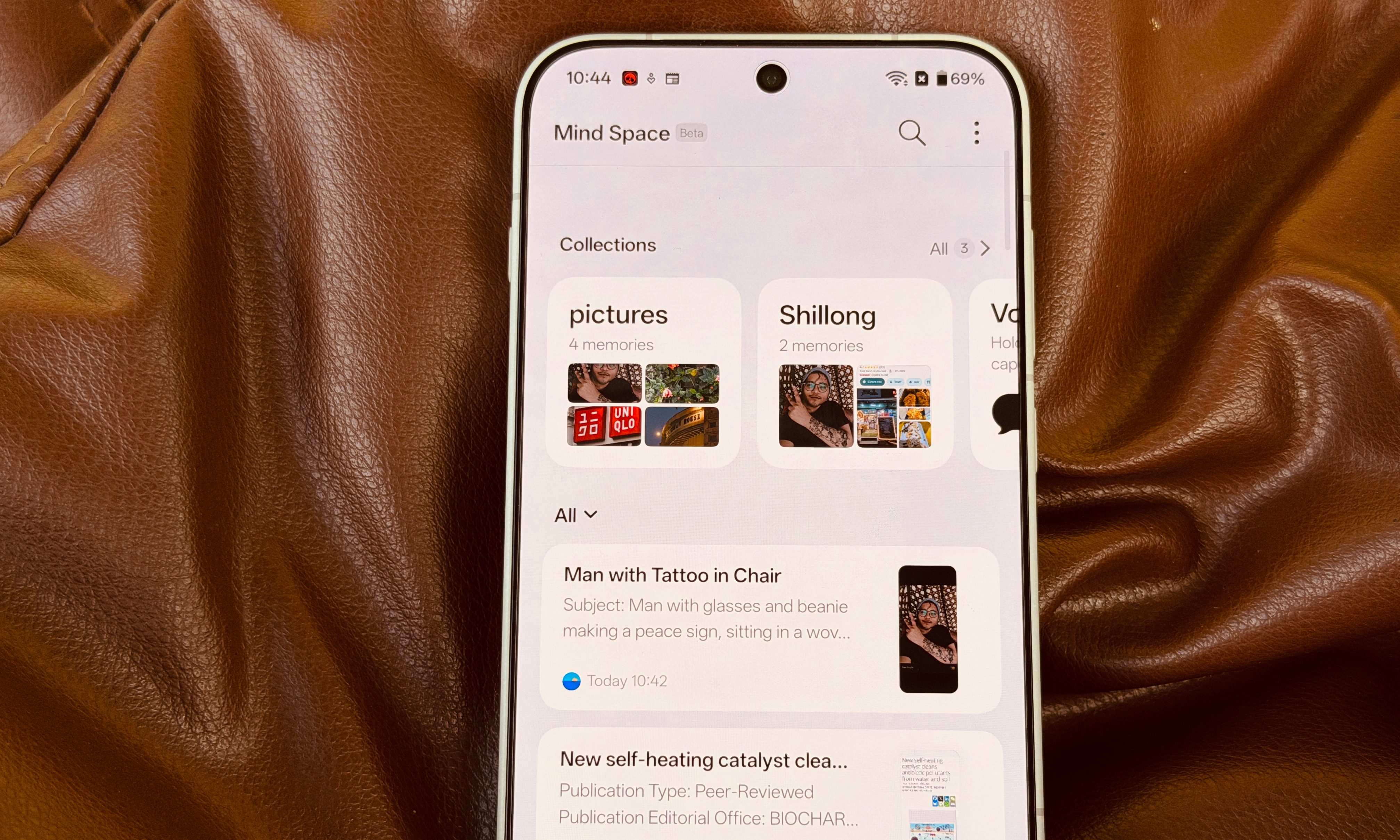

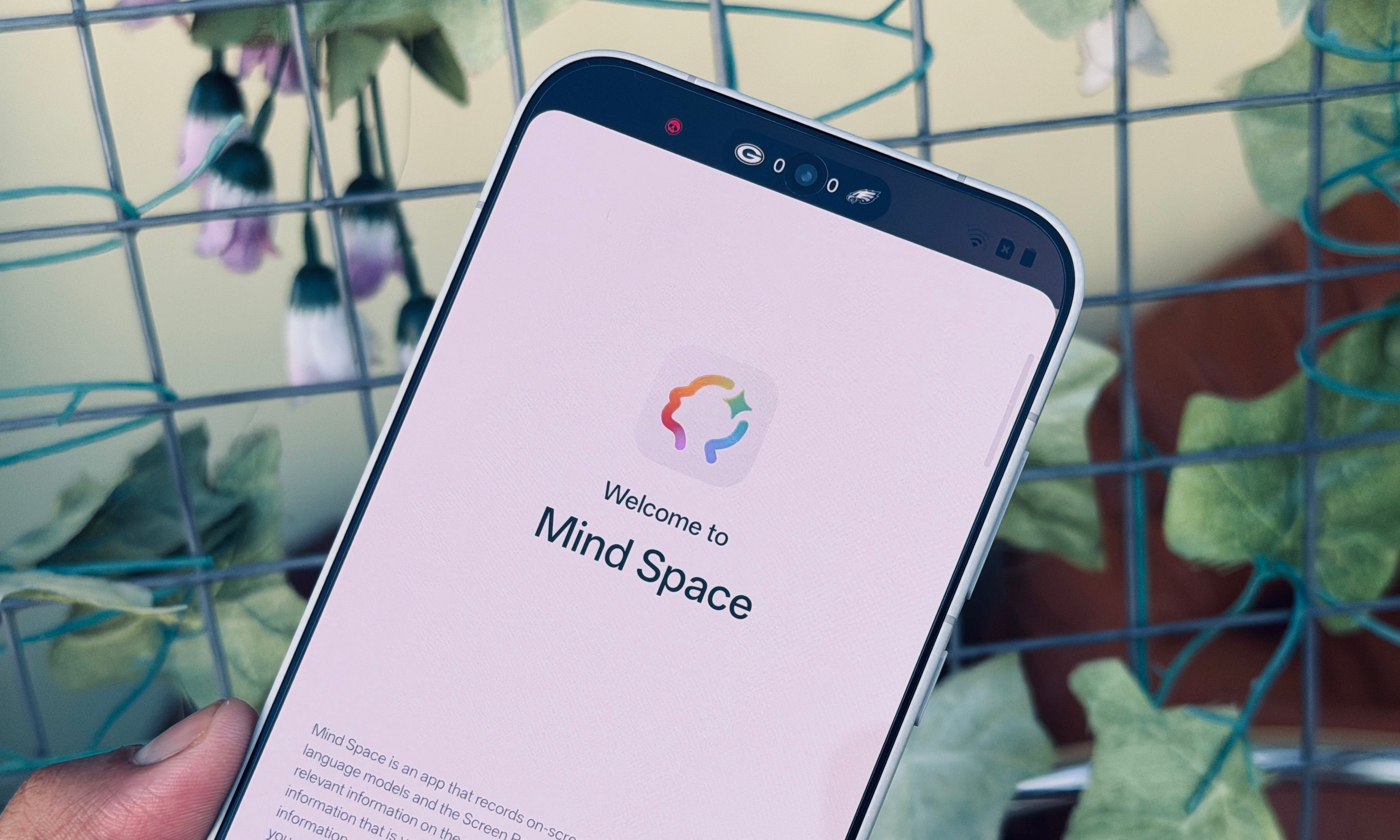
If I want to revisit the image, I don’t have to scroll past the long list of memories. Instead, I can do a contextual search with fragments that I remember, such as “beanie,” tattoo,” etc., and the AI will surface it. This feature comes in handy while travel planning, saving articles for later reading, and a lot more.
With a double click on the Plus Key, you land in the Mind Space, the home to all your digital memories. You can create custom groups for memories, as well. It even does auto-categorization if you go with a name like “pictures.” Pretty neat, overall. I love asking contextual questions, as well. And this is where things get interesting.
A helping hand that changes everything
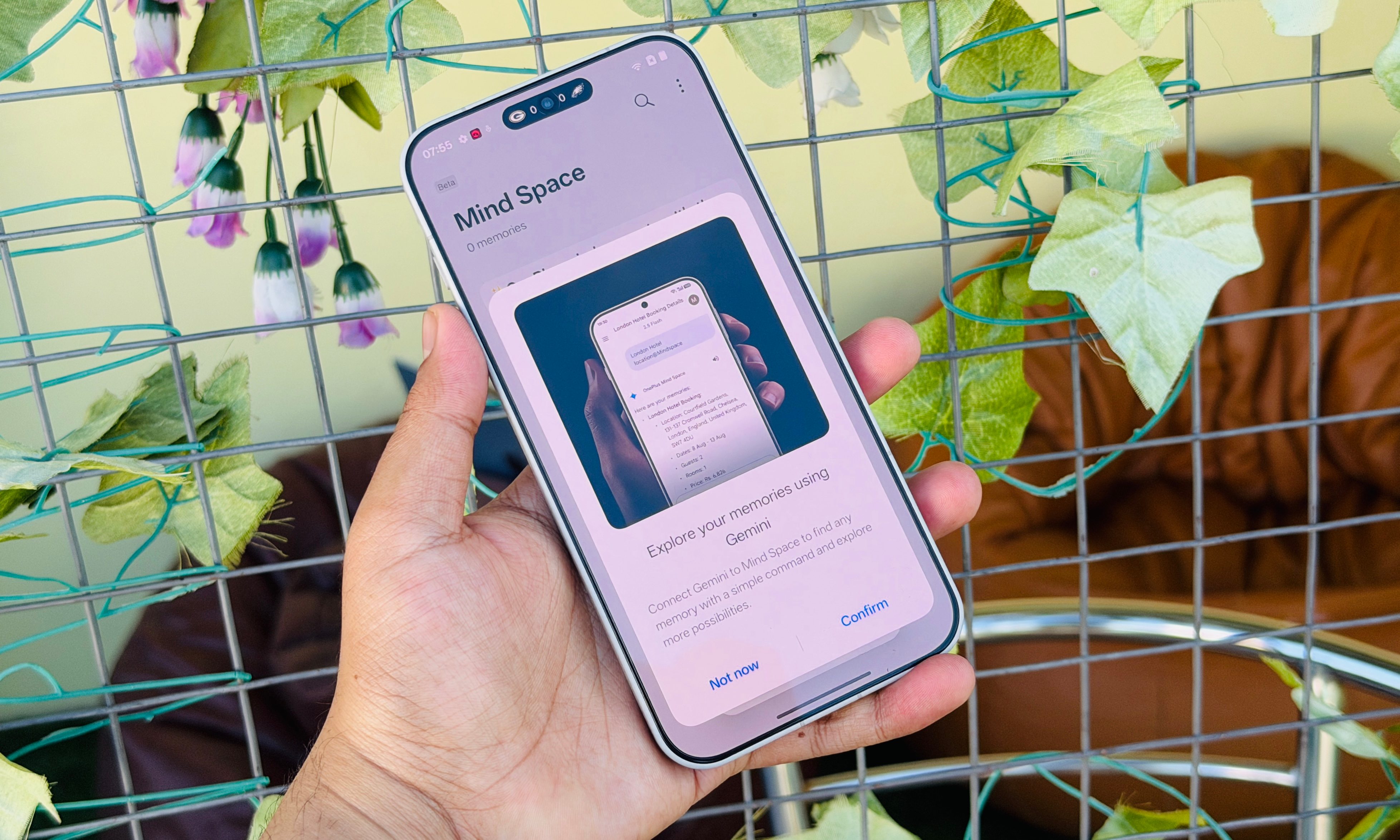
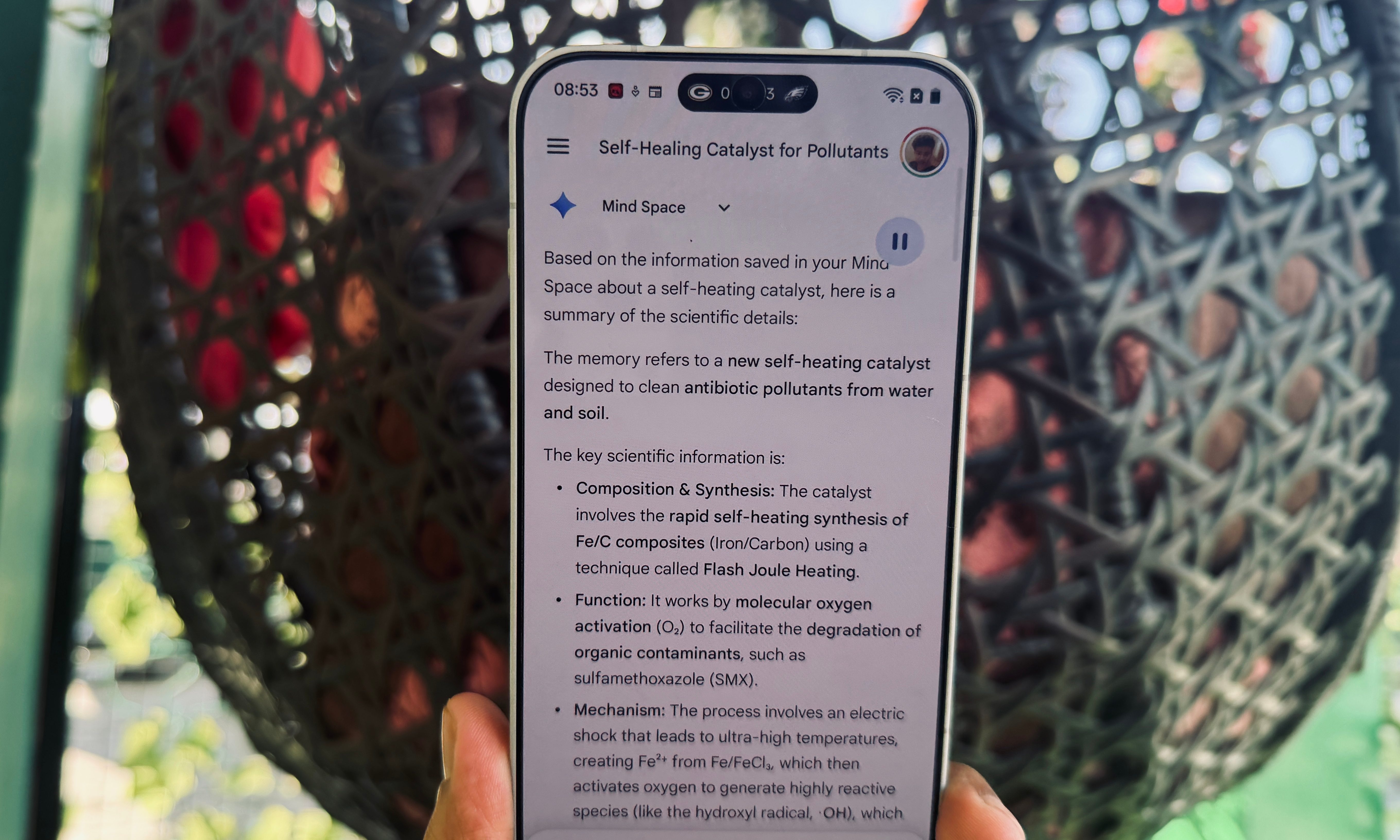
The built-in Mind Space has its knowledge limits, but you don’t have to look elsewhere. OnePlus has integrated Gemini with Mind Space. So, you can either pull up Gemini in Mind Space, or launch the dedicated app to ask questions.
For example, I can ask Gemini questions like “Hey, there’s a picture of the Statesman House in Mind Space. Tell me something about its history,” or “There’s a picture of a large orange flower in Mind Space. Identify the species and check if I can find it in a local store in Shillong.”
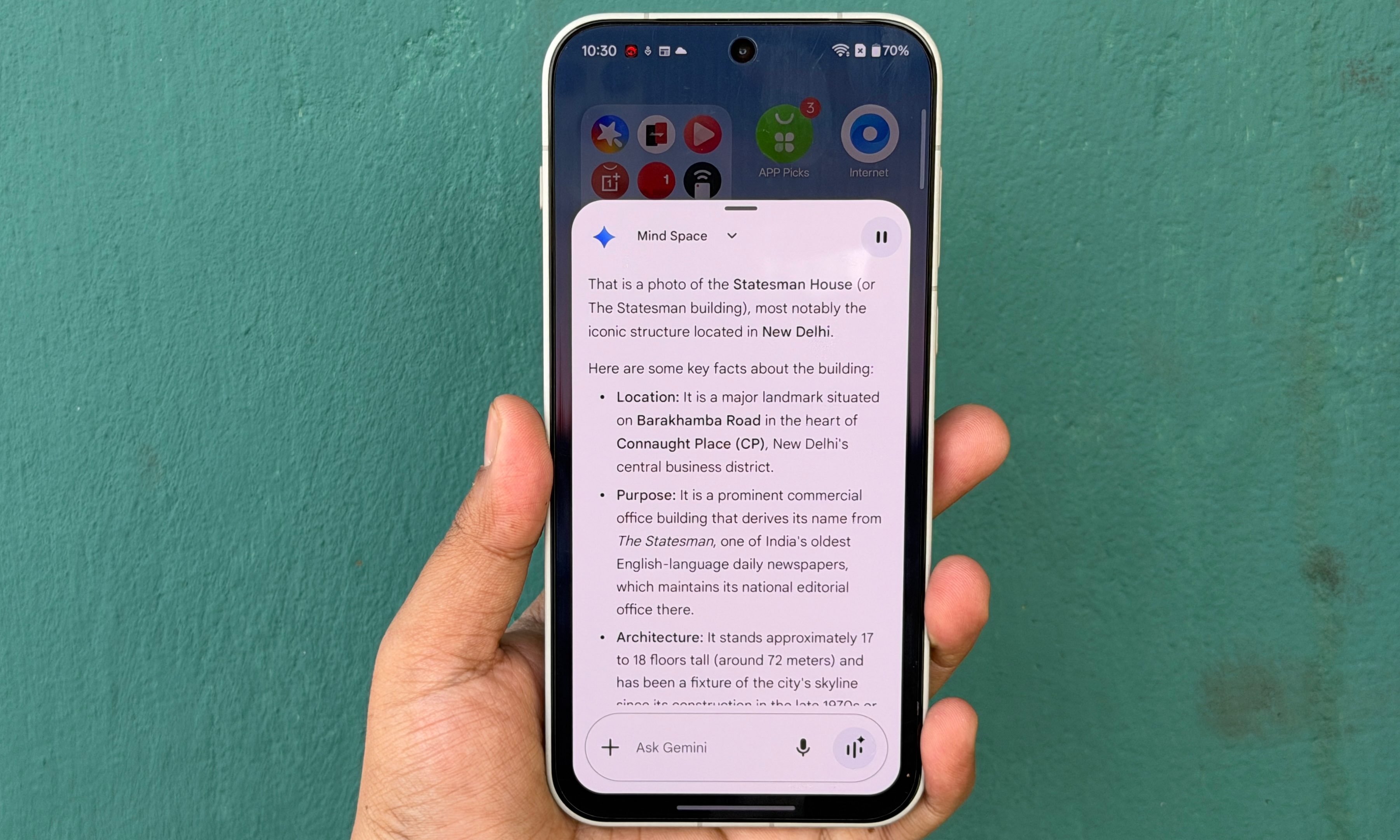
Gemini really takes things to the next level. That’s because when you activate it for Mind Space, it pulls up relevant information from the entire Google ecosystem, ranging from Search to Maps. And, of course, its own vast cache of training knowledge.
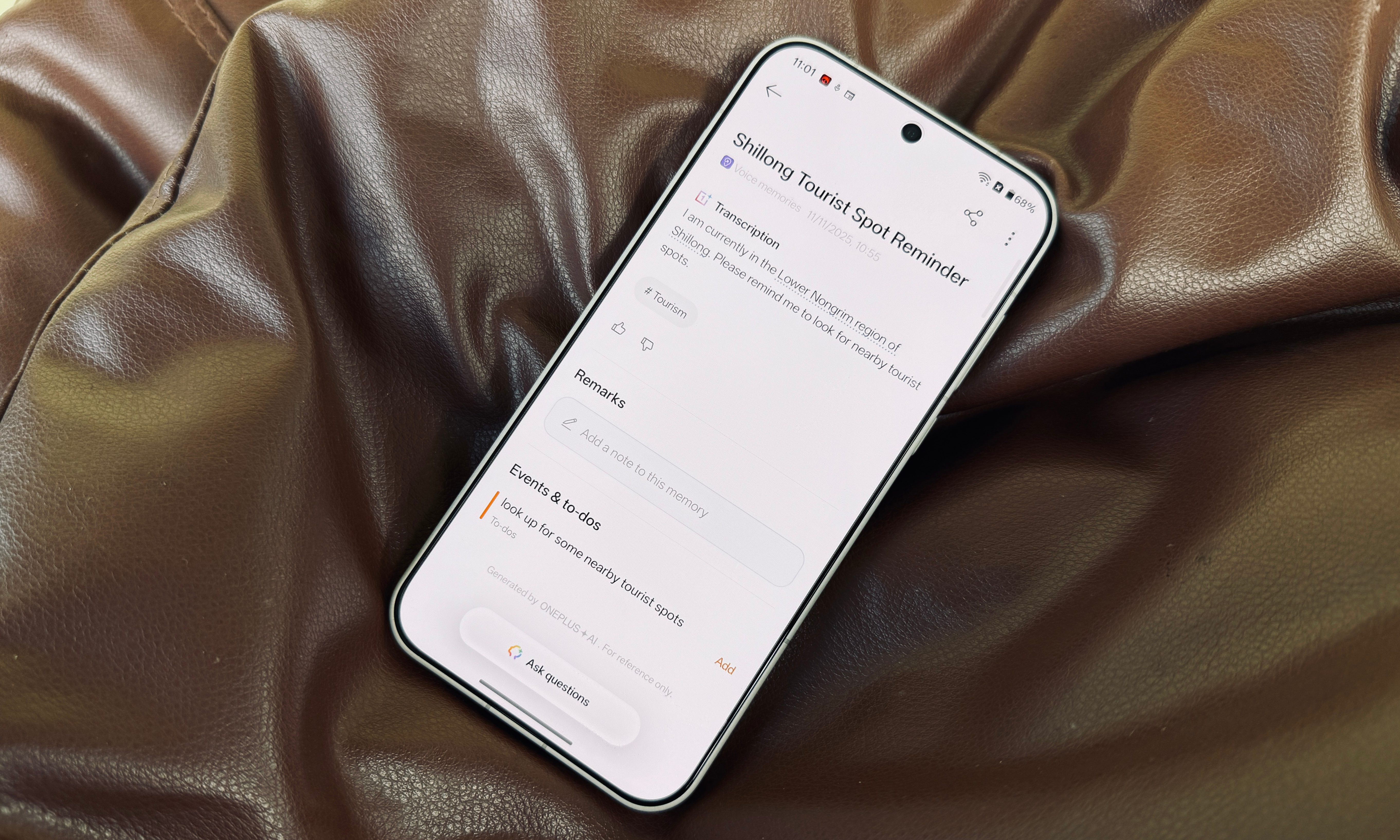
Mind Space does a lot more. For example, long-press on the Plus Key records a voice note. Instantly, it is transcribed and contextually saved with an appropriate title. For example, this was a brief voice note I recorded:
“I am in the Lower Nungrah region of Shillong. Remind me to ask a local friend to find nearby libraries.”
Once it was saved in the Mind Space, the AI not only transcribed and labelled it with appropriate hashtags (helps with Search), but also created an events reminder card for it. With a single tap, it was saved as an alert to my local reminders list.
It’s astoundingly useful, and extremely convenient. Instead of a learning curve, you keep running into utilitarian surprises in Mind Space. Overall, Mind Space is the best implementation of AI I’ve seen on a phone so far, and the Gemini integration is simply the cherry on top.
Playfully deep customization
The first time I set up the OnePlus 15, I was surprised by the sheer UI fluidity. Every gesture feels buttery smooth, animations are quicker, and visual transitions are seamless. It definitely feels better than the iPhone 17 Pro that I am currently pushing as my second device.

But beyond the snappy interactions, there’s a deep layer of customization on the table. Once again, the inspiration is pretty obvious, but OxygenOS 16 goes a step further. Let’s begin with the lock screen, which now lets you set motion photos and videos as the wallpaper, complete with depth effects for the clock widget and other items.
There’s a whole bunch of flux themes with scalable full-screen digital clocks, the kind you see on iOS 26. But in OxygenOS 16, there’s a lot more styles to pick from. Some of these even push a video depth effect for moving objects behind the clock. These, in particular, look stunning.

There are plenty of always-on display styles to pick from, both still and animated. Font and icon adjustments are all part of the parcel. Icons are my favorite part of Oxygen OS 16. OnePlus had made them scalable, which means you can stretch them to look like a vertical or horizontal bar, or even a large block with four buttons.
When you scale an app’s icon, as you can see in the image below, you can add quick action shortcuts. With Gmail, for example, I added a dedicated shortcut that takes me straight to the composer page, while the default icon lands me on the inbox view.
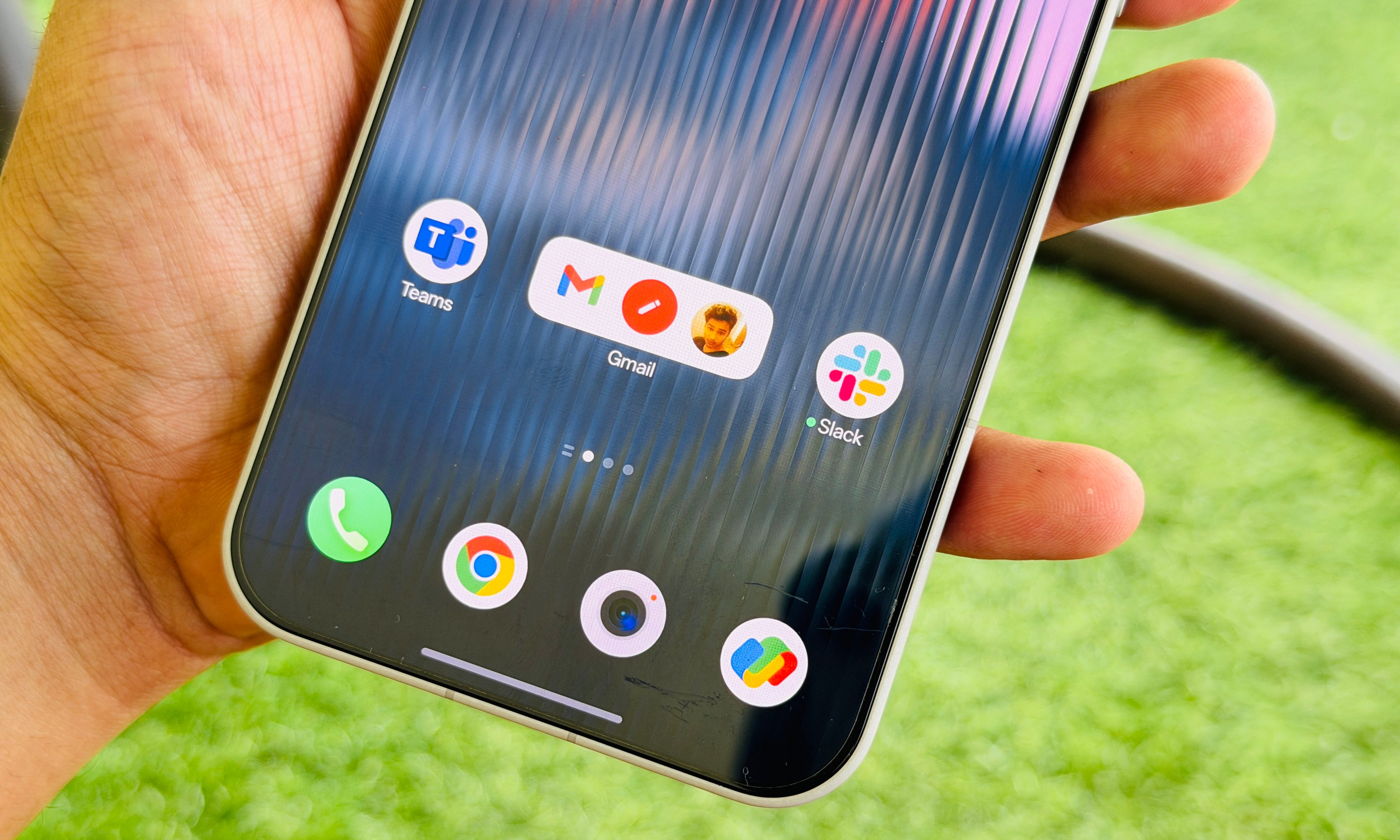
For the app drawer, OnePlus has added a new Categories section that is just a side swipe away. Here, apps are automatically grouped in categories for quicker access. And finally, the shelf, which is home to widgets, lands support for more types of apps and utilities.
And here’s my favorite part. You can now bump the OnePlus 15 against an iPhone to share files, just like NameDrop. This is unprecedented, and yeah, supremely useful, as well. There’s a remote Mac access system that is bundled as part of the O+ Connect app ecosystem. I recently tried it on a foldable phone and loved it.
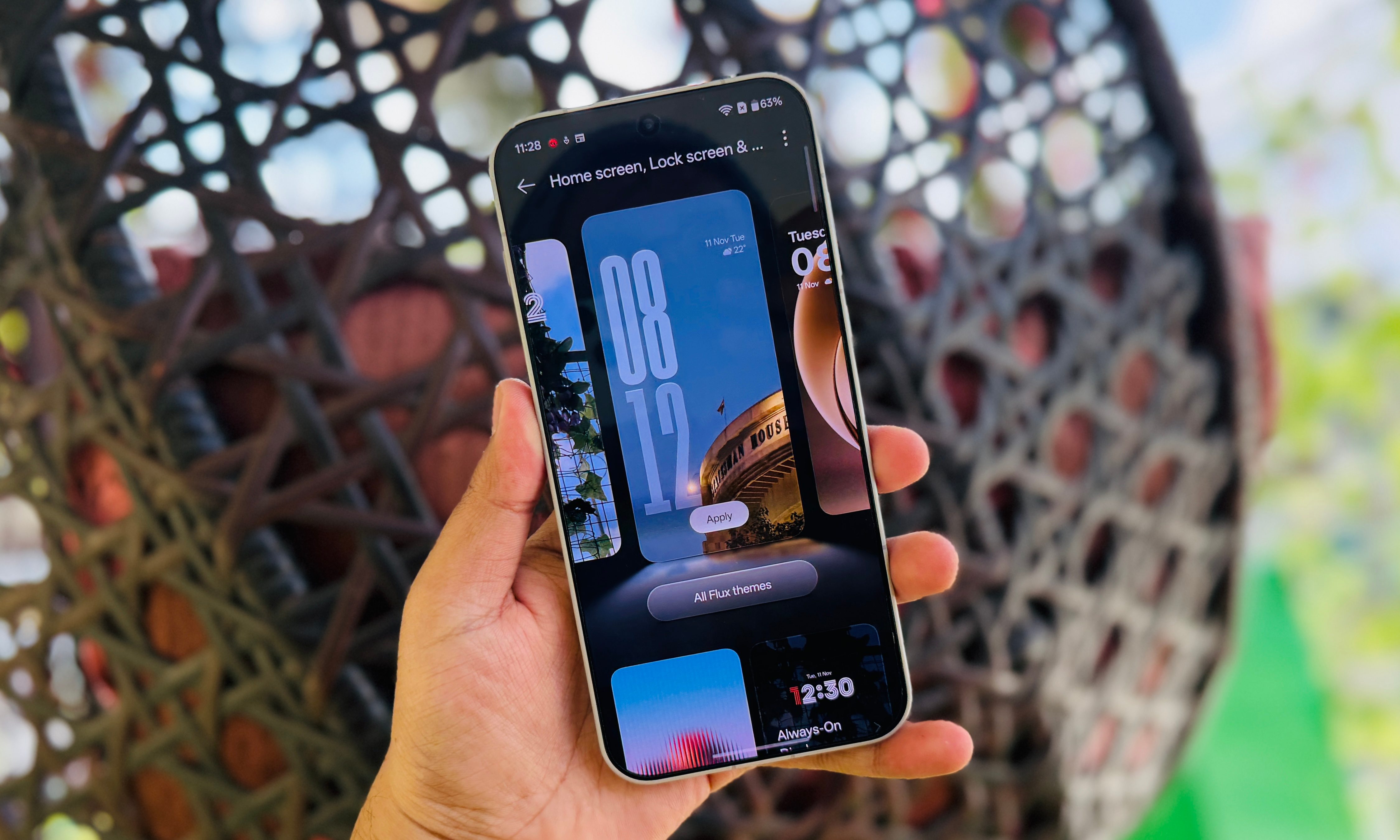
Overall, Oxygen OS 16 feels like the biggest refinement to the OnePlus smartphone experience. It impresses at the surface level with its sheer fluidity, adds meaningful customization perks, and truly taps into the potential of AI for meaningful work. I’ll have more to share in my review of the phone coming soon, so stay tuned for that!